Bulk editing
Bulk editing lets you modify many features at once, saving time when you need to make the same change across a group of facilities. Use bulk operations to copy or move facilities geographically, reassign fronts, edit labels, or assign features to operating lines.
Prerequisites
- You must have features in your project (see Features)
- You must have the Project Edit Permission or higher
How to access bulk editing
-
Click apps in the toolbar
-
Hover over Bulk Edit to see the available operations
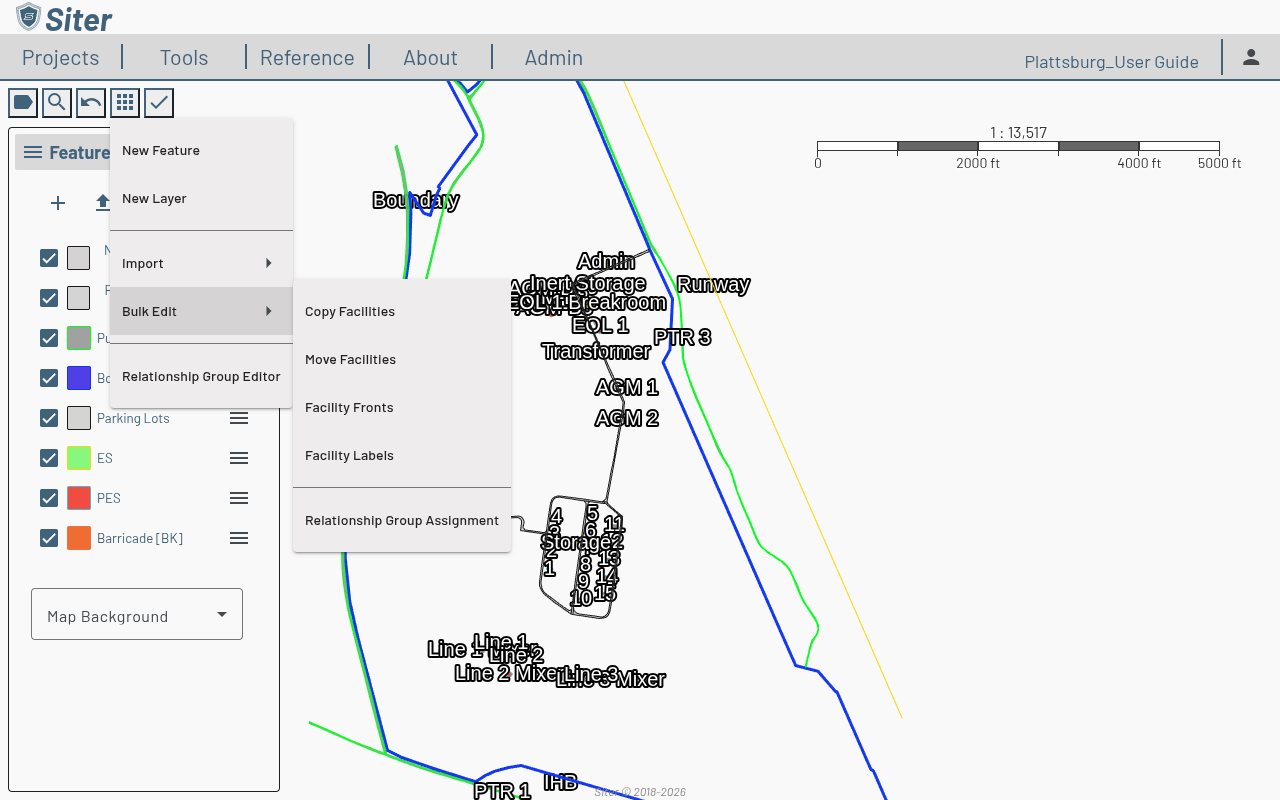
The footbar opens in dual-mode: with 0 or 1 rows selected the panel acts as a per-feature editor, with 2+ rows selected it switches to a multi-select bulk-apply mode.
How to copy facilities
- Click apps > Bulk Edit > Copy Facilities
- Select the features to copy from the footbar list or by clicking them on the map
- Drag the selected facilities to the destination location on the map
- Save the copy
Copied features retain all their attributes, explosives data, and shape geometry. The analysis search-zone faces are rebuilt at the new location so the copies analyze correctly without needing a manual refresh.
How to move facilities
- Click apps > Bulk Edit > Move Facilities
- Select the features to move
- Drag the selected facilities to the destination location on the map
- Save the move
Moving rebuilds the search-zone faces at the new geometry, so subsequent analyses use the post-move shapes. The feature's attributes, explosives, and relationships are unchanged.
How to edit facility fronts in bulk
- Click apps > Bulk Edit > Facility Fronts
- The footbar lists every facility with Segmented Facilities, No Segmentation Definitions, or shape layers as source filters
- Select features and click an edge on the map to assign the front, or click Reset to clear
- Save changes
The summary panel at the top of the footbar shows Assigned / Unassigned / N/A counts so you can see progress at a glance.
How to edit facility labels in bulk
- Click apps > Bulk Edit > Facility Labels
- Select features in the footbar
- Adjust label offsets, leader-line visibility, or per-feature label text (including token substitutions such as
{name},{layer},{att:CRITERIA:NAME}) - Save changes
How to assign features to relationship groups in bulk
- Click apps > Bulk Edit > Relationship Group Assignment
- Select features in the footbar
- Choose which relationship group the selection belongs to using the cards in the right side. Then hit apply
- Save
Unsaved relationship group assignments will be in an italicized red
This menu was added in v0.20 alongside the Relationship Group Editor (Apps > Relationship Group Editor) which authors the Line × Line × Criteria matrix that drives auto-relationships from these assignments.
Related topics
- Features — add and manage individual features
- Feature shapes — editing individual feature geometry and fronts
- Layers — organizing features into layers
- Feature relationships — relationship-group auto-relationships