Project Management page
The Project Management page lists every project you can access in one place, and is where you create, open, organize, share, and compare projects. It replaces the My Projects panel from earlier releases — clicking Projects in the top navigation bar now opens this page.
Prerequisites
- You must be signed in to Siter
- You must have the Project Read Permission or higher to view your projects
- You must have the Project Edit Permission or higher to create or import projects
How to find and organize your projects
-
Click Projects in the top navigation bar

-
Select a Group by option to control how the list is grouped: Installation (the default), Location, Status (Active / Archived), My Role, or None for a single flat list. Projects with no value for the chosen field appear under an Unspecified group.
-
Select a Sort by option to order projects within each group — Name, Location, Date Created, or Last Opened — and click the arrow beside it to switch between ascending and descending.
-
Click a group header to expand or collapse it. Each row shows the project's name, installation and location, your role, its status, and when you last opened it.
-
Click a project's name to open it on the map.
Your grouping and sort choices are remembered between visits, so the page opens the way you left it.
Per-project actions
Each row's Actions menu (⋮) offers the same operations as the in-project dashboard's settings gear, without opening the project first:

- Open — open the project on the map
- Manage Access — view the project's users and control sharing (see below)
- Copy — create a duplicate of the project
- Export Snapshot — download the project as a
.siter-snapshotfile - Archive / Restore — move the project out of (or back into) your active list
- Delete — permanently remove the project
For details on these operations, see Projects.
Page toolbar
The buttons at the top-right of the page:
- Create new project (+) — opens the New Project form on the map
- Import project snapshot (upload icon) — import a previously exported
.siter-snapshotfile - Request access to a project (key icon) — enter a share code a project owner sent you (see Sharing projects)
- Access requests (inbox icon) — review pending access requests across every project you administer; a badge shows how many are waiting
- Compare / Merge — compare two selected projects (see below)
How to manage a project's access
-
Open the row's Actions menu (⋮) and select Manage Access
-
The Users tab lists who has access, their project role, and when they last opened the project

-
The Sharing tab holds the project's share code — generate one, copy it, check its expiration, or stop sharing
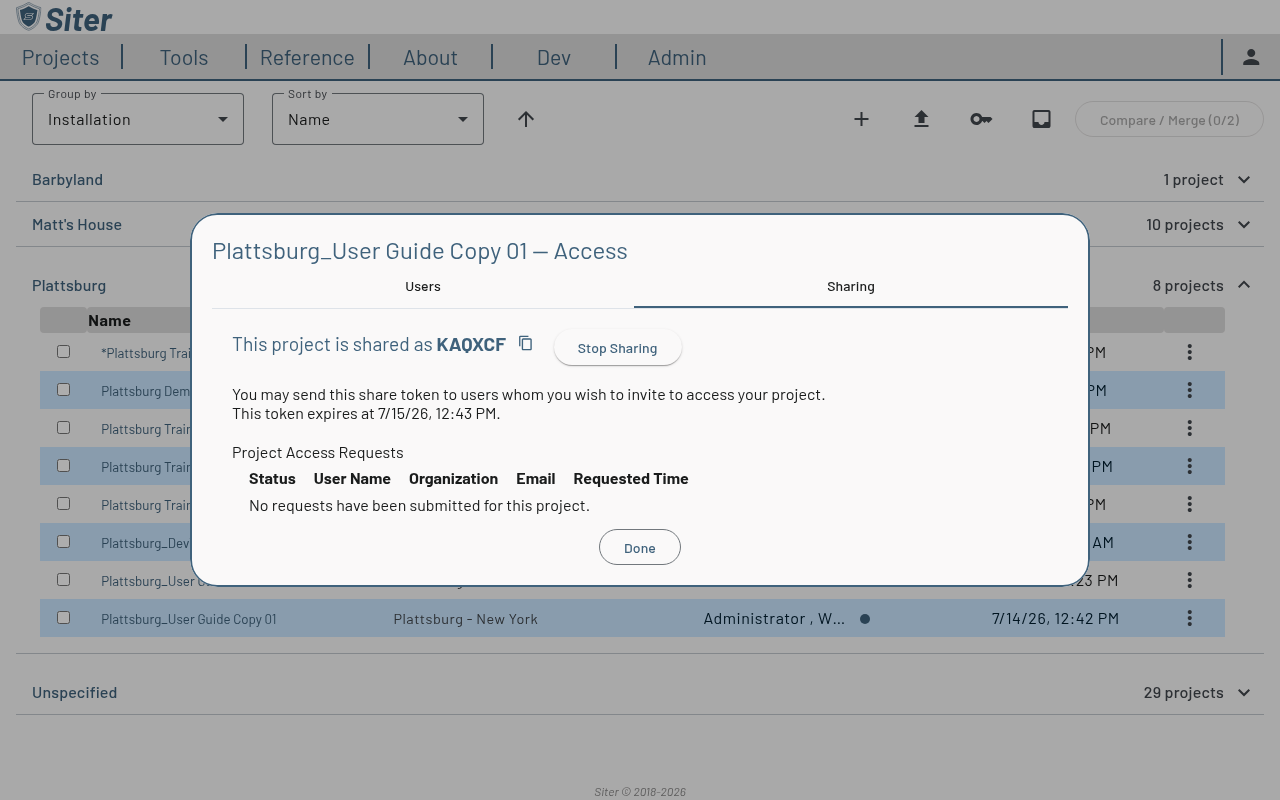
The full sharing workflow — share codes, access requests, and roles — is covered in Sharing projects.
How to compare two projects
-
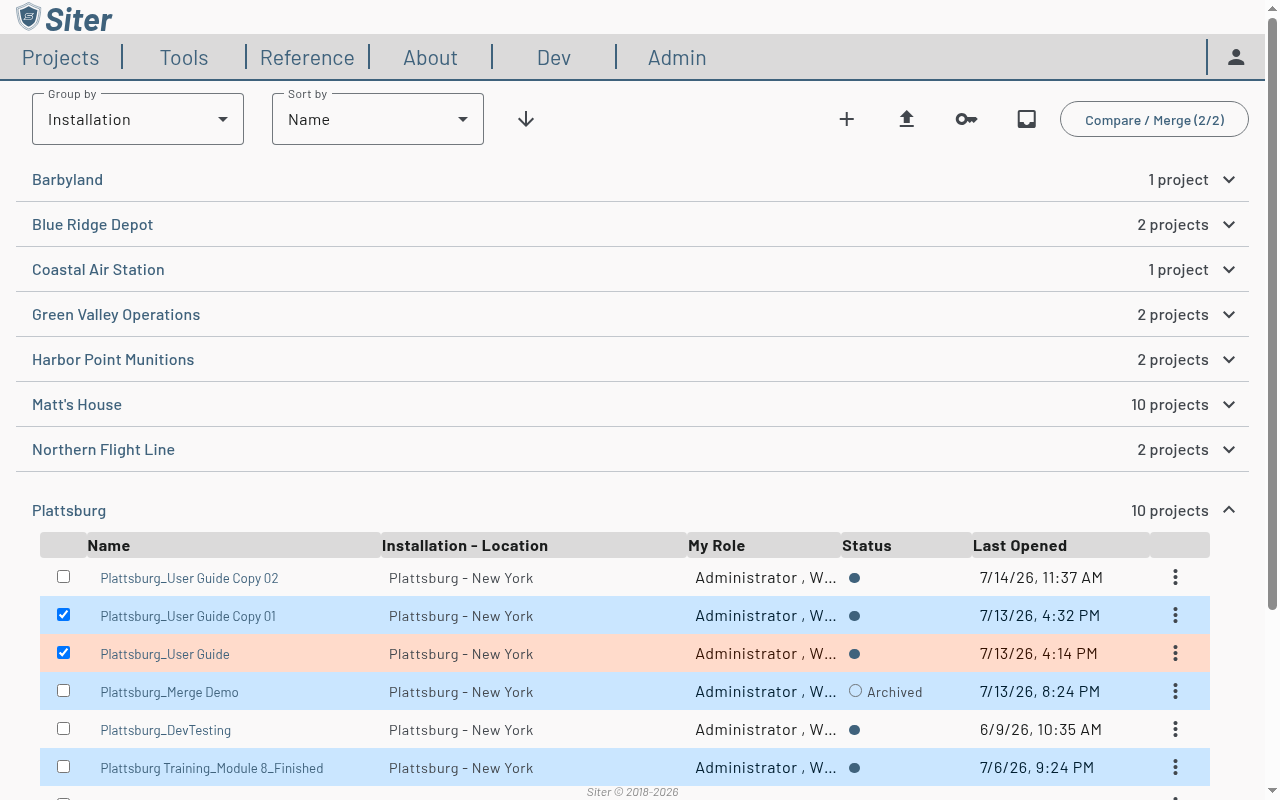
Tick the checkbox on two projects — the Compare / Merge button shows how many are selected (you can select at most two)
-
Click Compare / Merge to open the comparison tool
See Comparing and merging projects for how to read the comparison and apply a merge.
Troubleshooting
A project is missing from the list
Cause: The project is archived, and the default grouping only surfaces active projects prominently.
Solution: Set Group by to Status and expand the Archived group. Use the row's Actions menu → Restore to bring it back.
The Compare / Merge button is disabled
Cause: Fewer or more than two projects are selected.
Solution: Tick exactly two project checkboxes. The button label shows the current count (e.g., 2/2).
Related topics
- Projects — create, open, edit, copy, archive, and delete projects
- Sharing projects — share codes, access requests, and project roles
- Comparing and merging projects — see what differs between two projects and merge selected changes