Sharing projects
Siter allows project owners to share projects with other users through share tokens. A share token is a short code that you send to colleagues, who then use it to request access to your project. You review and approve or reject each request, controlling who can see your data and at what permission level.
Prerequisites
- You must have the ProjectAdmin role on the project to manage sharing
- Users requesting access must have a Siter account
How to share a project
-
Open the project and click the project name in the upper-right corner to open the project dashboard
-
Click the Sharing tab
-
Click Share It
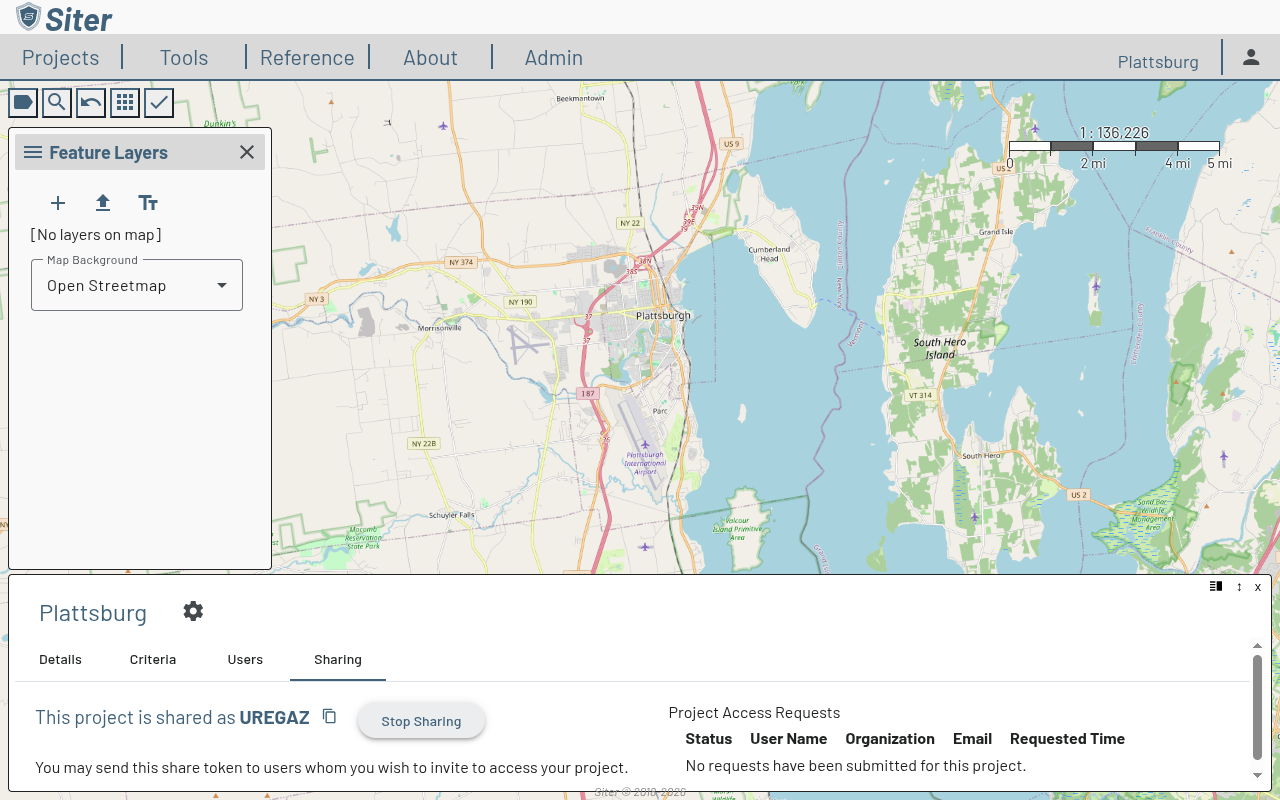
-
Siter generates a share token (e.g., UREGAZ) and displays it on the Sharing tab
-
Click the copy icon next to the token to copy it to your clipboard
-
Send the token to the users you want to invite
Share tokens expire automatically. The expiration date is displayed below the token. Generate a new token if the current one has expired.
How to stop sharing a project
- Open the project dashboard and click the Sharing tab
- Click Stop Sharing
- The share token is invalidated and no new access requests can be made with it
How to request access to a shared project
- Click Projects in the top navigation bar
- Click the settings gear on the My Projects panel and select Request
- Enter the share token you received from the project owner
- Submit your request
The project owner receives your request and can approve or reject it from the Sharing tab.
How to manage access requests
- Open the project dashboard and click the Sharing tab
- The Project Access Requests table shows all pending, approved, and rejected requests with the user's name, organization, email, and requested time
- Click a pending request to approve or reject it
- When approving, assign a project role:
- Reader — can view the project and its data but cannot make changes
- Writer — can view and edit project features and layers
- Administrator — full project control including user management and sharing
How to view project users
- Open the project dashboard and click the Users tab
- The table shows each user's name, project role, and when they last opened the project