Licensing
Every Siter deployment requires a license — a signed text block issued by the Siter team that sets the plan, expiration date, and the number of editor seats. The API validates licenses against the public key configured at deployment time (Licensing__PublicKey), so a license cannot be altered or forged.
This guide covers applying and renewing licenses. For the deployment-time variables, see Deploying a Siter Environment.
Licensing models
The multiTenant setting selects between two models:
- Single-tenant (
multiTenant=false, the default) — one system-wide license covers the whole deployment. The license is attached to the built-in Default customer, either through the Admin UI or through configuration (recommended for containerized deployments — see below). - Multi-tenant (
multiTenant=true) — each customer/organization carries its own license, applied individually through the Admin UI.
How to apply or renew a license from the Admin UI
You must be a system administrator.
-
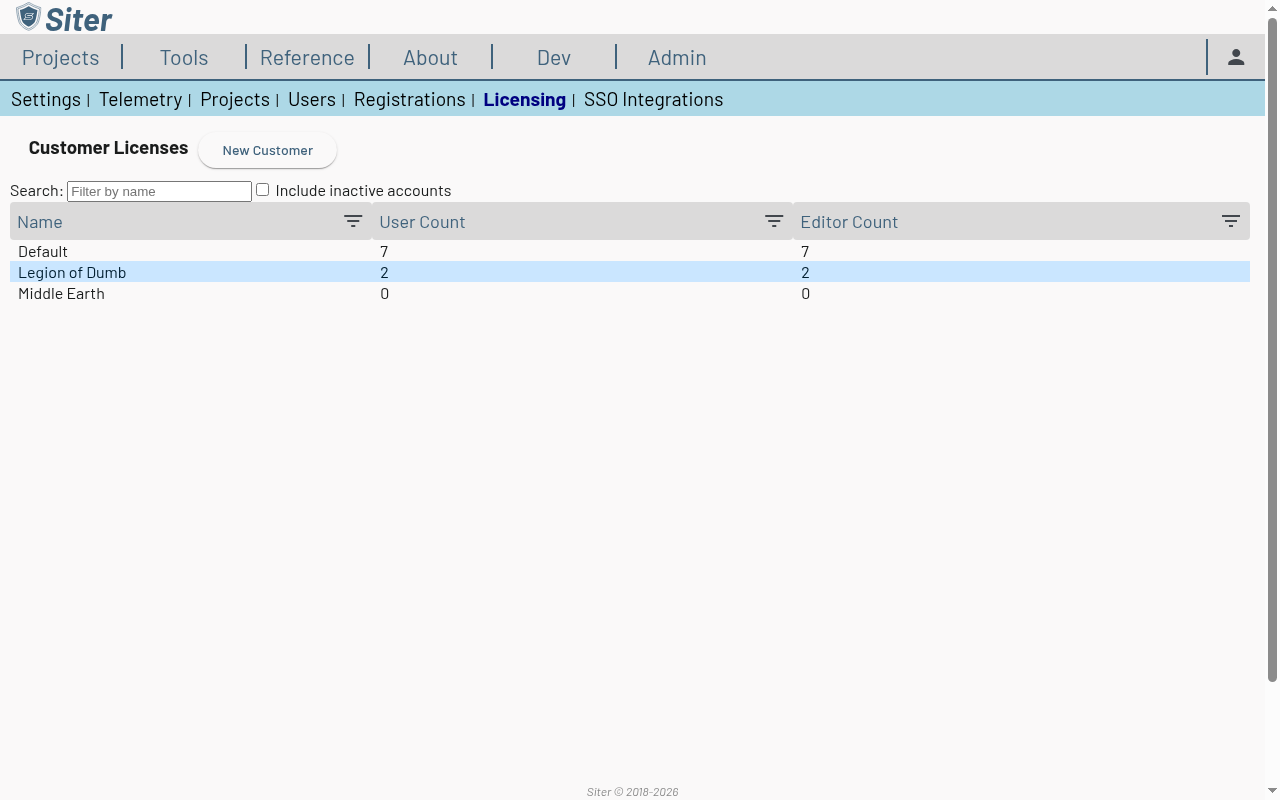
Click Admin in the top navigation bar, then Licensing
-
The Customer Licenses table lists each customer with its user and editor counts. Click the customer to license — in a single-tenant deployment, click Default
-
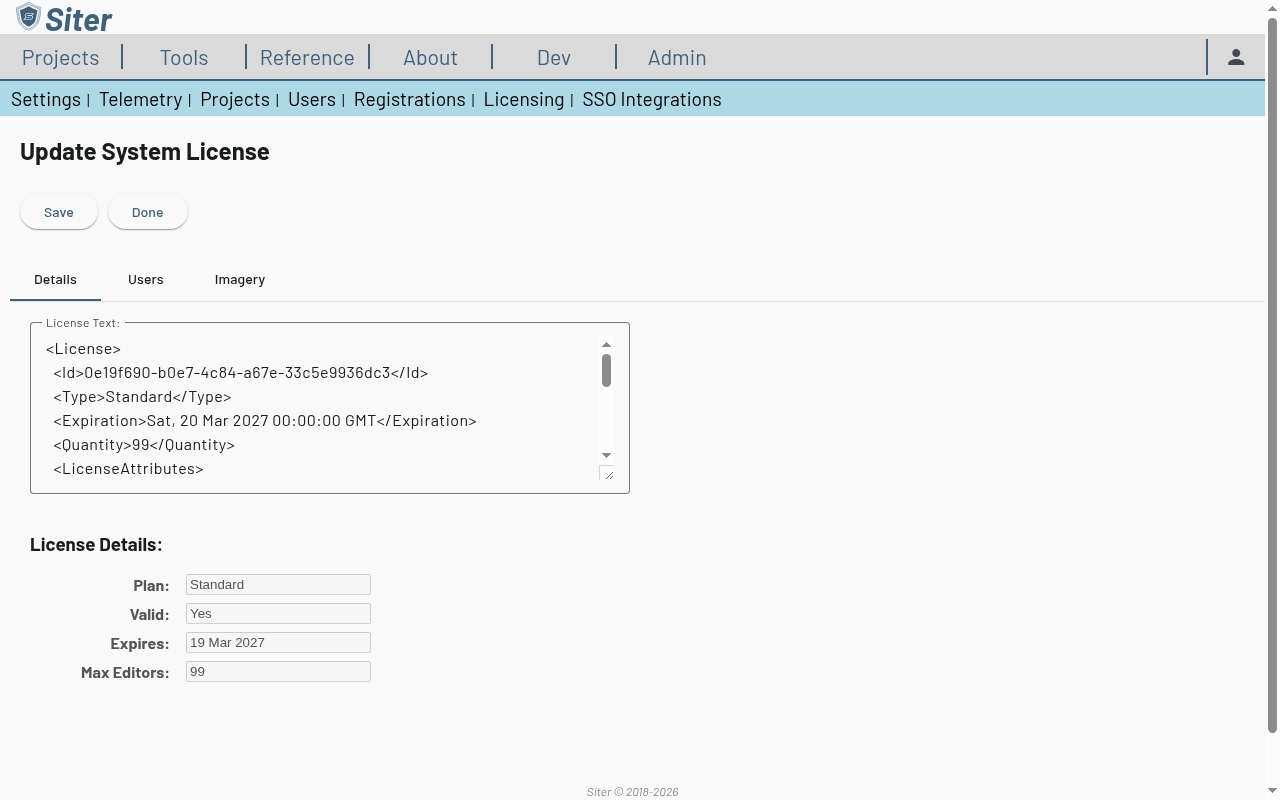
Paste the license text you received from the Siter team into the License Text field
-
Siter validates the text as soon as you leave the field and shows the parsed License Details — plan, validity, expiration, and the editor-seat limit. If the text is not a valid license, Siter says so and refuses to save it.
-
Click Save
Renewal is the same flow — paste the replacement license over the old one and save. The change takes effect immediately; no restart is required.
Single-tenant: applying the license through configuration
For single-tenant deployments, the system license can be supplied by configuration instead of the Admin UI — the natural fit for containerized environments where configuration lives in the compose file. Siter checks the configured license at every startup and applies it to the Default customer whenever it has changed, so renewing is: update the value, restart the API.
Siter looks for the license in this order:
| Source | Description |
|---|---|
Licensing__LicenseFilePath | Path to a license file on disk (volume-mount the file into the API container). |
Licensing__SystemLicenseString | The license text itself, as a configuration value. |
SITER_SYSTEM_LICENSE | The license text itself, as a plain environment variable. |
When the license is supplied this way, the Default customer's page in the Admin UI becomes read-only and directs administrators to update the configuration instead — the configured value is the source of truth.
The license text may be pasted as XML or as its Base64 form — both are accepted everywhere a license is entered.
Editor seats
The license caps the number of active editor accounts (users with edit rights) for the customer. The Users tab on the customer's page shows the limit and the current count (e.g., "This license is limited to 99 active editor user accounts. Active Editors Assigned: 7"), and the Customer Licenses table shows per-customer user and editor counts at a glance. Deactivating a user frees their seat.
Approving registration requests counts against the same limit: accepting a registration with an editor role — one at a time or with Accept All — is refused when it would exceed the licensed editor seats. Accept All and Reject All ask for confirmation first, naming the roles being granted and the number of registrations affected.
How seats affect editor tools in the app
Seats are counted, not assigned: every active user with an editor role occupies one. Siter applies a single seat rule on the server and in the app — a user may edit when they already occupy a seat, or when a seat is free. In practice:
- A user who already occupies a seat keeps their editor tools even when the license is fully allocated. This includes an over-allocated license — a renewal that carries fewer seats than the customer's current editor count — where existing editors keep working and no further editors can be added until the count drops below the limit.
- Granting an editor role, or approving a registration with one, is refused by the server when every seat is taken ("This user cannot be licensed as an editor. Max N editors exceeded."). The app checks the same rule before it shows editor tools, so a user with an editor role but no seat sees viewer tools rather than editor tools the server would reject. Their account still signs in and can view projects.
- Deactivating a user frees their seat immediately.
Siter re-checks the rule whenever a user's account is updated — a role change or deactivation takes effect in that user's open session without a sign-out.
Troubleshooting
"This does not seem to be a valid license code"
Cause: The pasted text is incomplete, altered, or was signed for a different public key than the one this deployment was configured with.
Solution: Re-copy the license text exactly as provided, including the signature block. If it still fails, confirm with the Siter team that the license matches your deployment's Licensing__PublicKey.
The Default customer's license cannot be edited
Cause: The deployment supplies the system license through configuration (SITER_SYSTEM_LICENSE, Licensing__SystemLicenseString, or Licensing__LicenseFilePath), which takes precedence over the Admin UI.
Solution: Update the configured value (or the mounted license file) and restart the API.
Users cannot edit even though the license is valid
Cause: The active editor count has reached the license's editor-seat limit.
Solution: Check the customer's Users tab for the seat count. Deactivate unused editor accounts, or contact the Siter team for a license with more seats. Editors who already hold a seat are unaffected — see How seats affect editor tools in the app.
"Unable to verify your editing license" notification at sign-in
Cause: The app could not reach the server to look up your license when you signed in — a network hiccup or a momentary server error, not a problem with the license itself. Siter shows the notification instead of silently hiding editor tools for the rest of the session.
Solution: Wait. Siter retries the lookup automatically in the background, and editor tools appear as soon as it succeeds. If they have not appeared after a minute, reload the page. A related notification, "Unable to load your user details; editing tools may be unavailable until you reload.", means the account lookup itself failed — reload the page to retry.
"License Error" notification
Cause: The server refused the request because the license is expired or invalid, or the account is not licensed to edit. The notification carries the server's reason (for example, "This user license has expired."). Siter does not retry this — it is a definitive answer, not a transient failure.
Solution: A system administrator should check the customer's license under Admin > Licensing and renew it or free an editor seat as needed. Sign out and back in after the license changes.
Related topics
- Deploying a Siter Environment — the
Licensing__PublicKeyandmultiTenantdeployment variables - SSO Client Setup Guide — configuring sign-in for your organization