Bulk editing
Bulk editing lets you modify many features at once, saving time when you need to make the same change across a group of facilities. Use bulk operations to copy or move facilities geographically, move them to another layer, reassign fronts, edit labels, or assign features to operating lines.
Prerequisites
- You must have features in your project (see Features)
- You must have the Project Edit Permission or higher
How to access bulk editing
-
Click the Add/Edit button in the toolbar
-
Hover over Bulk Edit to see the available operations
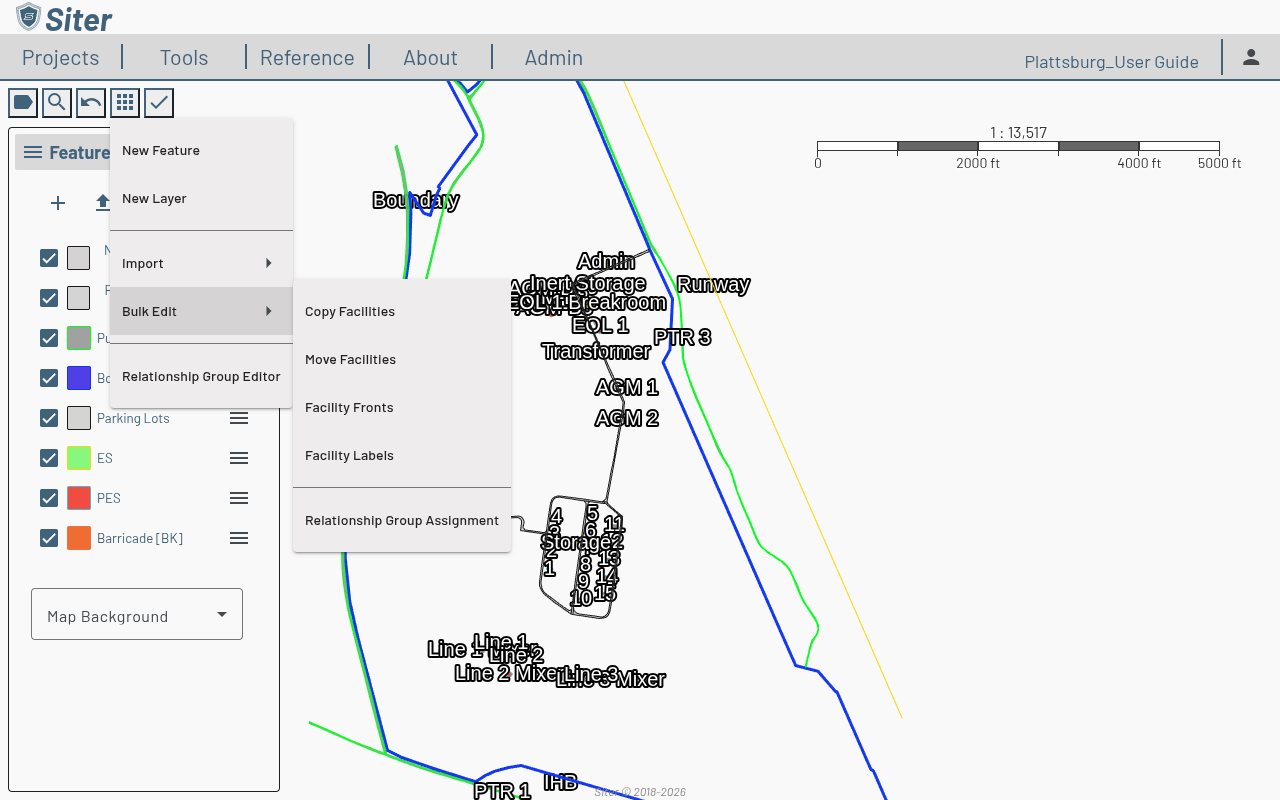
The footbar opens in dual-mode: with 0 or 1 rows selected the panel acts as a per-feature editor, with 2+ rows selected it switches to a multi-select bulk-apply mode.
Closing a bulk editor with unsaved changes asks what to do with them — Save, Don't Save, or Cancel (Cancel keeps the editor open so you can continue). The Facility Fronts and Facility Labels editors also keep their search, sort, and selection when you open a feature's dashboard and come back, and searching or saving keeps the sort order and your place in the list.
Facility name, status, and type-code columns in the bulk editors sort naturally — "Bldg 2" before "Bldg 10" — and ignore case.
How to copy facilities
- Click the Add/Edit > Bulk Edit > Copy Facilities
- Select the features to copy from the footbar list or by clicking them on the map. The list shows each facility's name as plain text — rename a facility on its Details tab, not here
- Drag the selected facilities to the destination location on the map
- Save the copy
Copied features retain all their attributes, explosives data, shape geometry, Facility Description, and Notes. Submittal Notes and relationships are not copied. The analysis search-zone faces are rebuilt at the new location so the copies analyze correctly without needing a manual refresh.
If a copy or move fails to save, the error message gives the server's reason — for example, a facility label longer than 300 characters.
How to edit notes on many features
- In the Feature List, click Options (gear) and select Bulk Select, then tick the features to edit (see Feature List options)
- Click the bulk actions button in the header and select Edit Notes — the Bulk Edit - Notes dialog opens with the Facility Description, Submittal Notes, and Notes fields, pre-filled from the first selected feature
- Edit the fields and click Apply, then Done. If the save fails, Apply is available again so you can retry
Apply writes all three fields to every selected feature, replacing their existing text — including any field you left unchanged. Leave a field empty and Apply clears it on every selected feature.
How to move facilities to another layer
-
In the Feature List, click Options (gear) and select Bulk Select, then tick the facilities to move (see Feature List options)
-
Click the bulk actions button in the header and select Move to Layer…
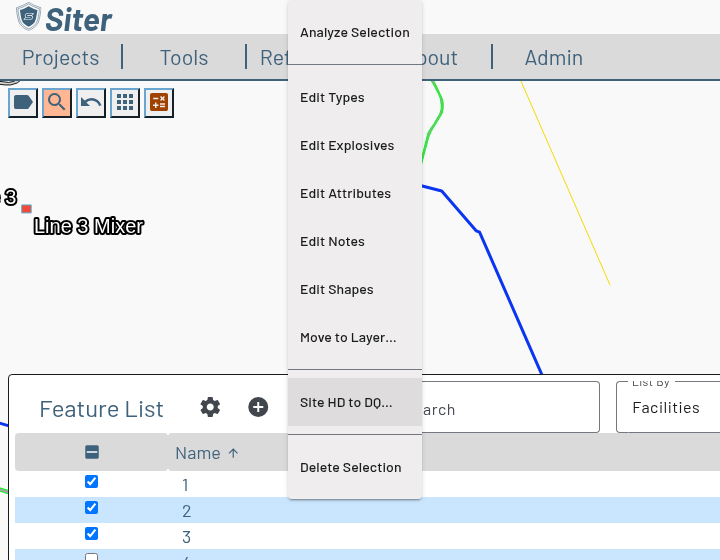
-
In the Bulk Edit - Move to Layer dialog, choose the Target layer. The list groups Facility layers and Background layers and marks the selection's current layer (current)
-
Read the summary, then click Apply
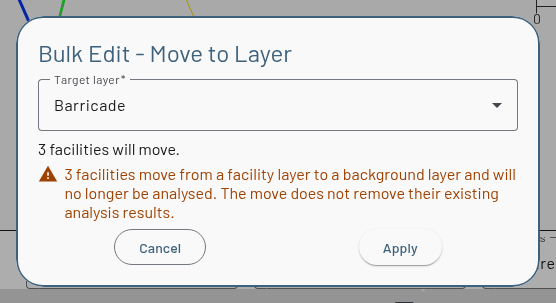
The dialog closes when the move is saved. One Undo puts every facility back on its original layer.
The summary counts how many facilities will move and how many are already on the target layer; those are left as they are. It warns when facilities change layer type:
- Facility layer to background layer — the facilities are no longer analyzed. Their existing analysis results are not removed
- Background layer to facility layer — the facilities need analysis. Siter rebuilds their faces from their feature types, so they carry fresh search zones into analysis. When a rebuild isn't possible (for example, a criteria has no search distance), a Faces not rebuilt warning names how many facilities kept old faces — open them, check the Segments tab, and re-run the analysis
While a move is running, Cancel, Esc, and clicks outside the dialog wait for it to finish. If the move fails, nothing moved and Apply is available again. If Siter loses contact with the server during the move, some or all facilities may have moved — check their layers in the Feature List before you try again.
How to move facilities
- Click the Add/Edit > Bulk Edit > Move Facilities
- Select the features to move
- Drag the selected facilities to the destination location on the map
- Save the move
Moving rebuilds the search-zone faces at the new geometry, so subsequent analyses use the post-move shapes. The feature's attributes, explosives, and relationships are unchanged.
How to edit facility fronts in bulk
- Click the Add/Edit > Bulk Edit > Facility Fronts
- Choose a Feature Source — Segmented Facilities, No Segmentation Definitions, or a single layer — and use Search to narrow the list
- Click a facility in the list (or step through with W/A and S/D, or the arrow keys). Its current front is highlighted on the map
- Click a segment on the map to set it as the front — Siter saves the face you click
- Click Save in the footbar header
The summary beside the list counts Total, Assigned, Unassigned, and N/A fronts; the Front Selected? column shows each facility's status.
Since v0.32, path facilities take a front like any other facility, so they are listed and assigned the same way.
The highlighted front is the stored front that analysis uses. On some facilities whose outline is stored counter-clockwise, it may now appear on a different side than in earlier versions — existing fronts were not changed. If the highlighted face is not the intended front, click the correct face and save.
How to edit facility labels in bulk
- Click the Add/Edit > Bulk Edit > Facility Labels
- Choose a Feature Source and click a facility in the list (or step through with W/A and S/D, or the arrow keys)
- Adjust the selected facility's label:
- Click the map to place the label; press R to reset its position, and E or / to toggle the leader line
- Under Label Text, choose Use project default, Hide label, or Custom text (including token substitutions such as
{name},{layer},{description})
- Repeat for other facilities, then click Save in the footbar header
Every pending change — moves, resets, leader lines, and label text — is drawn on the map before you save, not just the selected facility's, so you can judge the whole layout. Close and choose Don't Save, and the map goes back to the saved labels. If you keep editing while a save is running, those edits stay pending; closing then asks whether to save them.
The Label Position column shows Custom for a label you placed and Default otherwise. The placement preview uses the layer's own label font, text, and default position. When the map won't draw a label for the selected facility — no label template, or a hidden or empty label — the placement marker reads LABEL POSITION instead of the label text.
Labels without a custom position follow automatic label placement and move around the custom ones. To see whether a facility's label was moved automatically, check the label status on the facility's Shape tab.
The list leaves out facilities without a shape, or whose shape is empty or unreadable — they have no label to place. Custom Label Text is limited to 300 characters; if a save fails, the error message gives the server's reason.
Open a facility's dashboard from the list and click Back to return with the same facility still selected.
How to assign features to relationship groups in bulk
- Click the Add/Edit > Bulk Edit > Relationship Group Assignment
- Select features in the footbar
- Choose which relationship group the selection belongs to using the cards in the right side. Then hit apply
- Save
Unsaved relationship group assignments will be in an italicized red
This menu was added in v0.20 alongside the Relationship Group Editor (Apps > Relationship Group Editor) which authors the Line × Line × Criteria matrix that drives auto-relationships from these assignments.
Related topics
- Features — add and manage individual features
- Feature shapes — editing individual feature geometry and fronts
- Layers — organizing features into layers
- Feature relationships — relationship-group auto-relationships