Projects
Projects are the primary organizational unit in Siter. Each project represents a site or installation that you want to evaluate, containing its own map data, layers, features, and analysis results. Use projects to manage separate evaluations independently.
Most project operations start on the Project Management page — the page that opens when you click Projects in the top navigation bar. Operations on the open project are also available from the project dashboard's settings gear, as noted below.
Prerequisites
- You must be signed in to Siter
- You must have the Project Read Permission or higher to view and import projects
- You must have the Project Edit Permission or higher to create, edit, and export projects
- You must have the Project Administration Permission on a project to include it in an archive export of your projects
How to create a project
-
Click Projects in the top navigation bar
-
Click the Create new project button (+) at the top of the Project Management page
-
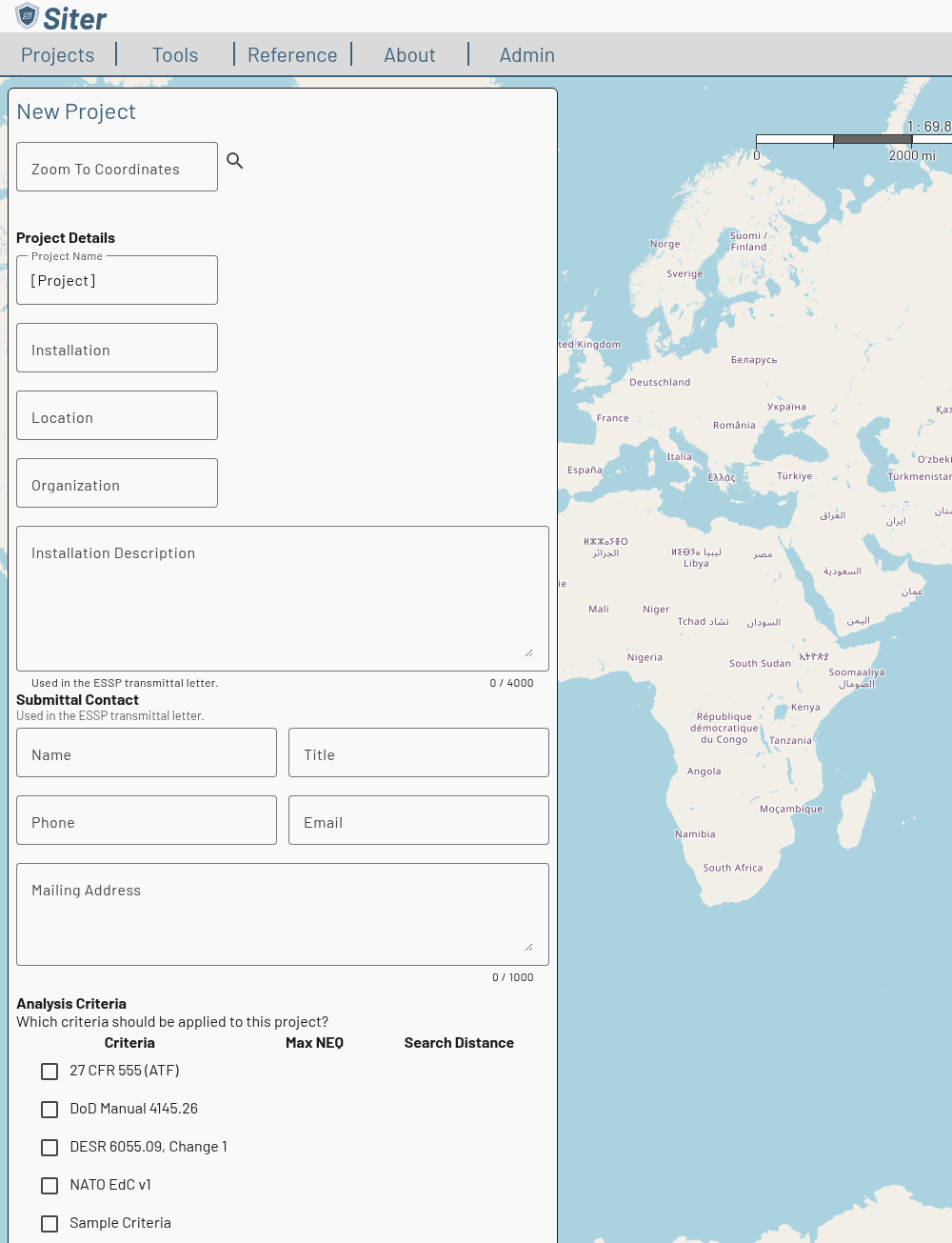
(Optional) Enter coordinates in the Zoom To Coordinates field and click the search icon to center the map on your site. Alternatively, zoom into your desired location.
-
Fill in the project details:
- Project Name — a descriptive name for the project
- Installation — the installation or base name
- Location — city and state or country
- Organization — (optional) the organization the project belongs to; the Project Management page can group the project list by this field. The transmittal letter names it as the requester
- Installation Description — (optional) a short description of the installation, up to 4,000 characters, used as the installation overview in the transmittal letter
- Submittal Contact — (optional) the Name, Title, Phone, Email, and Mailing Address of the person who signs the transmittal letter and answers DCMA's questions
-
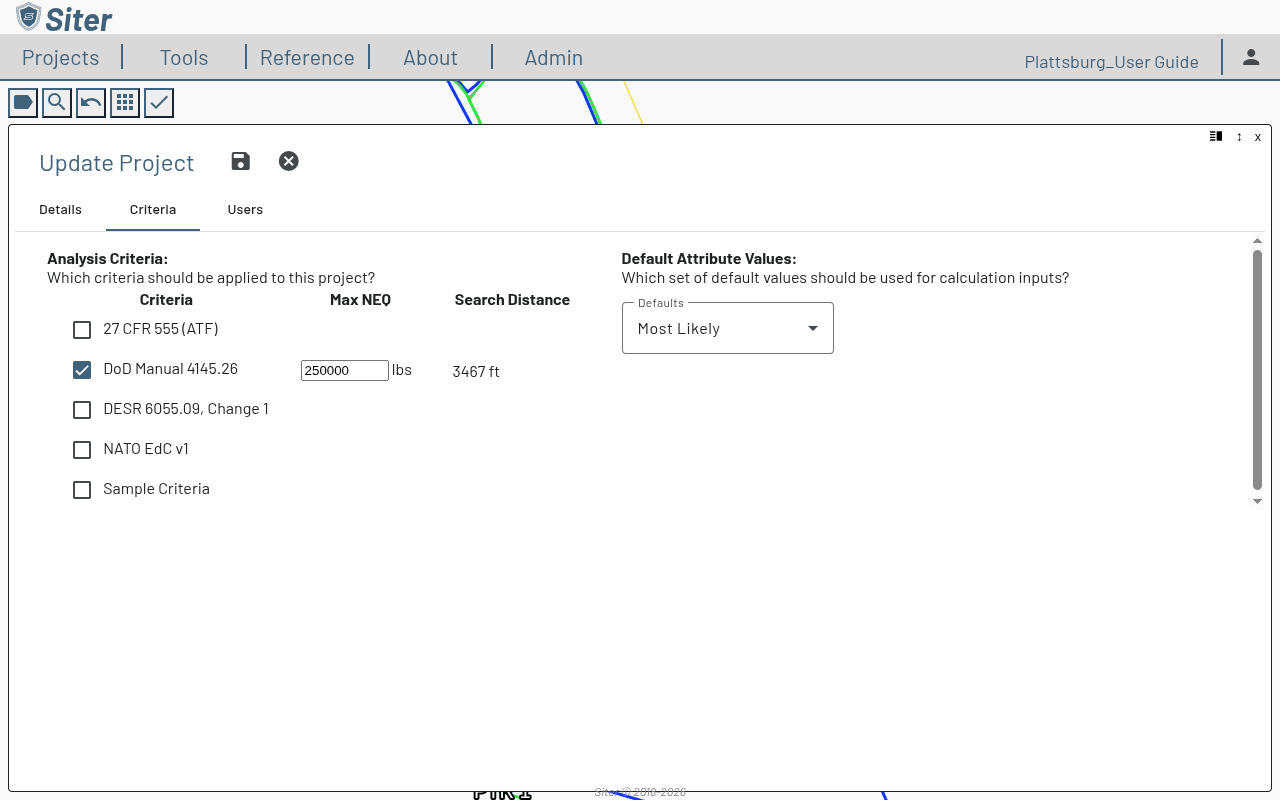
Under Analysis Criteria, select one or more criteria standards to apply (e.g., DoD Manual 4145.26, DESR 6055.09, NATO EdC v1). For each selected criteria, set the Max NEQ to the highest expected NEW/Q expected on the site (this can be updated later)
The Max NEQ field is used to calculate the distance of the search zone around PESs. Setting this higher than necessary will increase the number of analyses required, but setting it lower than necessary will result in missing analyses.
- Select the Default Attribute Values and Map Background as needed. The map preview updates to show the selected background
- Conservative: Will return the greatest standoff distance required
- Most Likely: Will use the value TSG sees most often in the field
- Choose a Spatial Reference — use Local UTM unless you have existing map data with a specific coordinate system
- Click Create
Siter opens the new project in the map workspace automatically.
The New Project form starts with the defaults saved on your Preferences: Default Attribute Values and Map Background from the New Project Defaults card, the project's units from Working Units, and — if you have saved them — your My Custom Style analysis symbols and your default feature labels. Anything you change on the form applies to this project only. With no preferences saved, a new project uses Most Likely, Siter's default background, Siter's analysis symbol colors, and no feature labels.
How to open a project
-
Click Projects in the top navigation bar
-
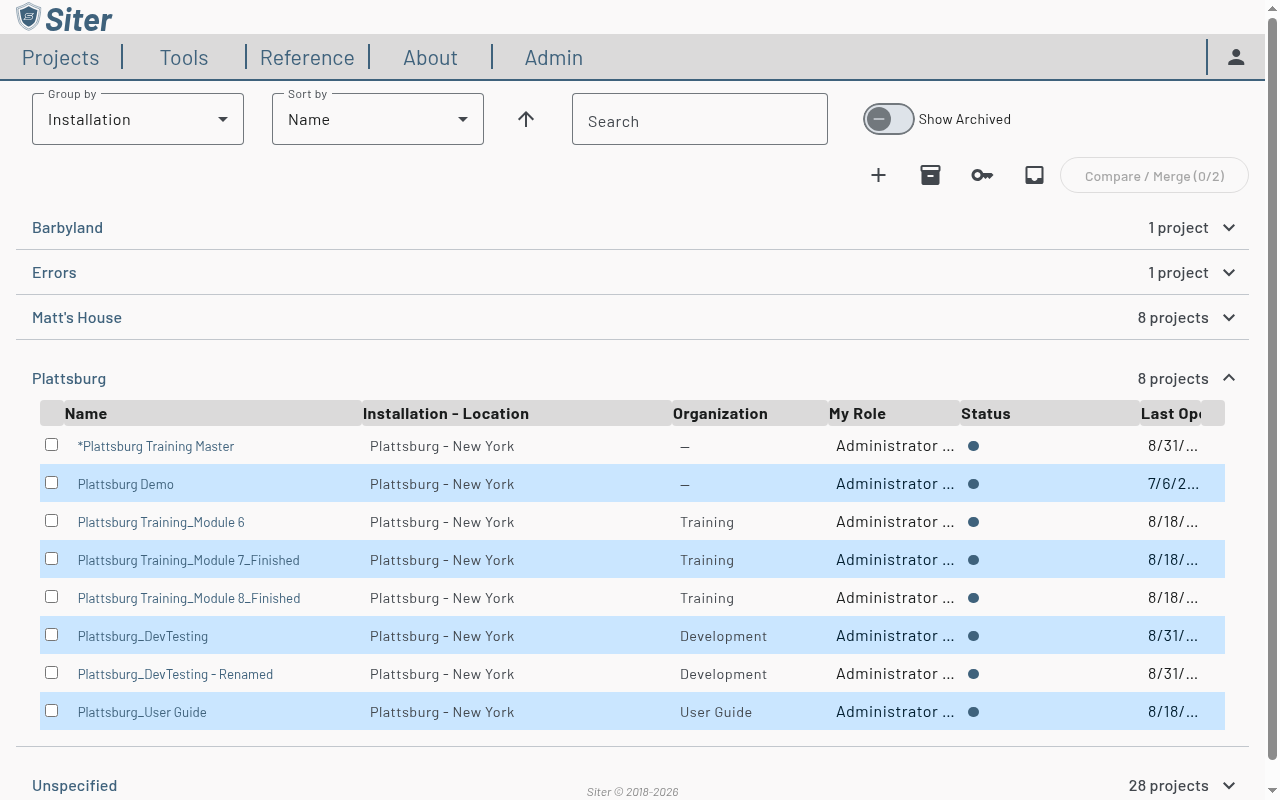
On the Project Management page, expand the group containing your project
-
Click the project's name to open it on the map
See Project Management page for grouping, sorting, and finding projects in a long list.
How to view project details
-
Open a project
-
Click the project name in the upper-right corner of the toolbar
-
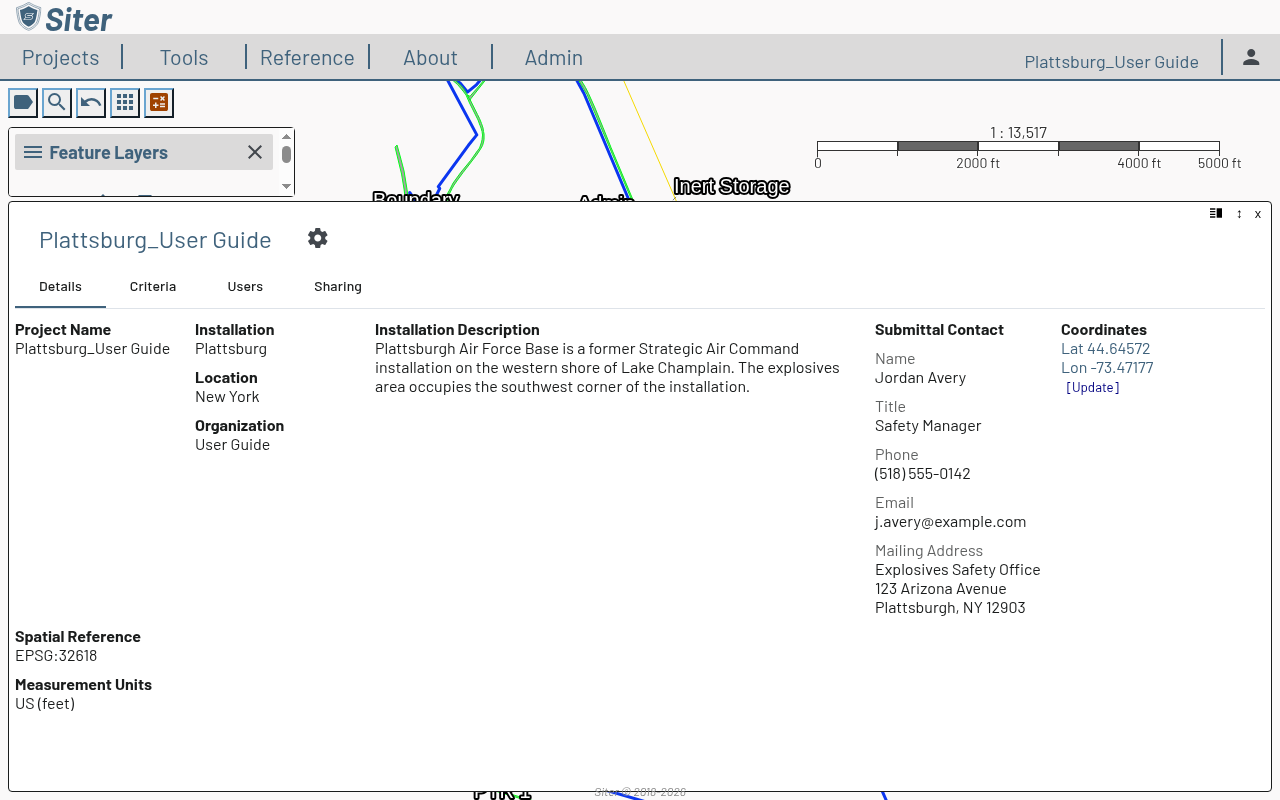
The project dashboard opens at the bottom of the screen with four tabs:
- Details — project name, installation, location, organization, Installation Description, Submittal Contact, and coordinates. An empty field reads "Unspecified"
- Criteria — the analysis criteria applied to the project
- Users — team members and their roles
- Sharing — share tokens and access requests
How to edit project details
-
Open the project dashboard by clicking the project name
-
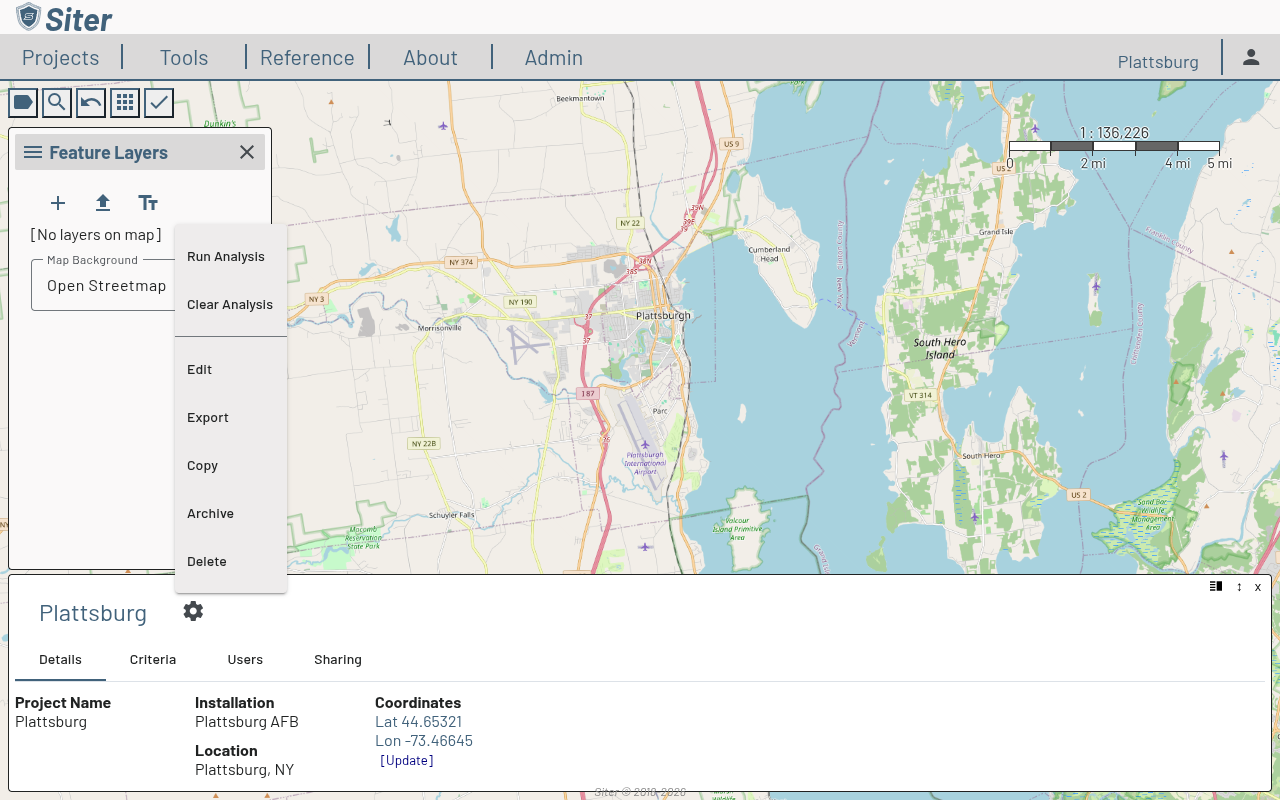
Click the settings gear icon next to the project name
-
Select Edit from the menu
-
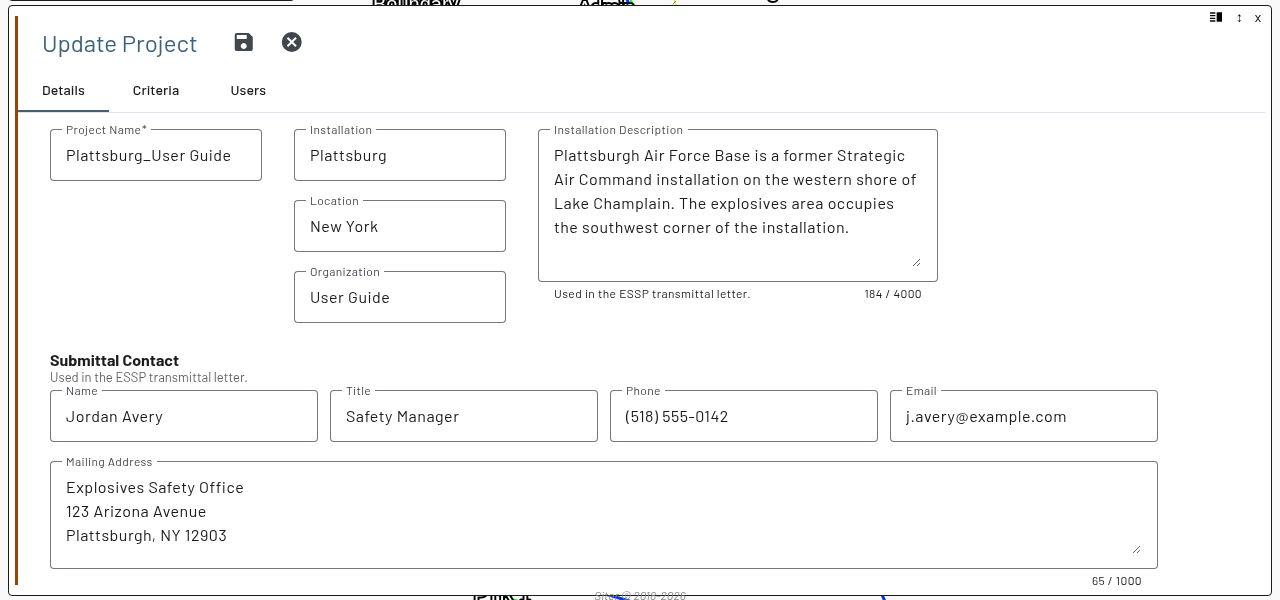
In the Update Project dialog, modify the project name, installation, location, organization, Installation Description, Submittal Contact, or other settings on the Details tab. The Criteria tab is where you choose which Analysis Criteria apply to the project, set the Max NEQ (and resulting search distance) per criteria, and pick the Default Attribute Values set used for calculation inputs
-
Click Save (disk icon)
Project Name can't be left blank, and Project Name, Installation, Location, and Organization are each limited to 255 characters. Installation Description is limited to 4,000 characters; the Submittal Contact fields to 200 (Name, Title), 50 (Phone), 254 (Email), and 1,000 (Mailing Address). Save stores only the fields you changed, so a rename someone else made while the dialog was open is kept, and the dialog then shows the stored values. Undo and redo of the edit restore only the details it changed.
To change only the name, installation, location, organization, Installation Description, or Submittal Contact, you don't need to open the project: on the Project Management page, open the row's Actions menu (⋮), select Edit Details, make your changes in the Edit Project dialog, and click Save. See How to edit a project's details from the list.
How to copy a project
- On the Project Management page, open the project row's Actions menu (⋮) and select Copy — or, with the project open, click the dashboard's settings gear and select Copy
- Siter creates a duplicate of the project with all its layers, features, and data
If the project's hosted imagery background isn't available to you on this server, the copy is still made, with no background map selected, and a warning names the copied project. When you can edit the copy, the warning tells you to choose a background under Map Background in the legend.
Copying a project is useful when you want to explore alternative configurations or create a variation of an existing evaluation without modifying the original. Use Compare / Merge afterward to review what changed in the copy and bring selected changes back.
How to export a project
- On the Project Management page, open the project row's Actions menu (⋮) and select Export Snapshot — or, with the project open, click the Project Dashboard's settings gear and select Export. Reminder: the Project Dashboard is accessed by clicking the project name in the upper right of the map view.
The project downloads immediately as a .siter-snapshot file containing all project data, layers, and features. The snapshot does not include the project's share code, its expiration or memo, or the history of access requests — sharing is set up again on the imported copy.
A snapshot is one project in one file, built in the browser and downloaded at once — use it to hand a single project to someone or to import it into another environment. An archive bundles any number of the projects you administer into one .siter-archive file, built on the server with progress shown while it runs — use it for backups and for moving a whole portfolio. Both import through the same Import project… control; an archive additionally lets you pick which of its projects to bring in.
How to export projects as an archive
Export any or all of the projects you administer as one archive file — for example, as a backup before a major change, or to move a whole portfolio to another Siter environment.
-
Click Projects in the top navigation bar
-
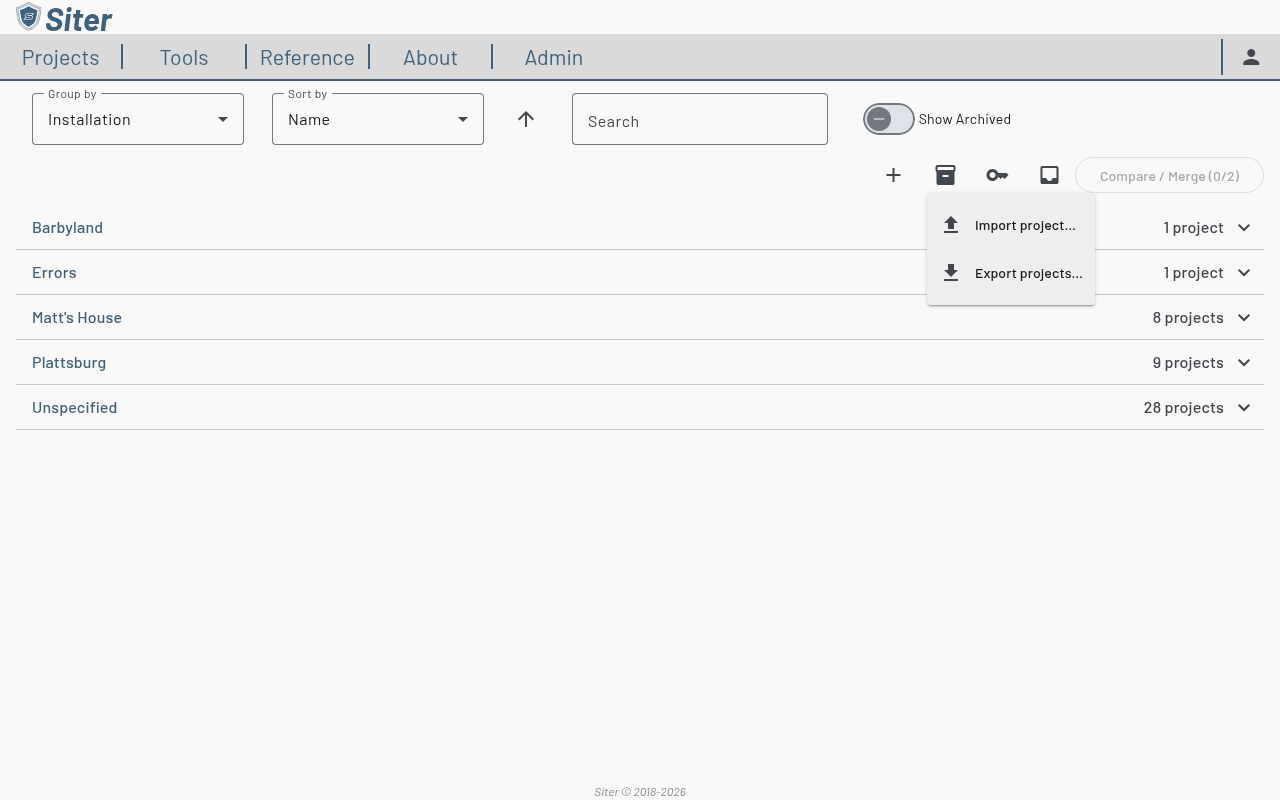
Click the Import or export projects button (box icon) at the top of the Project Management page and select Export projects…
-
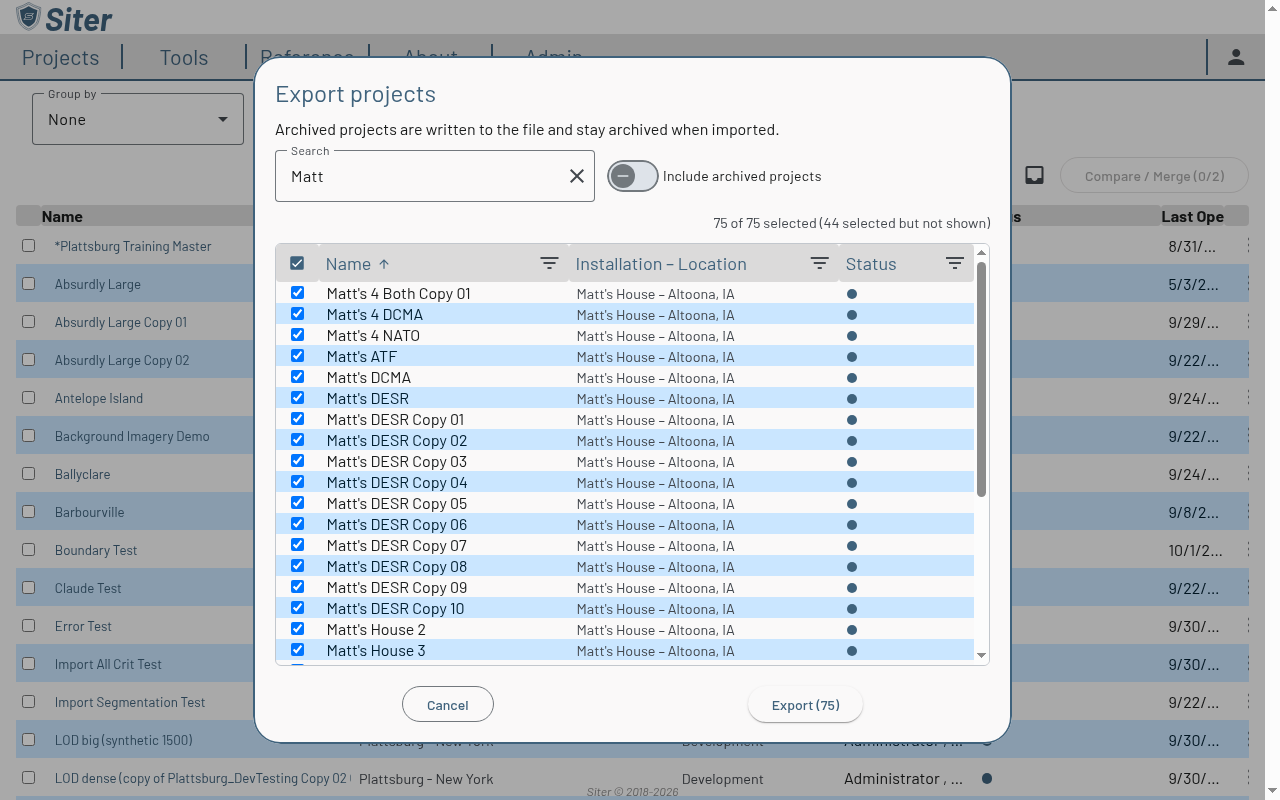
In the Export projects dialog, every project you administer is listed and ticked — untick the ones to leave out. Enter text in the Search box to filter the list by name, installation, or location, or click Filter this Column (the filter icon) on the Name, Installation – Location, or Status column header to show only the values you pick. Click a column header to sort by it — an arrow beside the header shows the direction; click again to reverse it. The counter shows how many projects are selected, including any the search or filters are hiding
-
Turn on Include archived projects to add your archived projects to the list — they appear ticked, and stay archived when imported. Turning the toggle back off hides the archived projects and drops them from the export
-
Click Export (N) — the button counts the selected projects
Siter builds the file on the server, which can take a few minutes for large projects. While it runs, an Export: indicator appears in the page toolbar showing which project is being written (1 / 5, 2 / 5, and so on) with a progress bar; hover it to see the current project's name, the elapsed time, and how many megabytes have arrived so far. The indicator reads Starting…, Finishing…, and Saving… at the start and end of the run, and the menu item reads Exporting… until it finishes.
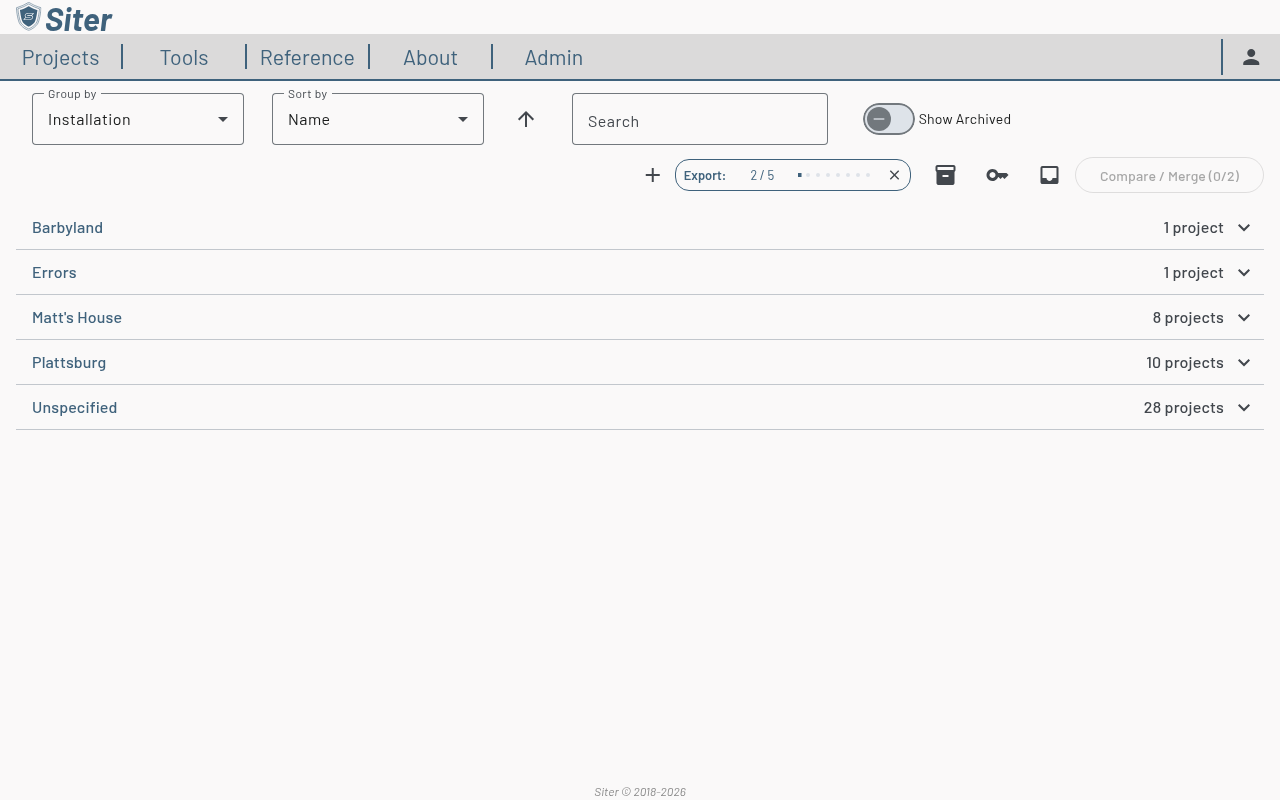
When the export completes the file downloads as siter-projects-<date>-<time>.siter-archive. A message reports how many of the selected projects were exported; if any could not be included — for example, a project deleted or unshared by someone else after the dialog opened — the message says so and stays on screen until you dismiss it.
The export keeps running while you use the rest of Siter — open a project, work on the map, and come back to the Project Management page to watch it or cancel it (Siter reminds you of this if you leave the page mid-export). To stop an export, click the Cancel export (✕) button beside the indicator; the partial file is discarded and Siter confirms Export cancelled.
The archive contains a complete snapshot of each selected project, and only projects on which you have the Project Administration Permission are offered. To move a single project, use Export Snapshot instead — or select just that one project in the dialog.
Only one export can run for your account at a time. If you start a second one while the first is still building, Siter tells you an export is already running. A cancelled export can take a few seconds to release that slot, so wait briefly before starting another.
How to archive a project
- On the Project Management page, open the project row's Actions menu (⋮) and select Archive — or, with the project open, click the dashboard's settings gear and select Archive
- The project moves out of the active list
Archived projects are hidden from the Project Management page by default. To find them, turn on the Show Archived toggle in the page toolbar (setting Group by to Status then collects them under an Archived group). An archived project's Actions menu shows Restore in place of Archive — select it to bring the project back. Edit Details and Manage Access are not offered while a project is archived.
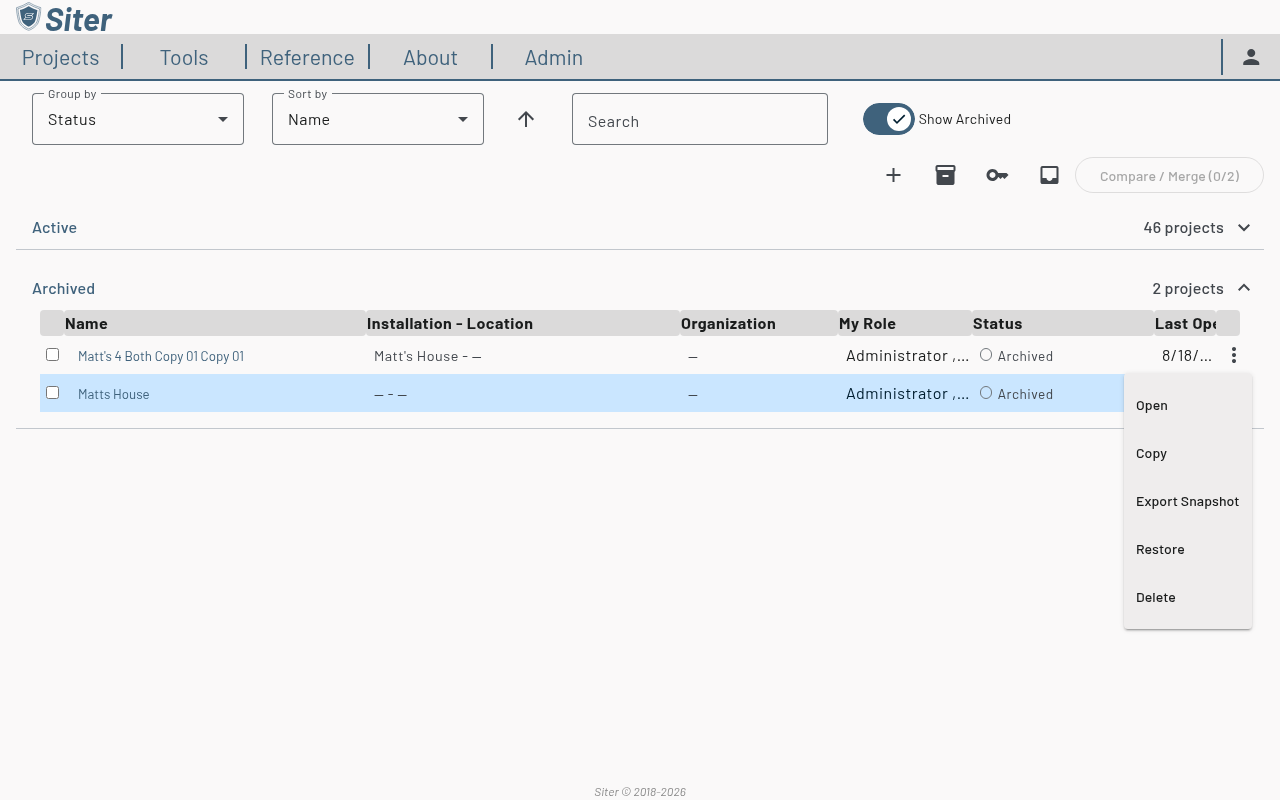
How to delete a project
- On the Project Management page, open the project row's Actions menu (⋮) and select Delete — or, with the project open, click the dashboard's settings gear and select Delete
- Confirm the deletion when prompted
Deleting a project permanently removes it and all associated data. This action cannot be undone. Consider archiving the project instead if you may need it later.
How to import a project
Import brings a previously exported file into your environment as one or more new projects. A .siter-snapshot holds a single project; a .siter-archive (from Export projects…) holds many, and lets you choose which ones to import.
- Click Projects in the top navigation bar
- Click the Import or export projects button (box icon) at the top of the Project Management page and select Import project…. If you administer no projects, the button is labelled Import projects
- Select the file (
.siter-snapshot,.siter-snapshot.json, or.siter-archive)
You can also drag the file from your computer onto the Project Management page instead of steps 2–3 — see How to import a project by drag and drop.
If you selected a snapshot, Siter imports it and opens the new project on the map. If you selected an archive, the Import Projects from Archive dialog opens:
-
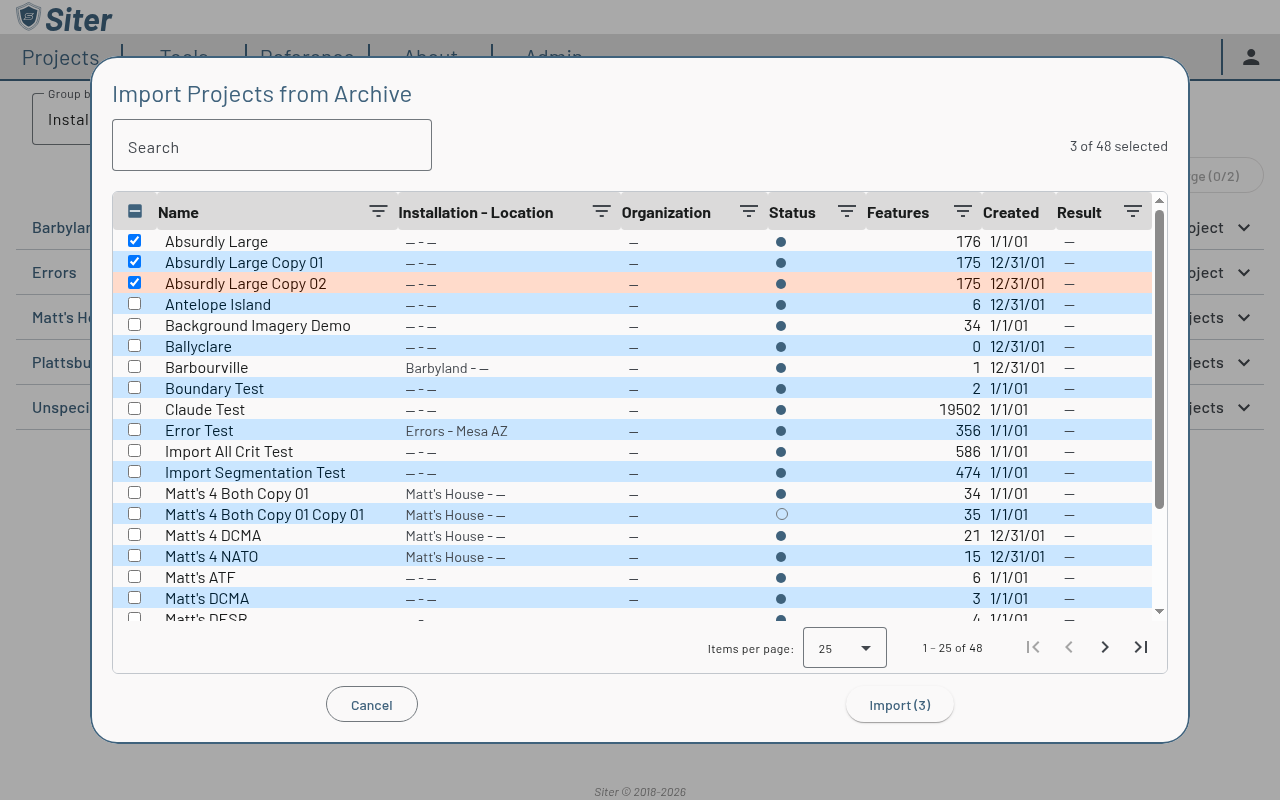
Find the projects you want. Enter text in the Search box to filter by name, location, installation, or organization, use the column headers to filter or sort, and page through the list if the archive is large. The counter shows how many are selected
-
Tick the projects to import — the header checkbox selects every project currently shown. Projects marked Not in archive could not be exported and cannot be selected
-
Click Import (N)
Siter imports the selected projects one at a time. A progress bar counts them off, and each row's Result column shows Importing…, then Imported, Imported with warnings, Failed, or Skipped. Filter or sort the column to find the projects imported with warnings; their rows carry a warning icon, and hovering it shows the warning. Click Stop (or press Escape) to finish the current project and skip the rest.
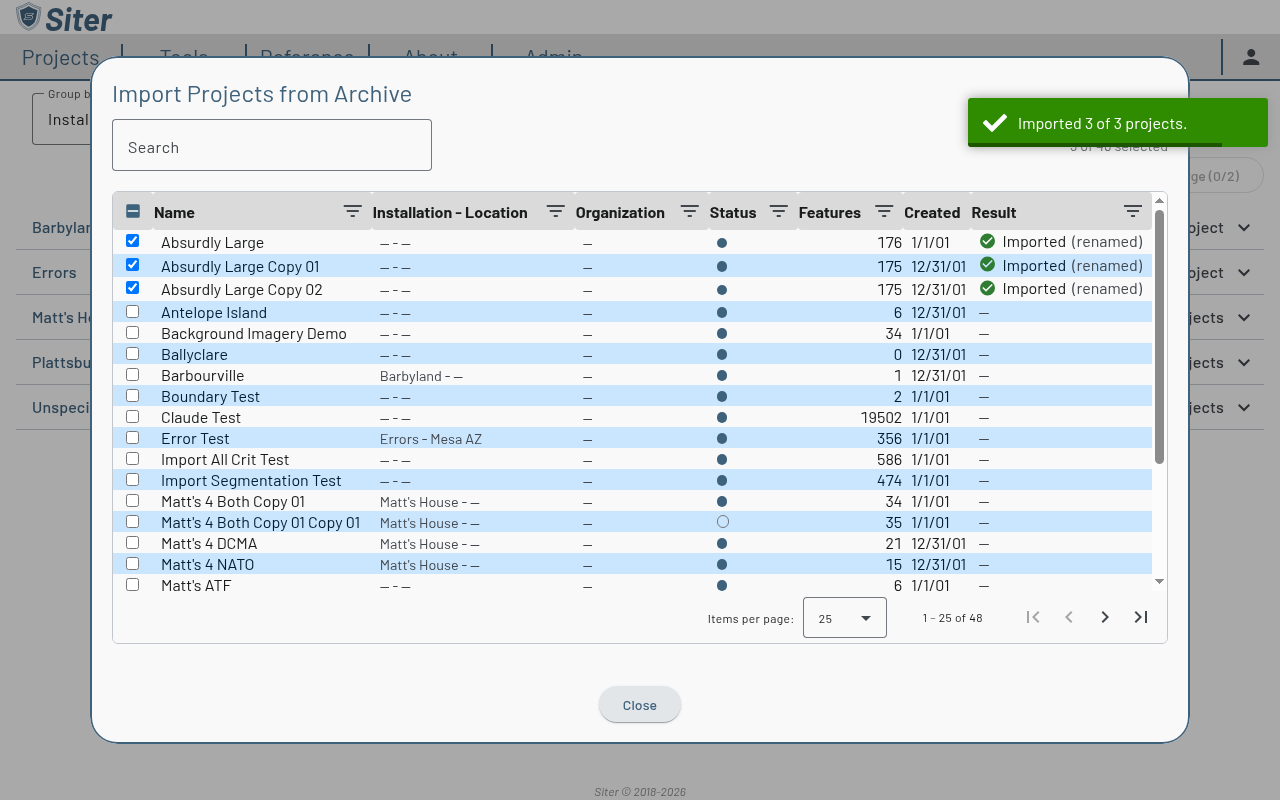
- When the run finishes, click Retry failed (N) or Import skipped (N) to go through the remaining projects again, or Close
Click any row to see its description, source project id, and — after import — the name it was imported as, any warnings, or the reason it failed. The summary message at the end counts the projects imported with warnings.
If a project's hosted imagery background isn't available to you on this server, the project still imports, with no background map selected and a warning. When you can edit the new project, the warning tells you to choose a background under Map Background in the legend.
Imported projects keep their original name. If you already have a project with that name, the new one is named <name> - Imported <date> instead (with a number added if that name is taken too). Archived projects in the archive are imported as archived, so turn on Show Archived to see them. Sharing and user access are not carried over — set them up again on the imported project.
A very large single snapshot can be too big to import directly. If Siter tells you the file is too large, export the project again as part of an archive — archives are imported one project at a time.
Moving projects between Siter versions
Snapshot and archive files record the version of the project format they were written in:
- Files from an older Siter version import normally. Each feature's Facility Description — which older versions stored as the feature's notes — is moved into its own field, and label templates that used
{notes}are changed to{description} - Archives from a newer Siter version that use a newer format are refused, with This archive was created by a newer version of Siter (format N). Update Siter to import it. An archive exported from this version is refused this way by older versions
- Snapshots from this version imported into an older Siter are not refused — older versions cannot check a snapshot's format — and the imported project loses each feature's Facility Description. Use an archive, or upgrade the other environment first. From this version on, a snapshot from a newer Siter is refused with This project file was created by a newer version of Siter. Update Siter to import it.
- If an archive comes from a newer Siter version but uses the same format, the import dialog says so at the top; the import still runs, but some data may not come across
Administrators: see Upgrading an existing environment — v0.30.
If an archive export fails with The server's export format is newer than this version of Siter. Refresh the page and try again., or Siter refuses to import an archive you have just exported from the same environment, your browser is running a cached copy of an older Siter. Hard-refresh the page (Ctrl+Shift+R, or Cmd+Shift+R on a Mac) and export or import again.
Related topics
- Project Management page — group, sort, and act on all your projects from one page
- Sharing projects — share projects with other users and manage access requests
- Comparing and merging projects — see what differs between two projects and merge selected changes
- Preferences — the defaults new projects start with
- Map view — navigate and interact with the project map
- Layers — add and manage map layers within a project, including layer import and export