Layers
Layers organize features on the map into logical groups. Each layer can contain multiple features and can be shown or hidden independently. Use layers to separate different types of facilities, reference data, or background information within a project.
Prerequisites
- You must have an open project (see Projects)
- You must have the Project Edit Permission or higher to create and modify layers
Layer types
When creating a layer, select a type:
- QD Visible — features on this layer are included in quantity-distance (QD) analysis calculations
- Background Layer — features on this layer are for reference only and are not included in analysis
How to add a layer
-
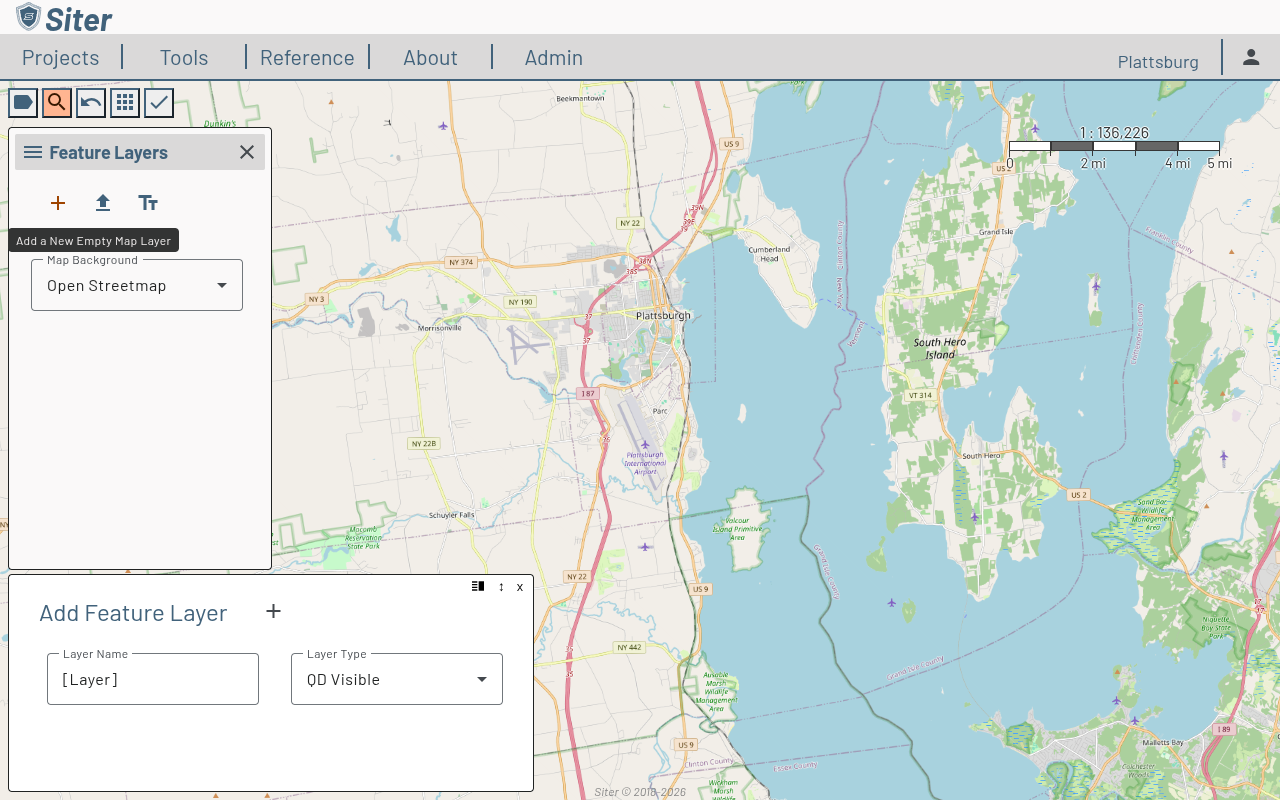
In the Feature Layers sidebar, click the + (add) button
-
Enter a Layer Name
-
Select a Layer Type (QD Visible or Background Layer)
-
Click the + button next to the layer title to add it
The new layer appears in the Feature Layers sidebar.
How to toggle layer visibility
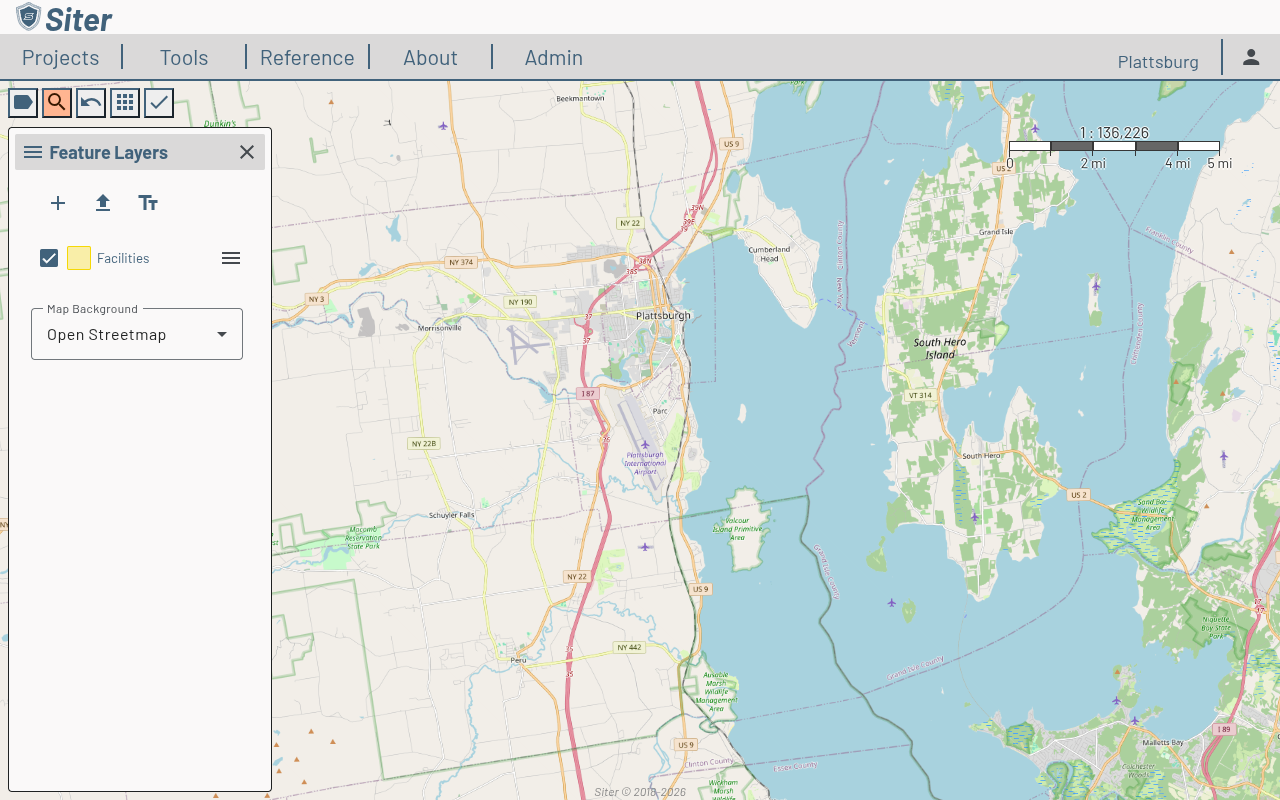
Each layer in the sidebar has a checkbox next to its name. Uncheck a layer to hide its features on the map. Check it again to make them visible.
How to change the base map
The base map is the raster imagery that sits beneath every layer in the project. Changing it is purely visual — it does not affect analysis.
-
In the Feature Layers sidebar, locate the Map Background dropdown at the bottom
-
Click the dropdown and select a base map
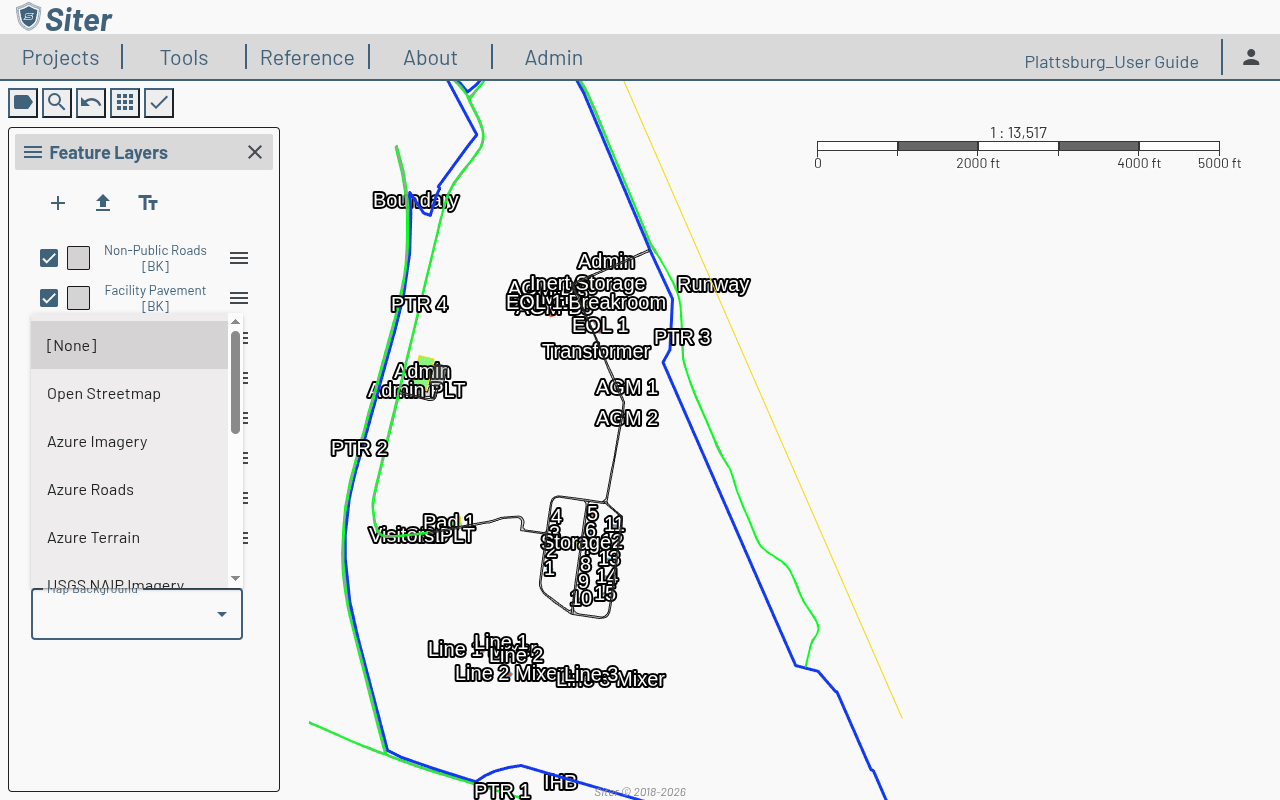
Available base maps include built-in sources and any custom or hosted imagery the project has been configured with:
- Open Streetmap — street-level detail with roads, buildings, and labels
- Azure Imagery / Roads / Terrain — Microsoft Azure map tiles
- USGS NAIP Imagery — US aerial photography from NAIP
- Google Roads / Satellite — Google Maps tiles
- Custom imagery — XYZ, WMS, ArcGIS REST, or GeoTIFF sources configured per project (see Custom and hosted imagery, added v0.22)
- Hosted imagery — GeoTIFF files uploaded to the Siter server, scoped to the customer (added v0.22)
- [None] — no background map
How to view layer features
Click the layer name in the Feature Layers sidebar to open a Feature List footbar showing every feature on that layer. See Features for the full feature list workflow.
How to manage a layer
Click the menu icon (three horizontal lines) next to a layer name to access layer options:
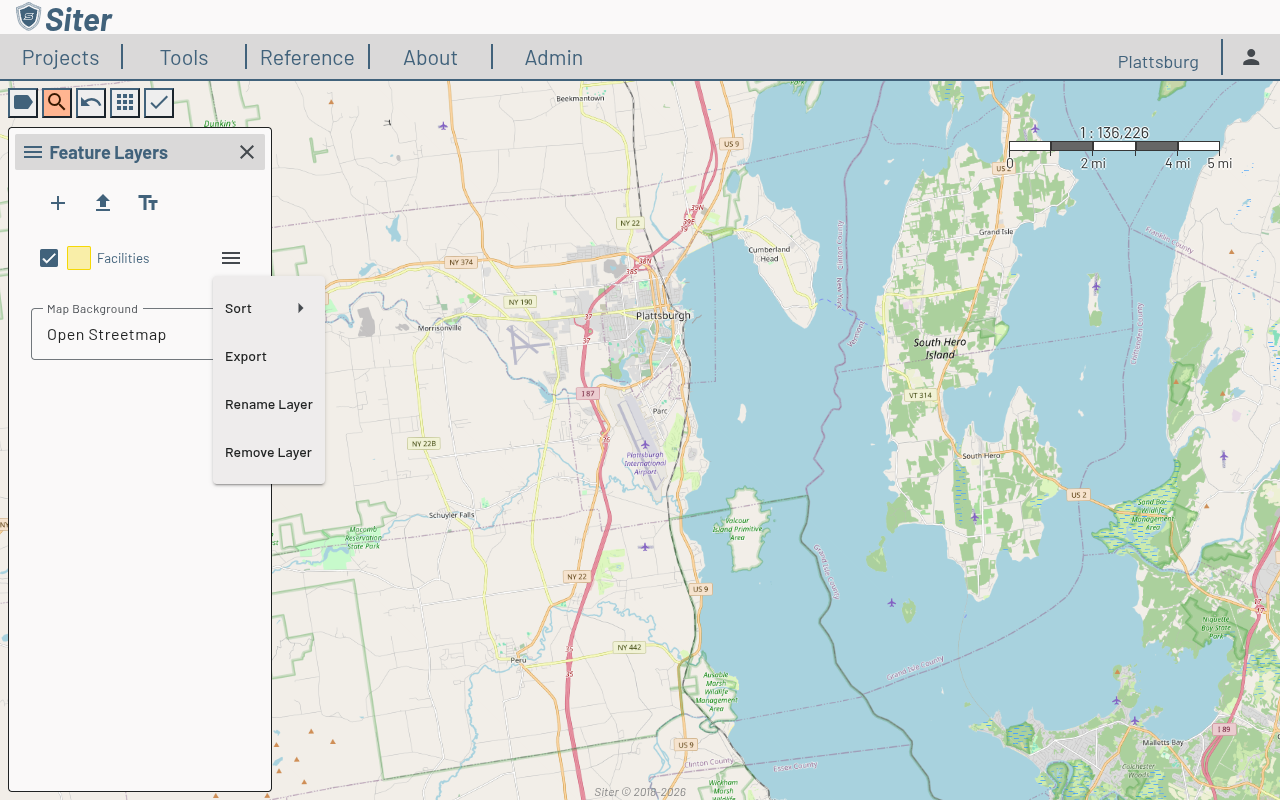
- Sort — reorder features within the layer
- Export — export the layer data to an external file (see How to export a layer below)
- Rename Layer — change the layer name
- Remove Layer — delete the layer and all its features from the project
To change the text or styling of a layer's labels, see Feature labels.
How to import a layer
- In the Feature Layers sidebar, click the upload icon (arrow pointing up) — or drag the file onto the map (see Drag and drop a file onto the map)
- Select a file to import. Supported formats:
- GeoJSON (
.geojsonor.json) - Google Earth KML (
.kml) or KMZ (.kmz), added v0.33 (see Importing KML and KMZ files) - Zipped shapefiles (
.zipcontaining the.shpand its associated files)
- GeoJSON (
To import .shp files, the .shp file and its supporting files need to be compressed into a .zip file.
-
The Import Layer panel opens with the file loaded. While Siter reads a large file, the panel header shows a progress bar and Reading <file name>…. Set the import options on the Details tab
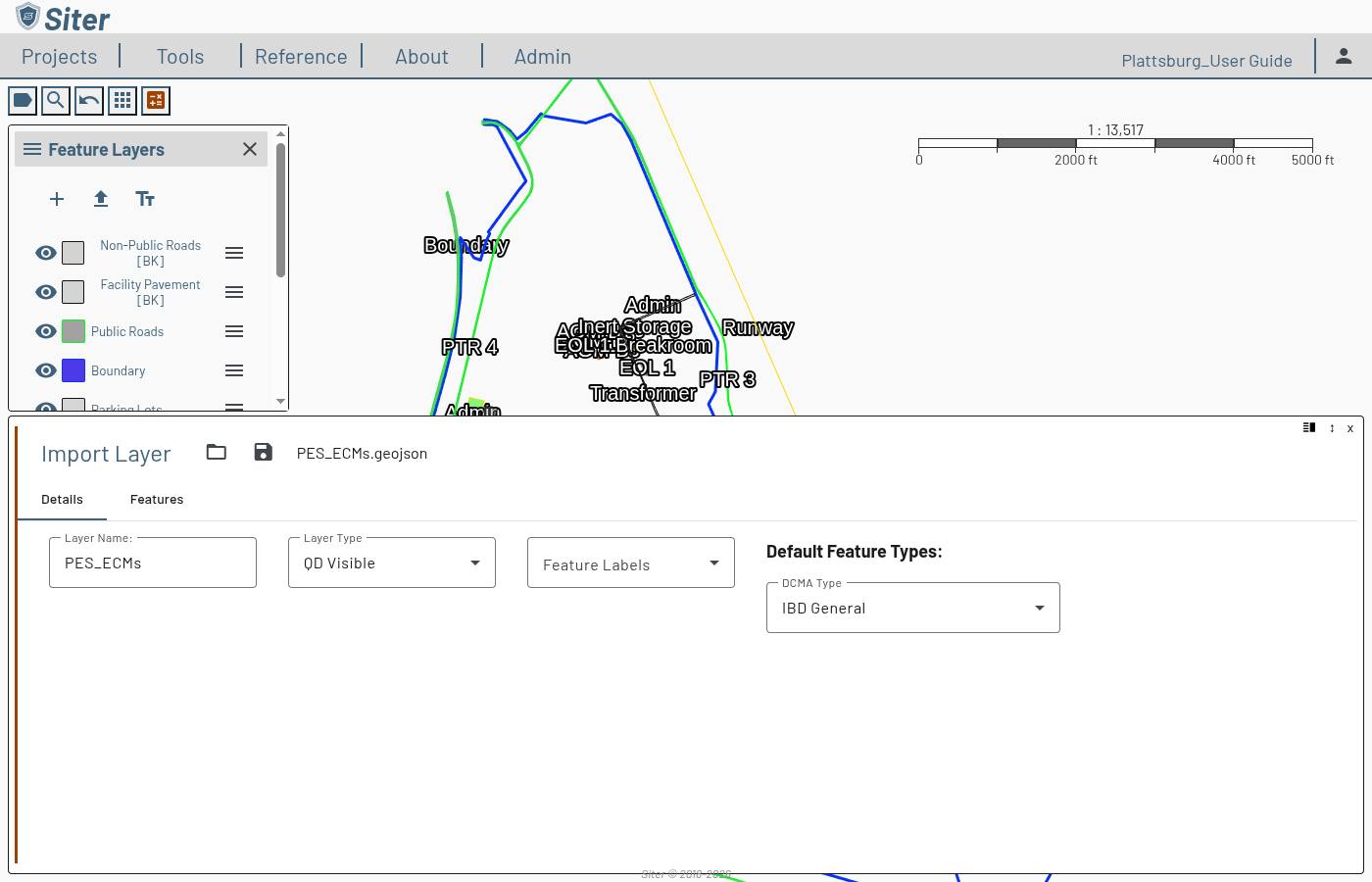
- Layer Name — defaults to the file name; change it if you want a different layer name
- Layer Type — QD Visible (included in analysis) or Background Layer (reference only). See Layer types above
- Feature Labels — optionally choose a column from the imported table data to apply as the imported features' facility name
- Default Feature Types — for each criteria the project uses (e.g., DCMA Type), the facility type assigned to every imported feature (e.g., IBD General). You can adjust individual feature types afterward on each feature's Details tab
-
Click the Features tab to preview every feature in the file alongside its source attributes, and check the issue counts in the panel header (see Import errors and warnings below). Each value stays on one line; hover over a cut-off value, such as a long KML description, to read it in a tooltip
-
Click the save icon in the panel header to import the layer
You can also start an import from the toolbar's Add/Edit menu by selecting Import → Layer.
You can use the Features tab of the import window to view the imported layer table data.
Siter reads the coordinate system from the source file (the shapefile's .prj or the GeoJSON's CRS; KML is always WGS 84) and reprojects the features into the project's spatial reference automatically. But, not all coordinate systems are supported. For best results use incoming data projected in EPSG: 4326 (WGS84) or the WGS84 UTM Zone the project is in.
If the shapes do not appear as a preview in the correct place, there is an issue with the projection.
Importing KML and KMZ files
Since v0.33 you can import a Google Earth .kml file, or a .kmz (a zipped KML), from the upload icon or by dropping it on the map.
When the file has more than one top-level folder, or has placemarks outside any folder as well as a folder, a Layer dropdown appears in the panel header. Choose what to import as this layer:
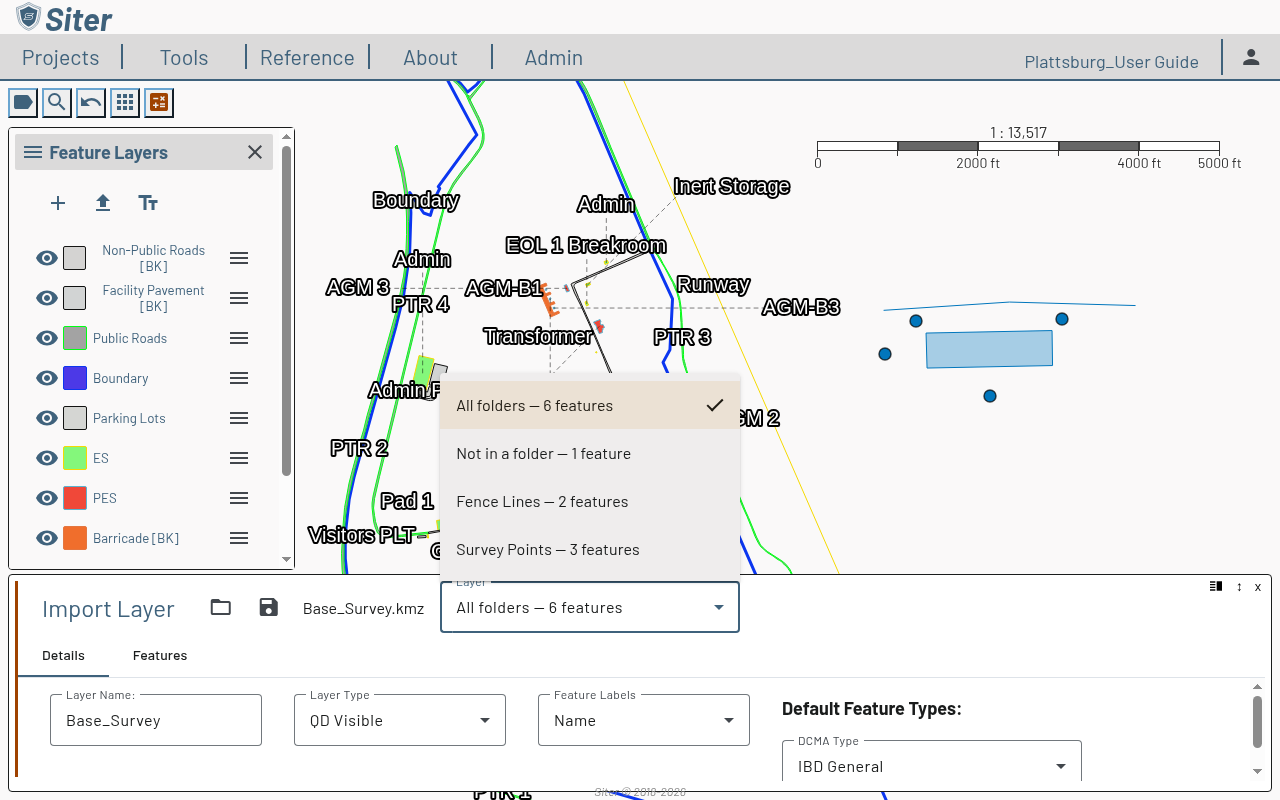
- All folders — every placemark in the file, as one layer named after the file
- Not in a folder — only the placemarks outside any folder, as a layer named <file name> (not in a folder)
- one entry per top-level folder — that folder's placemarks, including any in its subfolders, as a layer named after the folder
Each entry shows its feature count. To import several folders as separate layers, import the file once per folder, choosing a different entry each time. A file with no folders, or with a single folder and nothing outside it, imports as one layer with no dropdown.
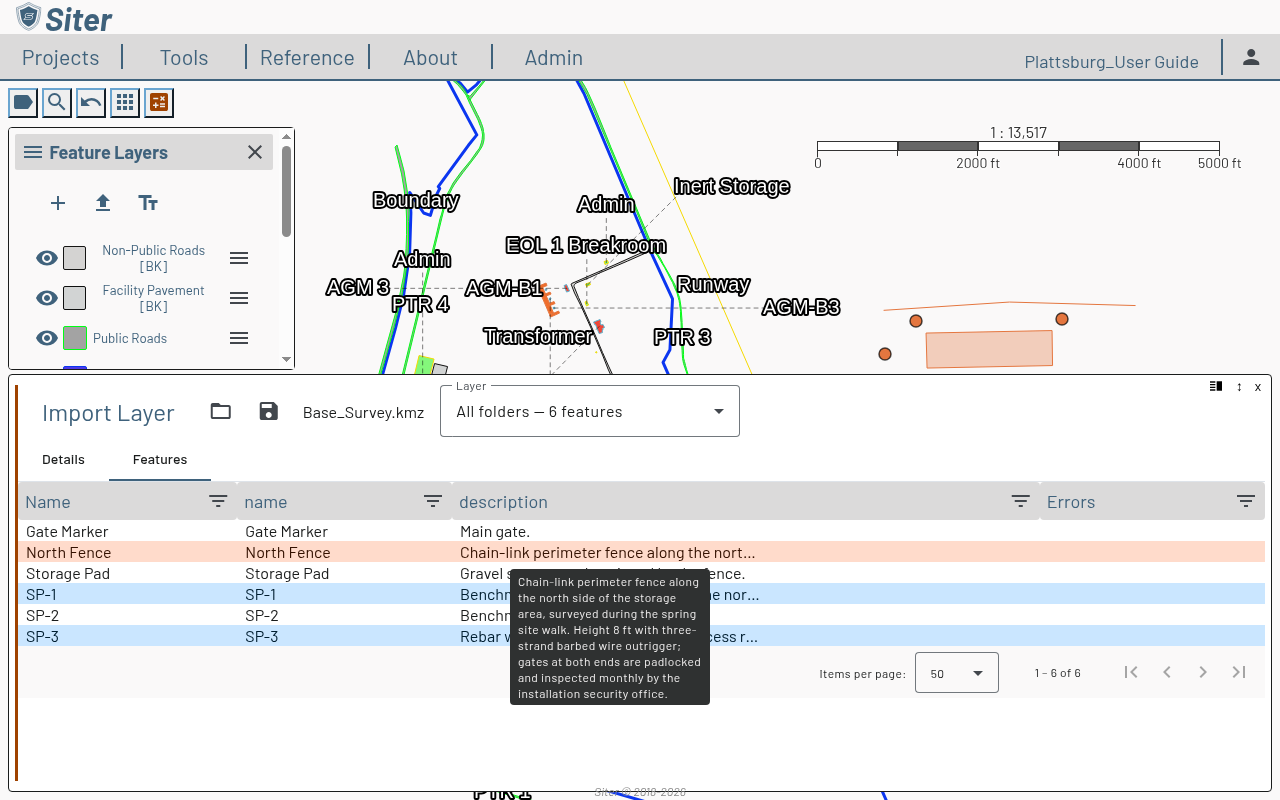
What Siter reads from the file:
- Shapes — points, lines, and polygons, which can be mixed in one folder. A placemark becomes a point, line, or polygon feature; altitudes are dropped
- Attributes — each placemark's
name,description, and extended data become columns on the Features tab, available for Feature Labels - Coordinates — KML is always longitude/latitude (WGS 84), so Siter projects it into the project's spatial reference
What it leaves out:
- styles (colors, icons, line widths) — the layer gets Siter's default symbology
- image overlays, photos, and other files inside a KMZ
- network links — a file that holds only a network link reports that no points, lines, or polygons were found
- files over 100 MB (for a KMZ, the KML inside it)
A KMZ's main document is doc.kml; if that has no shapes, Siter tries the other KML files in the archive.
Placemarks that are points import as point facilities, drawn as dots (see Point facilities).
Drag and drop a file onto the map
With the Project Edit Permission, you can skip the file picker: drag a GeoJSON file (.geojson or .json), a KML or KMZ file (.kml, .kmz), or a zipped shapefile (.zip) from your computer onto the map. While the file is over the map, an overlay reads Drop a GeoJSON, KML/KMZ or zipped shapefile to import a layer. Drop it, and the Import Layer panel opens with the file loaded — continue from step 3 above. If the panel is already open, the dropped file replaces the one it was showing.
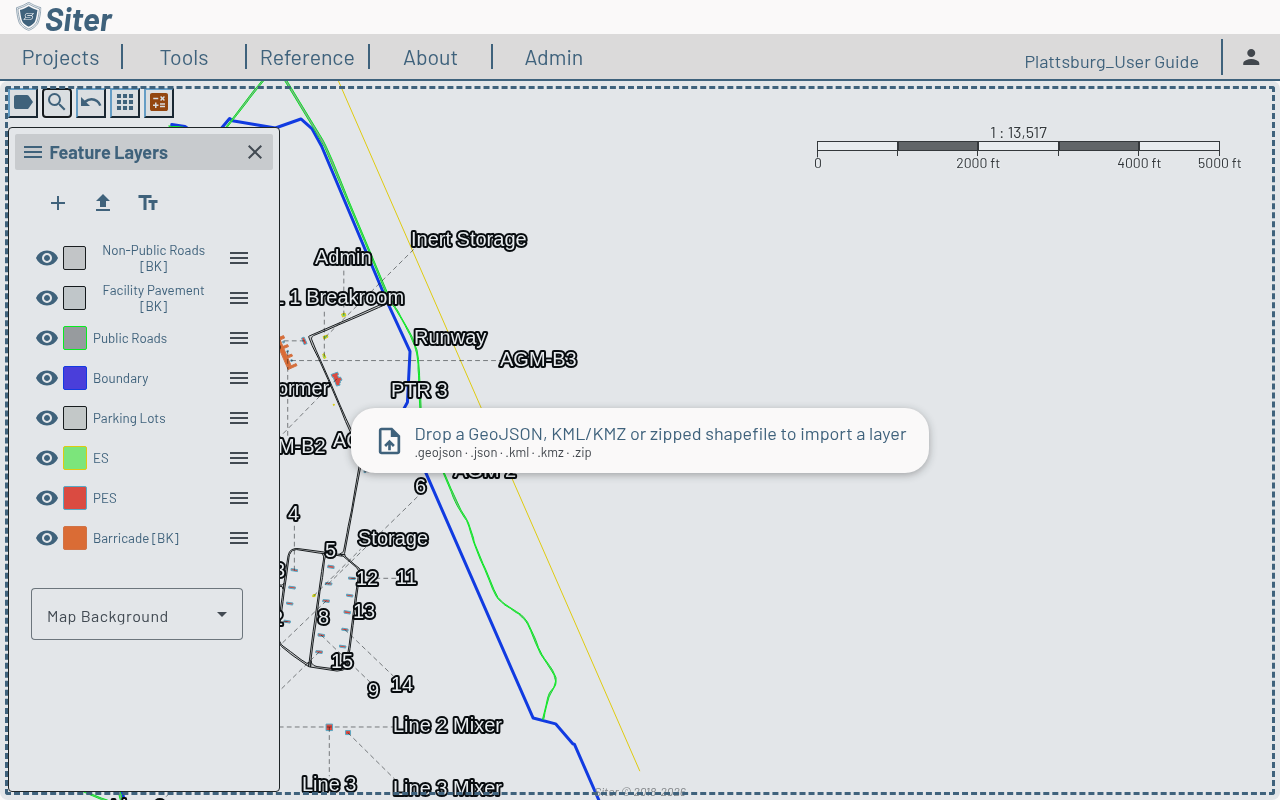
Siter refuses a drop, with a message, when you drop:
- more than one file, or a folder — drop one file at a time
- loose shapefile parts (
.shp,.dbf, …) — zip them first - a Siter archive or snapshot — import those from the Project Management page instead
- any other file type, or an empty file
Import errors and warnings
The Features tab marks each feature that has a problem, and the panel header counts them:
- Errors — a red error icon beside the name, counted as N features found with geometry errors. These features are left out of the import. The Errors column and the icon's tooltip show the first error; expand the row to read them all
- Warnings — an orange warning icon beside the name, counted as N features import with warnings. These features are imported; expand the row to read the Import Warnings
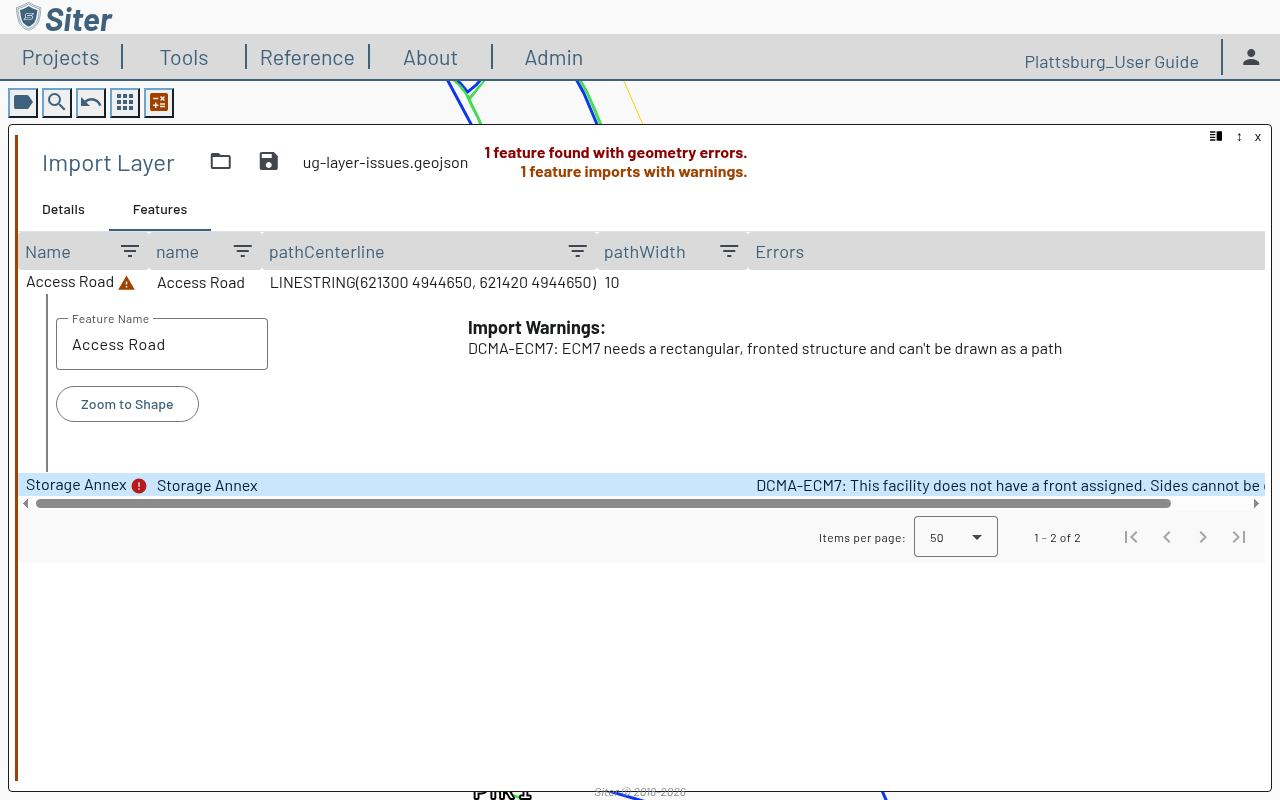
The errors depend on the Default Feature Types, because Siter builds each feature's faces for the chosen type. Changing a Default Feature Type after the file is loaded rebuilds every feature's errors and warnings and updates the counts — a feature that now has an error drops out of the import, and a warning that no longer applies clears.
Importing path facilities (roads)
Since v0.32 a GeoJSON file doesn't carry path data. A road imports as an ordinary polygon, including files exported from Siter v0.31 with pathCenterline and pathWidth properties (those properties are ignored). To make it a path again, draw it as a path layout.
How to export a layer
-
In the Feature Layers sidebar, click the menu icon next to the layer name
-
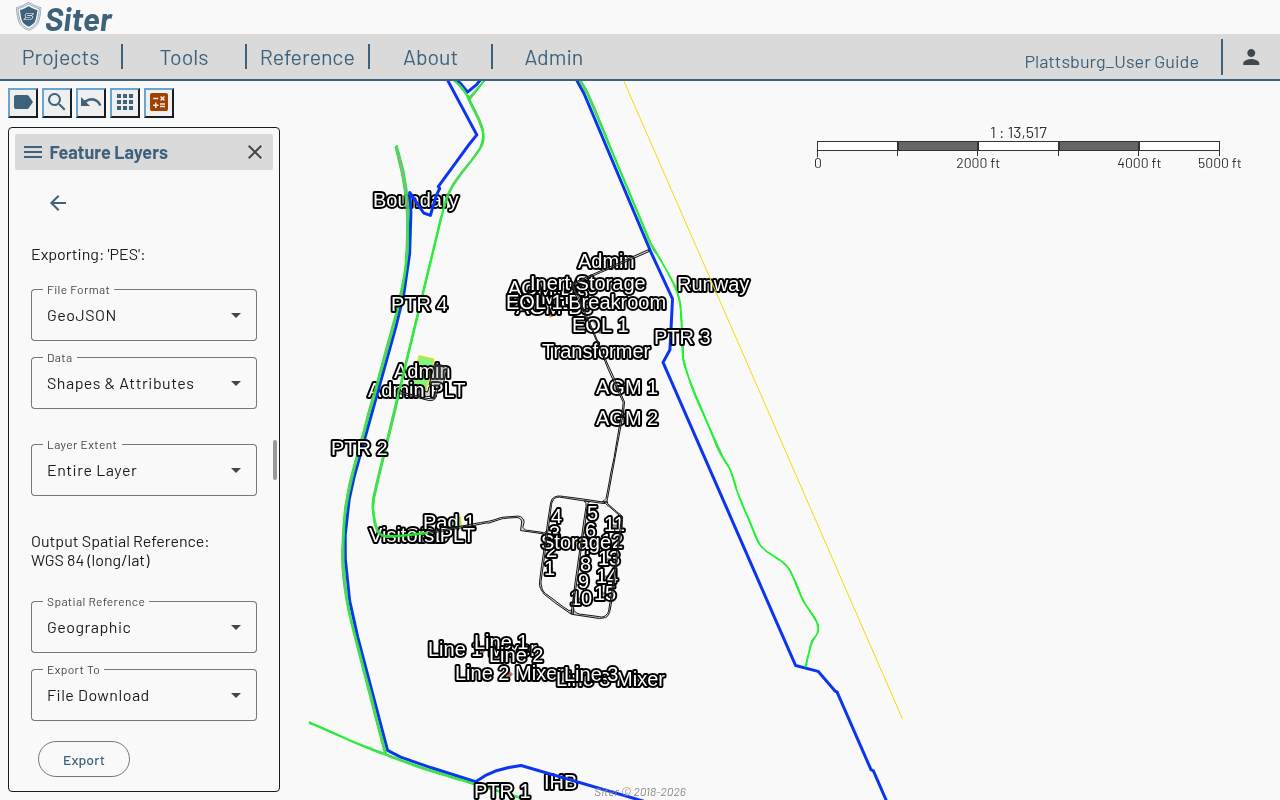
Select Export — the export panel opens in the sidebar
-
Set the export options:
- File Format — GeoJSON or DXF (AutoCAD, added v0.28). Choosing DXF locks Spatial Reference to Projected and Export To to File Download; see DXF export for what the file contains and how to open it in CAD or GIS tools
- Data — what to include:
- Shapes & Attributes — geometry plus all feature properties, including the three note fields as
description(Facility Description),submittalNotes, andnotes(internal notes) - Just Shapes — geometry only
- Just Attributes — a flat table of attributes, no geometry (not available for DXF)
- WebESS Format — a WGS84 export that automatically adds the WebESS's required
FACILITYNUMBER,FEATURENAME, andFEATUREDESCRIPTIONcolumns.FEATUREDESCRIPTIONis the feature's Facility Description.FACILITYNUMBERis made unique across all selected layers by appending-2,-3, … to colliding or empty names. (Added v0.22, GeoJSON only.)
- Shapes & Attributes — geometry plus all feature properties, including the three note fields as
- Layer Extent — Entire Layer or only what is in the current map view
- Spatial Reference — Geographic (WGS 84 long/lat), Projected (the project's coordinate system), or Custom (enter a 4-5 digit EPSG code)
- Export To — File Download or Clipboard
-
Click Export
A path facility exports as its polygon only; its centerline and width are not written to the file.
Related topics
- Feature labels — set the text and styling of map labels
- DXF export — exporting layers and analysis results to AutoCAD
- Map view — navigate and interact with the project map
- Features — add and edit features within a layer
- Projects — exporting and importing whole projects