Result Sets and drawings
Result Sets save a snapshot of an analysis run so you can compare configurations side-by-side, archive an evaluation at a point in time, or export a presentation-ready drawing. Drawings are the printable visual output of a Result Set — the map view with the chosen symbols, arcs, legend, and labels rendered for export.
Prerequisites
- You must have an open project with features and analysis results
- You must have the Project Edit Permission or higher
How to view saved Result Sets
-
Click the menu icon in the left sidebar header to open the sidebar chooser
-
Select Result Sets
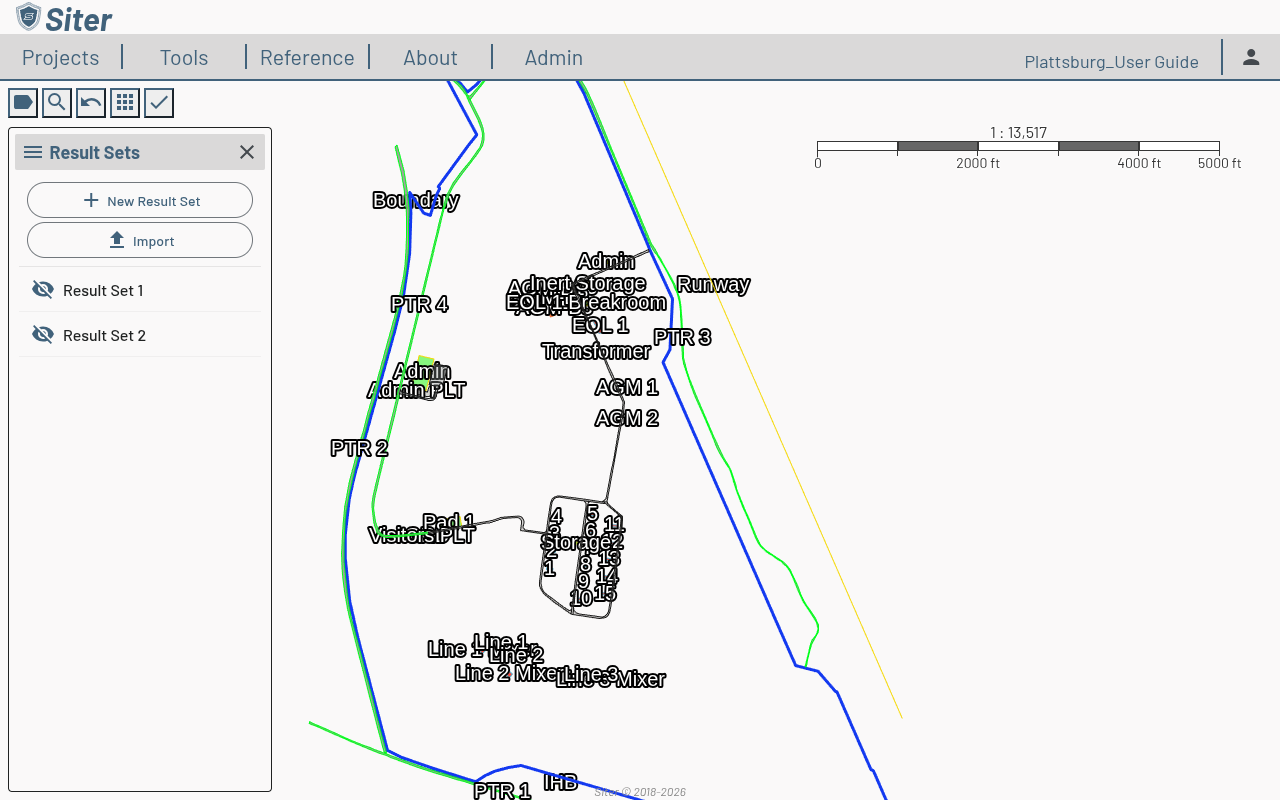
The sidebar lists every saved Result Set with an eye toggle. Toggling a Result Set on overlays its arcs and analysis results on the map.
How to create a Result Set
- Open the Result Sets sidebar
- Click New Result Set — an empty Result Set named [Result Set] appears in the list
- Click it to open it in the footbar, rename it on the Details tab, and click Save Current Result Set State
A new Result Set starts empty. Add results to it as described next, or create it directly from a selection of results with Save to Result Set — that route creates and fills it in one step.
How to add results to a Result Set
Results go into a Result Set from the live analysis tables — the project-wide Analysis Results footbar or a single feature's dashboard.
- Open the Analysis Results footbar (toolbar Analysis > Analysis Results), or select a feature and open the Calculations tab of its dashboard
- Tick the rows to include. Checked rows are the ones drawn on the map, so use the views under Show (for example Governing Distances, Closest Exposures, or Violations), the column filters, or the search box to narrow the table, then adjust the checkboxes until only the arcs you want are checked
- Click the Arc Tools button and select Save to Result Set, then choose New Result Set or the name of an existing Result Set. When the project has no Result Sets yet, the item reads Export to New Result Set instead
- Siter confirms with Content exported to [name]. Open the Result Set from the sidebar to review it, rename it on the Details tab, and click Save Current Result Set State
The checked calculations and their spatial results are copied into the Result Set as a snapshot: later edits to features or re-runs of the analysis do not change them, and results already in the Result Set are not added twice. Repeat from other views or features to build up one Result Set from several selections.
The same Arc Tools menu on the live results also offers Save Arcs as Default, which stores the current checked set as the project's default view of its analysis results. That affects what is drawn when the project opens; it does not create or change a Result Set. To keep the checked arcs on the map only while you work, without saving anything, use the pin button instead (see How to keep analysis arcs on the map).
How to remove results from a Result Set
Trim a saved Result Set down to the calculations and spatial results a deliverable needs — for example, to drop arcs for facilities outside the drawing's extent — without re-running the analysis.
-
Open the Result Set from the Result Sets sidebar
-
On the Calculations tab (or the Spatial Analysis tab), tick the checkbox on each row to remove. Every row in a saved Result Set starts checked — checked rows are the ones drawn on the map — so clear the header checkbox first to uncheck the listed rows, then tick only the ones to remove. Rows hidden by a view, filter, or search keep their state; the header checkbox affects only the rows you can see
-
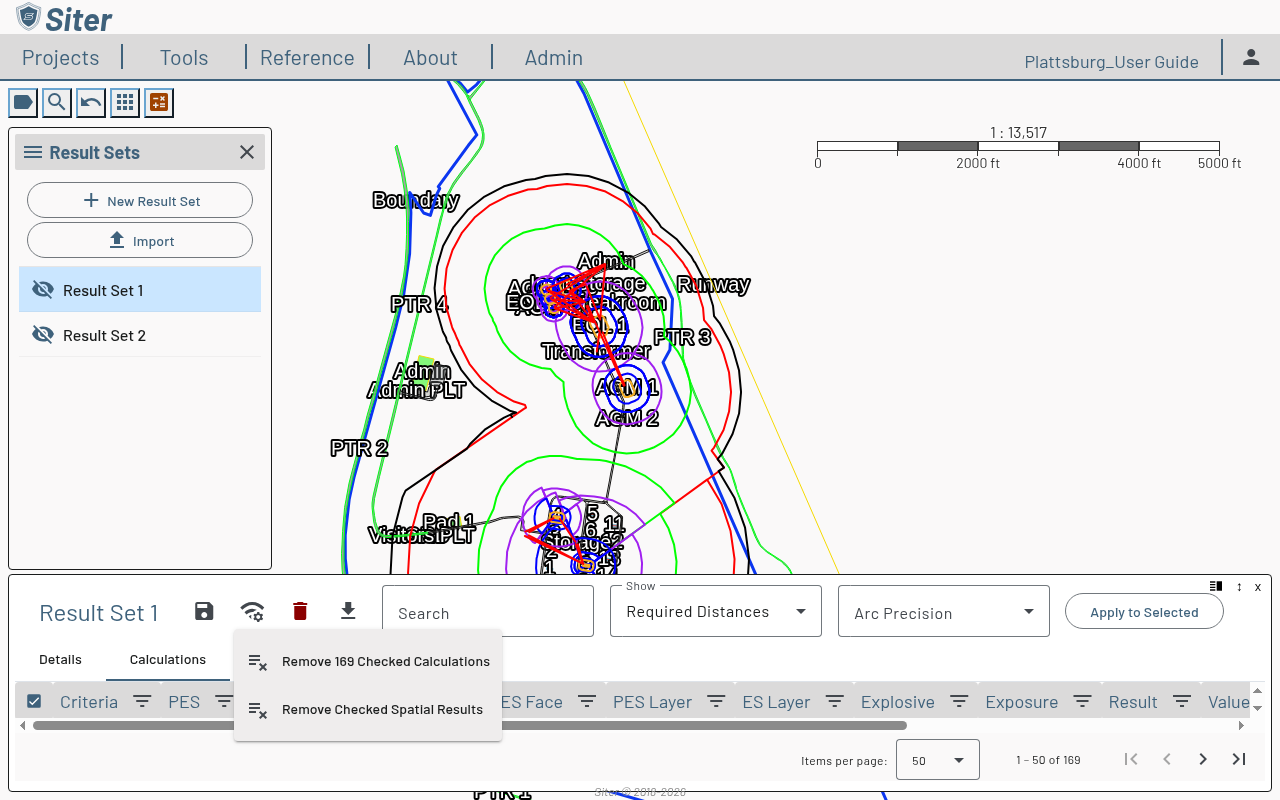
Click the Arc Tools button in the Result Set toolbar and select Remove N Checked Calculations (or Remove N Checked Spatial Results) — the item counts the rows that are checked, so check the number before you confirm
-
Confirm in the Remove Calculations (or Remove Spatial Results) dialog. The rows and their map graphics disappear immediately, and any column filter that no longer matches a remaining row is cleared
-
Click Save Current Result Set State to keep the removal, or Discard changes to put the rows back along with any other unsaved edits
If nothing is ticked, the menu item still opens and Siter tells you to check one or more rows on the matching tab first. Removing rows changes only this Result Set — the project's live analysis results and other Result Sets are untouched.
How to delete a Result Set
- Open the Result Set from the Result Sets sidebar
- Click Delete this Result Set in the toolbar
- The Delete Result Set dialog names the Result Set being deleted — click Delete to confirm
Deletion cannot be undone. Drawings already generated from the Result Set keep their contents.
How to export a drawing
The drawing output is generated from a Result Set with the active map view and symbology.
- Open the Analysis Results footbar (toolbar Analysis > Analysis Results)
- Click the download icon in the panel header
- Choose drawing settings:
- Page size and orientation
- Whether to include the analysis legend (added in v0.19)
- Which layers and arcs to render
- Save the resulting drawing file
Toggle the visibility of Result Sets, layers, and analysis symbols on the map before exporting — what you see is what gets rendered into the drawing.
When the project uses a Google Maps or Azure Maps background, the map view and the exported drawing automatically include the provider's required attribution.
Related topics
- Running an analysis — generating analysis results to include in drawings
- Analysis symbology — customizing how analysis results appear
- Submittals — generating formal submittal packages