Running an analysis
Analysis is the core function of Siter. When you run an analysis, Siter calculates quantity-distance (QD) arcs for each potential explosion site (PES) based on the explosive quantities, facility types, and attributes you have defined. The results show required and actual separation distances for every PES–ES pair, flagging any pair that does not meet the selected criteria.
Prerequisites
- Your project must have at least one feature with a facility type assigned
- Features must have explosive quantities entered (see Feature explosives data)
- You must have the Project Read Permission or higher to run a full analysis (Analyze Project, Run Analysis, or a feature's Analyze) and to open and filter Analysis Results
- You must have the Project Edit Permission or higher to clear or cancel analysis, build relationships, run a spatial analysis, or regenerate faces
A run replaces the project's stored results for everyone, including saved arc selections (Save Arcs as Default), dimension positions, and checked error flags. This applies to runs started with the Project Read Permission too.
How to run an analysis
There are several ways to run an analysis:
From the toolbar Analysis menu
-
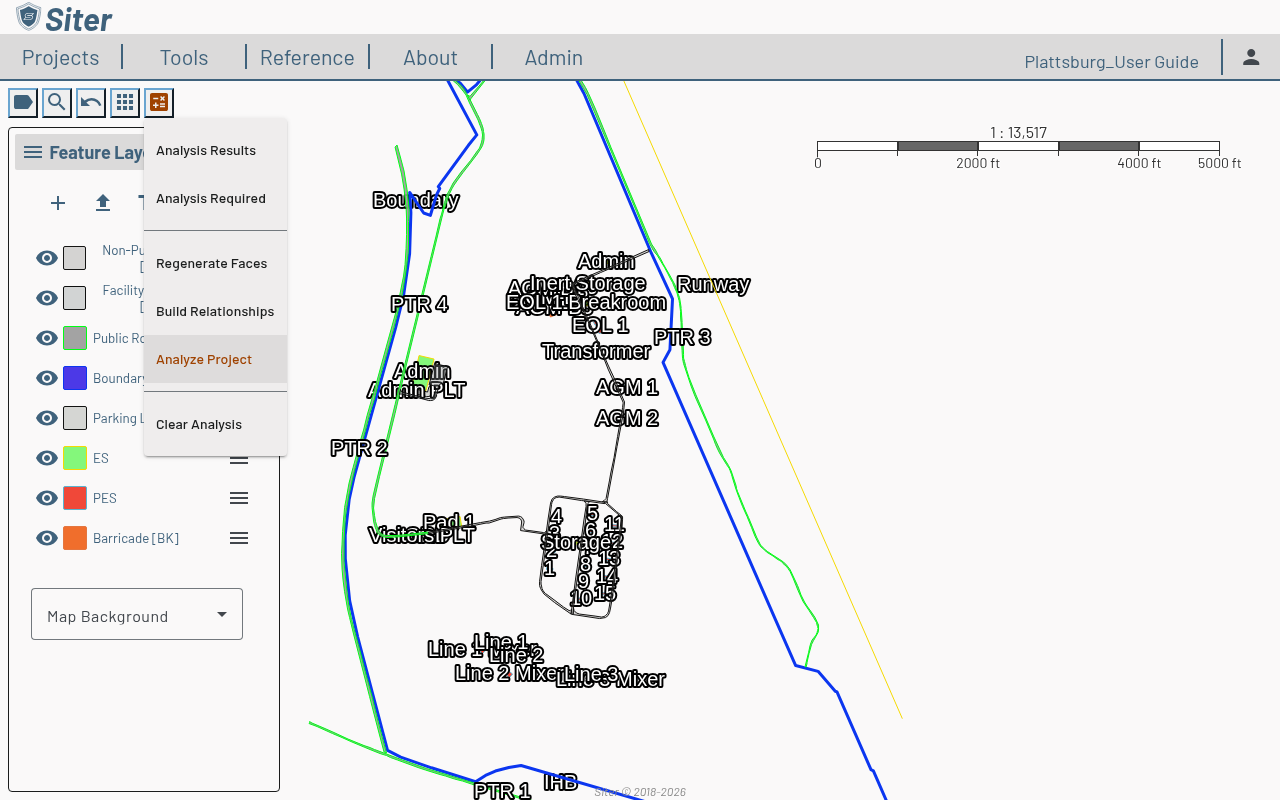
Click the / Analysis button in the toolbar to open the analysis menu
-
Select Analyze Project — Siter calculates QD arcs for every feature in the project. It is the menu's main action, so it is shown in the accent color
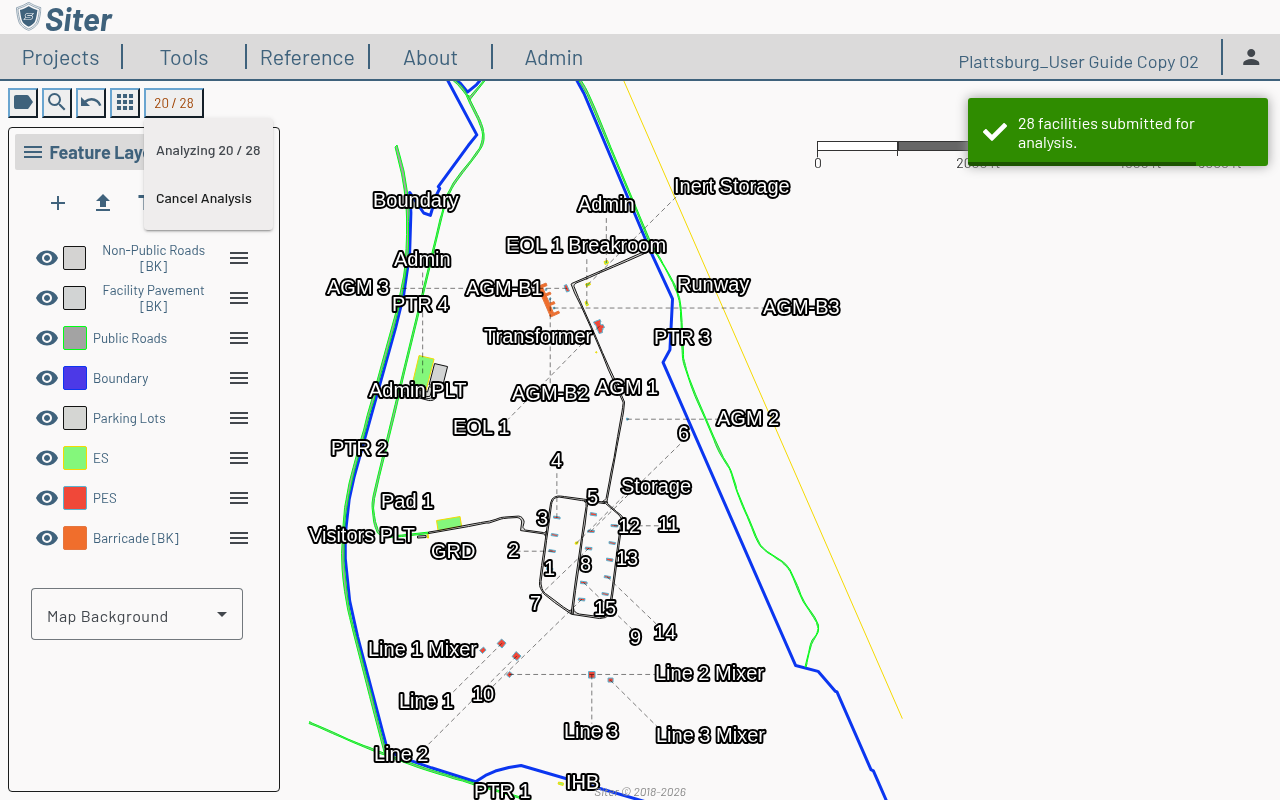
While the analysis runs, the Analysis button shows its progress, and the menu shows it as Analyzing n / m (facilities analyzed out of those submitted), followed by Cancel Analysis for users with the Project Edit Permission. A run that is cancelled or fails may already have cleared some facilities' results; the map and the Feature List show those facilities as needing analysis right away, without reloading the page.
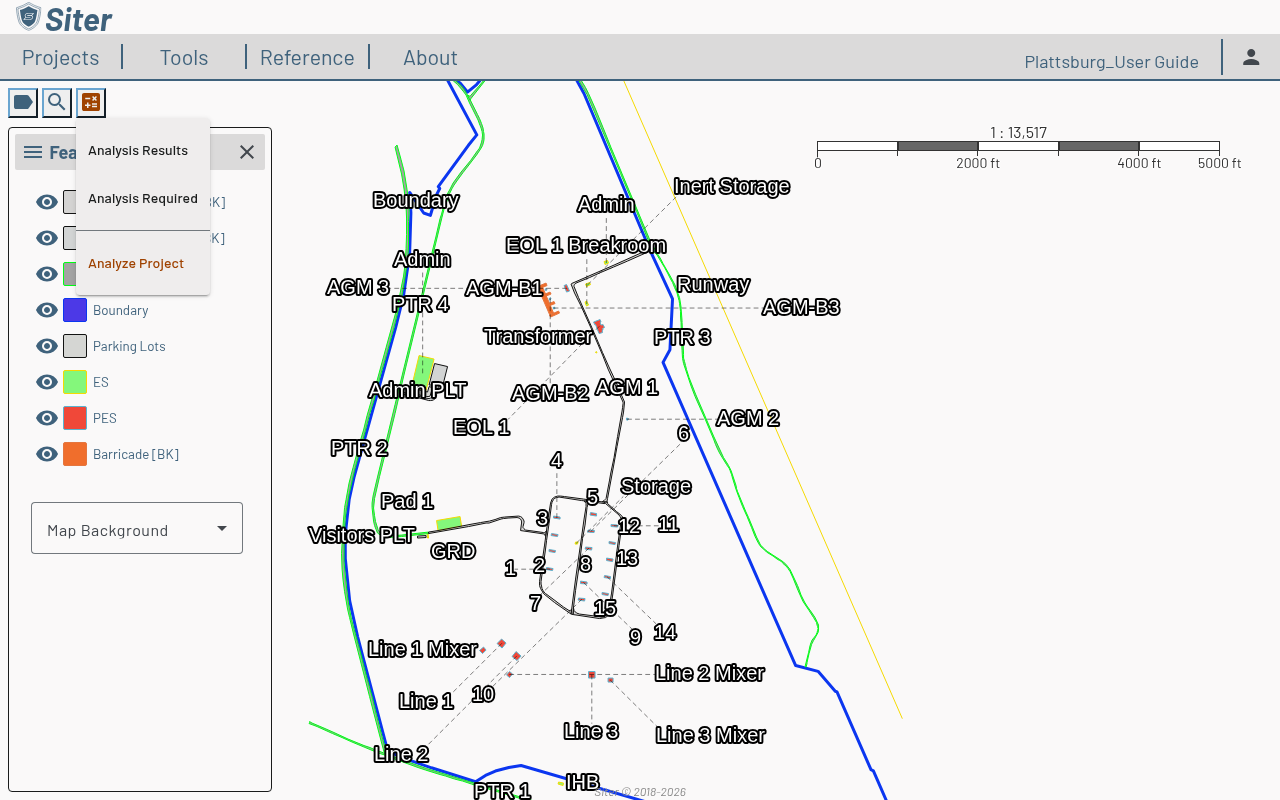
With the Project Read Permission only, the menu offers Analysis Results, Analysis Required, and Analyze Project:
From the project dashboard
- Click the project name to open the project dashboard
- Click the settings gear icon and select Run Analysis
From the Analysis Results panel
- Open the Analysis Results panel (see below)
- Click the settings gear next to the Analysis Results title and select Run Analysis
For one feature
- Select a feature to open its dashboard
- Click the Options (gear) button and select Analyze
Spatial analysis only
A spatial analysis finds every nearby PES–ES pair without calculating QD distances. It is faster than a full analysis and is what the relationship group build uses to decide which pairs need a relationship. Siter runs a spatial analysis on its own in two places:
- Build Relationships in the Analysis menu — runs a spatial analysis, then builds relationships from the relationship group matrix (see How to build relationships from the map)
- Run Spatial Analysis in the Relationship Group Editor's banner
Toasts for a spatial-only run are labeled "Spatial analysis" rather than "Analysis". A spatial-only run removes the full analysis results (calculations and planning results) of every facility it re-runs and marks those facilities as needing analysis, so they appear under Analysis Required — run Analyze Project afterwards to get QD results back. Both entry points require the Project Edit Permission.
One analysis at a time
A project runs only one analysis at a time. If an analysis is already queued or running — started in another tab, by another user, or by a double-click — a new one is refused with "An analysis is already running for this project". Wait for it to finish and try again.
An analysis also cannot start while relationships are being built. Analyze Project, Run Analysis on the Analysis Results panel, and Analyze in a feature dashboard's Options menu are disabled with the tooltip "Unavailable while relationships are being built", and any other attempt shows a message to try again when the build finishes.
The Analysis Required entry in the Analysis menu becomes active whenever an analysis-relevant edit has been made since the last analysis run. Use it to jump to the list of features that need attention before re-running.
Which edits mark analysis as needed
Siter marks a facility as needing re-analysis only when an edit can change its results. Any edit that can change results counts, for example its shape, faces, front, category (type code), attributes, explosives, layer, or a relationship value. A relationship change marks both facilities in the pair.
These edits do not mark analysis as needed on their own:
- A facility's Name, Description, Notes, Submittal Notes, label text, or custom style
- A category's notes or justification
- An explosive's display name
- A relationship submittal note, including notes added from the Analysis Results panel
A save that combines one of these with an analysis-relevant change still marks the facility. The Last Analysis-Relevant Edit column in the Feature List (set Columns to Analysis Timestamps) shows when each facility last had an edit that counts, next to Last Edited, which records every edit.
Regenerate faces
Facilities created in older versions of Siter can have default faces that do not match their criteria's sides, for example a single perimeter face on a four-sided facility. Their submittal forms print a Sides not analyzed row. To rebuild them:
- Click the / Analysis button in the toolbar and select Regenerate Faces
- Siter explains that default faces on every facility are rebuilt from the criteria and saved, and that custom faces and each face's Analyze and Barricaded settings are kept. Click Regenerate
- When faces changed, Siter asks whether to analyze the project now. Click Analyze Project, or Later to analyze afterwards
Regenerating marks every facility whose faces changed, and every PES whose search zone reaches them, as needing re-analysis. Facilities that cannot be regenerated keep their faces, and Siter names them in its message (with details in the browser console). Regenerate Faces is disabled while an analysis or relationship build is running, and Build Relationships and Analyze Project are disabled until regenerating finishes. To rebuild one facility's faces, use its Segments tab in the facility editor.
How to view analysis results
After running an analysis, results are available project-wide from the toolbar and per-feature from the dashboard.
Project-wide results
-
Click the / Analysis button in the toolbar and select Analysis Results
-
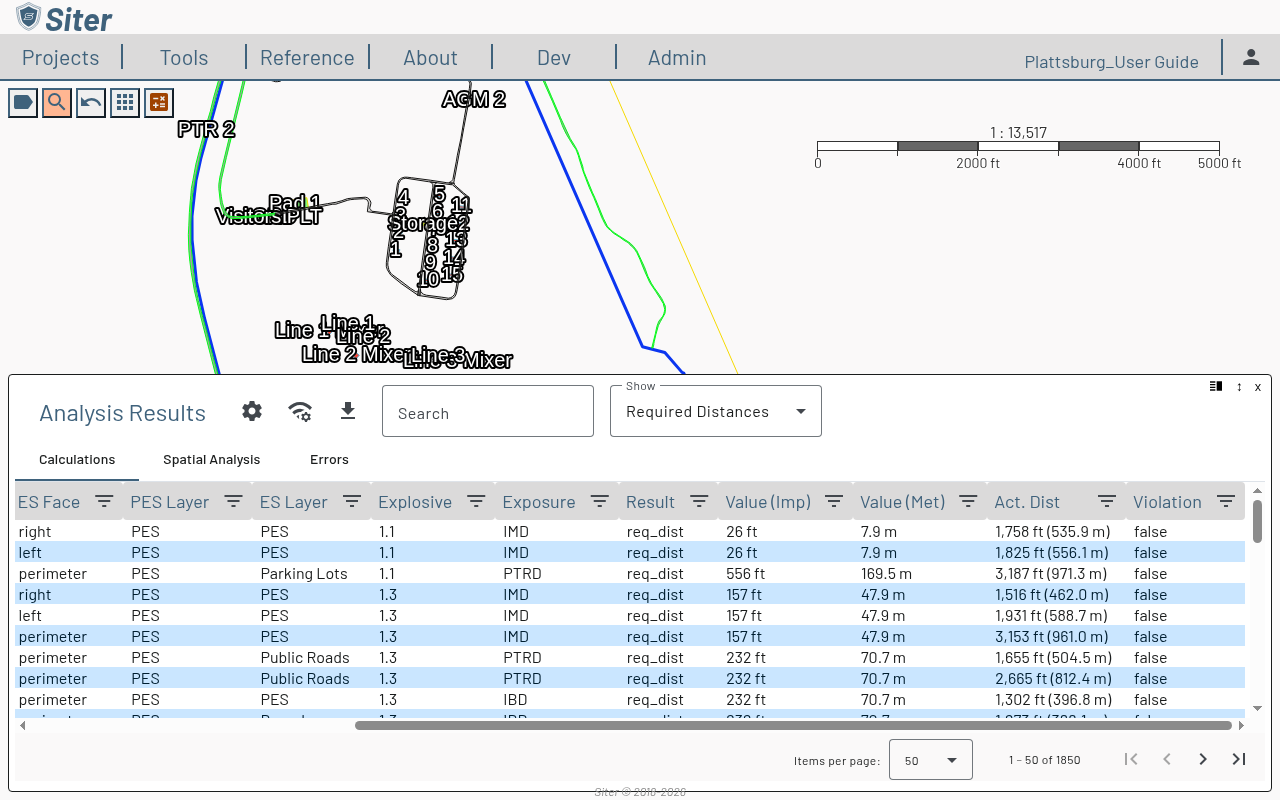
The Analysis Results footbar opens at the bottom of the screen with three tabs
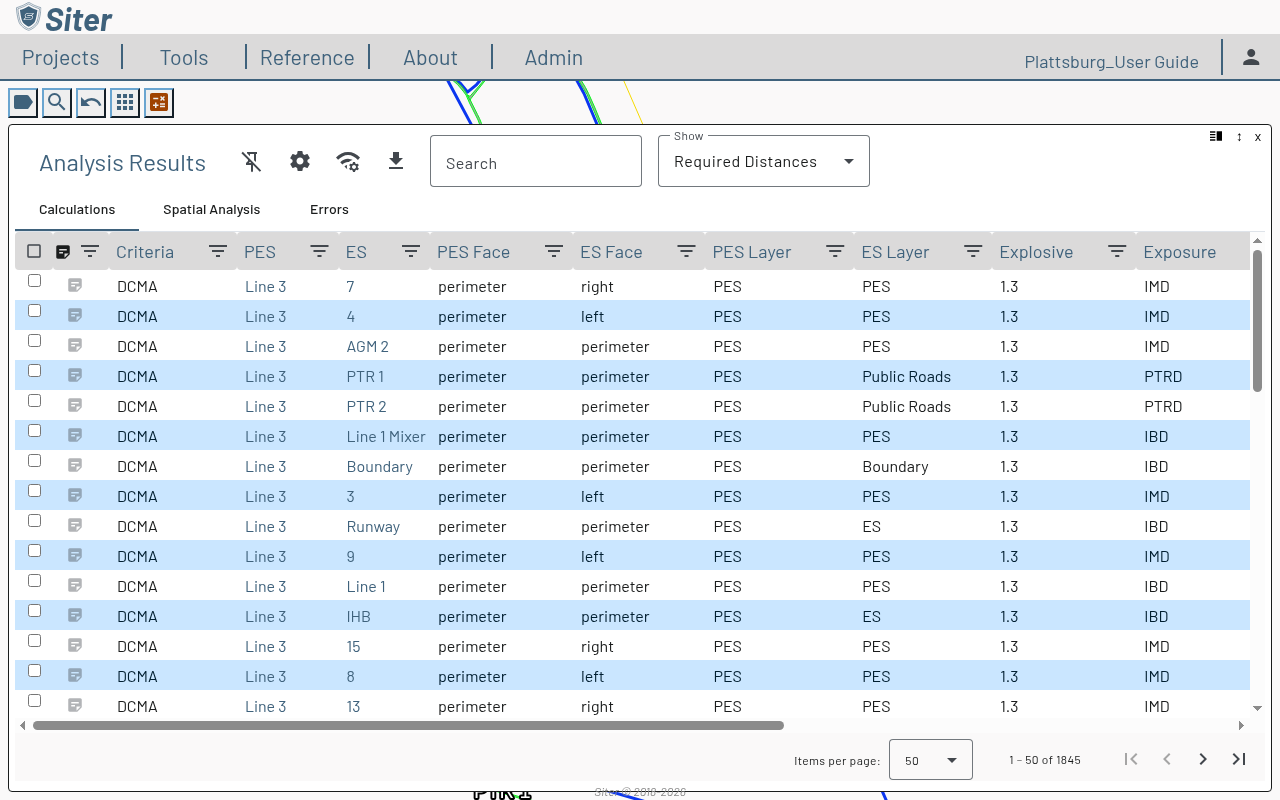
- Calculations — required and actual distances for every PES–ES pair, with violation flags
- Spatial Analysis — every nearby PES–ES pair the engine found, with the criteria type code in effect
- Errors — features that could not be analyzed and why
-
Use the Show dropdown to choose which rows the Calculations tab lists. It opens on Required Distances; the other views are Governing Distances, Closest Exposures (see Closest exposures), All Distances, Violations, Planning Distances, DQ Results, All Results, Selected Results, and Dimensioned Results
-
Click any column header's filter icon to narrow the results. The PES and ES filters open the Feature Selector, which lists the project's facilities with one type-code column per project criteria; background-layer features are not listed
Click a PES or ES facility name in the Calculations tab to open that facility's dashboard. Back returns you to the Analysis Results panel.
The Calculations tab's Act. Dist column shows the measured PES–ES separation as feet (meters) alongside the required distance in the Value columns. Rows for planning arcs, which have no paired exposed site, leave the column empty.
Closest exposures
Set Show to Closest Exposures to see, for each PES, the nearest exposed site of every exposure type. The table lists one row per PES, criteria, and exposure type: the required-distance row with the smallest Act. Dist, across all of the PES's faces. When two rows are equally close, a row in violation wins, then the one with the larger required distance.
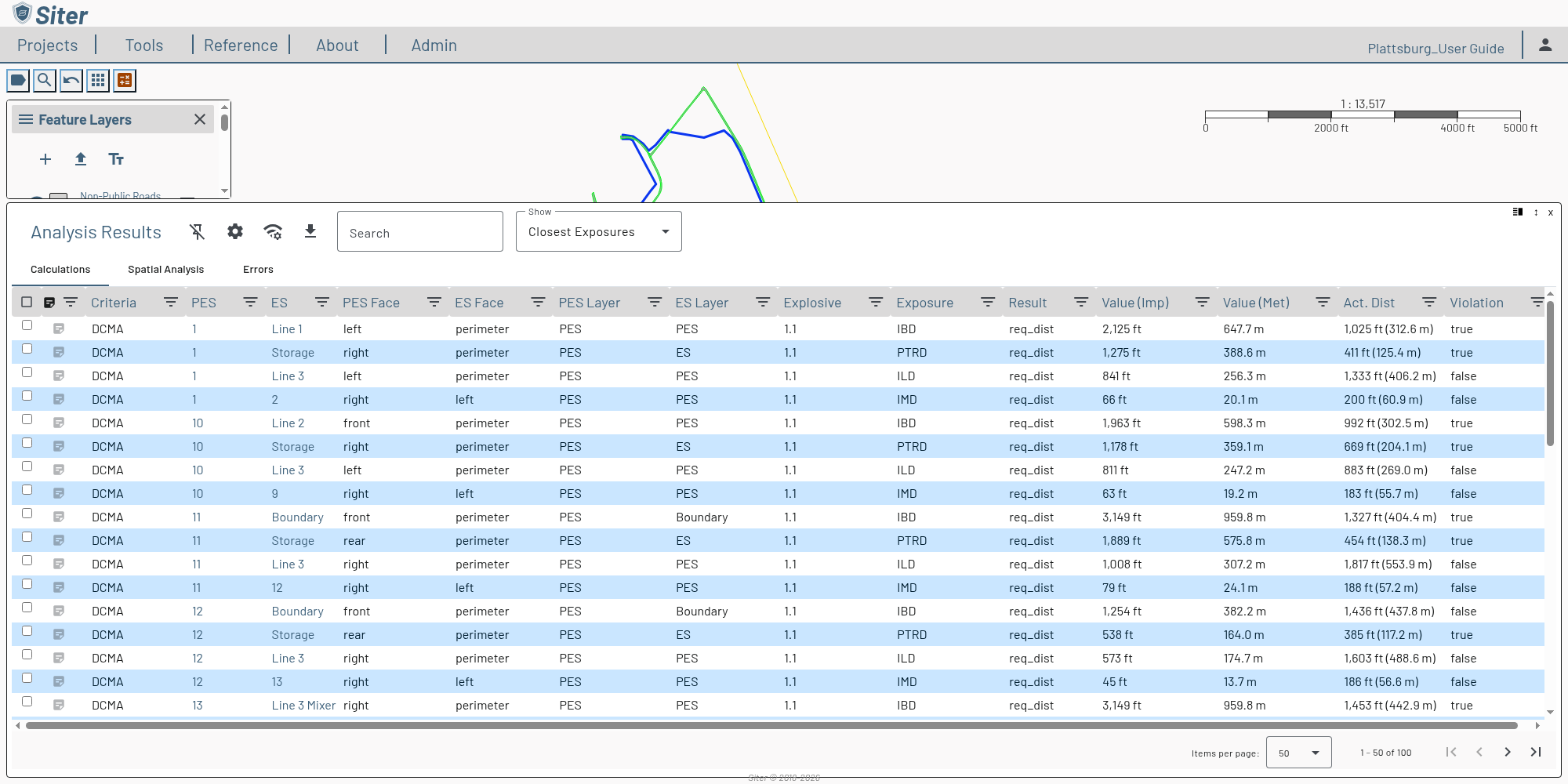
- Rows are grouped by PES, then criteria, then exposure type in the criteria's own order (for DCMA, IBD, PTRD, ILD, then IMD); exposure types the criteria does not list follow alphabetically, and NONE comes last
- Column filters and the search box apply first, so filtering the ES, ES Layer, or Explosive column shows the closest matching exposure of each type rather than dropping the type
- Planning-distance rows and rows without an actual distance are not included
Closest Exposures is also available on a feature's Calculations tab and on a Result Set's Calculations tab. A Result Set saved before Siter recorded actual distances has none to compare, so the view explains this instead of showing "No analysis results found." To use the view with those results, add the current analysis results to a new Result Set (see How to add results to a Result Set).

Per-feature results
-
Select a feature to open its dashboard
-
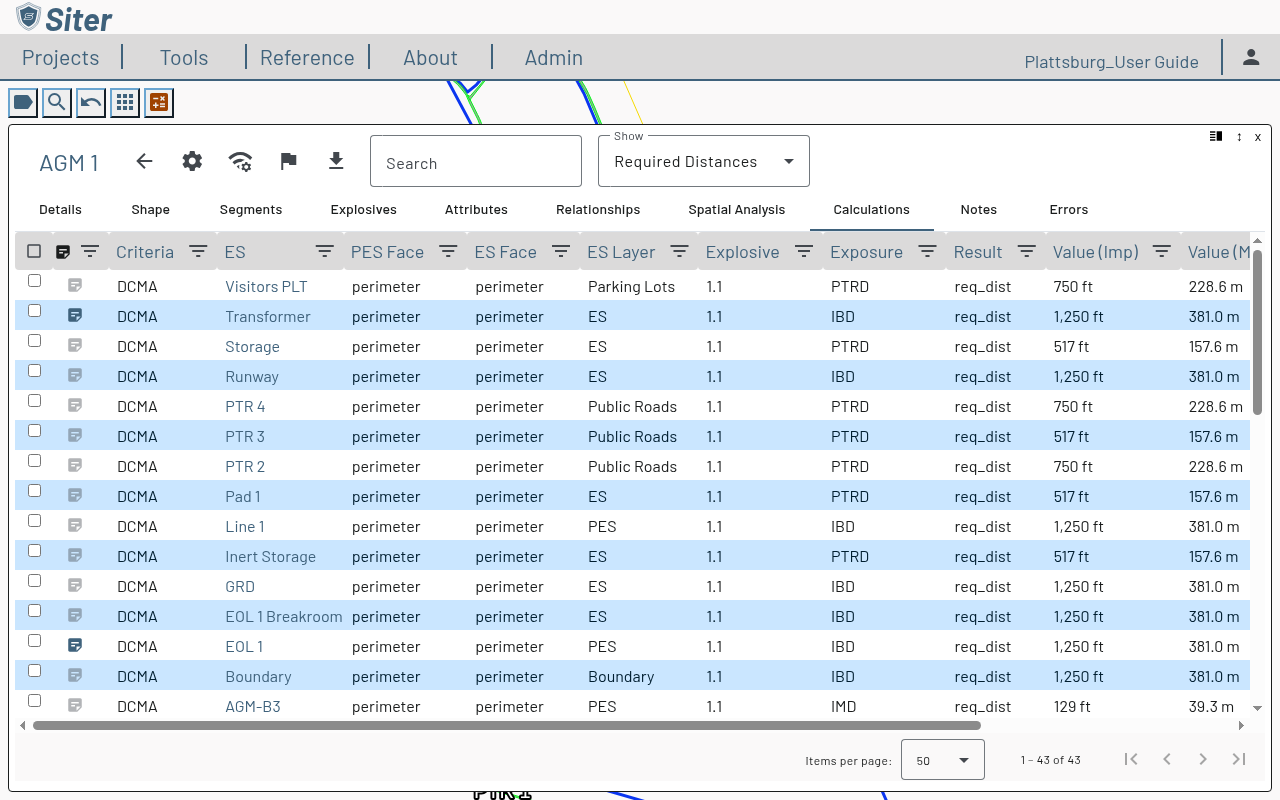
Click the Calculations tab to see required and actual distances for that feature only
-
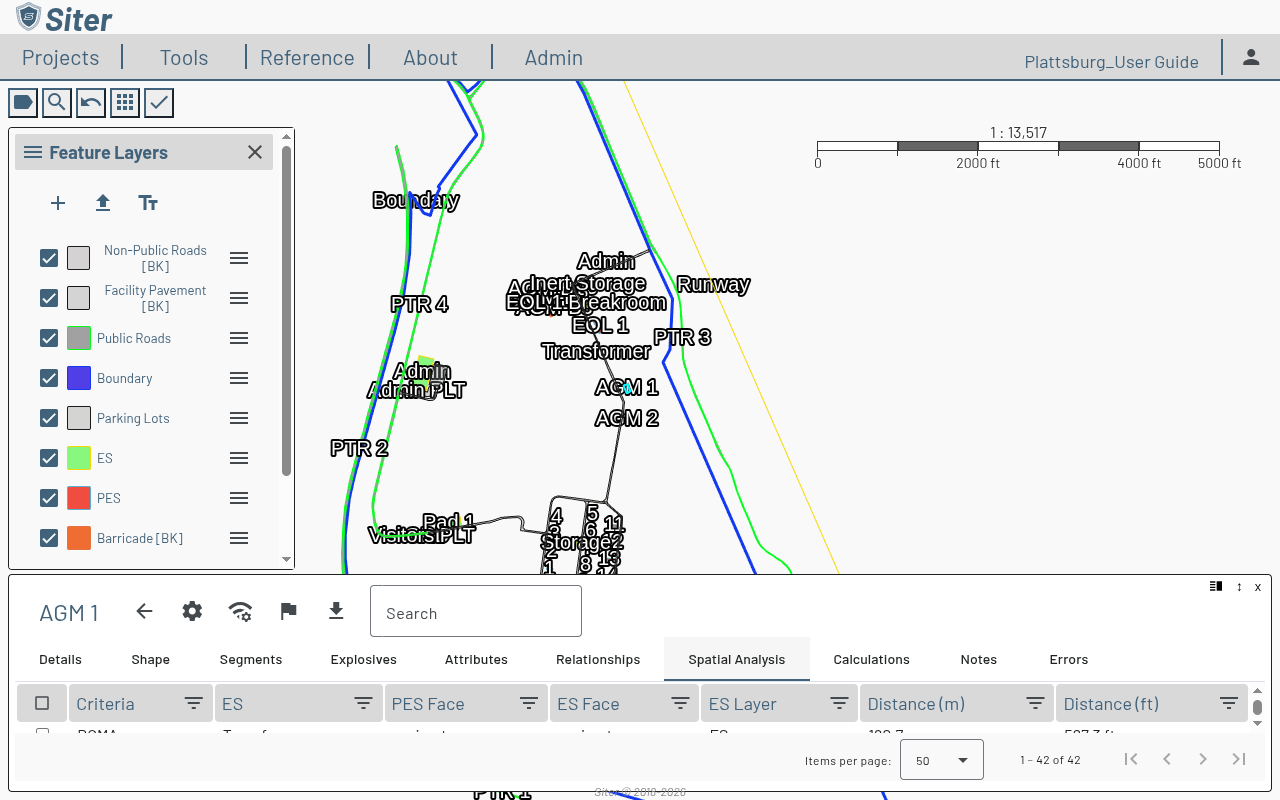
Click the Spatial Analysis tab to see which nearby features are paired with this one
-
Click the Errors tab to see any data issues that prevented calculation for this feature
Selecting results on the Calculations tab chooses which arcs are drawn on the map; it does not count as an unsaved change to the facility. To keep a selection as the facility's default, click Arc Tools and select Save Arcs as Default. Editing an arc's precision or dimension line is still an unsaved change.
On the project-wide Analysis Results panel, Arc Tools > Save Arcs as Default saves the checked arcs as the project's default view. While the save is in progress the item reads Saving arcs… and cannot be clicked; changes you make meanwhile stay unsaved until you save again.
How to keep analysis arcs on the map
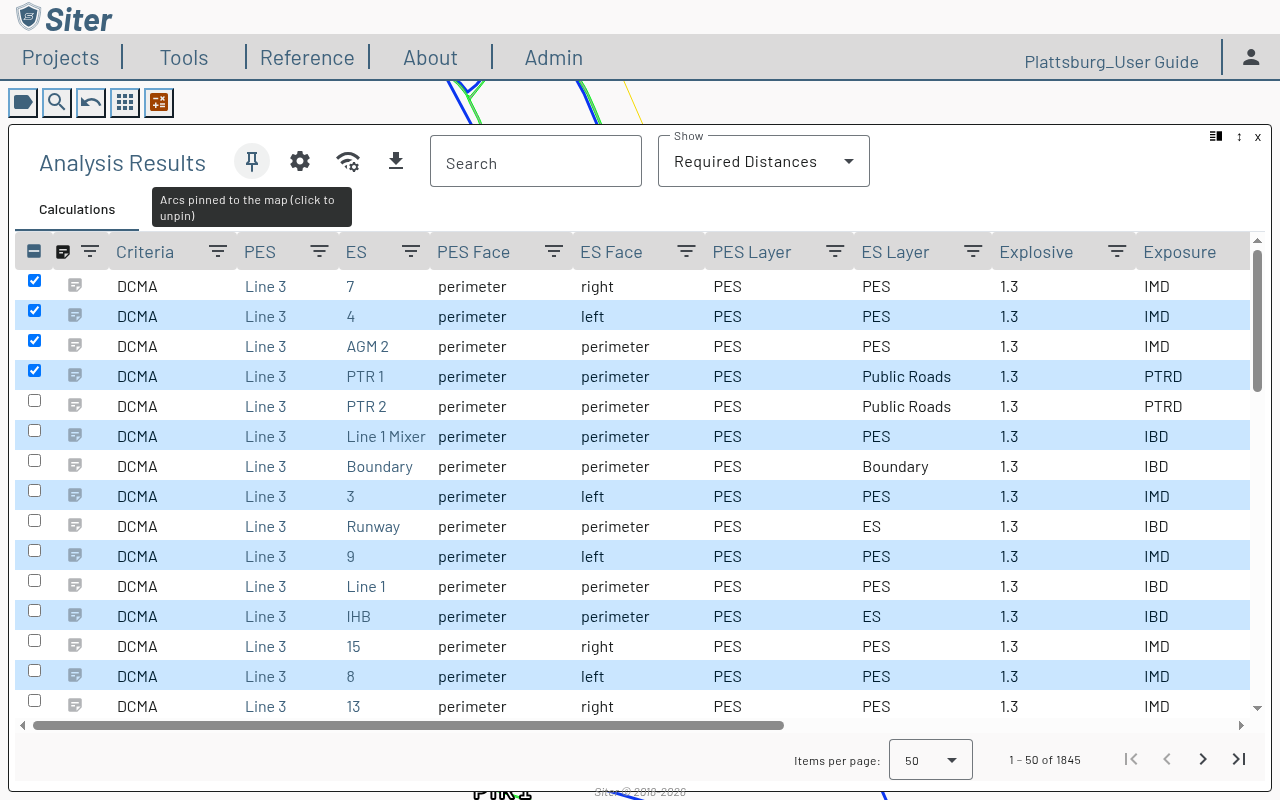
By default, closing Analysis Results removes its arcs from the map. Pin the arcs to keep the checked results drawn while you work elsewhere on the map. Pinning saves nothing to the project, so it is available with the Project Read Permission.
-
Open Analysis Results (toolbar Analysis > Analysis Results) and check the results whose arcs you want to see
-
Click the pin button in the panel toolbar, just before Options (tooltip Pin selected arcs to the map after closing). When it is on, the tooltip reads Arcs pinned to the map (click to unpin)
-
Close Analysis Results. Siter confirms Selected arcs kept on the map. Hide or clear them in Feature Layers.
The pin setting is remembered for your account, the same as the Pin selected analysis arcs to the map after closing Analysis Results preference on the Map Behavior card. Arcs are kept only when at least one result is checked.
While arcs are kept, the top of the Feature Layers sidebar shows a Kept analysis arcs (N) entry, where N is the number of kept arcs:
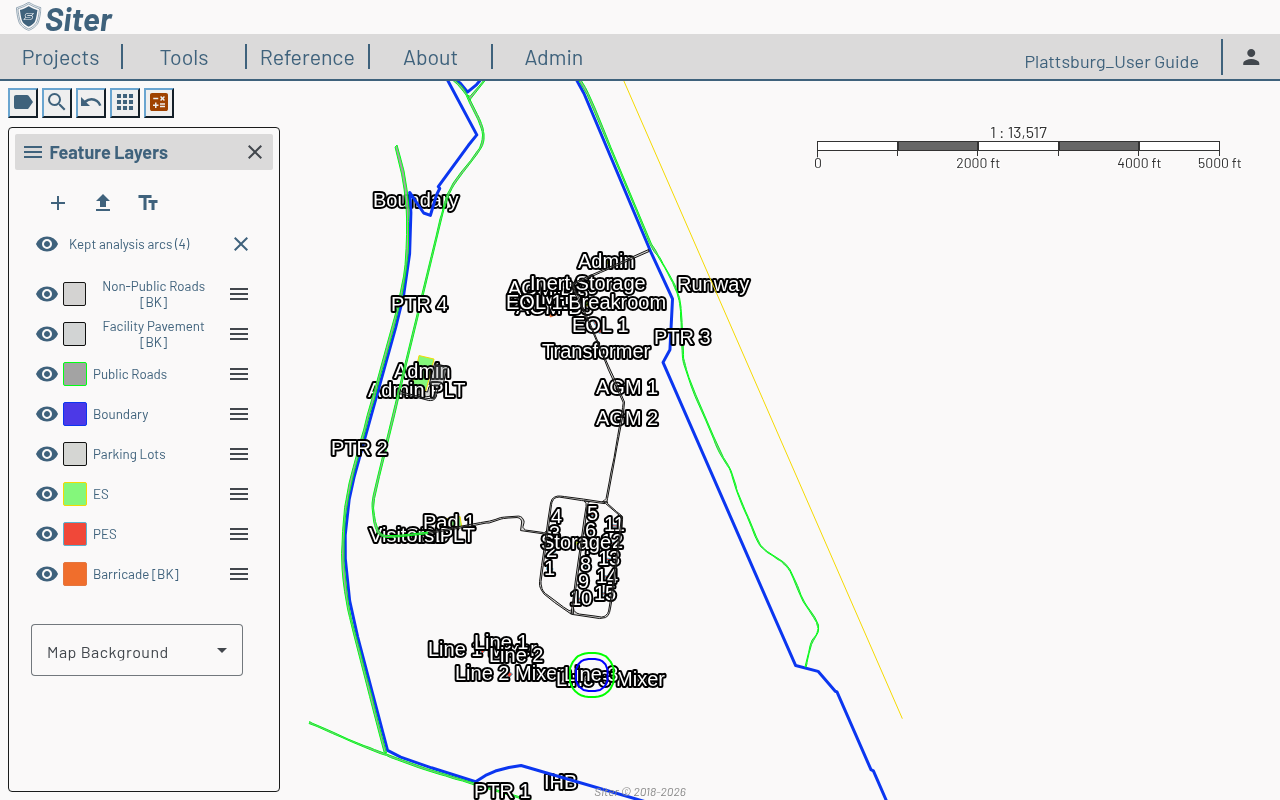
- Click the eye to hide or show the kept arcs (Hide kept arcs on map / Show kept arcs on map)
- Click Kept analysis arcs (N) to reopen Analysis Results with the same selection, including any changes you had not saved
- Click the clear button (Clear kept arcs) to remove them from the map
You can also clear them from the Popups menu with Clear Kept Analysis Arcs, which appears only while arcs are kept.
Kept arcs are never saved. Clearing them discards any unsaved selection changes; reopening Analysis Results then loads the saved default selection. Siter also clears kept arcs when you leave the map or switch projects, and when the analysis results change (an analysis finishes, an edit removes a facility's results, a facility is deleted, or a layer is removed), with the message Kept analysis arcs cleared — analysis results changed. To keep a selection permanently, use Save Arcs as Default or save it to a Result Set.
Understanding analysis results
Analysis results include:
- QD Arcs — circles drawn around each PES showing the required separation distances
- Violations — pairs where the actual distance is shorter than the required distance (Violation = true)
- Calculations — required and actual distance, plus the criteria, explosive, and exposure that governed the calculation
- Spatial relationships — which features the engine paired against each other
How to add relationship notes from analysis results
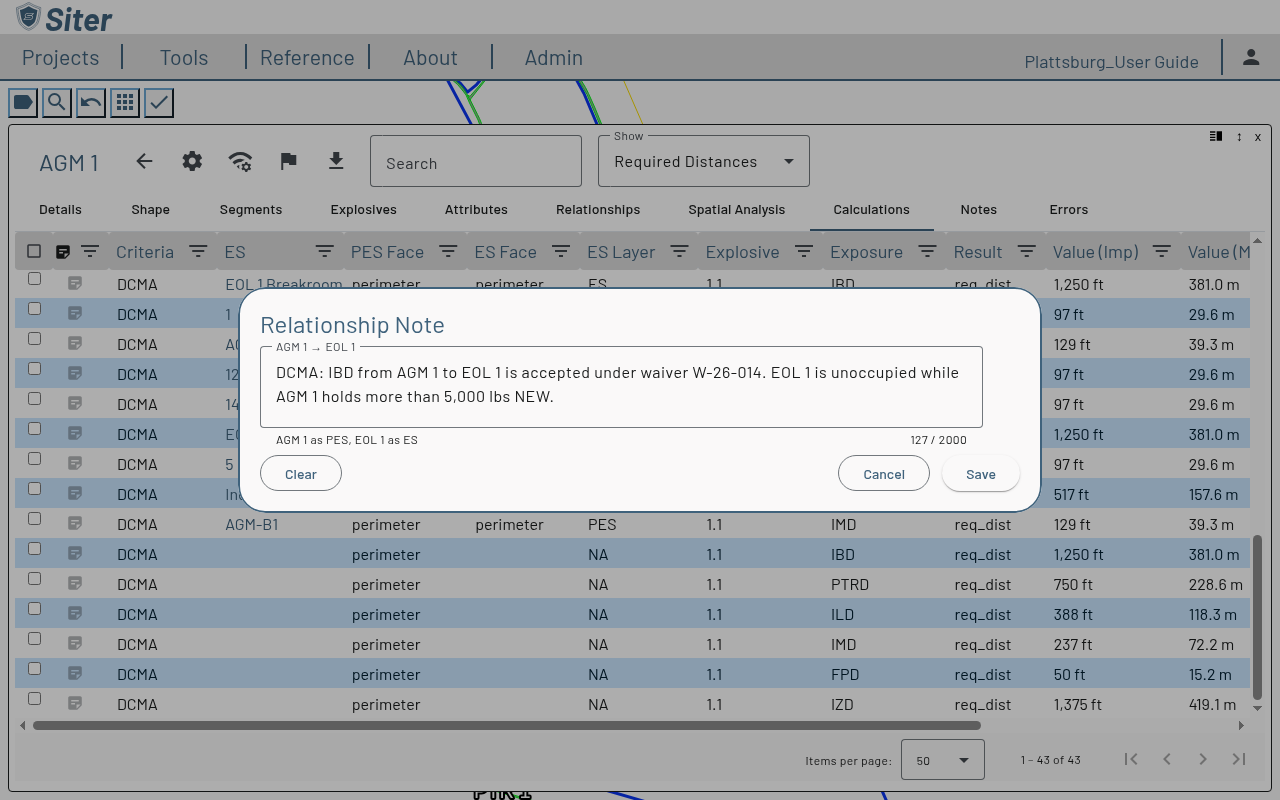
A relationship submittal note documents one PES → ES direction of a facility pair and prints on the submittal forms. You can add one straight from a result instead of opening the facility.
A result row belongs to one criteria, but the note does not: every criteria's rows for the same PES → ES direction open and edit the same note.
A pair has one note per direction, shared by every criteria in the project, and that same note prints on every submittal form the pair appears on, whatever the standard (DCMA, DESR, NATO, or ATF). If a note documents a violation mitigation or a waiver that applies to only one criteria, say which one in the note, for example DCMA: berm between the facilities satisfies the barricade requirement, so it reads correctly on the other standards' forms.
You must have the Project Edit Permission or higher to add or clear notes. Without it, the Note column and the note actions are not shown.
How to add a note to one result
-
On the Calculations tab of the Analysis Results panel, or a feature dashboard's Calculations tab, find the result
-
Click the note button in the Note column (the note icon, right after the selection checkboxes). A filled icon means the pair already has a note; hover over it to see the note's first line
-
In the Relationship Note dialog, enter the note for PES → ES, up to 2,000 characters. Click Clear to empty the field
-
Click Save
The note is saved immediately, as one edit you can undo. Click Cancel (or press Escape) to close without saving. The dialog edits the result's own PES → ES direction only; edit the reverse direction from the facility's Relationships tab.
How to add or clear notes on several results
-
On the Calculations tab, select the results using their checkboxes
-
Click Options (the settings gear next to the Analysis Results title, or Options on a feature dashboard) and select one of:
- Add Relationship Note — opens the Relationship Note dialog. The hint says how many selected relationships and distinct pairs the note applies to, and how many existing notes it will replace
- Clear Relationship Notes — asks you to confirm, then deletes the PES → ES note on every selected relationship that has one
-
For Add Relationship Note, enter the note and click Save
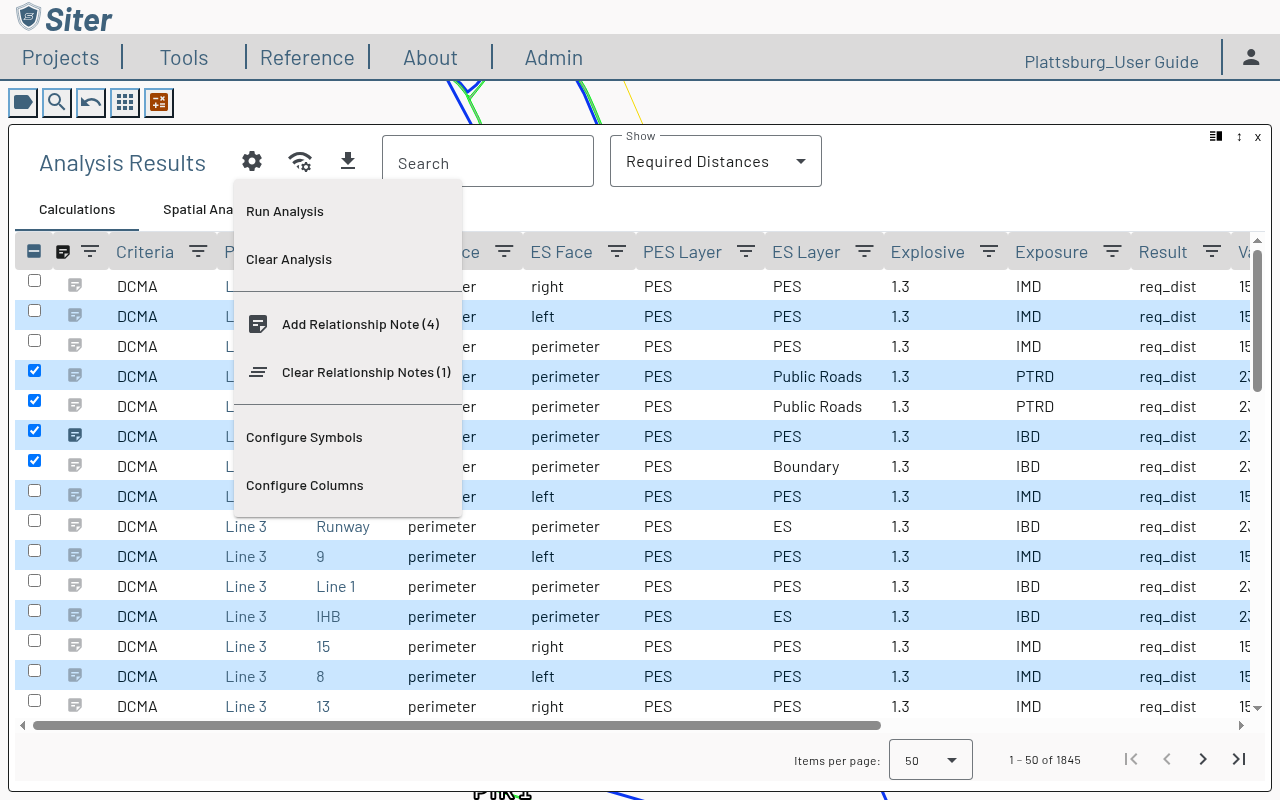
The count after each menu item is the number of relationships (PES → ES pairs) it will change, not the number of selected rows — a pair usually has several result rows, one per criteria, face, and exposure. Each action is a single edit that one Undo reverses. The items appear only while the Calculations tab is showing, and are disabled until the selection includes a pair they can act on.
How to export analysis results
Analysis results can be exported as data files for use in GIS or CAD tools.
-
Open the Analysis Results footbar (toolbar Analysis > Analysis Results)
-
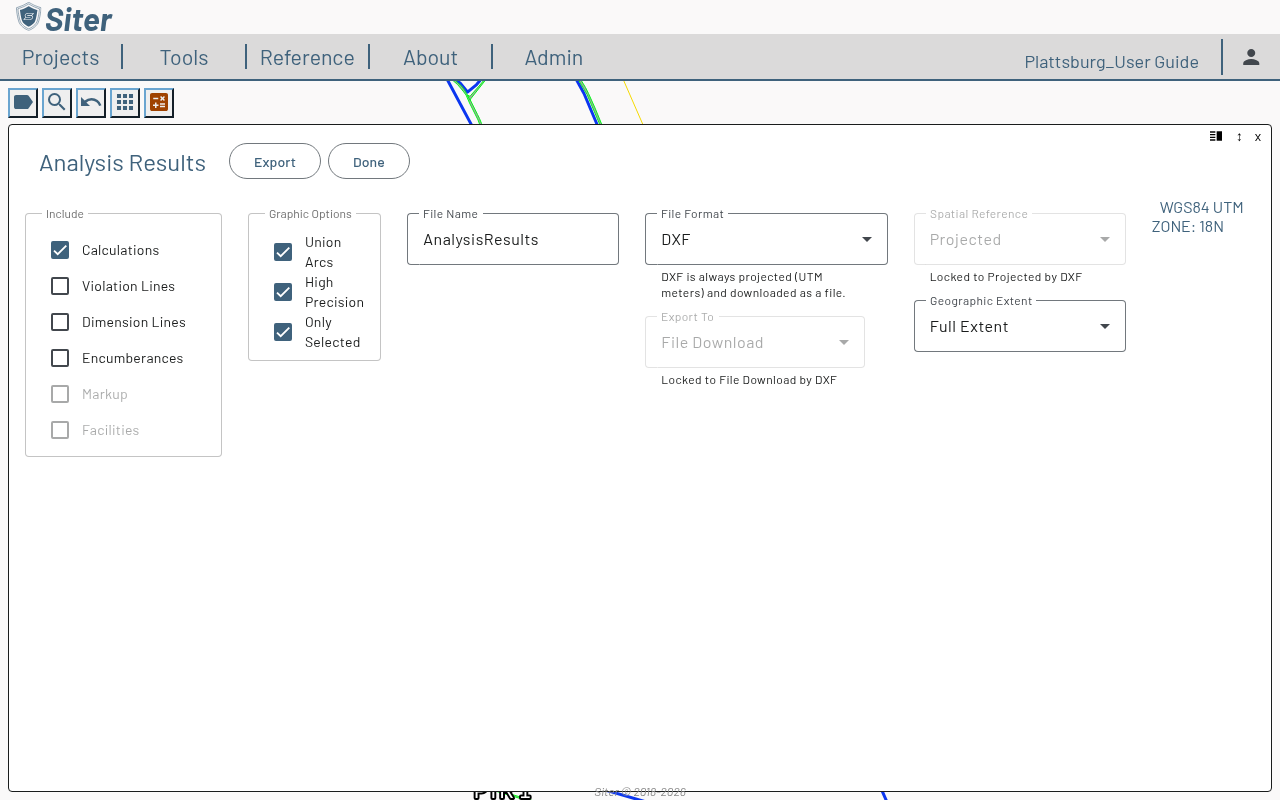
Click the Export Tools button in the panel header and select Export — the export options replace the results list
-
Under Include, check the result types to export: Calculations, Violation Lines, Dimension Lines, and Encumberances (the spatial analysis pairs)
-
Under Graphic Options, choose:
- Union Arcs — adds the unioned shapes to the export
- High Precision — exports all arcs with high-precision shapes
- Only Selected — exports only the selected arcs; uncheck to export all results
-
Enter a File Name and select a File Format — GeoJSON, GML, or DXF (AutoCAD)
-
Set Export To, Spatial Reference, and Geographic Extent, then click Export
Selecting DXF locks Spatial Reference to Projected and Export To to File Download. See DXF export for what the DXF file contains and how to open it in CAD and GIS tools.
How to clear analysis results
You must have the Project Edit Permission or higher to clear analysis results; the Clear Analysis items are not shown without it.
- Click the / Analysis button in the toolbar and select Clear Analysis, or
- Click the settings gear next to the Analysis Results title and select Clear Analysis, or
- Open the project dashboard's settings gear and select Clear Analysis
The Analysis button's icon switches to and the Analysis Required list updates as soon as the results are cleared.
To clear one facility's results, select it to open its dashboard, click the Options (gear) button, and select Clear Analysis Results.
A clear is all-or-nothing: if it fails partway through, no results are removed, so you can simply try again. Clearing cannot start while an analysis is running.
Analysis results become "stale" when you make an analysis-relevant edit to features or operating lines. Stale results are not cleared automatically — re-run analysis to refresh them. Each analysis row carries a staleness indicator if the underlying data has changed since it ran.
Troubleshooting
Analysis shows no results
Cause: Features do not have explosive quantities entered.
Solution: Open each PES feature's Explosives tab and enter the net explosive weight for the appropriate hazard divisions.
Features show as errors
Cause: Required attributes or facility type information is missing.
Solution: Check the feature's Errors tab for specific messages, then update the missing data on the Details or Attributes tab.
"PES analysis skipped: this facility's ... type ... is not a PES type"
Cause: The facility's type under a criteria is not a PES type, but it has explosives sited under that criteria — typically a facility that is a PES under one criteria and an ES under another. Siter analyzes a facility as a PES only under the criteria where its type is a PES type, so those explosives produce no results. Siter records the problem on the Analysis Results panel's Errors tab, and on the facility's own Errors tab when it is a PES under another criteria.
Solution: Give the facility a PES type for that criteria, or remove its explosives for that criteria, then re-run analysis. If relationships were recorded with the facility on the wrong side by an earlier version, clear them by hand — see A relationship is recorded for the wrong side of a facility.
"This project has no criteria to analyze"
Cause: The project has no analysis criteria selected, so there is nothing to calculate. Siter refuses the run and keeps the existing results.
Solution: Select the project's criteria (see How to edit project details), then run the analysis again.
"An analysis is already running for this project"
Cause: Another analysis of the project is queued or running — in another tab, started by another user, or from a double-click.
Solution: Wait for the current run to finish, then try again. The Analysis menu shows Analyzing n / m while a run is in progress.
Related topics
- Feature explosives data — entering explosive quantities
- Feature attributes — setting facility characteristics
- Analysis symbology — customizing how results display on the map
- Relationship Groups — building relationships from the Analysis menu
- Feature relationships — relationship submittal notes and the In Violation column
- Drawings — exporting analysis results to drawings
- DXF export — exporting analysis results to AutoCAD