Feature relationships
Features in Siter can be linked to other features through relationships. A relationship overrides the analysis criteria Siter would apply between two facilities by default — for example, forcing a barricaded type code on a PES-ES pair or excluding a pair from analysis altogether.
Prerequisites
- You must have at least two features in the project to create relationships
- You must have the Project Edit Permission or higher
Relationships vs. Spatial Analysis
The feature dashboard exposes two tabs that both deal with how features interact:
- The Relationships tab lists user-defined and auto-generated relationship overrides for this feature. It is empty by default. Rows here change which criteria type code Siter uses between two facilities.
- The Spatial Analysis tab lists every nearby feature the most recent analysis found, with the calculated distance and the criteria type code in effect. It is read-only and re-populated whenever you run analysis.
Use Relationships to change how a pair is treated. Use Spatial Analysis to see what the engine actually did.
How to view relationships
-
Select a feature to open its dashboard
-
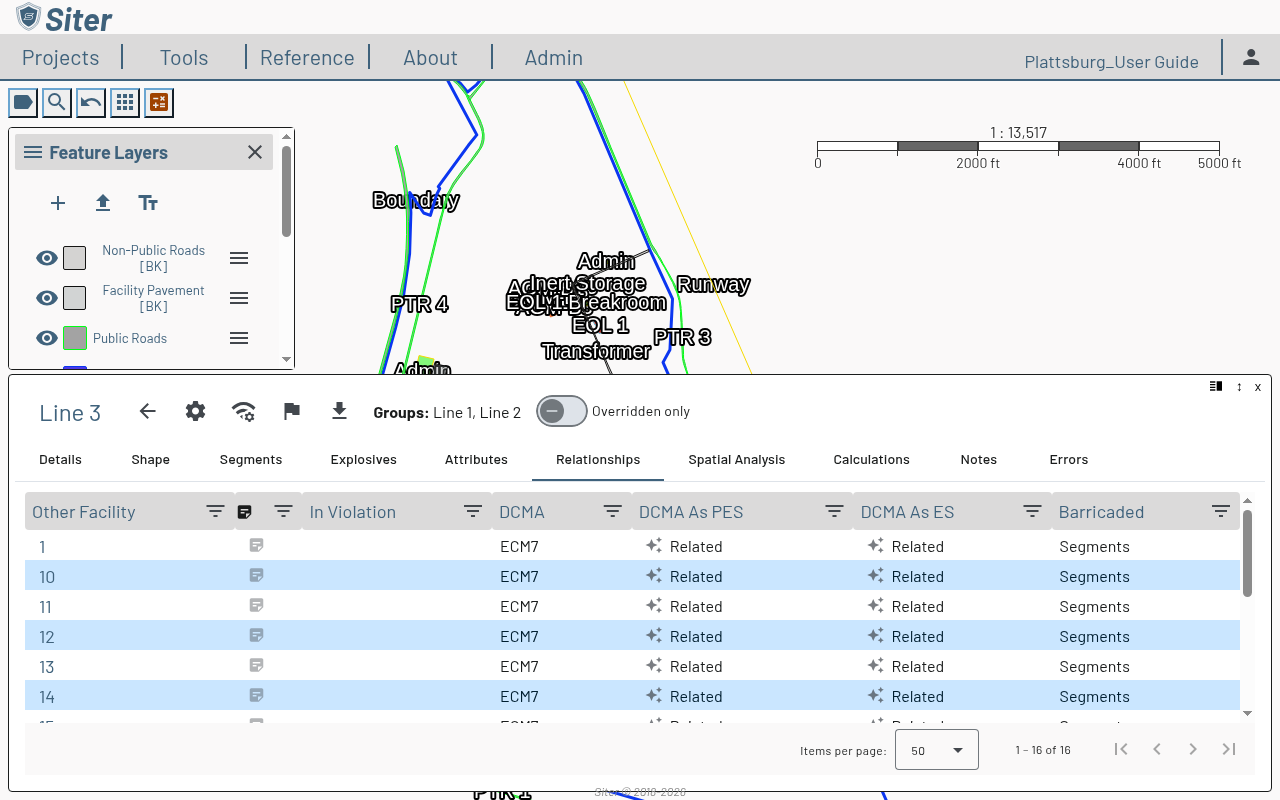
Click the Relationships tab
-
If no relationships have been defined for this feature, the table shows "No relationships defined"
-
Toggle Overridden only to filter the table to rows that override the criteria default, hiding the auto-generated rows from relationship groups
-
Click a facility name in the Other Facility column to open that facility's dashboard. Back returns you to this facility's Relationships tab
Besides the per-criteria As PES and As ES columns and Barricaded, the table has a Note column for relationship submittal notes and an In Violation column that flags pairs in violation.
The Barricaded column reads Yes or No when the pair has a barricade override, and Segments when it does not — the pair then follows the Barricaded flags on the two facilities' Segments tabs (see Barricaded values).
Click the Other Facility column's filter icon to pick facilities in the Feature Selector. It lists the project's facilities with a column per project criteria showing each facility's type code, and leaves out features on background layers.
How to add a relationship
- Open the feature's dashboard, click Options, and select Edit
- Click the Relationships tab
- Click the Add/Remove Related Facilities & Relationship Groups button in the editor header. The Edit Feature Relationships dialog opens
- In the top half of the dialog, check the facility you want to link to, then click OK
- On the new row, choose the relationship code for each criteria (e.g., B for Barricaded, or NA to exclude the pair from analysis) and, if needed, set Barricaded to Yes or No to override the segments for this pair
- Click Save
Relationships are bidirectional — adding a row to Feature A's Relationships tab adds the same row to Feature B.
The dialog's In Violation column, right after the facility name, reads Yes when the most recent analysis found a violation between the facility you are editing and that facility, in either direction. Hover over Yes to see which criteria are in violation for each direction. The column sorts and filters like the others. It does not appear while you are adding a new facility that has not been saved yet.
For projects with many facilities, prefer the Relationship Group Editor to author a full Group × Group × Criteria matrix and bulk-generate relationships, rather than editing one pair at a time. To review or edit every pair in the project at once, use the All relationships dashboard.
Barricaded values
The Barricaded dropdown has three values. Hover over it for a reminder: "Segments = use segment barricading. Yes/No overrides the segments for this pair."
| Value | What analysis and submittal forms use |
|---|---|
| Segments | No override. A PES/ES face pair is barricaded when either face is marked Barricaded on its facility's Segments tab |
| Yes | The pair is barricaded, whatever the segments say |
| No | The pair is unbarricaded, whatever the segments say |
Choose Segments to remove an override. The read-only table, the column filter, and the CSV export show the same Yes, No, or Segments text. The override is shared by both directions of the pair and by every criteria, and submittal forms print the same barricaded status the analysis used.
How to find relationships in violation
The Relationships tab's In Violation column, right after Note, reads Yes when any criteria is in violation between this facility and the other facility, in either direction, according to the project's current analysis results.
- Hover over Yes to see the criteria in violation for each direction, one line each (→ with this facility as the PES, ← with the other facility as the PES)
- Filter the column to Yes to list only the pairs in violation, or sort by it
- The column is included when you export the table to CSV
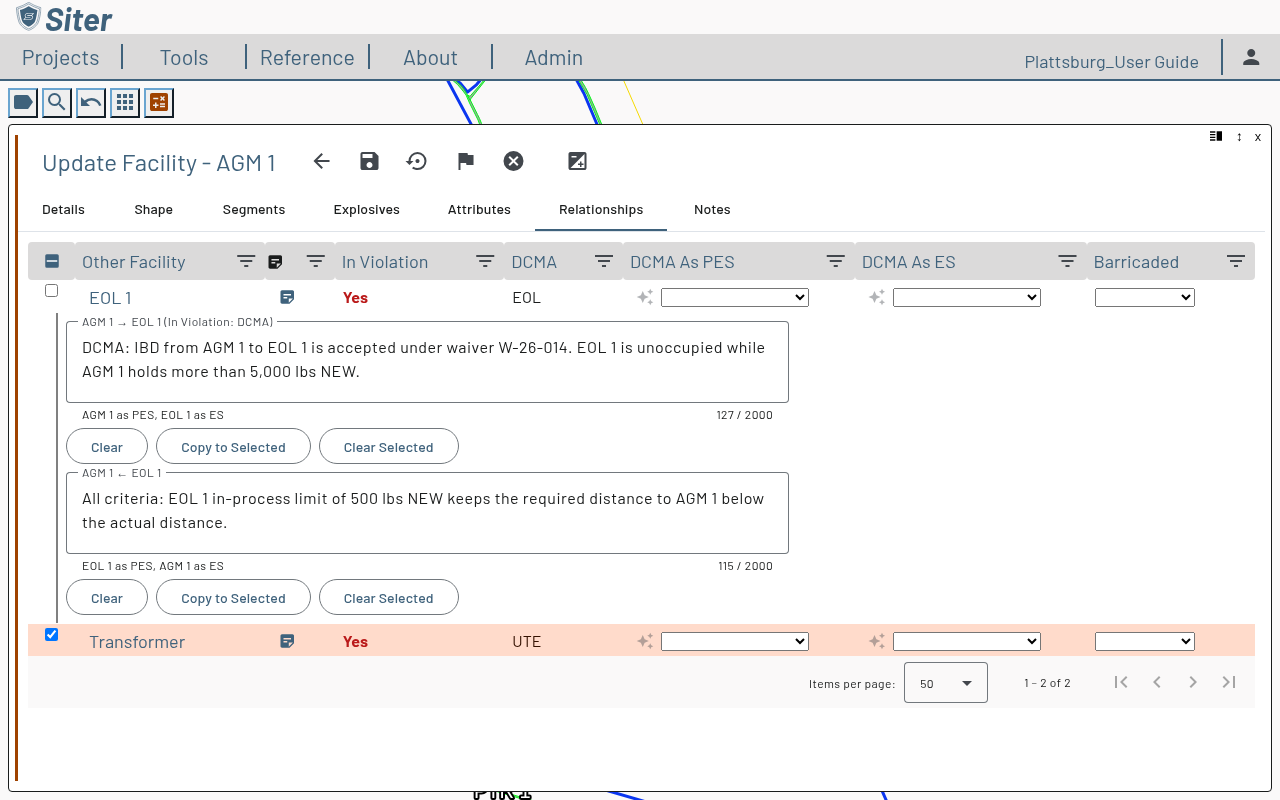
When you expand a pair's note, each direction's heading also names the criteria in violation for that direction, for example AGM 1 → Line 1 (In Violation: DCMA).
How to add a relationship submittal note
A relationship submittal note is free text attached to one direction of a facility pair — one facility as the PES and the other as the ES. Each pair has two independent notes, one per direction, and both are shown and editable from either facility. The notes print on the submittal forms directly under the pair's row, so use them to explain a pair to the reviewing authority — for example, why a relationship code was chosen.
A pair has one note per direction, shared by every criteria in the project, and that same note prints on every submittal form the pair appears on, whatever the standard (DCMA, DESR, NATO, or ATF). If a note documents a violation mitigation or a waiver that applies to only one criteria, say which one in the note, for example DCMA: berm between the facilities satisfies the barricade requirement, so it reads correctly on the other standards' forms.
Build Relationships never adds, changes, or removes a note.
-
Open the feature in the editor (or, for a facility you are adding, the Add Features panel) and click the Relationships tab
-
In the Note column (the note icon, right after Other Facility), click the pair's note button. A filled icon means the pair already has a note in at least one direction; hover over it to see the first line of each direction's note
-
The note opens under the row with one field per direction, each labelled with this facility's name first:
- AGM 1 → Line 1 — this facility (AGM 1) as the PES, the other facility as the ES
- AGM 1 ← Line 1 — the other facility (Line 1) as the PES, this facility as the ES
The hint under each field repeats which facility takes which role.
-
Enter the note, up to 2,000 characters. The counter under the field shows how many you have used. Click Clear to empty a field
-
Click the note button again to collapse the note, then click Save
Note edits are saved with the rest of the feature, so Discard changes restores the previous notes.
On the feature dashboard the Relationships tab is read-only: expanding a note shows each direction's text, or [None] when that direction has no note.
How to apply one note to several relationships
- In the editor's Relationships tab, select the relationships you want to change using the checkbox at the start of each row
- Expand the note of a relationship and enter the text in the direction you want to copy
- Click Copy to Selected under that field. The text is applied to the same direction of every selected relationship. Copy to Selected is available only when the field has text and at least one other relationship is selected
- To empty a direction instead, click Clear Selected under that field. It clears that direction's note on the open relationship and on every selected one
- Click Save
Both buttons take effect when you save — click Discard changes to restore the notes instead.
How to find relationships with notes
Click the Note column's filter icon and select Has note to list only the pairs that have a note in either direction, or [NONE] to list the pairs without one. The note text for both directions is included when you export the table to CSV.
If you clear notes while the table is filtered to Has note, the cleared rows stay listed until you save. On save, Siter clears the filter instead of hiding those rows, and a message names the filter it cleared.
You can also edit notes from the All relationships dashboard and from the analysis results.
Troubleshooting
A relationship is recorded for the wrong side of a facility
Cause: Before v0.30, Siter also analyzed a facility that is a PES under one criteria and an ES under another as a PES under the ES criteria, so relationships could be recorded with it as the PES for that criteria. Analysis no longer does this, but relationships already recorded are not cleared automatically, and Build Relationships will not remove them.
Solution:
- Open the facility in the editor and click the Relationships tab
- In the column for the affected criteria as PES (for example, DCMA As PES), set the cell to blank
- Click the cell's lock toggle to lock the empty cell, so a build does not add the relationship back
- Click Save
Related topics
- Relationship Groups — generate relationships in bulk from a matrix
- All relationships — review and edit every relationship in the project from one table
- Feature notes — a feature's Facility Description and Submittal Notes (both print on submittal forms) and its internal Notes (never printed)
- Feature attributes — facility types and criteria settings
- Running an analysis — see Spatial Analysis and Calculations results for each feature
- Submittals — generating submittal forms that include feature and relationship notes