DXF export
Facility layers and analysis results can be exported to AutoCAD DXF, so site geometry and QD arcs can be dropped straight into a CAD site plan. The exported file opens in AutoCAD, Civil 3D, BricsCAD, and most other CAD tools, with one CAD layer per Siter layer or result group, colors matching the on-screen styling, and facility details attached to each shape.
Prerequisites
- You must have the Project Read Permission or higher to export
- The project must use a projected coordinate system — DXF export is not available for geographic (WGS84) projects, and the DXF option shows (projected maps only) in that case
- To export analysis results, the project must have current analysis results (see Running an analysis)
How to export a layer to DXF
-
In the Feature Layers sidebar, click the menu icon next to the layer name and select Export
-
In the export panel, set File Format to DXF
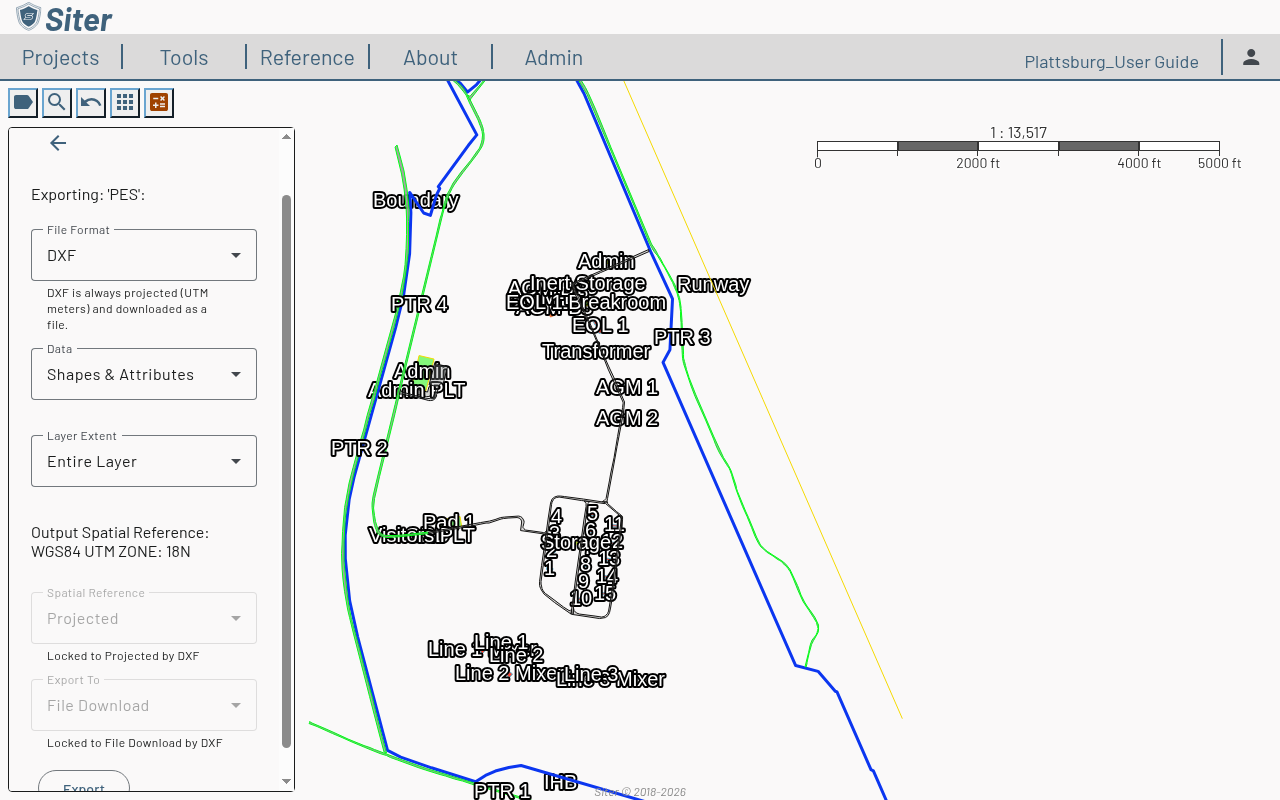
Choosing DXF locks Spatial Reference to Projected and Export To to File Download — the panel notes "DXF is always projected (UTM meters) and downloaded as a file." Switching back to another format restores your previous selections.
-
Set Data to Shapes & Attributes to attach facility details to each shape, or Just Shapes for geometry only
-
Set Layer Extent to Entire Layer or Current Map Extent
-
Click Export to download the file
How to export analysis results to DXF
-
Open the Analysis Results footbar (toolbar Analysis > Analysis Results)
-
Click the Export Tools button in the panel header and select Export
-
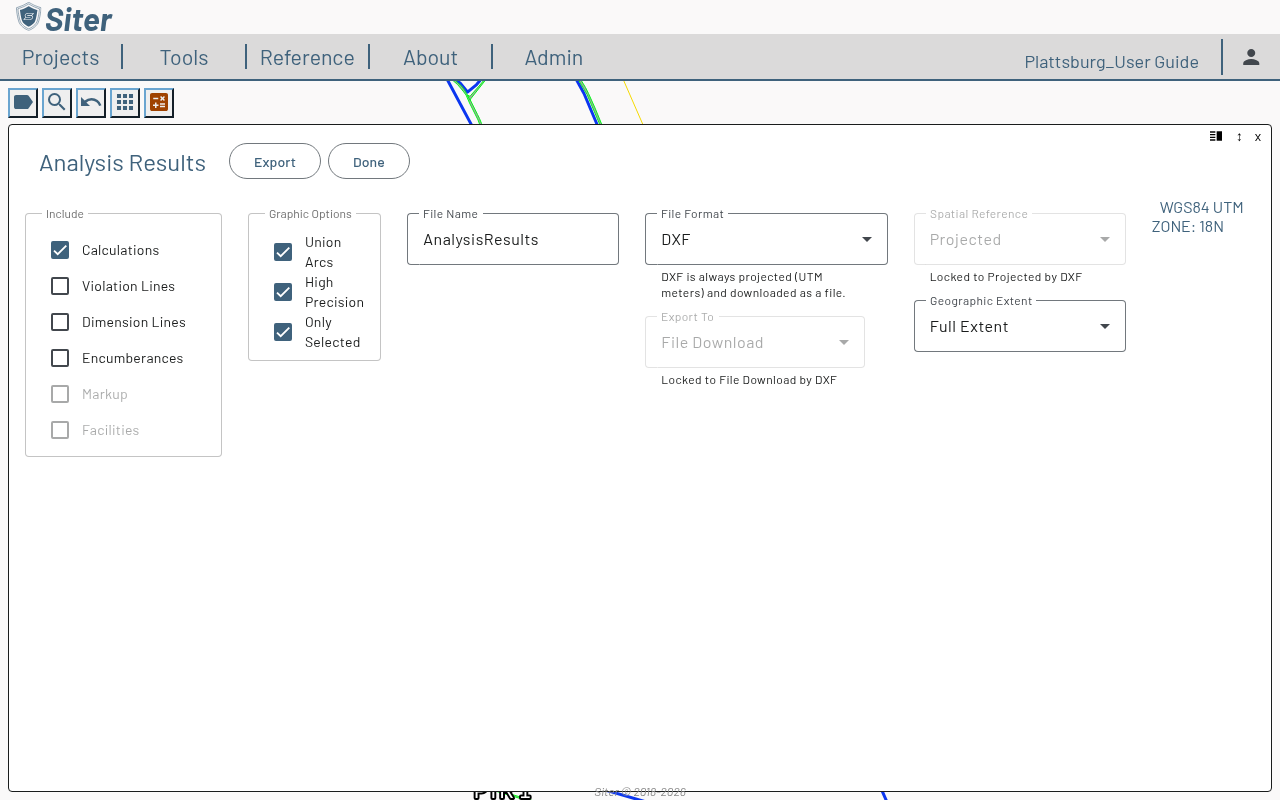
In the export options, set File Format to DXF
-
Under Include, check the results to export — Calculations, Violation Lines, Dimension Lines, and Encumberances. With Dimension Lines checked, a DXF export also renders each dimension label as CAD text
-
Under Graphic Options, choose Union Arcs, High Precision, and Only Selected as needed. Uncheck Only Selected to export all results instead of only the selected arcs
-
Enter a File Name and click Export
With Union Arcs checked, a DXF export contains both the individual arcs and the unioned shapes, on separate CAD layers — turn layer visibility on or off in your CAD tool to pick which to see. (GeoJSON and GML exports contain only the unioned shapes.)
What the DXF file contains
- Layers — a facility export creates one CAD layer per Siter layer, named after the layer. An analysis export groups results into layers named
SITER_<result type>_<criteria>_<exposure>(for exampleSITER_pes-es_DCMA_IBD), with unioned shapes on layers beginningSITER_unionand dimension lines onSITER_dimension - Colors — each CAD layer takes the exact color the layer or result is styled with on the map (a layer's configured outline color, or the analysis symbol color). Results styled black are left in CAD's default layer color, which adapts to the viewport background, so they stay visible on CAD's black model space
- Shapes — closed polylines for facility footprints and arcs; a shape's holes are separate closed polylines rather than filled regions
- Path facilities — a path facility is exported as its polygon, like any facility. Since v0.32 the centerline and width are not written to the file
- Facility details — a facility export attaches each feature's name, id, and Facility Description to its shapes as AutoCAD Extended Entity Data (XDATA) under the application id
SITER, askey=valuetext records (name=,id=,description=) beginning withSITER_XDATA_VERSION=1. Empty values are left out, and each record is cut off at 240 bytes, so a long description is truncated. Internal Notes and Submittal Notes are not written to the file - Dimension labels — with Dimension Lines included, each label is rendered as a text entity alongside its line, sized to suit the extent of the drawing
Coordinate systems: opening the file in other software
The coordinates in the file are the project's projected UTM zone, in meters — the same Projected system the export panel shows. The Output Spatial Reference line above the Spatial Reference field names the exact zone.
The DXF format itself has no way to record which coordinate system the numbers are in. The file declares meters as its drawing units, but the receiving software cannot tell a UTM easting from a local site coordinate — this is a limitation of the DXF format, not of the export. Depending on where you open the file:
- AutoCAD / Civil 3D — if the destination drawing is already set up in the same UTM zone, INSERT or XREF the file at 0,0 with a scale of 1 and the geometry lands exactly where it belongs. In Civil 3D you can also assign the zone in the drawing's coordinate system settings
- GIS tools (QGIS, ArcGIS) — assign the layer's coordinate reference system to the project's UTM zone when you load the file (in QGIS: Layer Properties > Source). Until a coordinate system is assigned, the software has to guess and the data appears in the wrong place
- Desktop CAD viewers (LibreCAD and similar) — the drawing may open looking blank, because the geometry sits hundreds of kilometers from the drawing origin. Use the viewer's zoom-to-extents command (for example Zoom > Auto) to bring it into view. The file is not broken
Troubleshooting
The DXF option is grayed out
Cause: The project uses a geographic (WGS84) coordinate system. DXF requires projected (UTM) coordinates — exporting degree values labeled as meters would produce a badly mis-scaled drawing.
Solution: DXF export is only available for projects with a projected coordinate system. Export to GeoJSON instead, or reproject the data in a GIS tool.
The exported drawing opens blank
Cause: The geometry is at real-world UTM coordinates, far from the drawing origin, and the viewer opened centered on 0,0.
Solution: Use the viewer's zoom-to-extents command (for example Zoom > Auto in LibreCAD).
Some features or results are missing from the file
Cause: Features or results with missing or invalid shapes are skipped rather than aborting the export. Siter shows a warning naming how many were skipped.
Solution: Check the skipped features' geometry in Siter, or re-run analysis to regenerate missing result shapes, then export again.
A CAD script no longer finds the facility notes in XDATA
Cause: Since v0.30 the facility's description is written under the key description= instead of notes=, and internal Notes are no longer written to the file.
Solution: Update the script to read description=. The text is the facility's Facility Description from the feature's Notes tab.
Related topics
- Layers — the full layer export panel and its other formats
- Running an analysis — generating and exporting analysis results
- Result Sets — exporting presentation-ready drawings instead of CAD data