Map view
The Map View is the primary workspace in Siter. When you open a project, the map displays your site with all its layers and features. Use the map to navigate your project area, add and select features, and access analysis tools.
Prerequisites
- You must have an open project (see Projects)
How to navigate the map
The map supports standard navigation controls:
- Pan — click and drag to move around the map
- Zoom in/out — use the scroll wheel or pinch gesture
- Scale bar — the current scale is displayed in the upper-right corner of the map (e.g., 1:136,226)
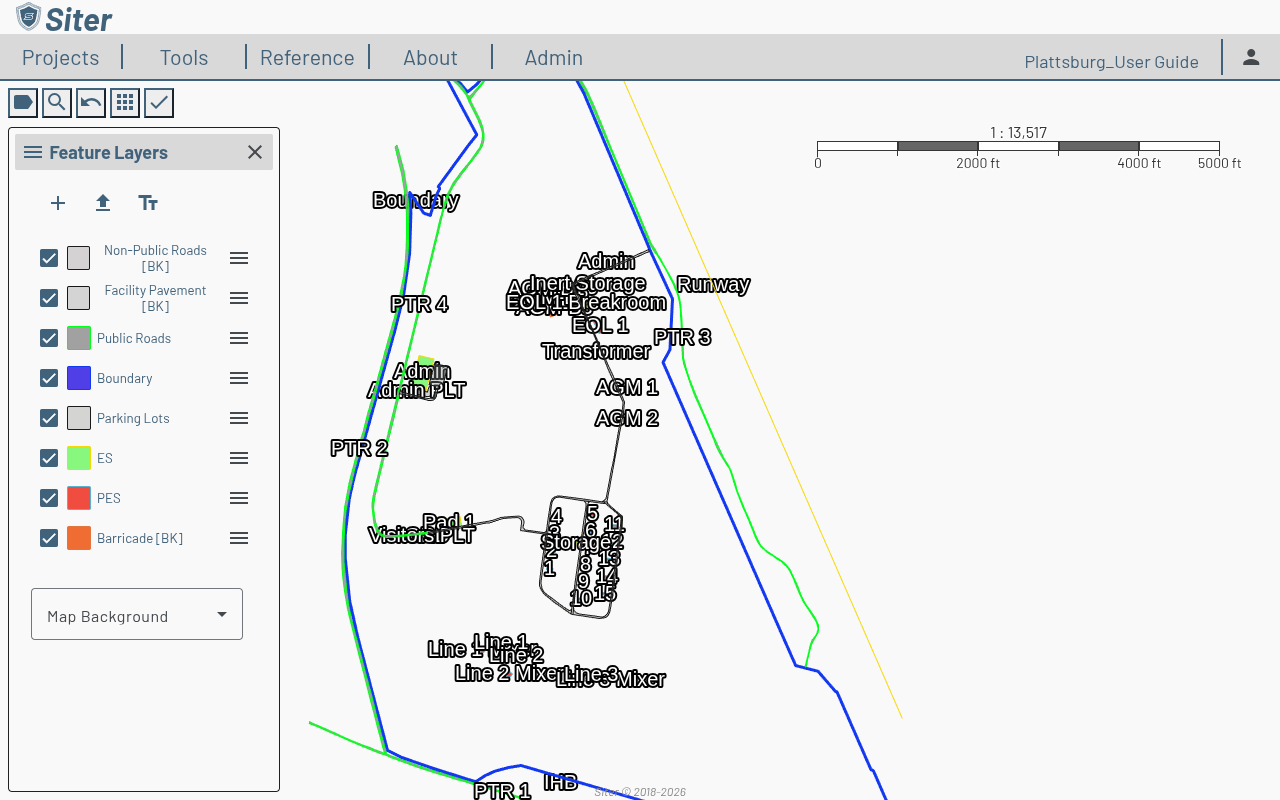
The map workspace
When a project is open, the workspace is organized into three panels. You won't always see all of them at once — each appears when it has something to show.
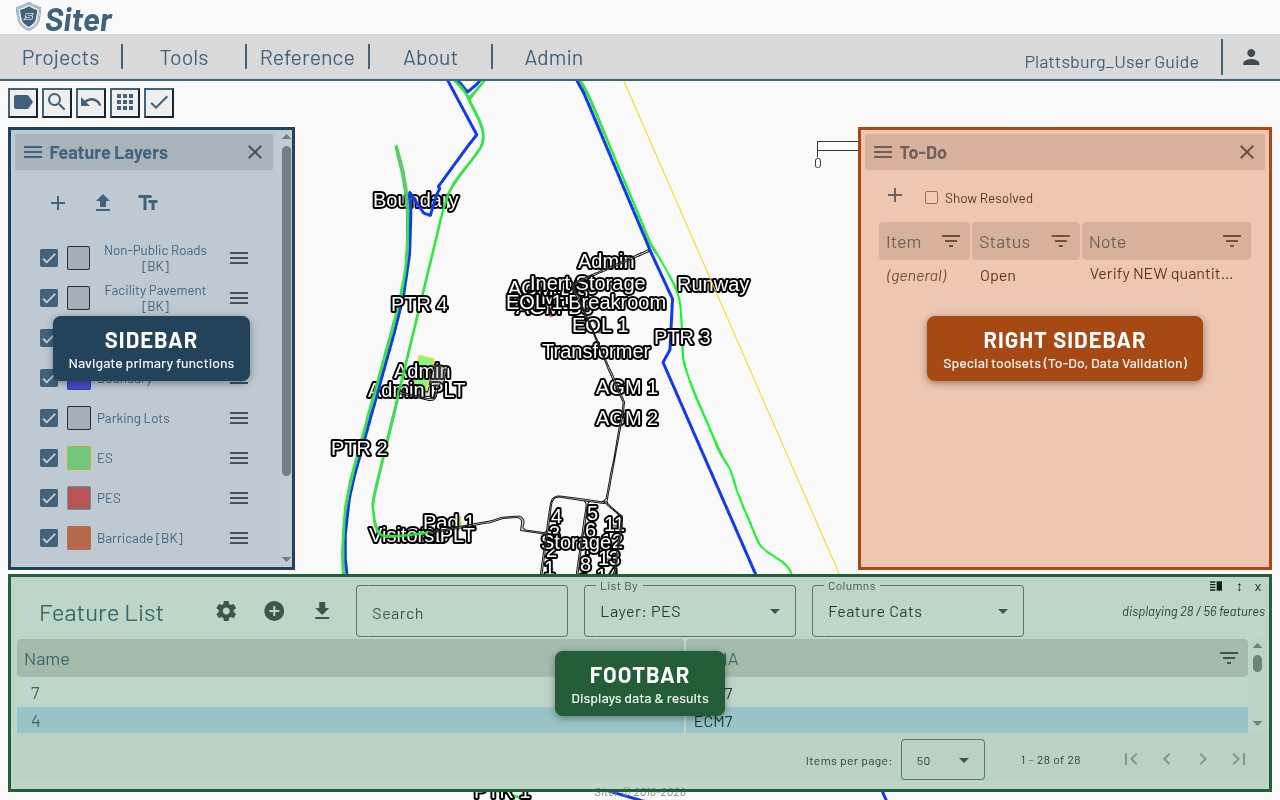
- Sidebar (left) — your primary navigation. Switch between Feature Layers, Layouts, Analysis Symbols, Result Sets, Placement Analyses, Markup, and the Digitizer (detailed in Sidebar overview below). It opens when a project loads, on Feature Layers unless you choose a different Default Sidebar on your Preferences.
- Footbar (bottom) — where data is displayed: the Feature List and feature dashboards, analysis results, and task-specific panels such as Add Feature, Bulk Edit, the project dashboard, and placement-analysis results. It opens when you select something with data to show, and you can snap it to a preset height (Min / Default / Medium / Max) or close it from the controls in its top-right corner. The same controls include a Dock Right / Dock Bottom button that moves the Footbar to the right of the map and back; to have it open on the right every time, set Footbar Dock on your Preferences.
- Right Sidebar (right) — special toolsets that sit apart from the main navigation: the To-Do list and Data Validation (the Explosive Scrubber and the Single-Part Shape Fixer). Open it from the Popups menu; its header has a chooser to switch between the two tools.
Any of these panels can also be resized by dragging the edge where it meets the map — drag the Footbar's top edge, or a sidebar's inner edge, to set a custom size.
Toolbar overview
The toolbar at the top of the map provides quick access to common actions. Its buttons show only an icon — hover over one to see its name. This guide names each button by that name and shows its icon beside it, for example the Popups button.
| Icon | Name | Description |
|---|---|---|
| Popups | Open panels and toggle sidebars (Map Features, All Relationships, Analysis Results, Placement Analyses, Export Transmittal Letter, Data Validation, To-Do's, Show/Hide Sidebar) | |
| Identify / Select | Identify a feature at a point, or select every feature inside a drawn rectangle, polygon, or circle (see How to identify and select features) | |
| Undo/Redo Edit | Open the edit history to undo or redo recent changes (shows "There are no commands to undo or redo" when empty) | |
| Add/Edit | New Feature, New Layout, New Layer, Import, Bulk Edit, Relationship Group Editor | |
| Analysis | Run analysis, view results, and manage analysis state. The icon reflects status — when analysis is needed (features changed since the last run), when results are current, or a done / total count while a run is in progress |
Popups menu
Click the Popups button, the first on the toolbar, to open panels and toggle sidebars:
- Map Features — show or hide the Feature List footbar
- All Relationships — open the All Relationships footbar
- Analysis Results — open the Analysis Results footbar
- Clear Kept Analysis Arcs — remove analysis arcs kept on the map after Analysis Results closed; shown only while arcs are kept
- Placement Analyses — open the Placement Analyses sidebar
- Export Transmittal Letter — draft the DCMA transmittal letter (see Transmittal letters)
- Data Validation — open the Data Validation panel on the right
- To-Do's — open the To-Do list panel on the right
- Show/Hide Sidebar and Show/Hide Right Sidebar — collapse or restore each sidebar
Add/Edit menu
Click the Add/Edit button to access:
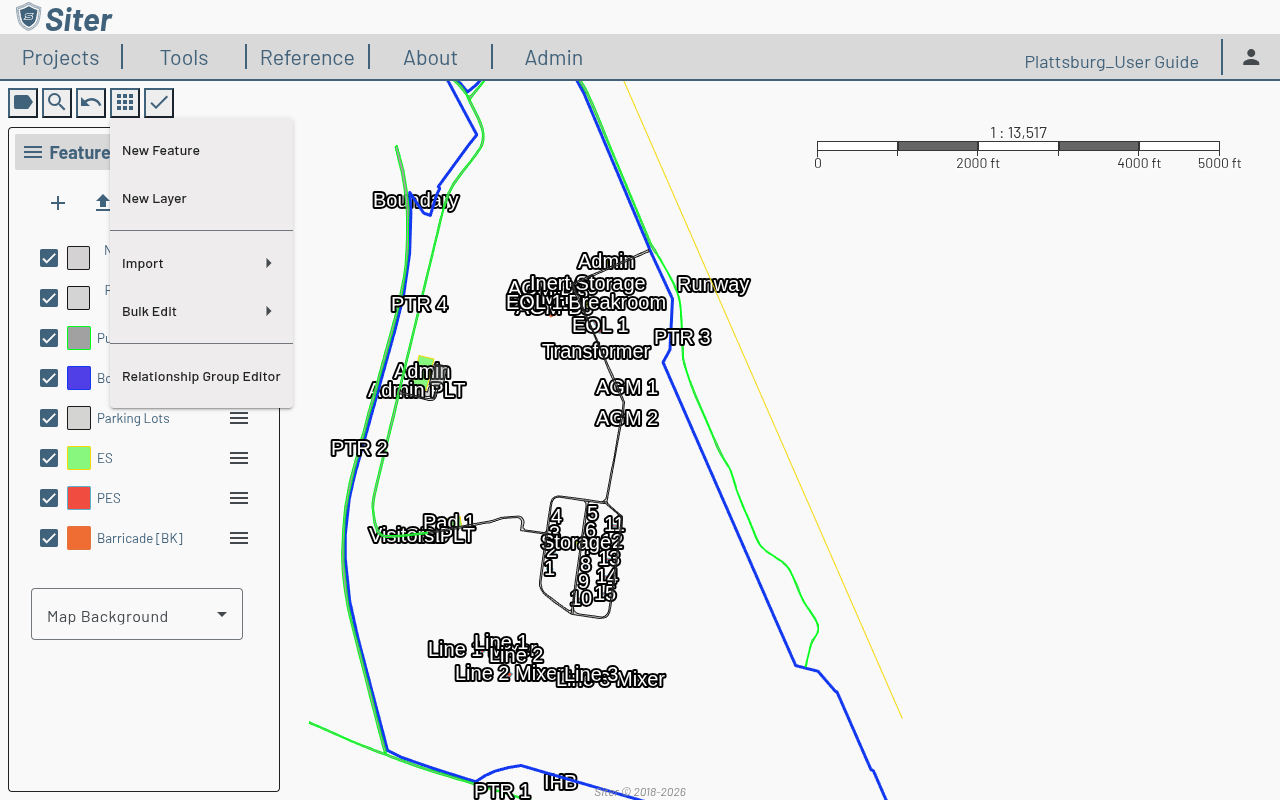
- New Feature — add a new feature to the map
- New Layout — place a grid, template, BLAHA, or path of facilities (see Layouts)
- New Layer — create a new layer
- Import — import data from external files
- Bulk Edit — batch-edit multiple features at once (see Bulk editing)
- Relationship Group Editor — author relationship groups and their Group × Group × Criteria matrix (see Relationship Groups)
Analysis menu
Click the / Analysis button to access:
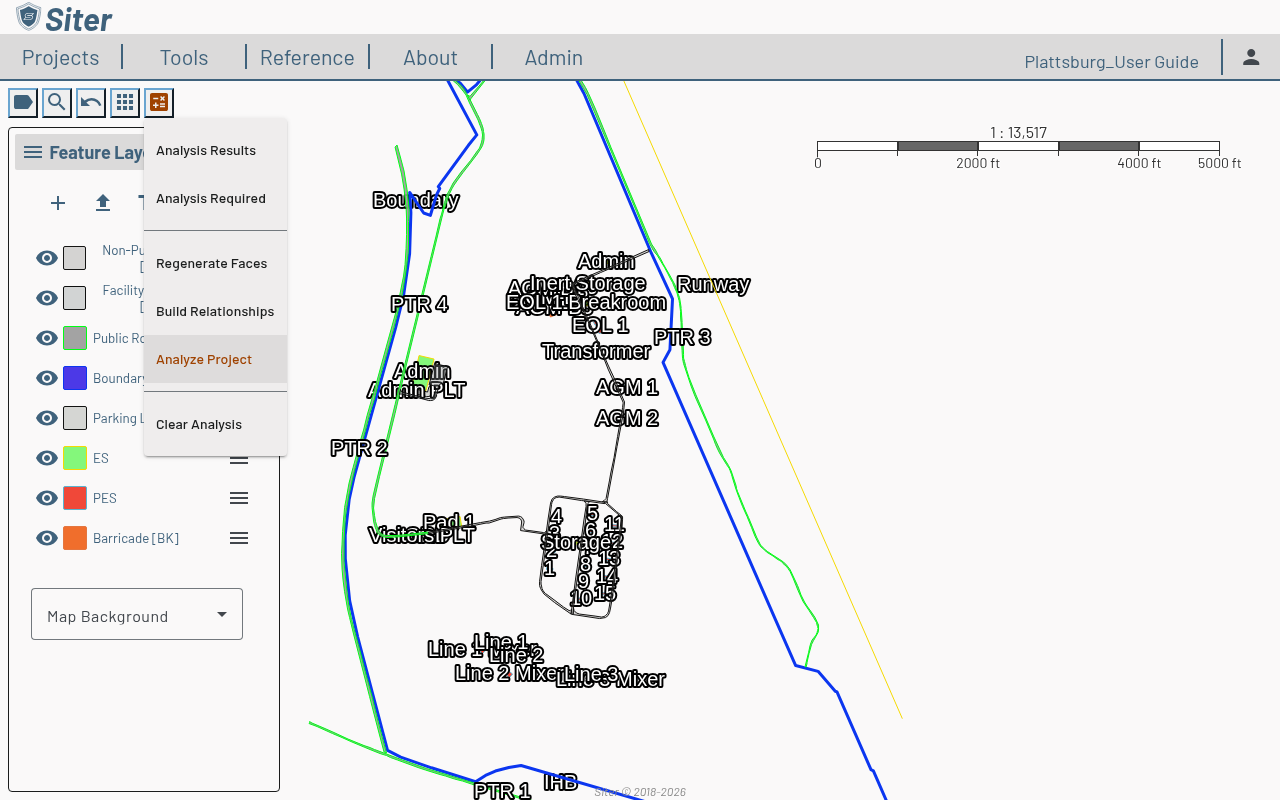
- Analysis Results — open the Analysis Results footbar with Calculations, Spatial Analysis, and Errors tabs
- Analysis Required — becomes active when features have had an analysis-relevant edit since the last analysis; lists the features that need attention
- Regenerate Faces — rebuild every facility's default faces from its criteria, keeping custom faces and each face's Analyze and Barricaded settings (see Regenerate faces); disabled while an analysis or relationship build is running
- Build Relationships — run a spatial analysis, then build relationships from the relationship group matrix in one step (see Relationship Groups); greyed out while a build is already running
- Analyze Project — run a full QD analysis on every feature. As the menu's main action, it is shown in the accent color
- Clear Analysis — remove all analysis results
Analyze Project requires the Project Read Permission; it is disabled while relationships are being built. Regenerate Faces, Build Relationships, and Clear Analysis require the Project Edit Permission. While an analysis runs, the menu shows its progress as Analyzing n / m instead, followed by Cancel Analysis for users with the Project Edit Permission.
While a relationship build runs, a Build: progress indicator appears beside the Analysis button with a pair count, a button to open the Relationship Group Editor, and a Cancel Build button.
Analysis Required can be used to narrow down facilities that are failing to analyze. If immediately after running an analysis, you don't get a check mark, there's an analysis error.
Sidebar overview
The left sidebar exposes multiple modes — click the menu icon in its header to switch between:
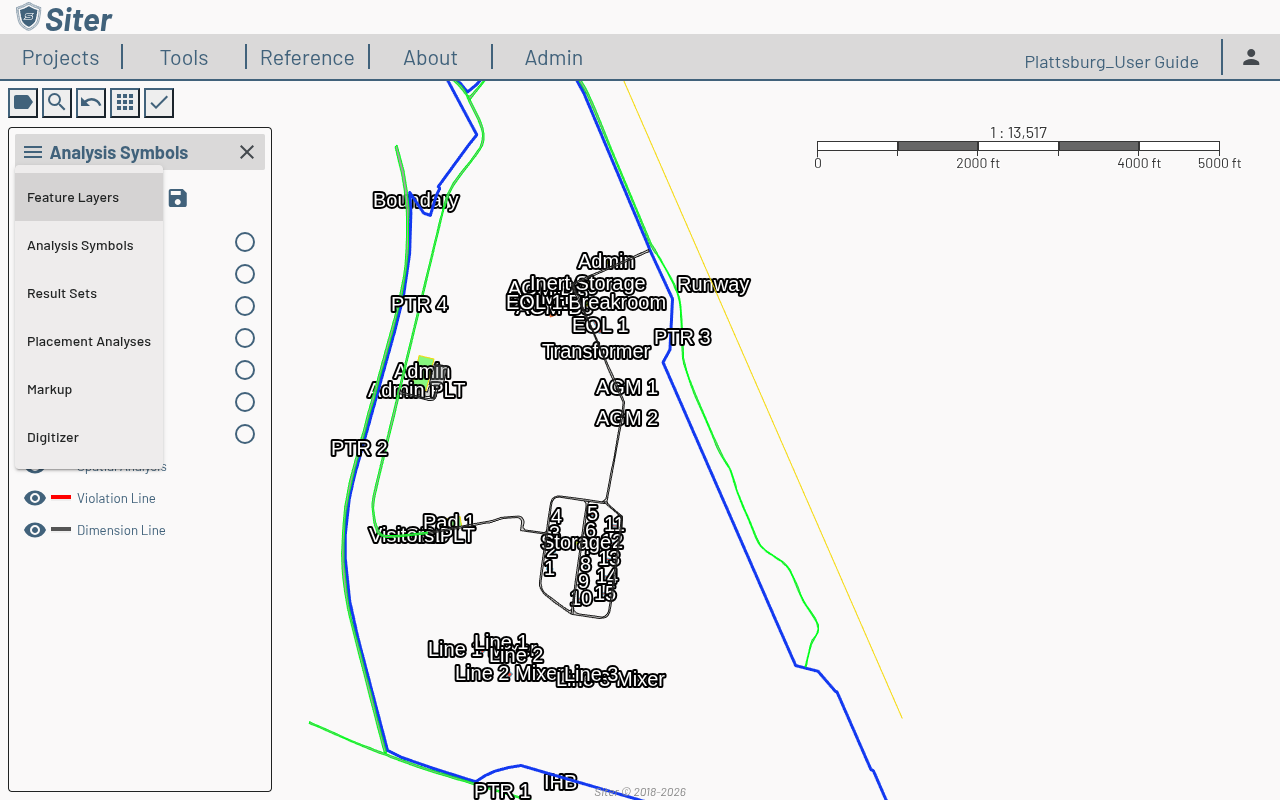
- Feature Layers — default mode, lists layers and their associated information. While analysis arcs are kept on the map, a Kept analysis arcs (N) entry at the top of the list lets you hide, clear, or reopen them
- Layouts — the project's saved layouts (grids, templates, BLAHAs, and paths): open one for editing, delete one, or start a new one with New. It can't be chosen as the Default Sidebar
- Analysis Symbols — toggle and style each criteria's result arcs on the map (see Analysis symbology)
- Result Sets — saved snapshots of analyses (see Drawings)
- Placement Analyses — what-if analyses for candidate facility placements
- Markup — distance, area, and buffer measurements (see Measurements)
- Digitizer — snapping and angle/length constraints for precise feature geometry (see Digitizer)
The To-Do and Data Validation tools live in the Right Sidebar rather than this sidebar — see The map workspace above.
How to identify and select features
The toolbar's Identify / Select button is both a point-identify tool and an area-selection tool. Clicking the button activates point identify and opens a small menu of geometry methods — Point, Rectangle, Polygon, and Circle — with the active method highlighted. The menu closes on its own when you move the pointer onto the map, and re-selecting the active method turns the tool off.
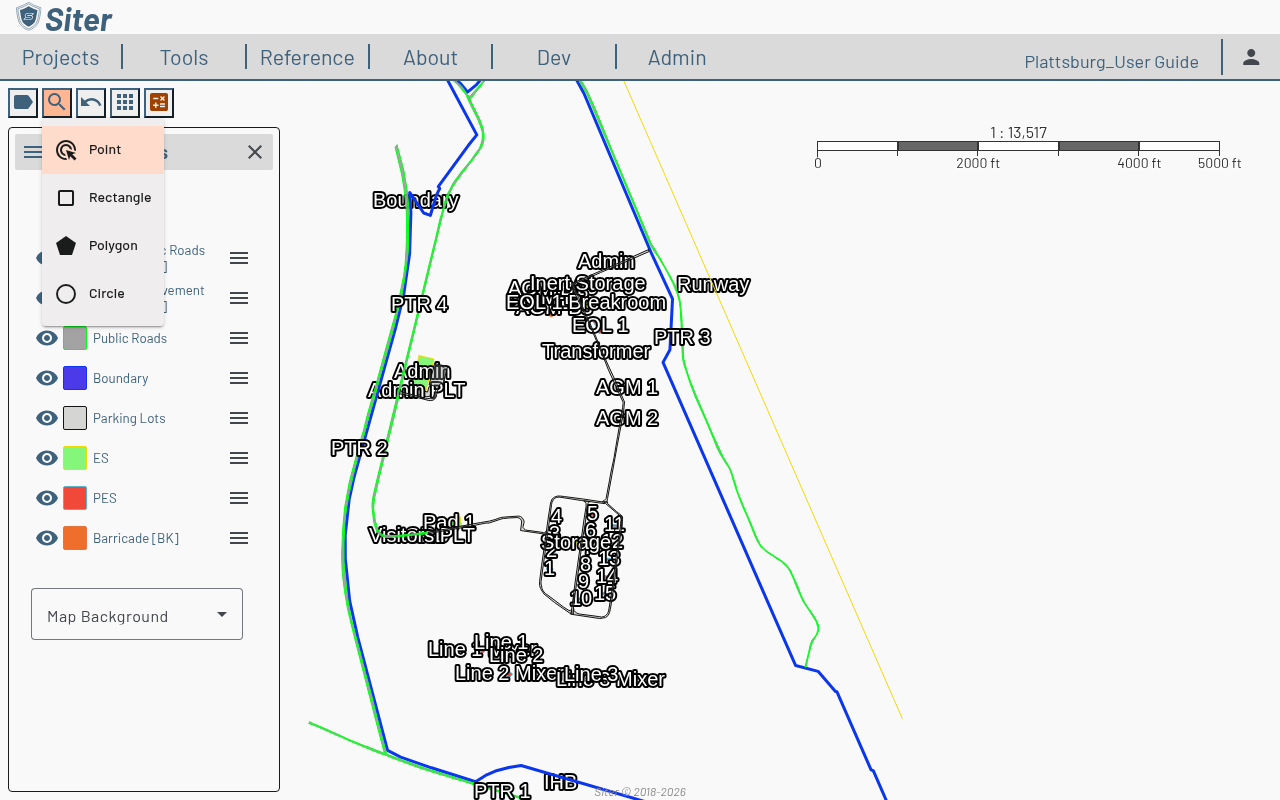
Identify a feature at a point
- Click the button — Point mode activates immediately
- Click a feature on the map:
- If exactly one feature is under the click, its dashboard opens, showing the feature's details, attributes, and other information
- If several overlapping features are under the click, the Feature List opens listing everything at that spot
- Shift+click a facility to skip the dashboard and open it directly in the editor (requires the Project Edit Permission; works when exactly one facility is under the click). The editor's Back button then returns you straight to the Feature List, restored as you left it — with the same unsaved-changes prompt as Done if you have edits pending
Whether a shape responds to clicks on its interior follows its style: features drawn with a visible fill are selectable anywhere inside, while hollow outlines (such as an installation boundary) respond only to clicks on the outline itself.
Select features in an area
- Click the button and pick Rectangle, Polygon, or Circle from the menu
- Draw the shape on the map:
- Rectangle — click one corner, then click the opposite corner
- Polygon — click each vertex, then double-click to finish
- Circle — click the center, then click again to set the radius
- The Feature List opens showing only the features inside the shape
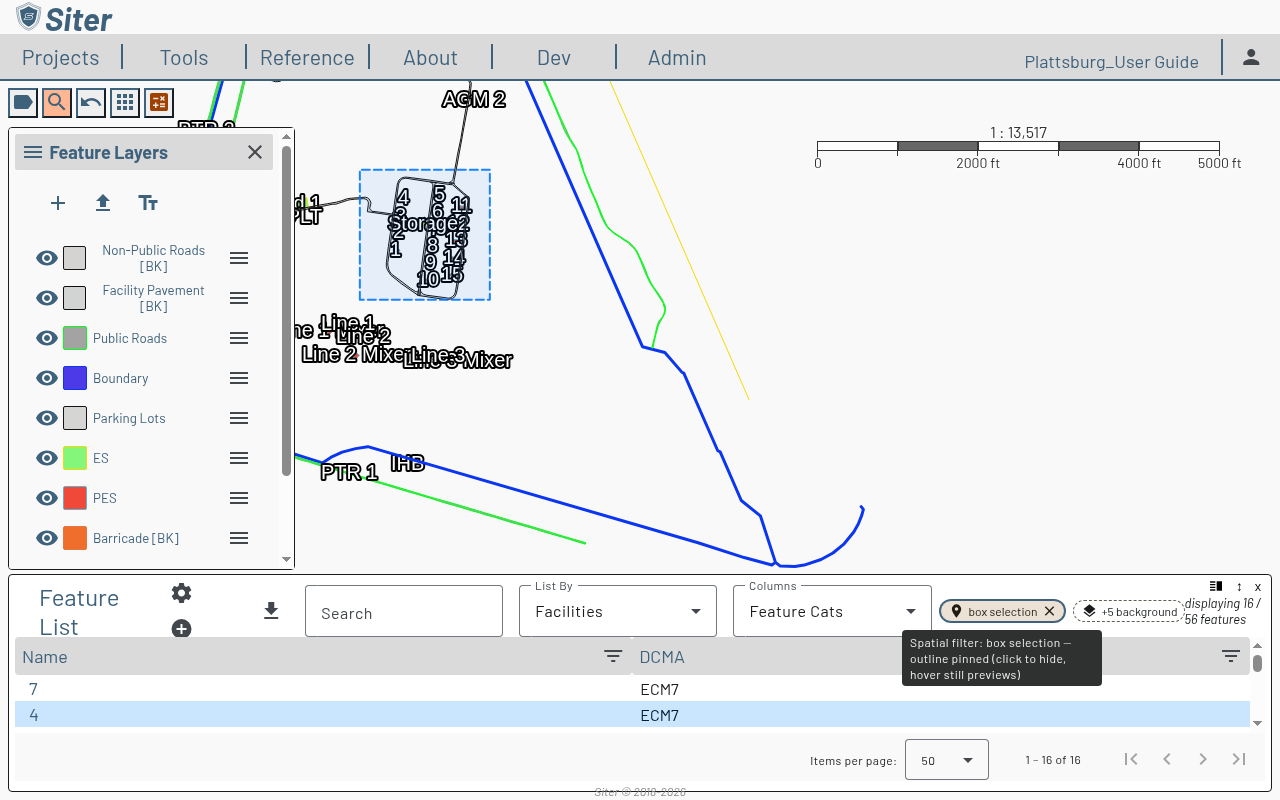
Area selection always opens the list, even when the shape catches only one feature — use it to answer "what is in this area?", then work on the results with the list tools (including Bulk editing).
The spatial filter chip
An active selection appears as a chip in the Feature List header:
- Hover over the chip to preview the selection outline on the map; click the chip to pin the outline in place (click again to unpin)
- Click the chip's ✕ to clear the spatial filter and return to the full list
- A second, dashed chip such as +5 background appears when the list's current List By view hides some of the selected features (for example, background features caught by a selection while the list shows facilities). Click it to switch views without losing the selection.
The selection is captured in the page URL, so a spatially filtered list can be bookmarked, shared, or refreshed without losing the filter. It also survives a round trip into a feature's dashboard or editor — coming Back restores the filtered list, selection outline and all. To drop it along with the rest of the list state, use Reset View in the Feature List's Options menu.
Project name and dashboard
The project name is displayed in the upper-right corner of the toolbar. Click it to open the project dashboard, which provides access to project details, criteria, users, and sharing settings. See Projects for more information.
Related topics
- Projects — create and manage projects
- Layers — add and organize map layers
- Features — add and edit features on the map
- Running an analysis — execute and view analysis results