Transmittal letters
A transmittal letter is the cover letter that goes to the Defense Contract Management Agency (DCMA) with an Explosives Safety Site Plan (ESSP). Siter drafts it for one or more DCMA PESs as a LaTeX (.tex) file, filled in from your project details, the facilities' narratives and the analysis results. Each part Siter can't fill in is marked with a boxed USER UPDATE marker, so you only write what's left and then compile the letter to PDF.
Transmittal letter export is an alpha feature: bugs may exist, and feedback is welcome. Check every generated value against the analysis and the submittal forms before you send the letter.
Prerequisites
- You must have the Project Read Permission or higher to export a letter
- You must have the Project Edit Permission or higher to enter the project's Installation Description and Submittal Contact, or a facility's Facility Narrative
- The project must have the DoD Manual 4145.26 (DCMA) criteria selected
- The facilities you include must have a DCMA facility type that is a PES. Run the analysis first, so the letter can list distances and exposures
- To turn the
.texfile into a PDF you need a LaTeX tool such as pdflatex or Overleaf
How to prepare the letter's data
Fill in these fields before you export. Any field you leave empty becomes a USER UPDATE marker in the letter.
-
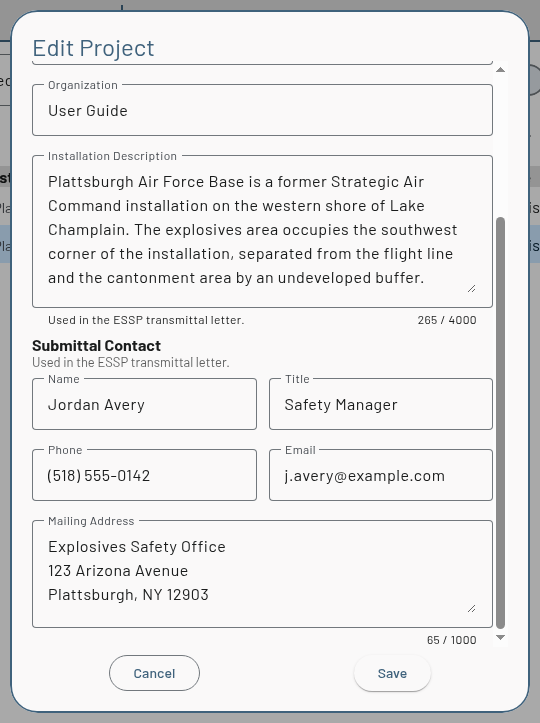
Open the project's details for editing, either with Edit Details on the Project Management page or with Edit from the settings gear on the project dashboard (see How to edit project details)
-
Enter the Installation Description, a short description of the installation. It becomes the letter's installation overview paragraph
-
Under Submittal Contact, enter the Name, Title, Phone, Email and Mailing Address of the person who signs the letter and answers DCMA's questions
-
Click Save
-
For each PES you will include, and each exposed site near it, open the facility in the feature editor, click the Notes tab, enter its Facility Narrative and save. See How to view and edit a feature
The project's Organization and Installation also appear in the letter: the organization as the requester and in the signature block, and the installation in the subject line.
How to export a transmittal letter
You can open the Export Transmittal Letter (DCMA) dialog in three ways:
-
From the map: click the Popups button on the map toolbar and select Export Transmittal Letter. The Feature Selector opens on top of the dialog. Check the PESs to include and click OK. The menu item is disabled when the project has no DCMA criteria
-
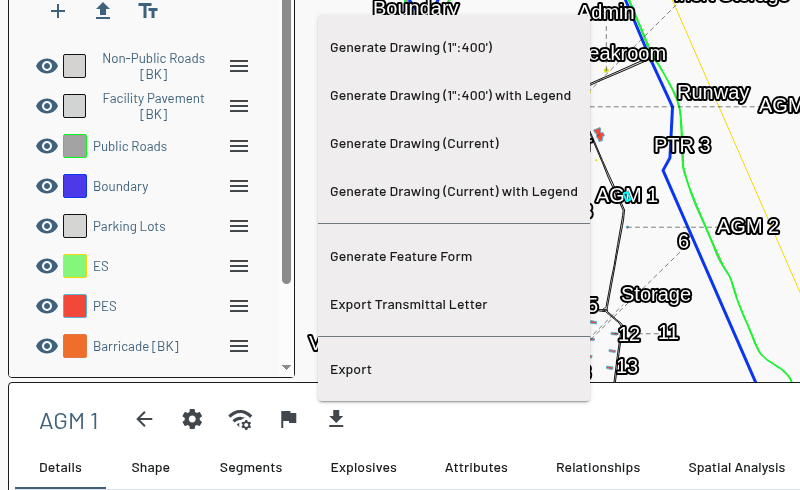
From a facility: open a PES's dashboard, click Export Tools (download) and select Export Transmittal Letter. The dialog opens with that facility selected. The item appears only when the facility is a DCMA PES
-
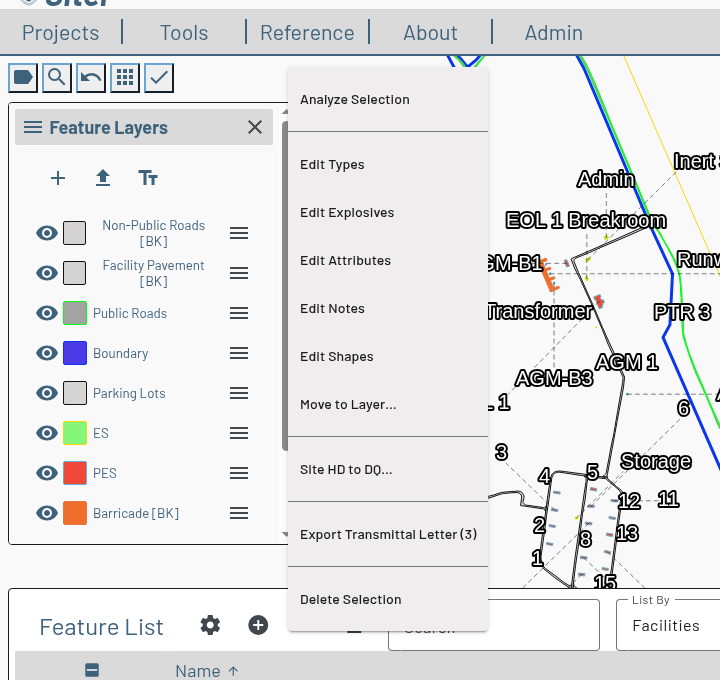
From the Feature List: with Bulk Select on, check the facilities, click the bulk actions button and select Export Transmittal Letter (N), where N is how many of the checked facilities are DCMA PESs. The item is disabled when none of them is. The dialog keeps the PESs and tells you how many other facilities it skipped, for example "3 of 4 selected features are DCMA PESs; 1 skipped."
In the dialog:
-
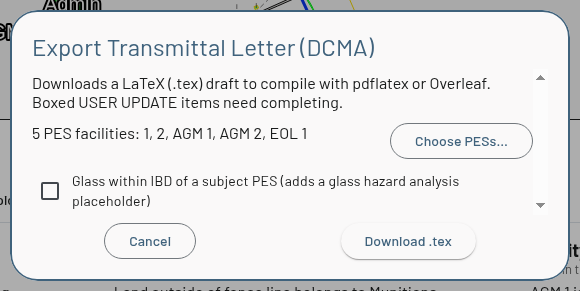
Check the list of selected PESs, for example "5 PES facilities: 1, 2, AGM 1, AGM 2, EOL 1". Click Choose PESs… to add or remove PESs. The picker lists only the project's DCMA PESs
-
Check Glass within IBD of a subject PES if any exposure within IBD of a selected PES has glass panels. The letter then has a glass hazard analysis paragraph to complete. Otherwise it states that none do
-
Wait for Siter to load each PES's analysis. A progress bar reads "Loading analysis 2 / 5"
-
Read the Check before sending: list, if one appears. It names each PES whose analysis is out of date, that has no DCMA analysis results, or that has sides not covered by the analysis. Re-run the analysis to clear these, or complete the affected parts of the letter yourself
-
Click Download .tex. Siter saves
<project name>_ESSP_Transmittal_<YYYYMMDD>.texand confirms with "Downloaded …"
What's in the letter
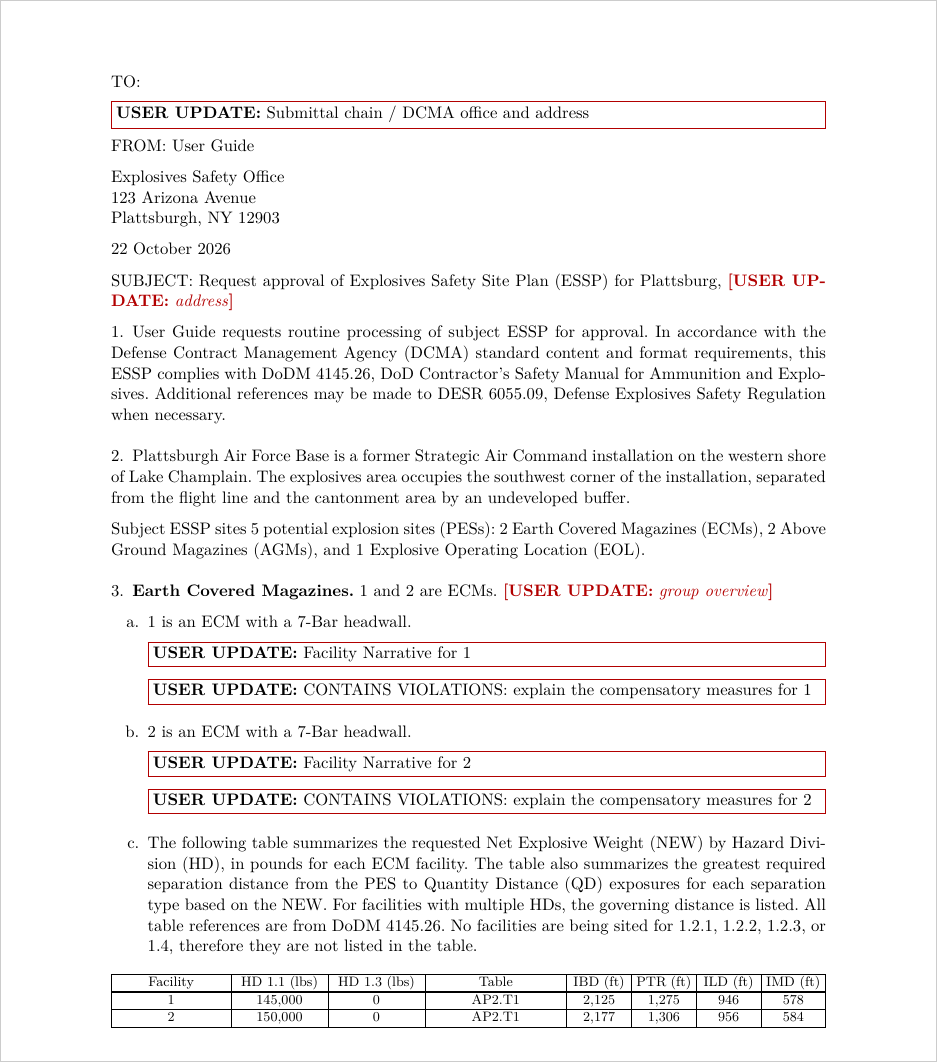
The letter follows DCMA's standard content and format. Siter fills in:
- Header: the date and a subject line, "Request approval of Explosives Safety Site Plan (ESSP) for
", with a USER UPDATE marker for the address. The TO: block is always a USER UPDATE marker. The FROM: block is the project's Organization and the contact's Mailing Address - Request paragraph: the organization requests routine processing of the ESSP. It opens "In accordance with the Defense Contract Management Agency (DCMA) standard content and format requirements, this ESSP complies with DoDM 4145.26, DoD Contractor's Safety Manual for Ammunition and Explosives."
- Installation overview: the Installation Description, then a count of the PESs by facility group, for example "Subject ESSP sites 5 potential explosion sites (PESs): 2 Earth Covered Magazines (ECMs), 2 Above Ground Magazines (AGMs), and 1 Explosive Operating Location (EOL)."
- One paragraph per facility group (Earth Covered Magazines, Above Ground Magazines, Explosive Operating Locations and so on), with:
- each PES's Facility Narrative. An ECM also states its headwall, for example "1 is an ECM with a 7-Bar headwall."
- a table of each PES's NEW by hazard division and its governing IBD, PTR, ILD and IMD distances with the criteria table they come from
- for each separation type, a table of each PES's nearest exposure with its compass direction (for example North-East) and distance. A PES with no exposure of that type within 110% of its IBD reads "None within 110% of IBD"
- Exposed Sites: one entry per exposed site on the PESs' siting forms, with its Facility Narrative
- Standard paragraphs: glass, mixing quantities, the lightning protection system, privately owned vehicle parking (citing the DCMA Formal Interpretation dated 5 March, 2021), an explanation of Siter's type codes, relationship definitions and map arcs, and the compliance statement
- Point of contact and signature: "Any questions should be directed to …" with the contact's name, phone and email, then "Sincerely," and the contact's Name, Title and the Organization
- Attachments: the standard enclosure list, with a USER UPDATE marker to check it
Each term is written out with its acronym the first time it appears, for example "Net Explosive Weight (NEW)", and as the acronym alone after that.
USER UPDATE markers show what's left to write: a group overview for each facility group, the compensatory measures for any PES with a violation ("CONTAINS VIOLATIONS: explain the compensatory measures for …"), and any project field or Facility Narrative you left empty.
How to finish the letter
- Open the
.texfile in Overleaf, or in any text editor - Replace each USER UPDATE marker (
\fillin{…}or\fillinblock{…}in the file) with your text - Compile the file with pdflatex, twice so the table widths settle. The compile log lists each marker still left as a
SITER-USERUPDATE:line - Optionally, uncomment the two "Final mode" lines near the top of the file. Any marker still left then prints as a bold ?? and is reported as a warning
The letter is a draft. Siter doesn't store it, so export it again after you change the project, a narrative or the analysis.
Troubleshooting
Export Transmittal Letter is disabled in the Popups menu
Cause: The project doesn't have the DCMA criteria. The tooltip reads "Transmittal letters need DCMA criteria on the project".
Solution: Add DoD Manual 4145.26 on the project's Criteria tab (see How to edit project details) and run the analysis.
Export Transmittal Letter is missing from a facility's Export Tools menu
Cause: The facility's DCMA facility type isn't a PES, or it has no DCMA facility type.
Solution: Assign a PES facility type for the DCMA criteria, or select the facility's PESs instead.
The letter's distances read "no DCMA analysis — run Analyze"
Cause: The PES has no DCMA analysis results. The dialog lists it under Check before sending:.
Solution: Run the analysis, then export the letter again.
"The letter can't be built until every PES loads"
Cause: Siter couldn't load the analysis of one or more PESs, for example because a facility was deleted while the dialog was open. The dialog names each one.
Solution: Click Retry. If a facility was deleted, click Choose PESs… and remove it.
Related topics
- Submittals — the PES and ES submittal forms the letter encloses
- Projects — Installation Description and Submittal Contact fields
- Features — the Facility Narrative on the Notes tab
- Analysis — run the analysis the letter's distances come from