Feature labels
Feature labels are the text Siter draws next to each feature on the map. You control what each label says (the label template) and how it looks (font, size, color, and so on). Labels are configured at two levels:
- a project default that applies to every layer, and
- optional per-layer overrides that replace the default for a single layer.
You can also save a default label template and style on your Preferences so that every project you create starts with labels turned on (see How to set default labels for new projects).
Prerequisites
- You must have an open project
- You must have the Project Edit Permission or higher to change label settings
How to set the project default labels
-
In the Feature Layers sidebar, click the Facility Label Options button (the Tt icon in the sidebar's toolbar)
-
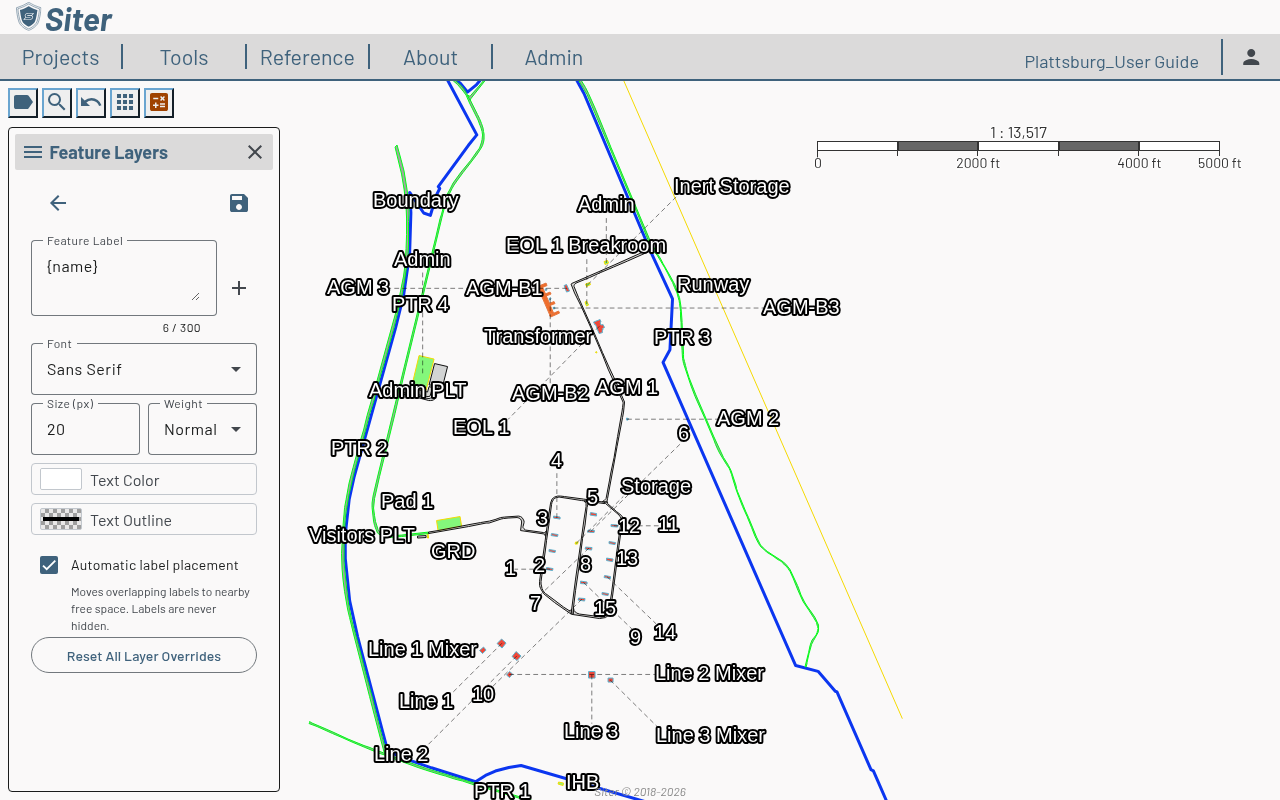
The label editor opens:
-
Set the Feature Label template — the text each label shows, up to 300 characters. Type literal text and variable tokens (such as
{name}); see Choosing what the label shows below -
Adjust the styling:
- Font — the typeface
- Size (px) — text size (8–72). Printed drawings raise small sizes to a readable minimum (see Labels on printed drawings)
- Weight — Normal or Bold
- Text Color — the fill color of the text
- Text Outline — the halo color and width drawn around the text for contrast
- Automatic label placement — move labels that would overlap another label to nearby free space (on by default; see How automatic label placement works)
-
Click Save Label Settings to apply. Clicking Back with unsaved changes asks whether to Save, Don't Save, or Cancel (Cancel keeps the editor open)
A template saved before v0.32 can be longer than 300 characters. The editor flags it with Too long — shorten to 300 characters to save. and Siter refuses to save it until you shorten it. If a save fails, the error message gives the server's reason.
Choosing what the label shows
The Feature Label field accepts any mix of literal text and variable tokens. Click the + (Insert variable) button next to the field to add a token:
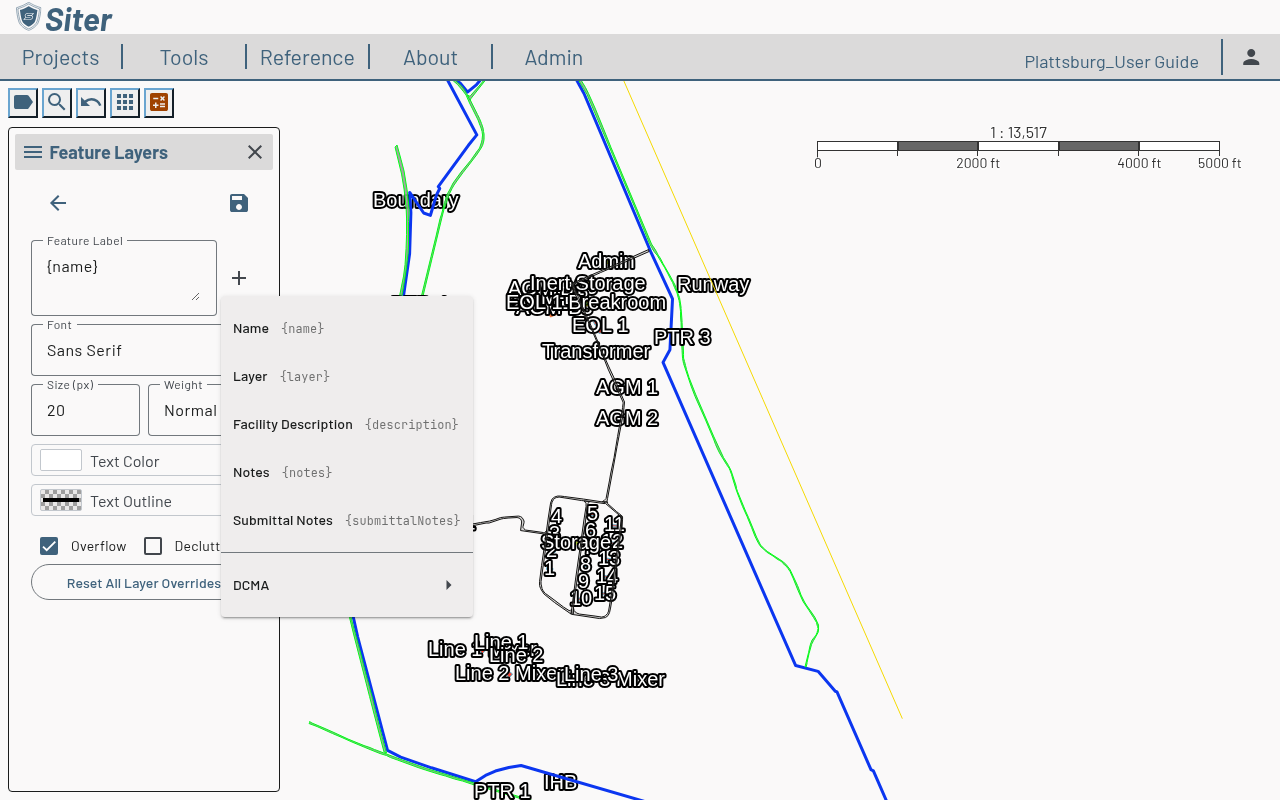
Top-level tokens apply to any feature:
- Name —
{name} - Layer —
{layer} - Facility Description —
{description}, the feature's Facility Description (printed on submittal forms) - Notes —
{notes}, the feature's internal Notes (not printed on submittal forms) - Submittal Notes —
{submittalNotes}
Before v0.30, {notes} showed the text that is now the Facility Description. The upgrade migrates your data: each facility's text moves into its new Facility Description field, and project and layer label templates that used {notes} are changed to {description}. Older project files you import are converted the same way.
The migration does not reach every place a template can be saved. A per-feature Label Text override (set with Bulk Edit > Facility Labels) or a default template on your Preferences tab that still uses {notes} now shows the internal Notes, which is usually empty. If a label is blank or shows the wrong text after the upgrade, edit its template and replace {notes} with {description}.
Each of the project's criteria (for example, DCMA) has a submenu that adds variables for every attribute and explosive value on that criteria:
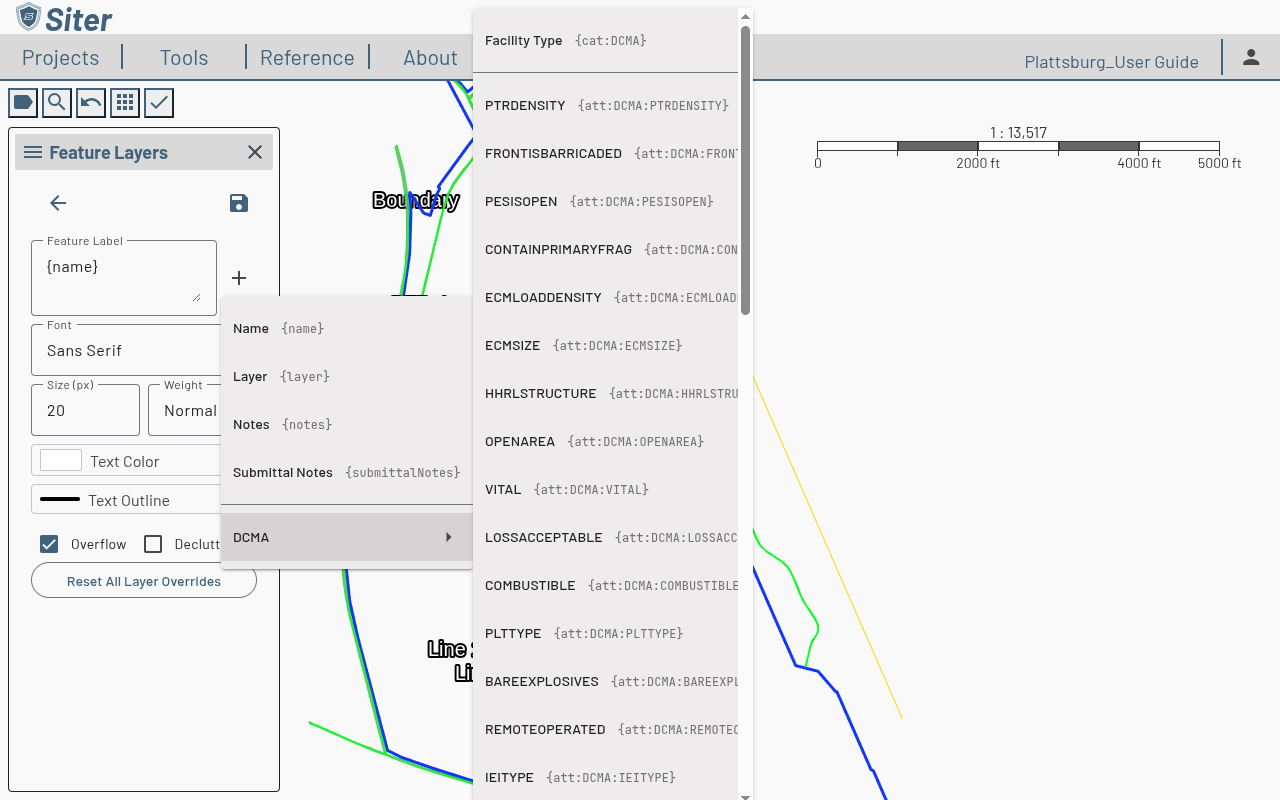
Combine tokens with literal text to build the label you want — for example, {name} — {cat:DCMA} shows the feature name followed by its DCMA facility type.
How automatic label placement works
With Automatic label placement on, a facility label that would overlap another label moves to nearby free space around its facility instead of overlapping it. Labels are never hidden: when no free spot fits, the label goes to the least crowded spot.
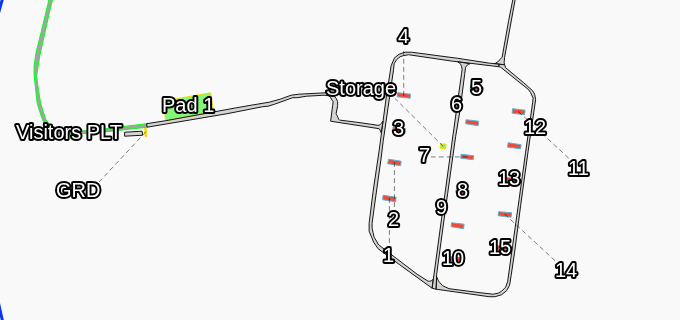
- Leader lines — a label that moves clearly off its facility gets a dashed leader line from the center of the facility. Automatic and custom labels look the same
- Dense areas — labels that have to move fan out away from the center of the group, so their leader lines rarely cross
- Small neighbors — an automatic label no longer covers a small neighboring facility. It moves off it, staying inside its own facility when it fits there, otherwise moving around it
- Line facilities — a line facility's label that has to move goes to free space around the line
- Custom positions win — a label you placed yourself (with Set Label Position on the facility's Shape tab, or with Bulk Edit > Facility Labels) stays where you put it. Labels on a layer or project with automatic placement turned off also stay at their default spot. Other labels move around both
- Clicking a label — clicking or hovering a facility's label on the map identifies that facility, also when the label has moved away from its shape
Every facility label draws above every facility shape, so a label is never hidden under a layer drawn above its own. A facility made of several parts shows one label, on its largest part, and a label wider than its polygon is still shown.
Automatic label placement is on for new projects. Installing v0.32 also turned it on in every existing project, every layer label override, and your Feature Labels preferences. Undoing a label settings change made before the update, or importing an older project archive, also turns it on. To turn it off, clear the Automatic label placement checkbox in the project label editor, in a layer's label override (see How to override labels for a single layer), or on the Feature Labels card of your Preferences.
How to check where a facility's label is
-
Open the facility for editing and click its Shape tab
-
Read the status under Set Label Position:
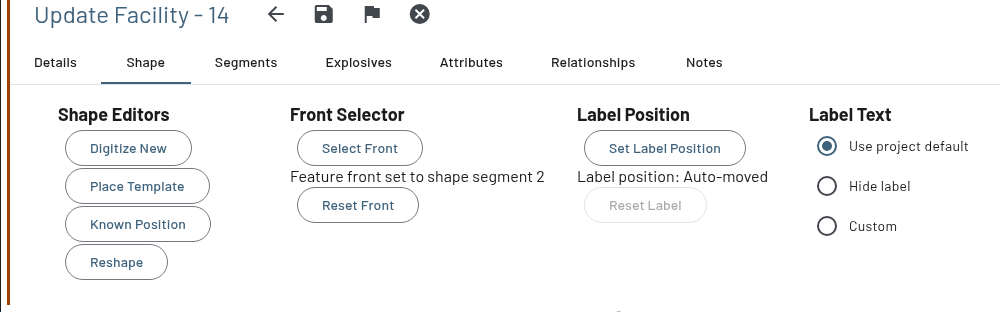
- Custom — you placed the label yourself
- Default — the label is at its default spot
- Auto-moved — automatic placement moved the label to free space
- Crowded — no free spot fits, so the label sits at the least crowded spot and may overlap other labels
To pin a label in place, set a custom position: click Set Label Position and click the map. Reset Label clears the custom position, so automatic placement (or the default spot, with automatic placement off) takes over again. While the facility is open on the Shape tab, the labels around it keep their places.
Labels on printed drawings
Drawings lay out labels for the printed page, using the same automatic placement. Small label sizes are raised to a readable minimum of 2.5 mm on paper (about 7 pt), so a small size you set for the map still prints legibly. The map keeps the size you set. Label halos and leader lines print at the same weight as before.
How to set default labels for new projects
A project's labels start from your personal default, which you set once on the Preferences tab of My Dashboard:
- Open My Dashboard (the account button in the top navigation bar > Dashboard) and click the Preferences tab
- On the Feature Labels card, enter a Feature Label template and set its text style — the same controls as the project label editor
- Click the card's Save button
Every project you create from then on starts with feature labels turned on, using that template and style. Leave the template empty and new projects start with labels off. Existing projects are not changed.
The card's + (Insert variable) menu lists every criteria Siter knows about, not just one project's; tokens for criteria a new project does not use are ignored. See Preferences.
How to override labels for a single layer
A layer can use its own label settings instead of the project default:
-
In the Feature Layers sidebar, click the layer's color swatch to open its symbol editor
-
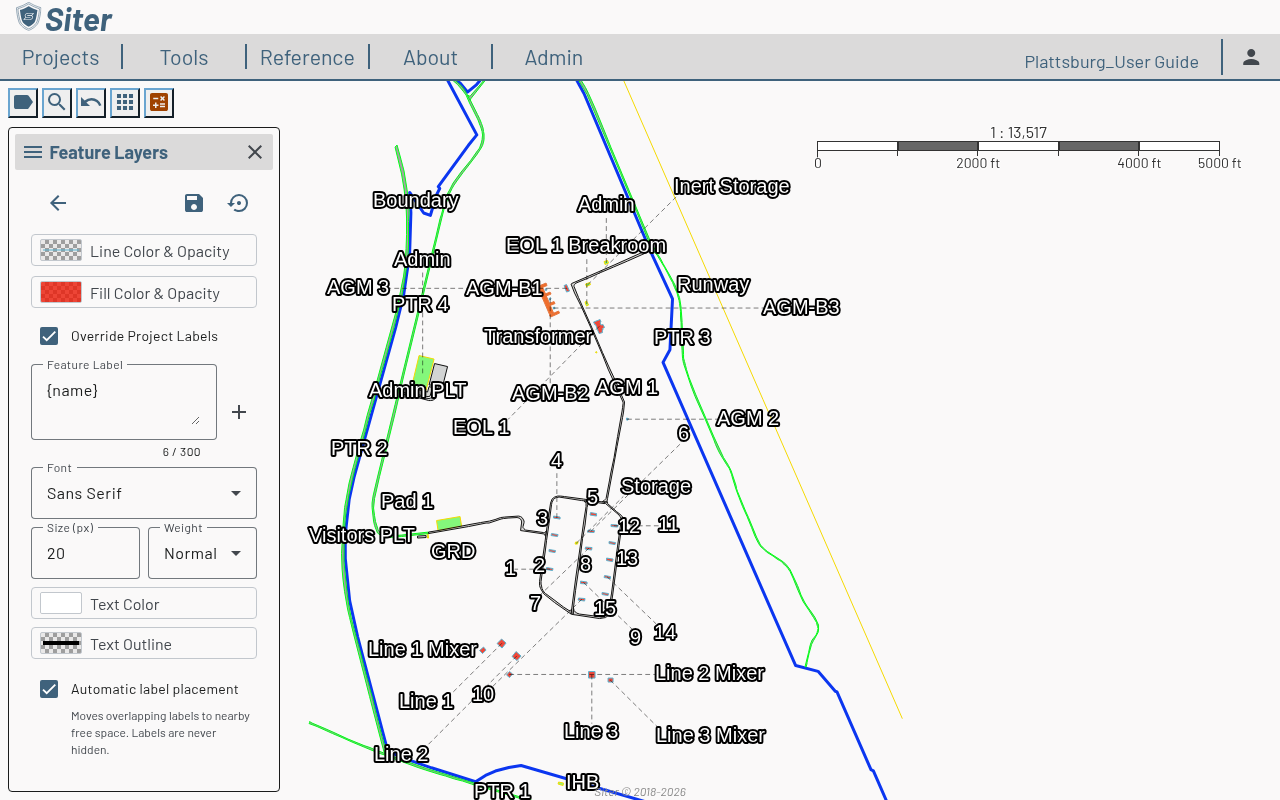
Check Override Project Labels
-
The label editor appears for that layer — set its template and styling independently, including Automatic label placement
-
Click Save Symbol. As with the project default editor, clicking Back with unsaved changes prompts Save, Don't Save, or Cancel
The layer's labels now follow its own settings; all other layers continue to use the project default.
How to reset layer overrides
To return every layer to the project default, open the project default label editor (the Facility Label Options button) and click Reset All Layer Overrides. This clears the custom label settings on all layers at once.
Related topics
- Layers — add, organize, and manage layers
- Bulk editing — the Facility Labels bulk tool for editing many features' labels at once
- Features — the features your labels describe
- Preferences — default labels for new projects