All relationships
The All Relationships dashboard lists every relationship in the project in a single table — one row for each directional PES → ES pair, with a column for each criteria and a shared Barricaded column. Use it to review the whole relationship picture at once, spot a pair that is wrong, and fix it inline — without opening each feature's dashboard one at a time.
Added in v0.23.
Prerequisites
- You must have an open project with features and at least one relationship (relationships are usually generated from relationship groups or added on a feature's Relationships tab)
- You must have the Project Read Permission or higher to view the dashboard
- You must have the Project Edit Permission or higher to edit relationships
How to open the All Relationships dashboard
-
On the map toolbar, click the Popups button
-
Select All Relationships
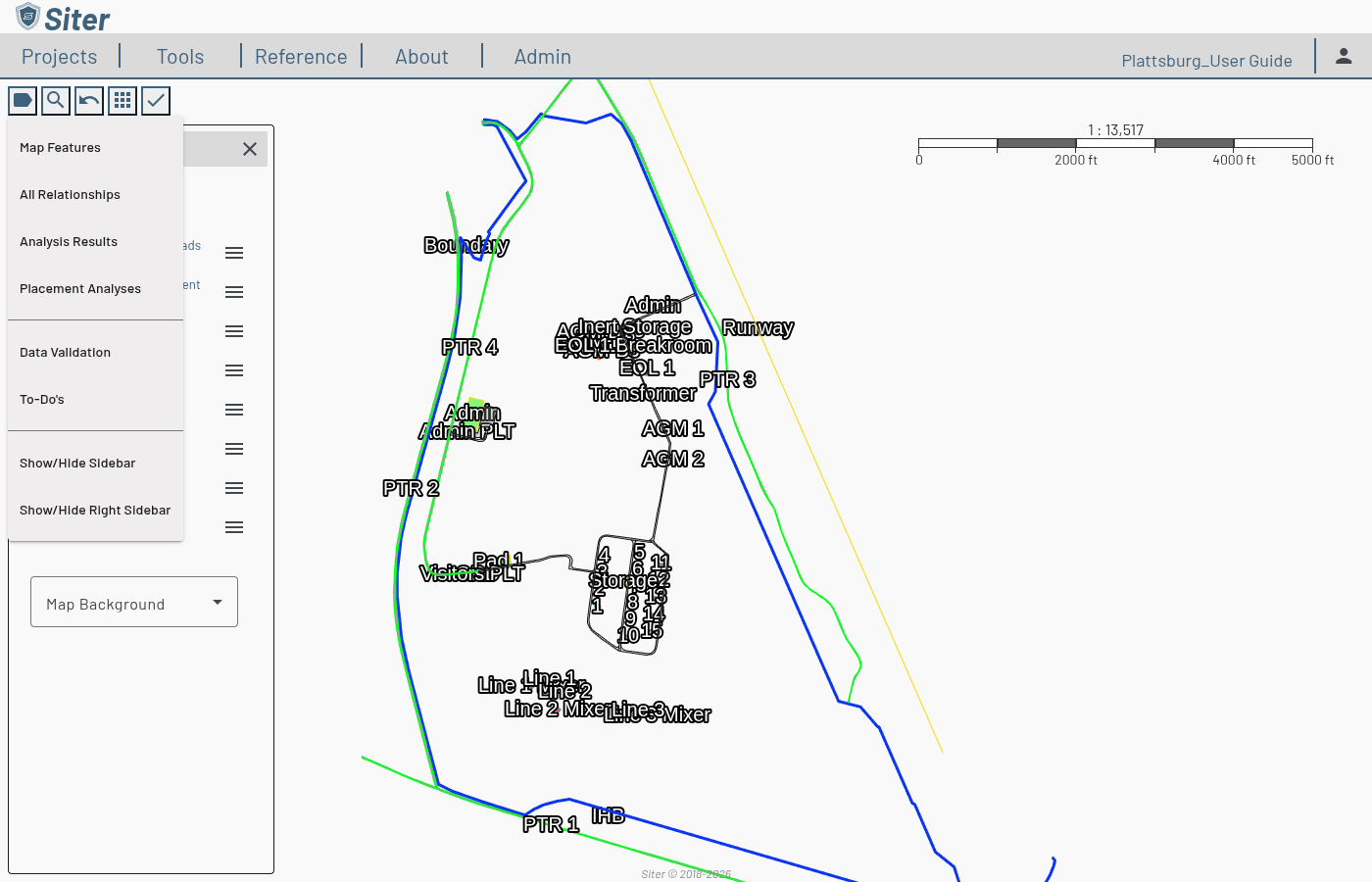
The dashboard opens as a footbar at the bottom of the screen. Use the panel control bar at its top to resize, dock it to the right, or close it.
How to read the dashboard
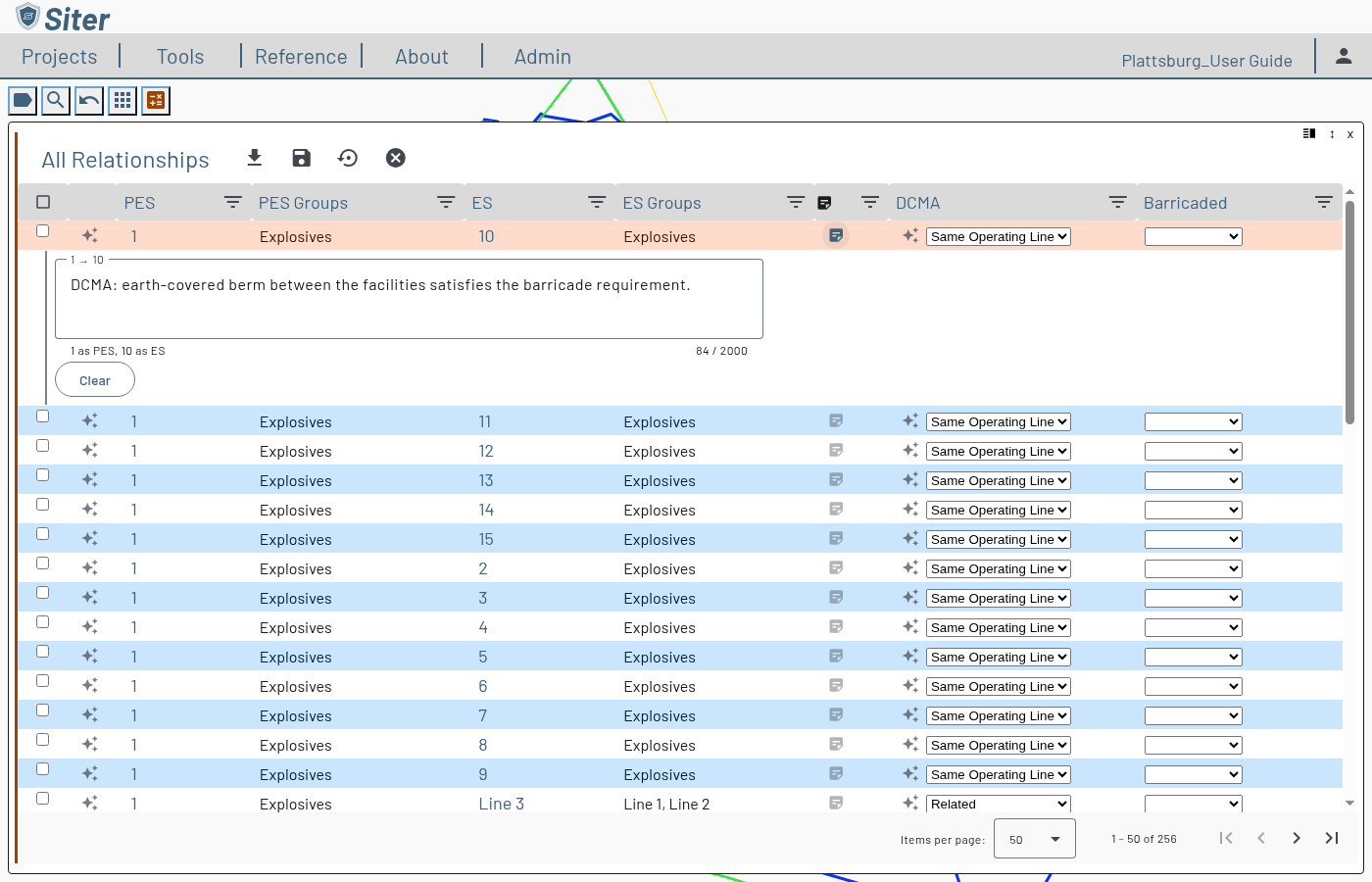
The table opens read-only, with one row per directional PES → ES pair:
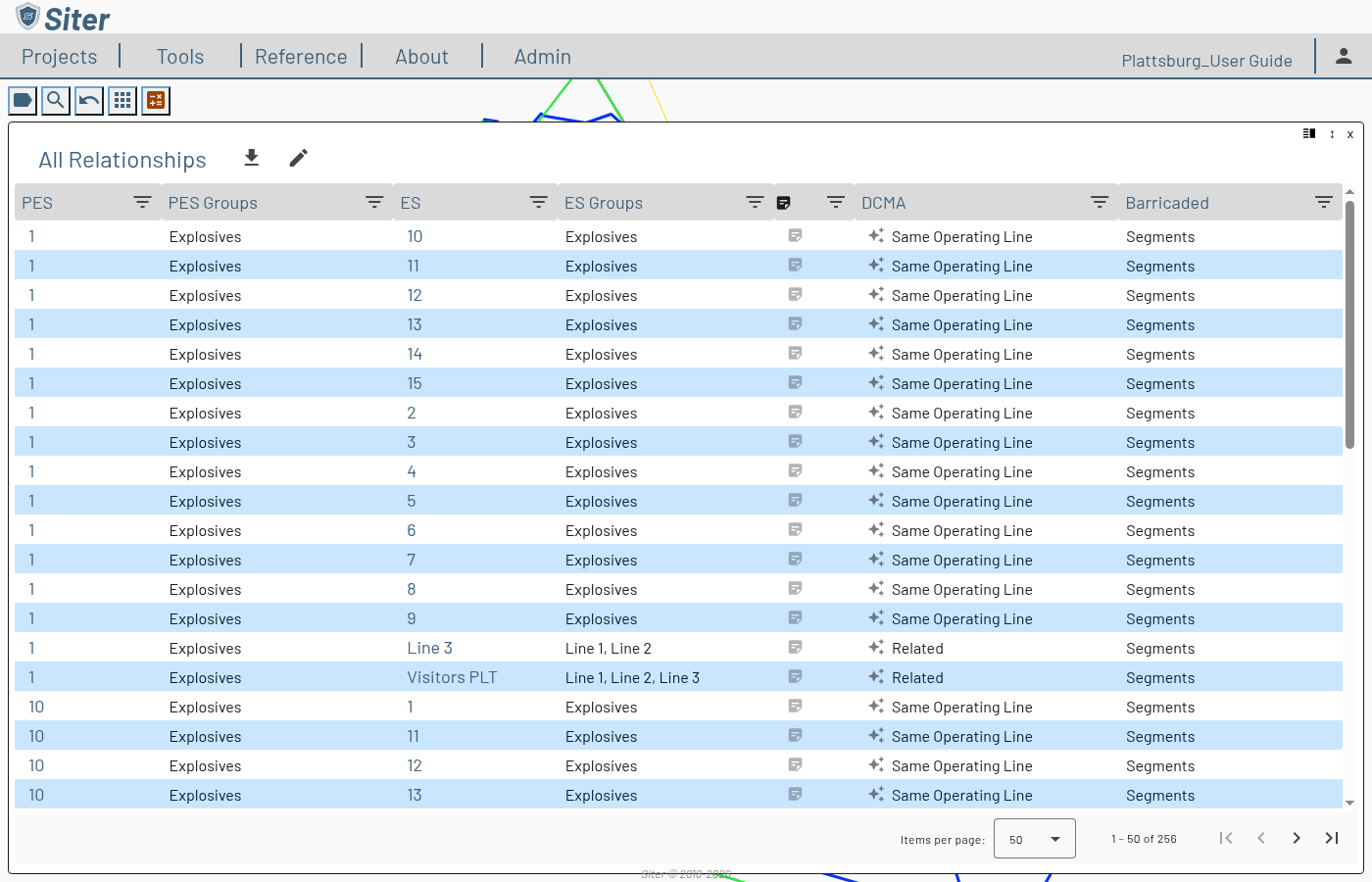
| Column | What it shows |
|---|---|
| PES | The potential explosion site of the pair. Click the name to open that feature's dashboard. |
| PES Groups | The relationship groups the PES belongs to. |
| ES | The exposed site of the pair. Click the name to open that feature's dashboard. |
| ES Groups | The relationship groups the ES belongs to. |
| Note (note icon) | The pair's relationship submittal note for this direction. A filled icon means the direction has a note. Click it to expand the note under the row. |
| One column per criteria (e.g. DCMA) | The relationship code in effect for that criteria, shown by its display name (e.g. Same Operating Line, Related). |
| Barricaded | The pair's barricade override: Yes or No, or Segments when there is no override and the pair follows the Barricaded flags on the facilities' Segments tabs (see Barricaded values). Barricading is shared across criteria. |
Each criteria cell carries a small icon showing where its value came from:
- The auto icon means the code was generated by the relationship-group Build Relationships step.
- The lock icon means the value is user-overridden — the build will not change it.
The reverse pair (ES → PES) is a separate relationship and appears as its own row, with its own note. A barricade change is non-directional, so it stays in sync across both directions.
The dashboard lists only pairs that have a relationship or barricade setting. A pair that has only a note is not listed here — its note stays on each facility's Relationships tab.
Click any column's filter icon to narrow the table — for example, filter the PES or ES column to a few facilities, the Barricaded column to Yes, No, or Segments, or the Note column to Has note (or [NONE] for pairs without one). The PES and ES filters open the Feature Selector, which shows a column per project criteria with each facility's type code and leaves out features on background layers. Click a column heading to sort by it — an arrow on the heading shows the sort direction. The dashboard keeps your sort and filters when you open a feature from it and come back with Back.
How to edit relationships
-
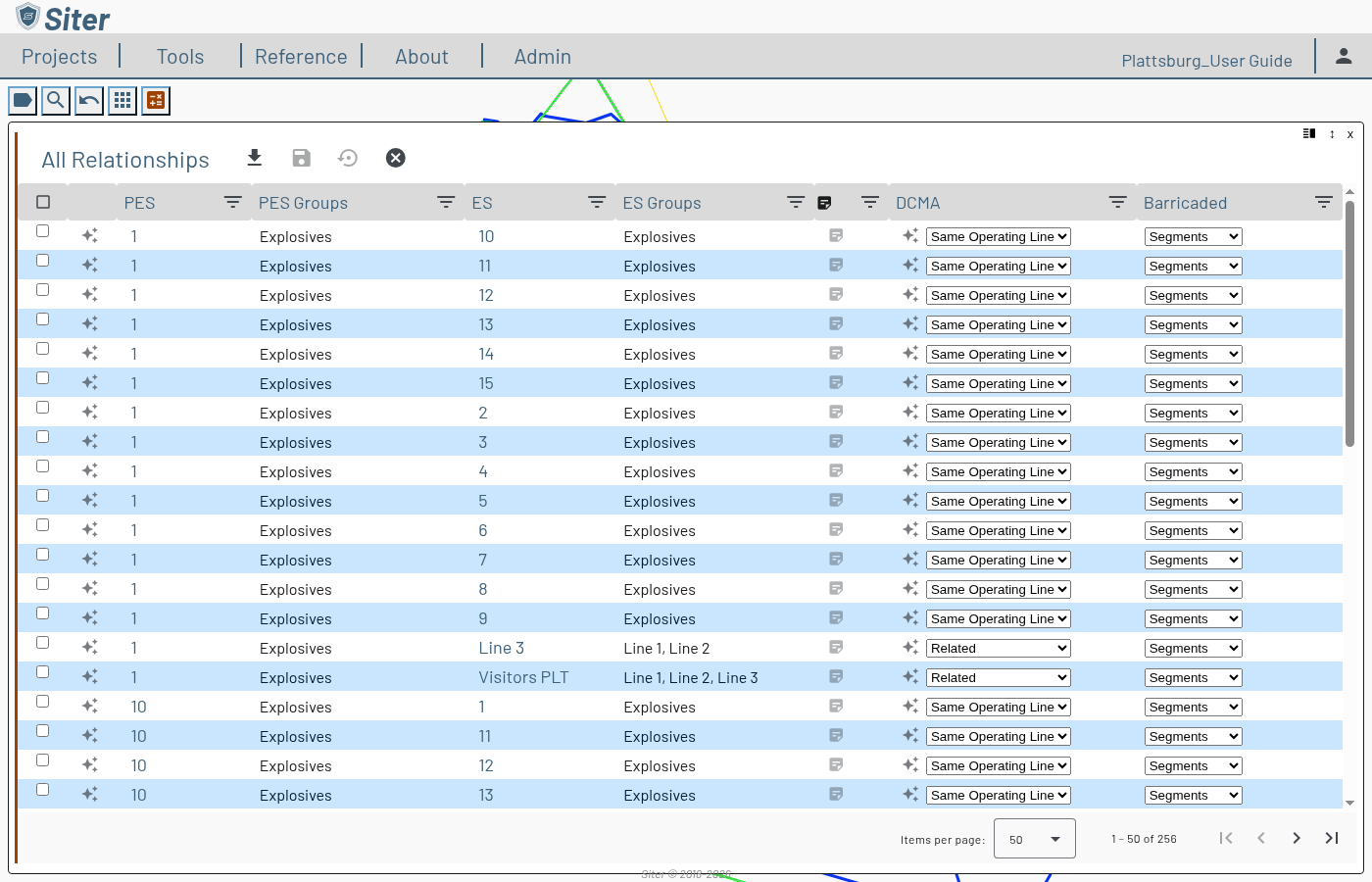
Click the edit (pencil) icon in the dashboard header. A colored border appears down the left edge of the panel to show you are now in edit mode
-
Change a pair's relationship by choosing a new value from its criteria dropdown, or its barricade status from the Barricaded dropdown (Segments removes the override). Editing a code automatically locks that cell as user-overridden
-
Click the save icon to keep your changes, the discard icon to revert them, or the done (X) icon to leave edit mode
Changes are batched — nothing is written until you click save. If you click done with unsaved changes, Siter asks what to do with them — Save, Don't Save, or Cancel (Cancel returns you to editing, and a failed save keeps the editor open with the error shown). Clicking a PES or ES name to jump to that feature's dashboard triggers the same prompt when you have unsaved edits.
How to edit several rows at once
-
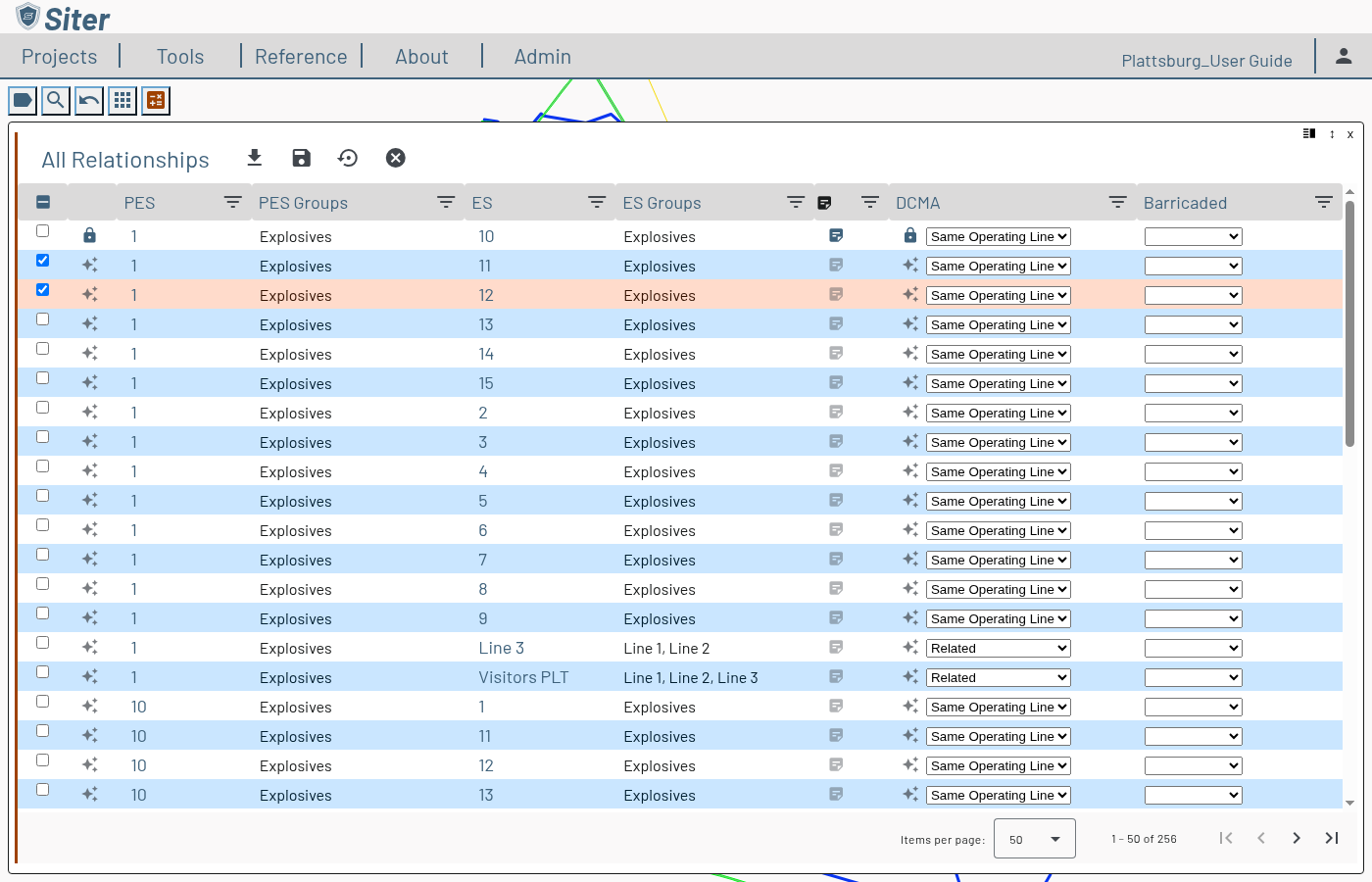
In edit mode, select rows using the checkbox at the start of each row. Click one checkbox, then shift-click another to select the whole range between them
-
Make an edit on any selected row — the same change applies to every selected row at once
How to edit relationship notes
Each row is one PES → ES direction, so its note is that direction's note only — the two rows of a mutual pair hold two independent notes. The note is the same one shown on each facility's Relationships tab; it is not tied to a criteria.
A pair has one note per direction, shared by every criteria in the project, and that same note prints on every submittal form the pair appears on, whatever the standard (DCMA, DESR, NATO, or ATF). If a note documents a violation mitigation or a waiver that applies to only one criteria, say which one in the note, for example DCMA: berm between the facilities satisfies the barricade requirement, so it reads correctly on the other standards' forms.
-
In edit mode, click the row's note button in the Note column. The note opens under the row in a field labelled with the pair as PES → ES (for example, AGM 1 → Line 1)
-
Enter the note, up to 2,000 characters. The counter under the field shows how many you have used. Click Clear to empty it
-
Click save
Note edits are saved in the same batch as your relationship and barricade edits, and discard restores them. In read-only mode, expanding a note shows its text, or [None] when there is no note.
How to lock and unlock the build override
The lock controls whether the relationship-group build may regenerate a relationship. In edit mode, each criteria cell has a lock toggle:
- Click an auto cell to lock it — the build will no longer modify that code.
- Click a locked cell to unlock it — the next build may regenerate it from the matrix.
- Lock an empty cell to pin it as "no relationship," so the build will not add one there.
Use the lock icon in the leading column to lock or unlock every criteria of a row at once.
Locking a few cells lets you protect specific hand-tuned relationships while still re-running Build Relationships to refresh everything else.
How to export the relationships
Click the download icon in the dashboard header to export the current table to a CSV file, including each row's note. The Barricaded column exports as Yes, No, or Segments. Export is available in both read-only and edit mode.
Troubleshooting
The dashboard shows "No relationships defined"
Cause: The project has no relationships yet.
Solution: Generate them from the Relationship Group Editor (Build Relationships), or add them on a feature's Relationships tab.
The edit icon is greyed out
Cause: You have read-only access to the project.
Solution: You need the Project Edit Permission or higher to edit relationships. Ask the project owner to grant access (see Sharing projects).
A relationship I edited came back after a build
Cause: The cell was not locked, so the relationship-group build regenerated it from the matrix.
Solution: Open the cell in edit mode and click its lock toggle, then save. Locked cells are preserved by future builds.
A banner says another user saved one or more of these facilities
Cause: While you had unsaved edits, another user saved a facility listed on the dashboard. The table was refreshed with their changes, which replaced any unsaved edits of yours to those facilities.
Solution: Review the affected rows, redo any edits you still want, and click save. Click Dismiss to hide the banner.
Related topics
- Relationship Groups — author a matrix and generate relationships in bulk
- Feature relationships — view and edit one feature's relationships
- Running an analysis — relationships decide which criteria apply between each pair