Relationship Groups
Relationship groups are named groupings of features — typically production lines, missions, or operational sets — used to drive feature-to-feature relationships in bulk. Instead of authoring relationships pair-by-pair on each Relationships tab, define a Group × Group × Criteria matrix once and let Siter generate every individual pair's relationship for you. The matrix says, for example, "Line 1 features are sameline with each other, related to Line 2, and unrelated to Line 3."
Added in v0.20. Build Relationships in the map's Analysis menu added in v0.27.
Prerequisites
- Your project must contain features grouped into operational sets
- You must have the Project Edit Permission or higher
- A criteria standard must be applied to the project
How to open the Relationship Group Editor
-
Click the Add/Edit button in the toolbar
-
Select Relationship Group Editor
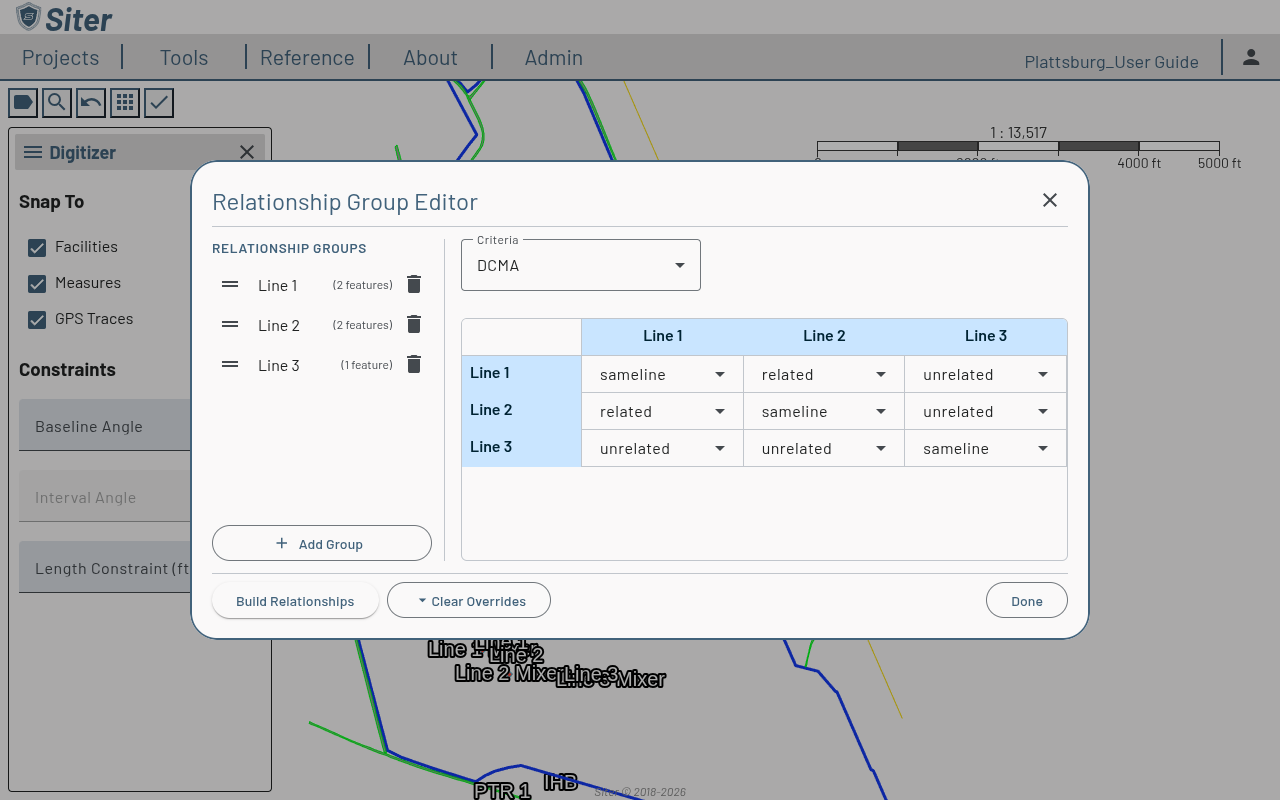
The dialog has two main areas:
- Relationship Groups on the left — the named groups and how many features each contains
- The matrix on the right — for the selected criteria, every Group × Group pair has a relationship value (
sameline,related,unrelated, or a specific type code likeBfor Barricaded)
How to add a relationship group
- Click Add Group in the editor
- Name the group (e.g., "Line 1", "Mission Alpha", "Sundown Production")
- Save
The new group appears in the list with 0 features.
How to assign features to relationship groups
There are two routes:
Per-feature — open the feature's dashboard, click the Relationships tab, and use the Relationship Groups chips section to add or remove memberships.
In bulk — click the Add/Edit > Bulk Edit > Relationship Group Assignment, select features in the footbar, and choose the groups to apply. See Bulk editing.
How to author the relationship matrix
- Open the Relationship Group Editor
- Select the criteria standard from the Criteria dropdown — each criteria gets its own matrix
- For each Group × Group cell, choose the relationship value:
- sameline — features in the same group treat each other as sites of the same operation (typically same operating area, related to but not subordinate to each other)
- related — features are related across groups under the criteria's normal pairing rules
- unrelated — exclude this pair from analysis entirely
- A specific type code (such as
Bfor Barricaded) — force this code between every member of these two groups
- Repeat for any other criteria the project uses
How to build relationships from the matrix
- With assignments and the matrix set, click Build Relationships in the editor footer
- Siter generates one auto-relationship row per pair on the Relationships tab of every member feature. A progress bar runs above the footer while the build is in progress — click Cancel Build to stop it
- After the build, click View Report in the footer to review any ambiguous or unrelated-resolution pairs — click a row to fly to that pair on the map
The build walks the PES–ES pairs found by the most recent spatial analysis. If the project has no spatial results yet, or features have changed since the last spatial run, a banner at the top of the editor disables the build button until you click Run Spatial Analysis (or Re-run Spatial Analysis). A spatial run removes the re-run facilities' full analysis results and marks them as needing analysis (see Spatial-only analysis with relationship groups). To skip that round trip, use Build Relationships from the map instead.
The build itself lands on the project's undo stack as a single command, so you can undo a problematic build without manually unwinding rows. The build never adds, changes, or removes relationship submittal notes.
How to build relationships from the map
Once your groups, assignments, and matrix are in place, you can rebuild relationships without opening the Relationship Group Editor. Build Relationships in the map's Analysis menu runs a spatial analysis and then builds relationships from the matrix in one step, so the relationships always reflect the current geometry.
-
Click the / Analysis button in the map toolbar to open the Analysis menu
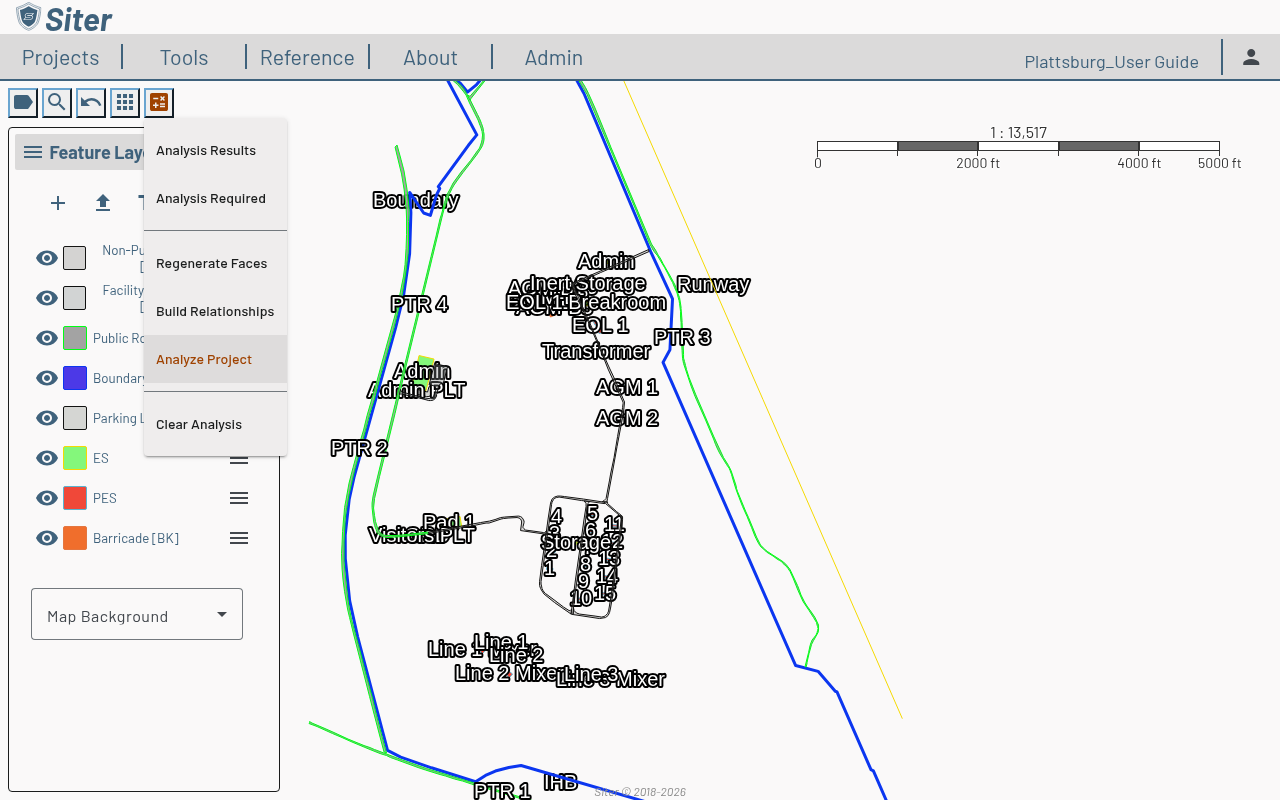
-
Select Build Relationships
-
Siter runs a spatial analysis first. The toolbar button shows the analyzed count (for example,
12 / 40) while it runs, and a toast reports when the spatial analysis completes -
As soon as the spatial analysis succeeds, Siter starts the relationship build. A Build: progress indicator appears beside the Analysis button while the build runs
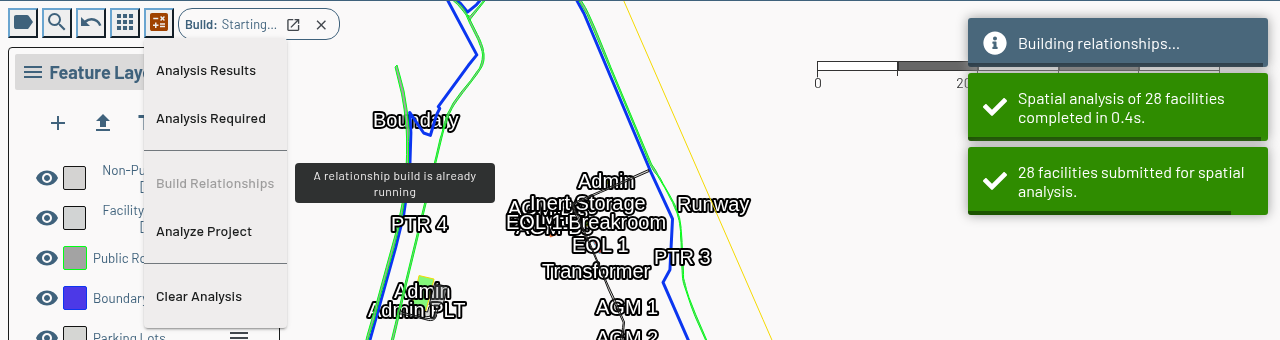
- Click open_in_new on the indicator to open the Relationship Group Editor and watch the build there
- Click close (Cancel Build) to stop the build
-
When the build finishes, the indicator disappears. Open the Relationship Group Editor and click View Report to review any conflicts
Use this route for the routine case — you changed features, assignments, or the matrix and want the relationships refreshed. Use the editor's own Build Relationships button when you are already in the editor authoring the matrix, or when the spatial results are current and you want to skip re-running them.
Build Relationships is disabled while a build is already running, and it does nothing while a full analysis is in progress — wait for the current analysis to finish and try again. It re-runs the spatial analysis every time; it does not run the full QD analysis. The spatial run removes the calculation results of every facility it re-runs and marks those facilities as needing analysis, so run Analyze Project afterwards to get results back and see the effect on violations.
How to override an auto-generated relationship
Auto-generated relationships are marked with an auto_awesome icon on the Relationships tab. To override one:
- Open the feature's Relationships tab
- Edit the row — the icon flips to
lockindicating the row is now user-overridden - Save
Subsequent builds preserve overrides — they do not get re-derived from the matrix.
You can also review and override every relationship in the project at once from the All relationships dashboard.
How to clear overrides
- Open the Relationship Group Editor
- Click Clear Overrides (with the dropdown to limit scope to a single group or criteria if desired)
- Confirm
Cleared overrides revert to whatever the matrix specifies on the next build.
Spatial-only analysis with relationship groups
The build uses the PES–ES pairs found by the spatial analysis, so those pairs must be current before you build. You can refresh them without re-running every QD calculation in two ways:
- Select Build Relationships from the map's Analysis menu — this always runs a spatial analysis first, then builds (see How to build relationships from the map)
- In the Relationship Group Editor, click Run Spatial Analysis (or Re-run Spatial Analysis when features have changed) in the banner at the top of the dialog, then click Build Relationships when the banner clears
Toasts for a spatial-only run are labeled "Spatial analysis" so you can tell them apart from a full analysis. Spatial-only runs do not count as a full analysis: they remove the full analysis results of the facilities they re-run and mark them as needing analysis, so those facilities appear under Analysis Required until you run Analyze Project.
How to reset all relationships
If the matrix gets out of hand and you want to wipe every auto-relationship in the project:
- Open the Relationship Group Editor
- Click Clear Overrides and select Reset All Relationships
- Confirm, then type
RESETand click Delete
This removes every auto-generated and user-overridden relationship row across every feature. Use with care.
Relationship submittal notes are left in place — they document the pairs rather than drive the analysis. Undoing a reset restores the relationship and barricade rows only.
Export, import, and copy behavior
Relationship groups, their matrices, and per-feature assignments are preserved when you copy or export/import a project. Build runs and conflict reports are intentionally not carried over since those are transient run artifacts.
Troubleshooting
Build Relationships is greyed out in the Analysis menu
Cause: A relationship build is already running for this project, or a build you just started is still waiting for its spatial analysis to finish. Hover over the item to see which.
Solution: Wait for the Build: indicator beside the Analysis button to disappear, then try again. To stop the running build, click close on the indicator.
"Please wait for the current analysis to complete before building relationships"
Cause: A full analysis (or another spatial analysis) is in progress. Build Relationships does not queue behind it.
Solution: Wait for the analysis to finish — the Analysis button's icon returns to a check mark or calculator — then select Build Relationships again.
"No facilities with sited explosives to analyze — relationships were not built"
Cause: The spatial analysis found no PES, so there are no pairs to build relationships for.
Solution: Enter explosive quantities on at least one PES (see Feature explosives data) and try again.
"Relationships were not built — the spatial analysis failed"
Cause: The spatial analysis step ended in an error, so Siter did not build on stale pairs.
Solution: Open Analysis Results and check the Errors tab for the failing features, fix the data, and select Build Relationships again.
Related topics
- Feature relationships — per-feature relationship rows and overrides
- All relationships — review and edit every relationship in the project from one table
- Bulk editing — bulk Relationship Group Assignment
- Running an analysis — the Analysis menu, spatial-only analysis, and full re-runs
- Map View — where the Analysis menu lives on the toolbar
- Projects — relationship groups flow with project export