Sharing projects
Siter allows project owners to share projects with other users through share tokens. A share token is a short code that you send to colleagues, who then use it to request access to your project. You review and approve or reject each request, controlling who can see your data and at what permission level.
Sharing is managed from two equivalent places: the Manage Access dialog on the Project Management page (no need to open the project), or the Users and Sharing tabs on the open project's dashboard. The steps below use the Project Management page.
Prerequisites
- You must have the Project Administration Permission on the project to manage sharing
- Users requesting access must have a Siter account
How to share a project
-
Click Projects in the top navigation bar
-
Open the project row's Actions menu (⋮) and select Manage Access
-
Click the Sharing tab
-
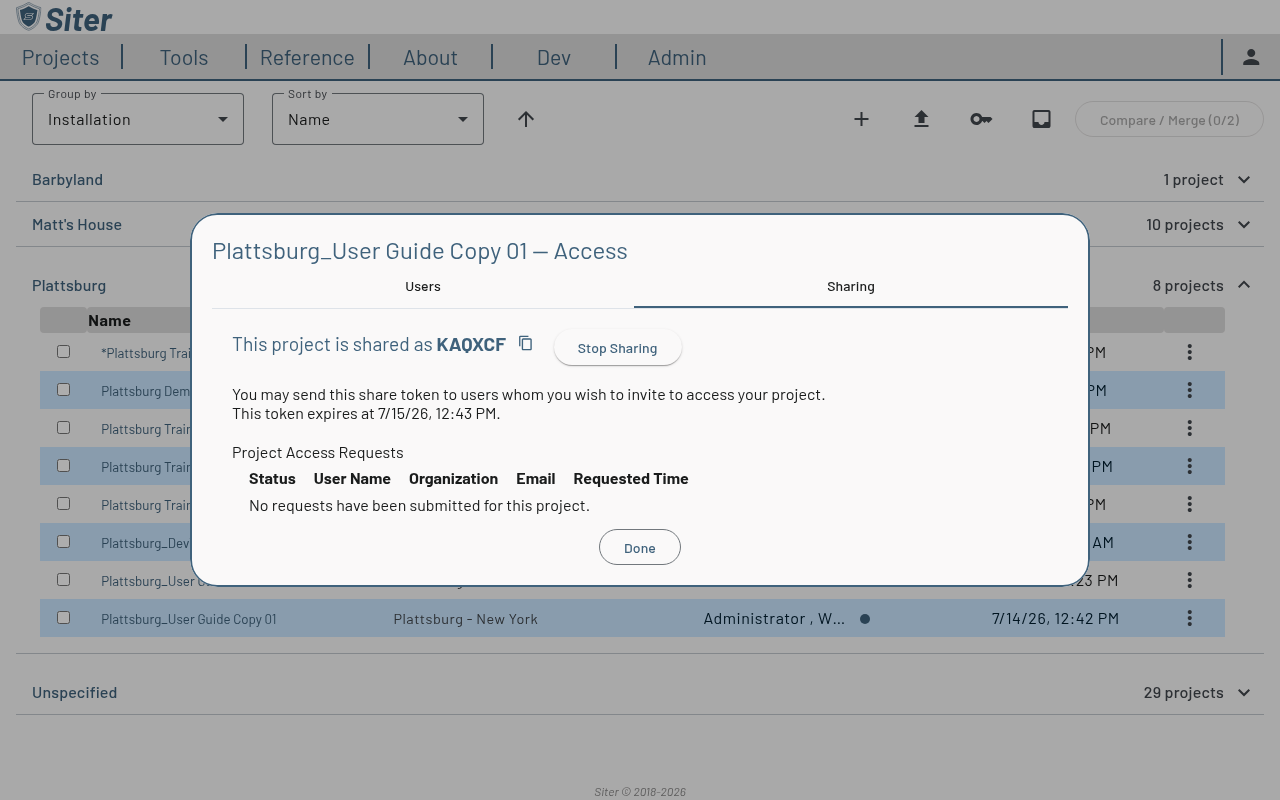
Click Share It
-
Siter generates a share token (e.g., KAQXCF) and displays it with its expiration time
-
Click the copy icon next to the token to copy it to your clipboard
-
Send the token to the users you want to invite
Share tokens expire automatically. The recipient will need to request and then you will need to approve the request before the code expires. The expiration date is displayed below the token. Generate a new token if the current one has expired.
How to stop sharing a project
- Open the project's Manage Access dialog and click the Sharing tab
- Click Stop Sharing
- The share token is invalidated and no new access requests can be made with it
How to request access to a shared project
-
Click Projects in the top navigation bar
-
Click the Request access to a project button (key icon) at the top of the Project Management page
-
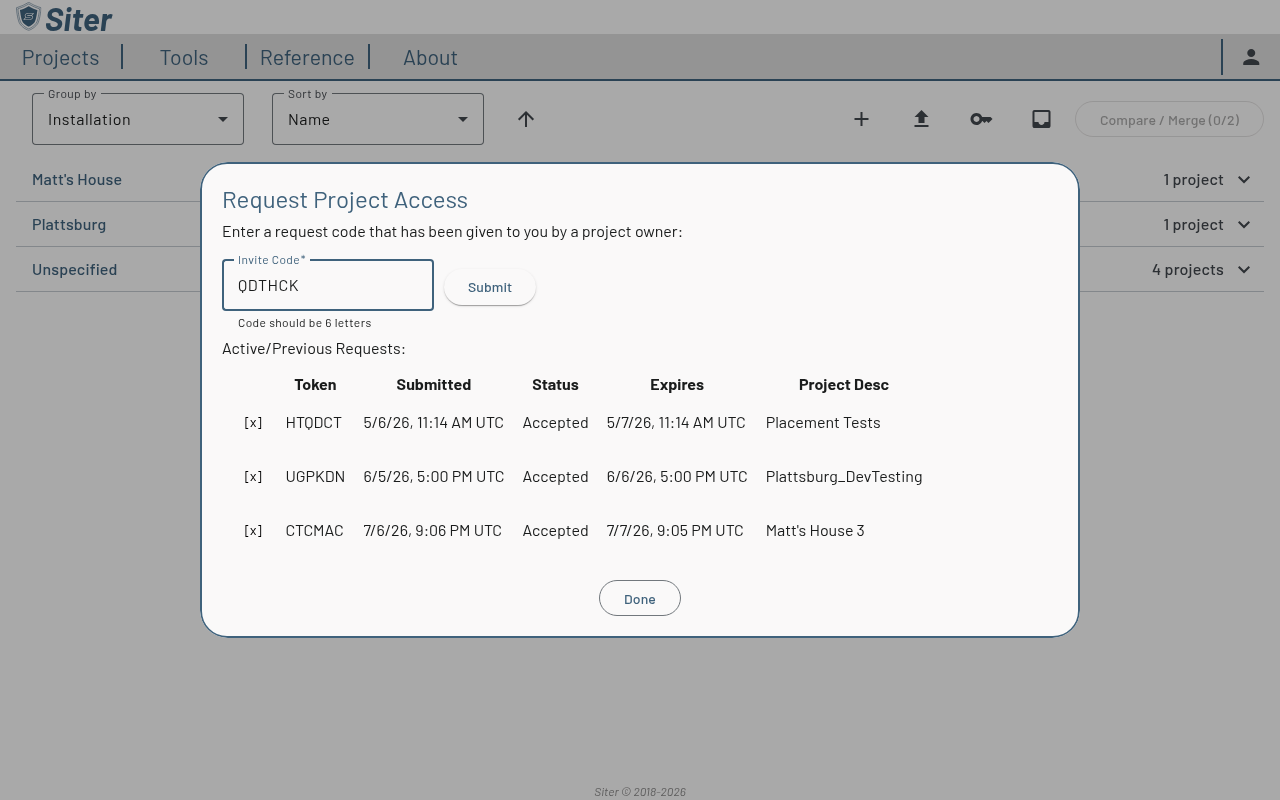
Enter the 6-letter invite code the project owner gave you
-
Click Submit
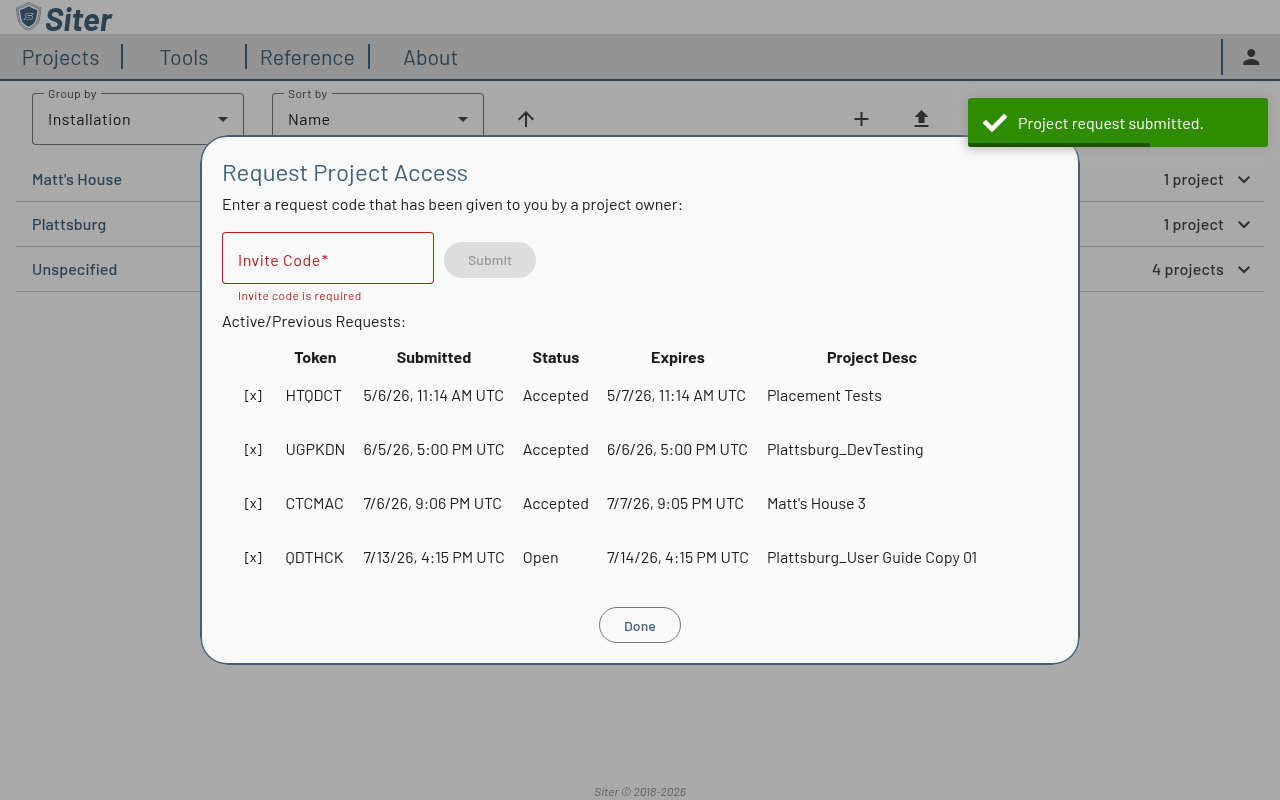
Your request appears in the Active/Previous Requests list with a status of Open until the owner responds.
How to manage access requests
Pending requests for every project you administer are collected in one inbox, so you don't have to check each project separately.
-
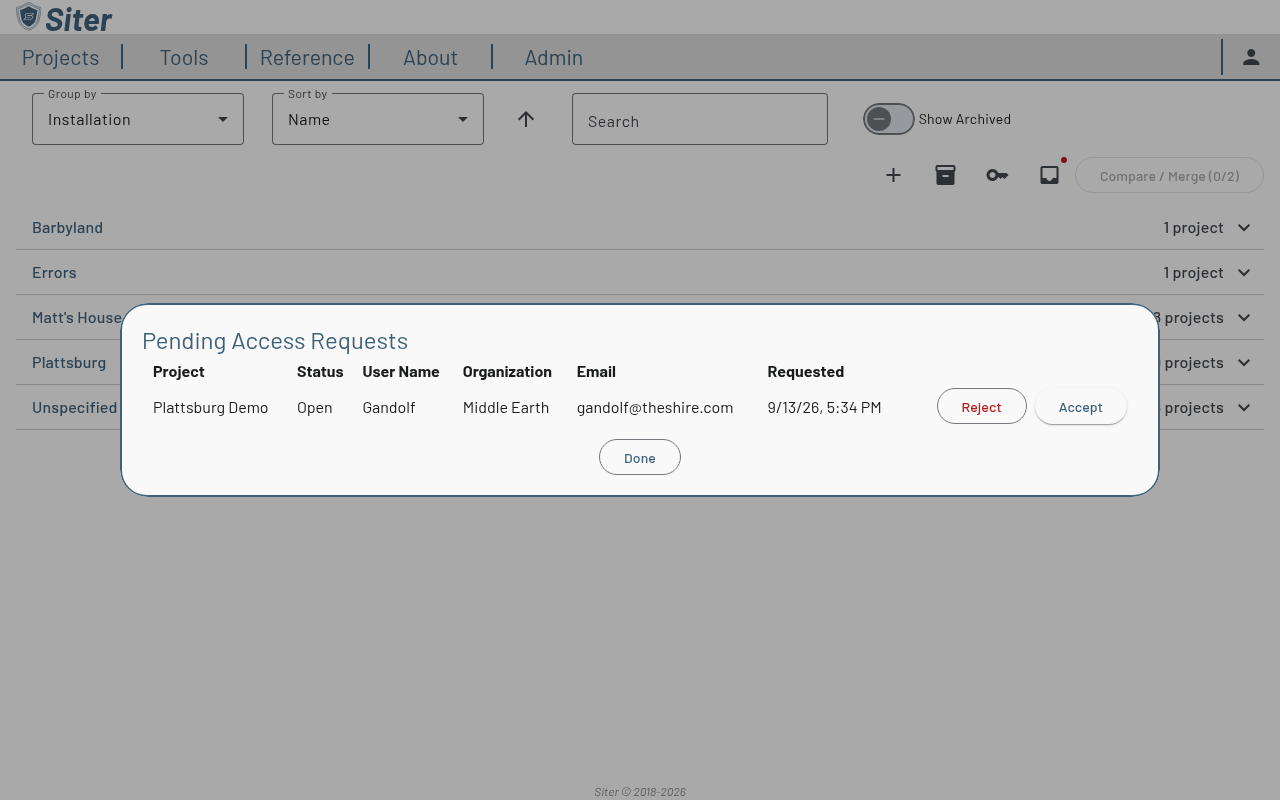
Click the Access requests button (inbox icon) at the top of the Project Management page — a badge shows how many requests are waiting
-
Each request shows the project, its status, the requesting user's name, organization, and email, and when it was submitted. Click Reject to deny a request, or Accept to approve it and assign a project role
-
When you click Accept, choose the role to grant:
- Read Only — can view the project and its data but cannot make changes
- Read and Write — can view and edit project features and layers, but not share, copy, or export the project
- Full Administrator — read and write plus full project control, including managing users and sharing
- Just Administrator — administrative control (users and sharing) without read or write access to the project data
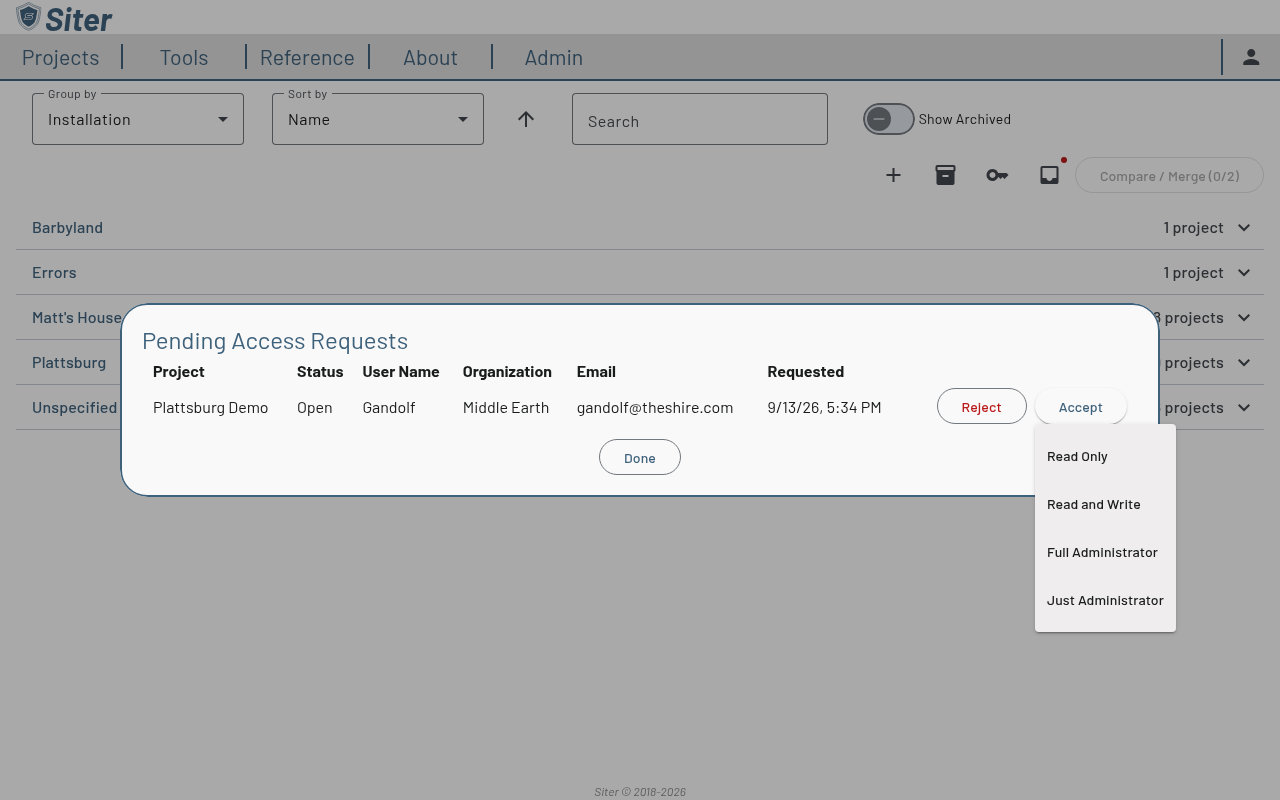
Requests for a single project are also listed on its Sharing tab, where they can be accepted or rejected the same way. The inbox and its badge update on their own when a request arrives, is withdrawn, or is handled by another administrator — you don't need to refresh the page.
How to view project users
-
Open the project's Manage Access dialog — the Users tab lists each user's name, project role, and when they last opened the project
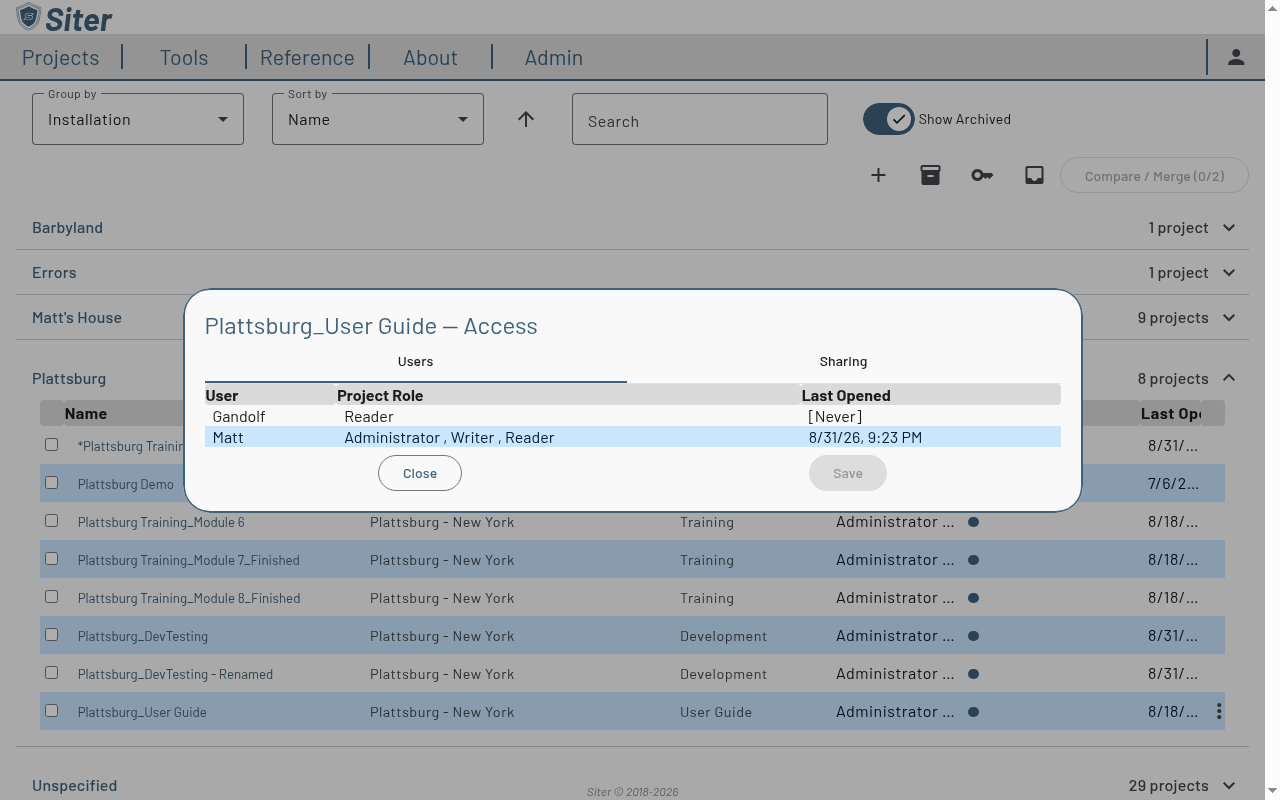
The same list is available on the open project's dashboard under the Users tab.
How to change a user's permissions
-
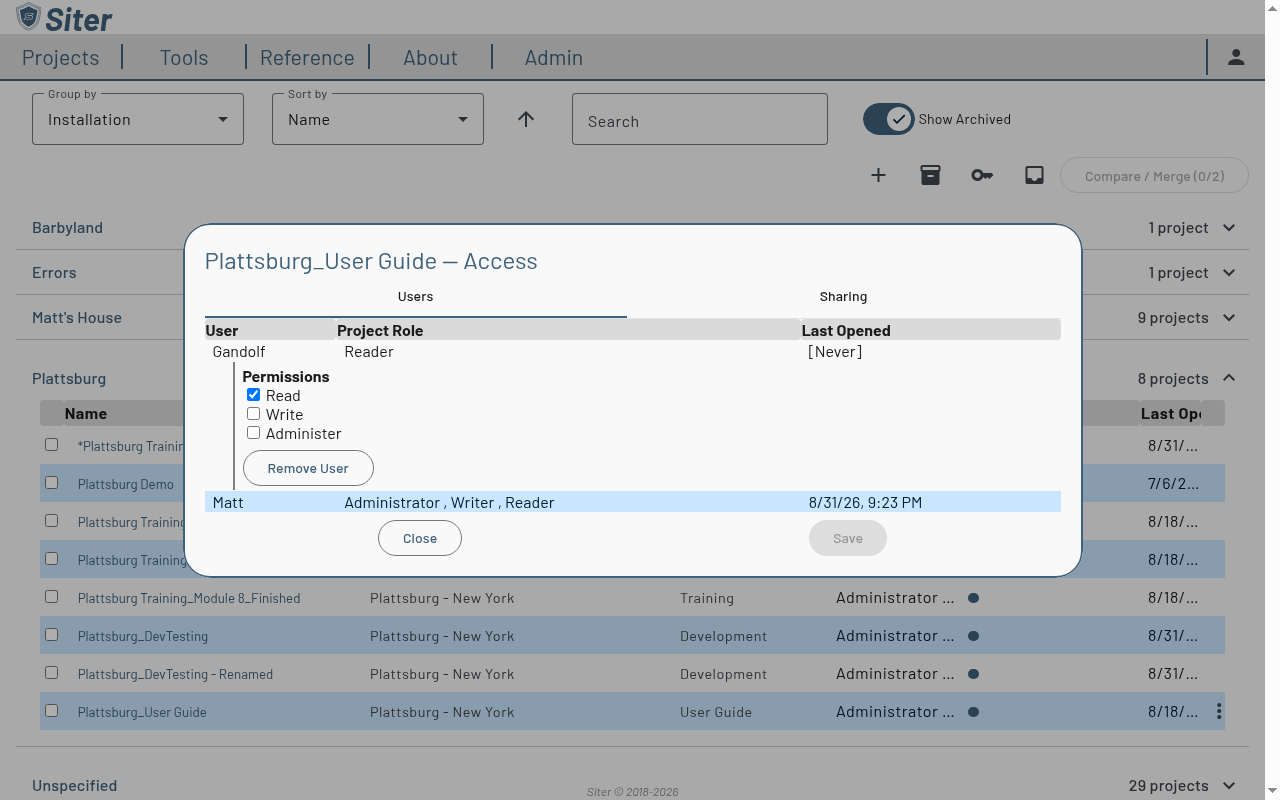
Open the project's Manage Access dialog and click the user's row on the Users tab to expand it
-
Under Permissions, tick or clear Read (open the project, review its data, and run analysis), Write (edit features, clear analysis, and build relationships), and Administer (manage users and sharing)
-
Repeat for any other users, then click Save — click Cancel to discard the pending changes instead
Siter blocks a save that would leave the project with no administrator, or that clears a user's Read permission. If you clear your own Administer permission, a warning appears and Siter asks you to confirm when you save; the dialog then closes, and you can no longer manage access to that project.
The same Permissions panel is available on the open project's dashboard: click the settings gear, select Edit, and open the Users tab. If another administrator changed the member list while you had it open, saving asks you to reload the project and try again.
Permission changes take effect in the affected user's session without a fresh login. Editing controls — the feature editor, Add/Remove Related Facilities & Relationship Groups, Add Custom Segment, the All Relationships Edit button, and the rest — appear or disappear within moments of the change. A user sees editing controls only while their account is active, they hold Write on the project, and an editor seat is available to them under the environment's license (see Licensing → Editor seats).
How to remove a user from a project
- Open the project's Manage Access dialog and click the user's row on the Users tab to expand it
- Click Remove User
- Confirm when prompted
The user loses access immediately — no Save is needed. Siter will not remove the last administrator of a project. Removing yourself closes the dialog (or, from the in-project Users tab, returns you to the Project Management page).
Related topics
- Project Management page — where Manage Access, requests, and the inbox live
- Projects — create, open, and manage projects
- Map view — navigate and interact with the project map