Comparing and merging projects
The Compare / Merge tool shows what differs between two projects and lets you copy selected changes from one into the other. It is designed for projects that describe the same site — for example a working copy and the baseline it was copied from — so you can review the copy's changes and bring the ones you want back into the original.
Prerequisites
- You must have the Project Read Permission or higher on both projects to compare them
- You must have the Project Edit Permission or higher on the recipient project to merge changes into it
- Both projects must use the same spatial reference — comparison is blocked otherwise
How to compare two projects
-
Click Projects in the top navigation bar to open the Project Management page
-
Tick the checkbox on the two projects you want to compare
-
Click Compare / Merge
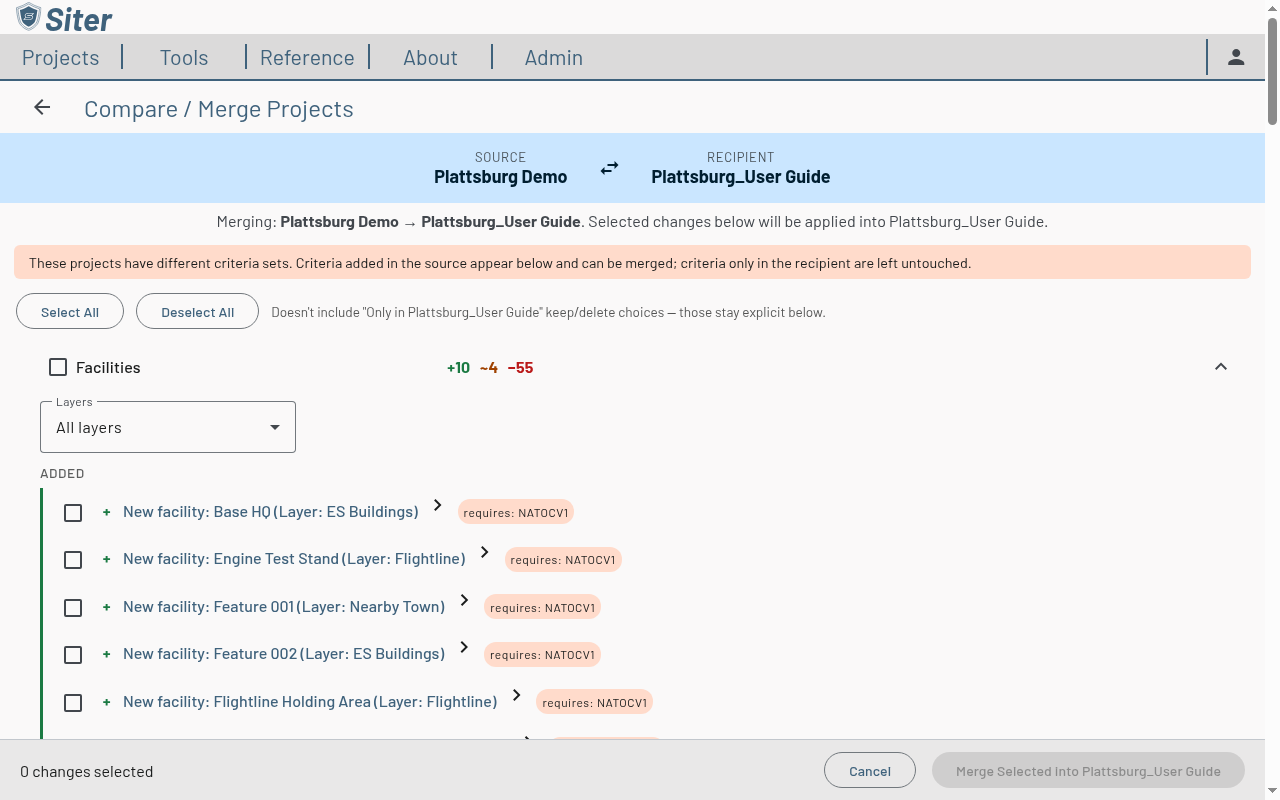
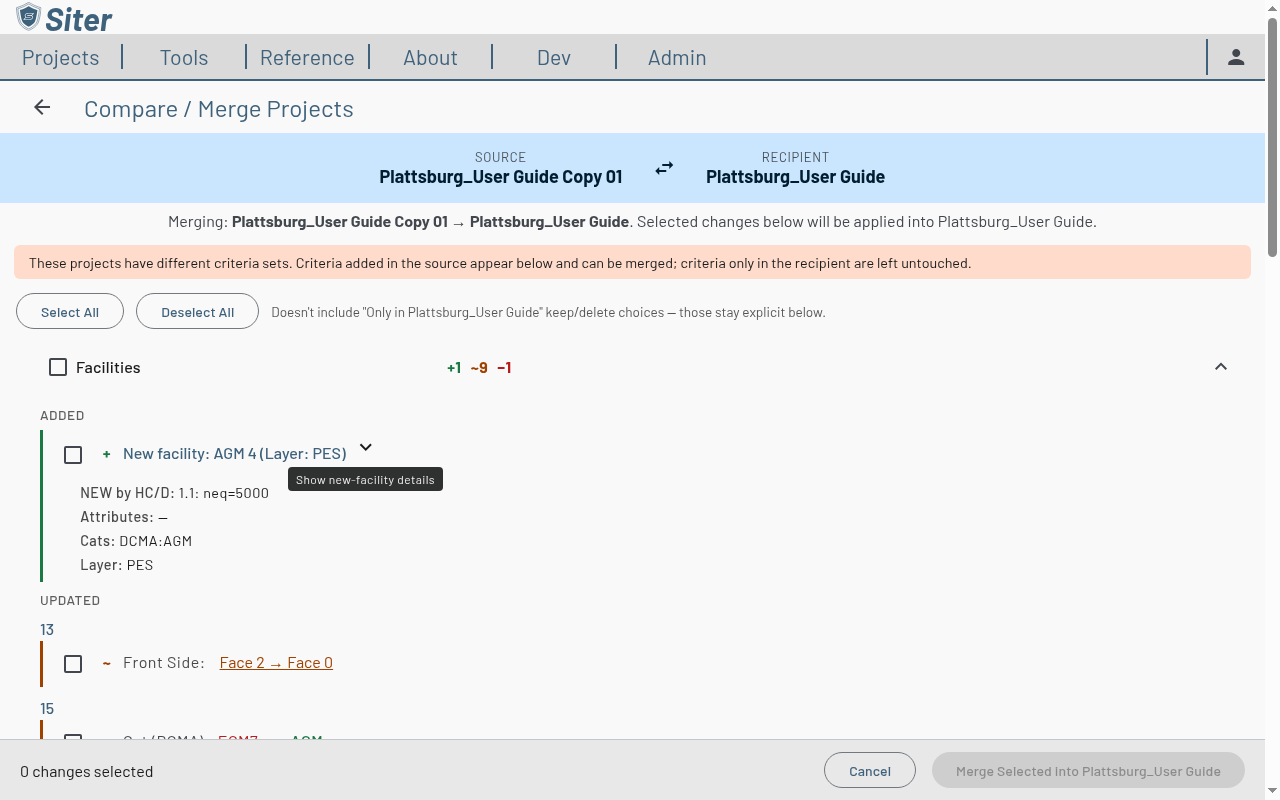
The banner at the top shows the direction: Source → Recipient. Selected changes are applied into the recipient. Click the swap button between the two names to reverse the direction.
If the two projects use different analysis criteria sets, a notice appears below the banner. Criteria present only in the source show up as mergeable additions; criteria only in the recipient are left untouched.
How to read the comparison
Changes are grouped into sections — Facilities, Layers, Project Criteria, Relationship Groups, User Relationship Edits, Relationship Notes, Result Sets, and To-do Items. A section only appears when it has differences. Each section header shows counts of additions (green +), updates (amber ~), and items only in the recipient (red −). Every row carries the same symbol, so the meaning is clear without relying on color.
Filtering facilities by layer
When the facility changes span more than one layer, a Layers drop-down appears at the top of the Facilities section. Use it to hide layers you are not reviewing — for example CAD-heavy layers with hundreds of shape changes:
- Open the Layers drop-down
- Untick the layers to hide — each option shows how many facility changes are on that layer
- Tick or untick All layers at the top of the list to show or hide every layer at once
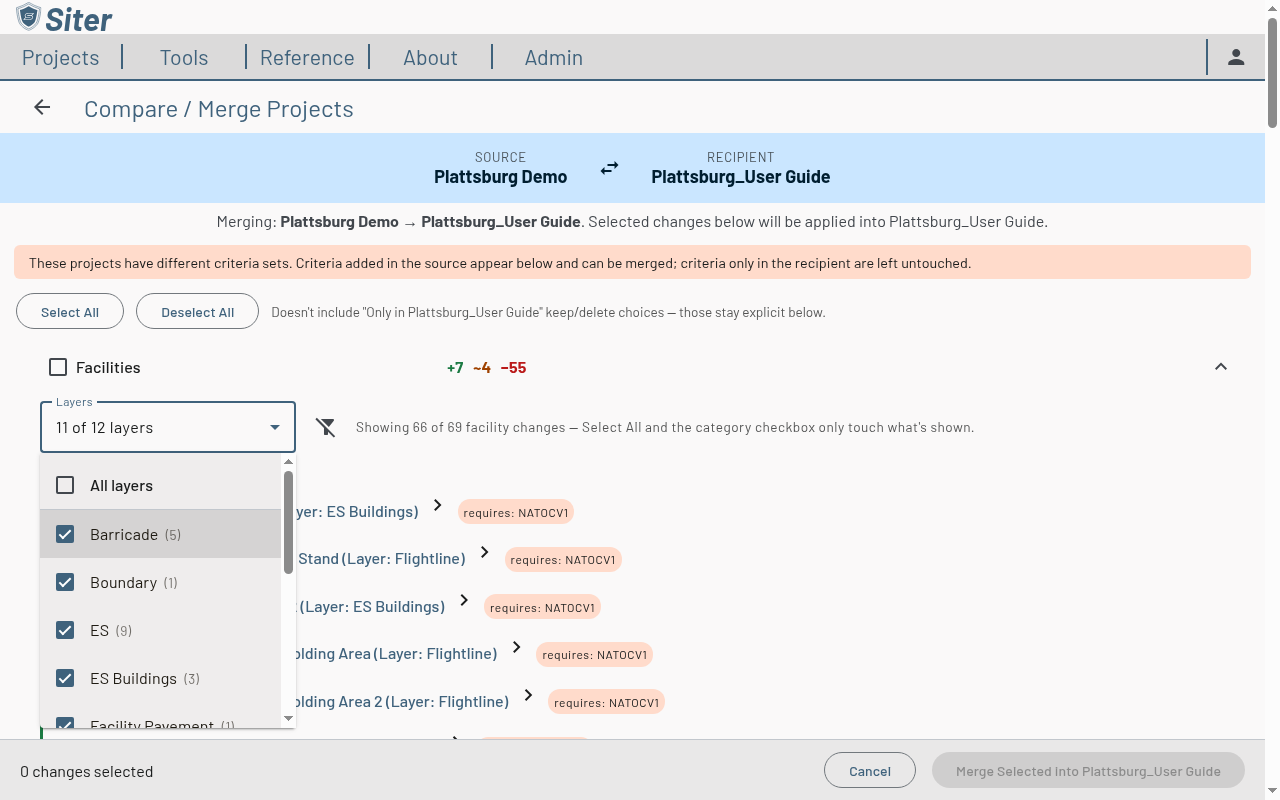
While a filter is active, the drop-down reads n of m layers, a hint shows how many facility changes are visible, and a Show all layers button beside the drop-down clears the filter. Select All, Deselect All, and the Facilities section checkbox only act on the rows you can see. Rows you already selected on a hidden layer keep their selection and still merge — a selected on hidden layers will still merge note counts them so nothing merges unnoticed.
Facility updates
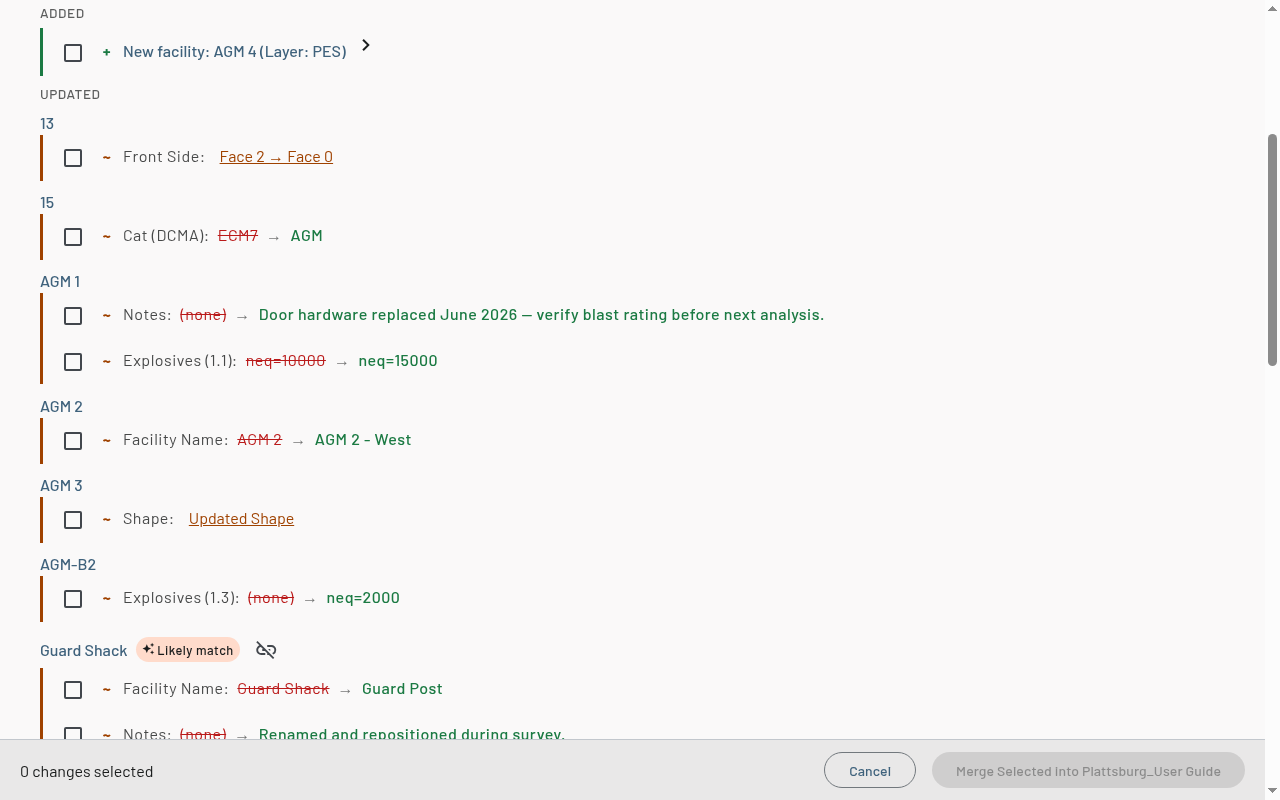
Updates are grouped under each facility, with one row per changed field — name, Facility Description, Notes, Submittal Notes, layer, front side, shape, categories, attributes, explosives, faces, and so on. Each row shows the old value struck through and the new value beside it. The three note fields are separate rows and merge independently — select only the Facility Description row, for example, and the recipient's Notes and Submittal Notes stay as they are.
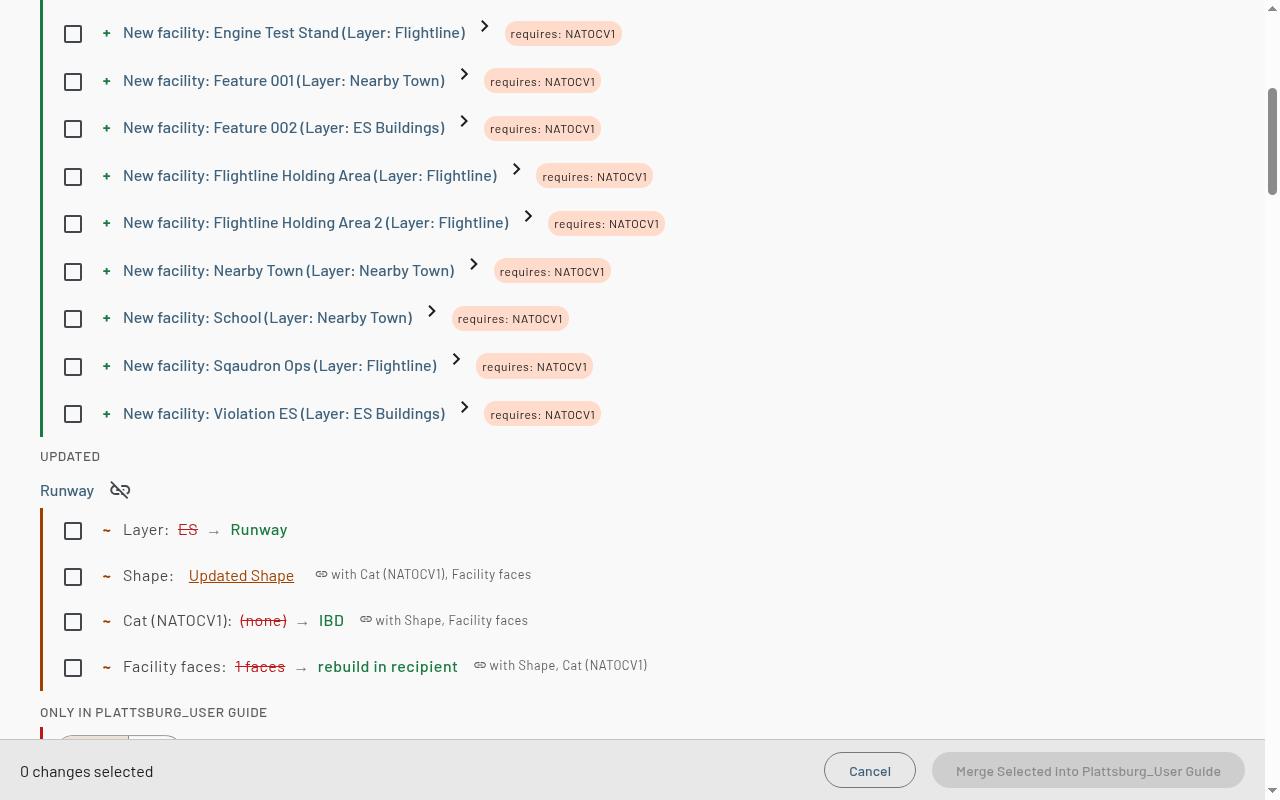
Since v0.32 there is no Path row: a path facility is compared and merged by its Shape, like any polygon. Layouts themselves are not compared. A facility added by a merge arrives as an ordinary facility, not a member of any layout, because a layout belongs to its own project.
A Shape or Front Side change is a link — click it to open a side panel that overlays the previous shape (dashed) on the new shape (solid), with a legend and the distance moved.
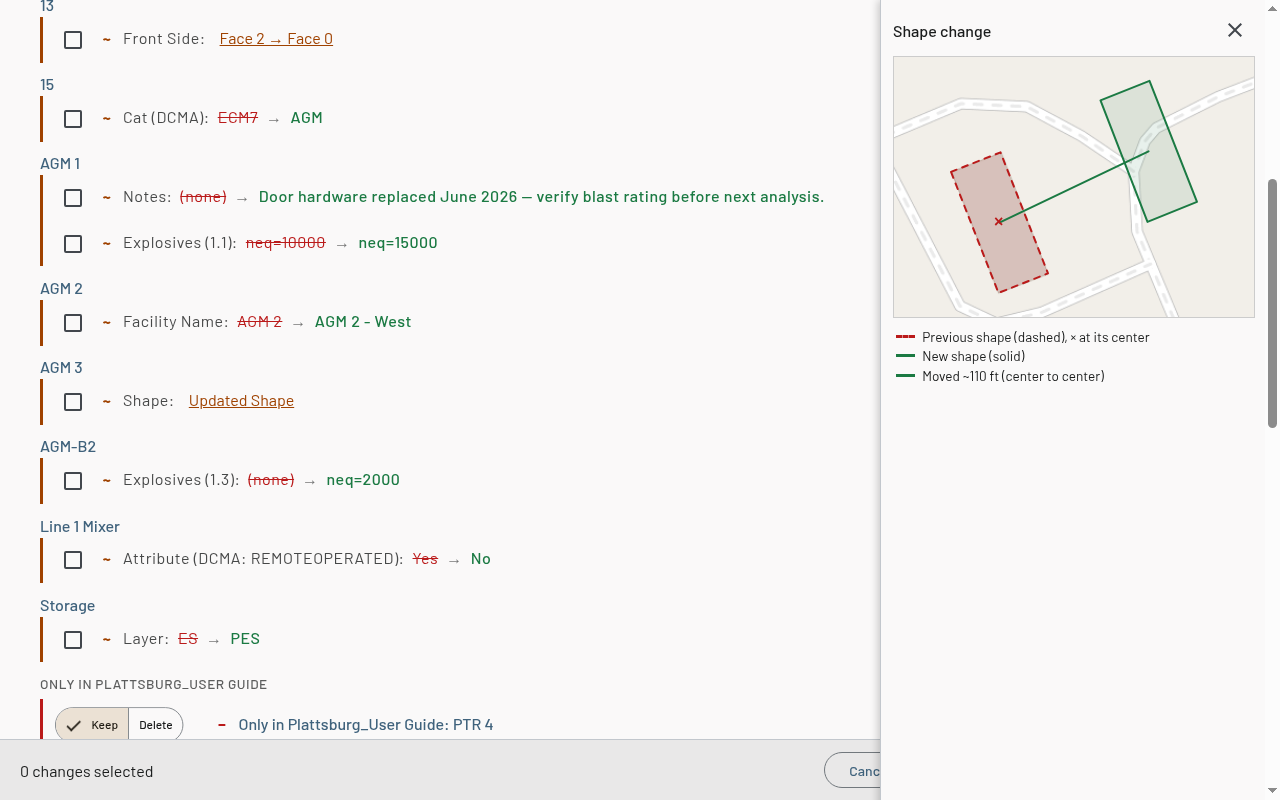
A facility's faces are generated from its category codes, shape, and front side, so those changes are linked. When more than one of Cat, Shape, Front Side, or Facility faces has changed on the same facility, each row shows a with … note naming the others, and they merge together — selecting one selects the group, and deselecting one deselects it. A Facility faces row reads rebuild in recipient (or rebuild with source face definitions when the two projects' custom faces or barricade flags differ): the faces are regenerated in the recipient rather than copied. A Cat justification row is not part of the group — it copies only the justification text and leaves the category list alone.
Added facilities
A facility that exists only in the source appears under Added. Click the chevron to preview its key data — explosive weights by HC/D, attributes, categories, and target layer — before you bring it across.
Items only in the recipient
Rows under Only in [recipient] exist in the recipient but not the source. Each offers an explicit Keep (the default) or Delete choice, and these rows are never included by Select All — nothing is removed from the recipient by accident.
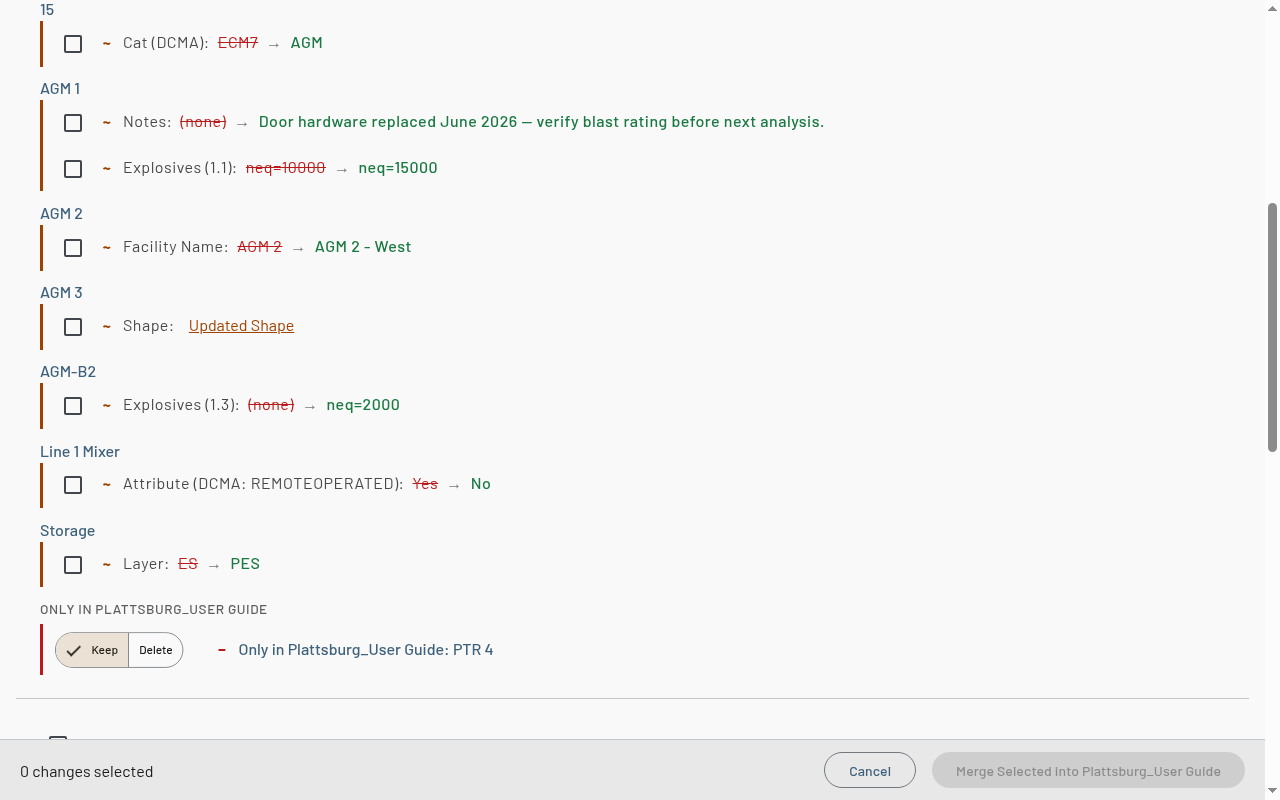
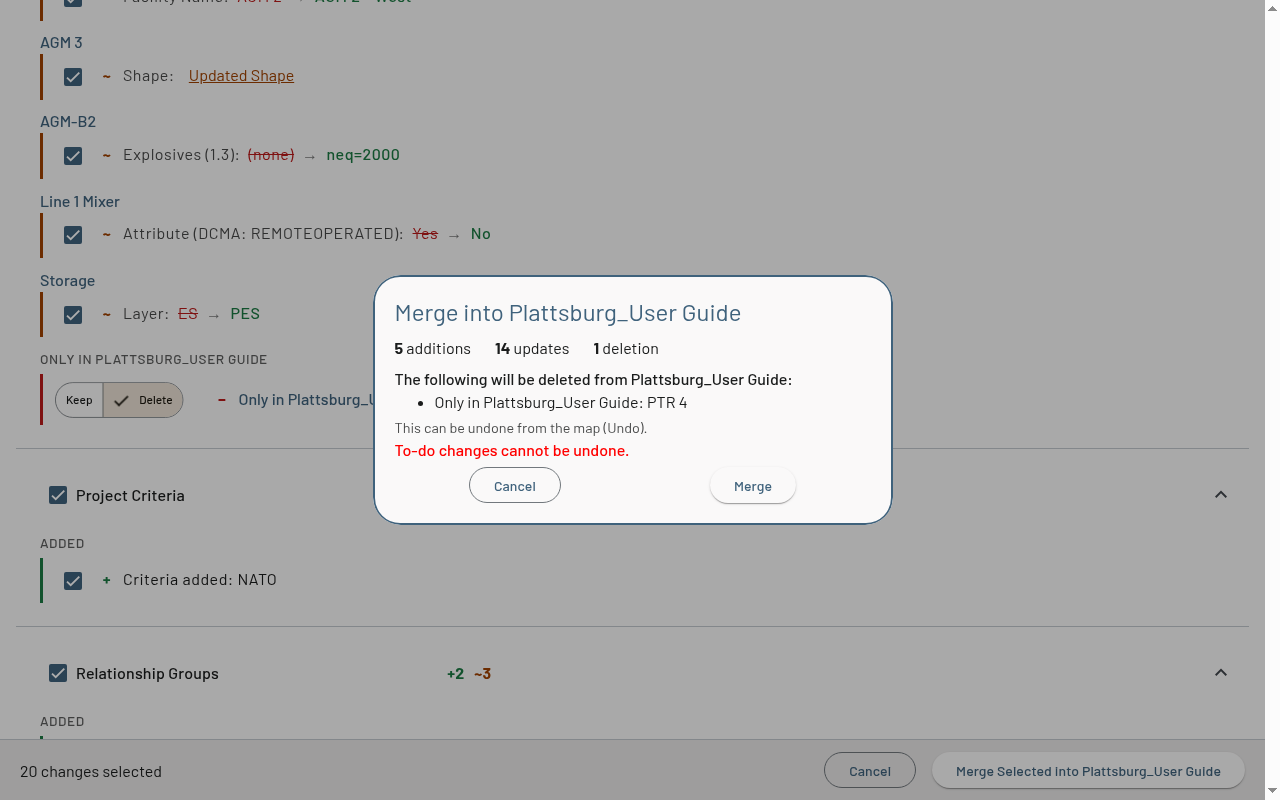
Deleting a facility also deletes the to-do items attached to it, and that cannot be undone. A facility row with attached to-dos says so — n to-dos attached — deleting this facility deletes them too — and the confirmation dialog repeats the count before the merge runs.
To-do items are the one exception to the Keep / Delete choice: recipient-only to-dos are listed for reference, and merging never deletes them.
Layers only in the recipient
The Layers section lists facility layers that exist in the recipient but not in the source (layers are matched by name, ignoring case). Each row offers Keep (the default) or Delete. Layers that exist only in the source have no row — Siter creates them when you merge a facility that sits on one.
Deleting a layer removes every facility on it, so Delete stays locked while any facility would still be on the layer after the merge. The row explains why: n of m facilities would remain on this layer (names) — delete or move them (Facilities) to unlock. Set those facilities to Delete, or select their Layer change, and the lock clears; the row then reads empty after this merge — deleting removes the layer and its n departing facilities.
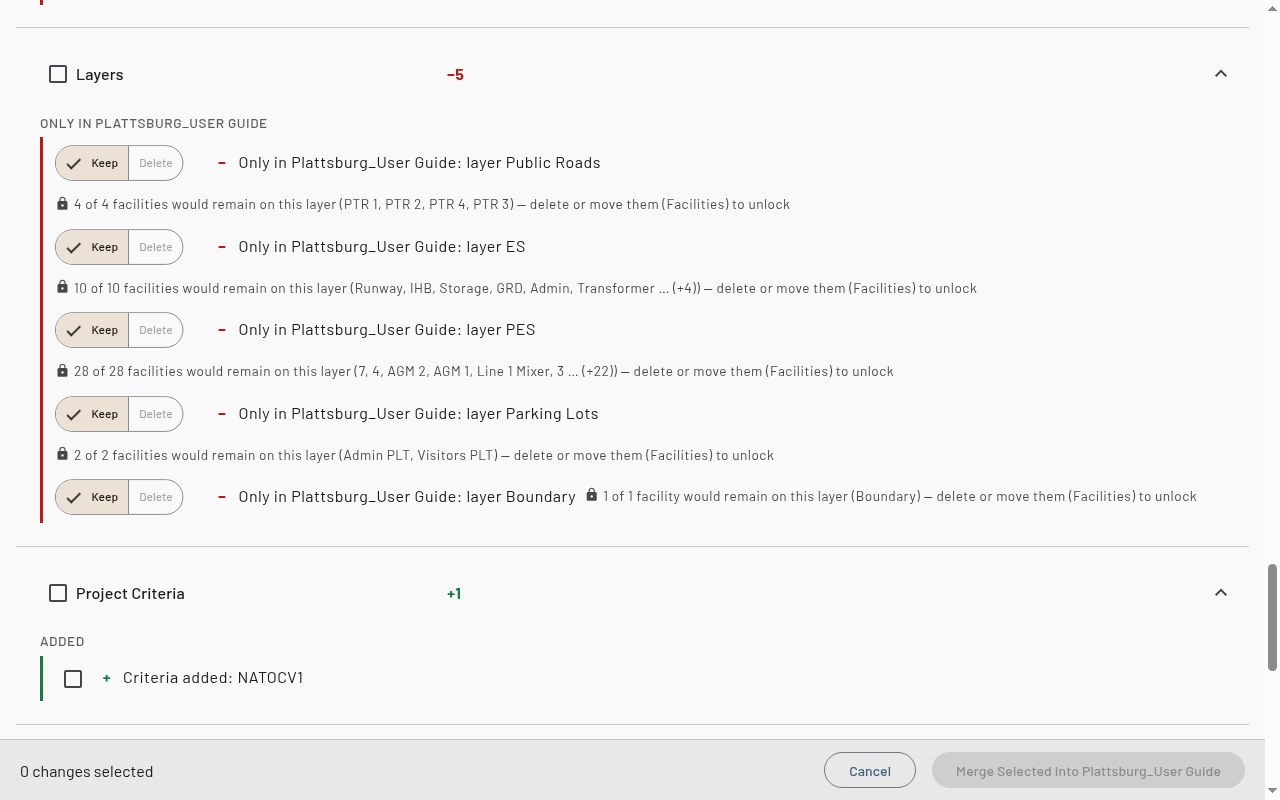
If you later deselect a change that had emptied the layer, its Delete switches back to Keep and a notification names the layer.
Relationship notes
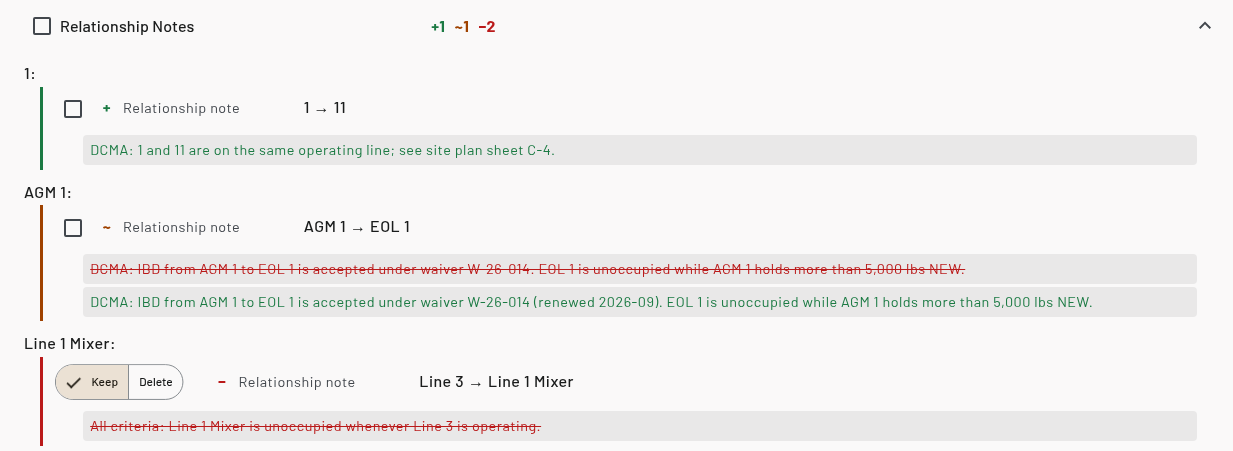
The Relationship Notes section lists the relationship notes that differ between the projects. A relationship note belongs to one direction of a facility pair, so each direction is its own row — A → B (A as PES, B as ES) and B → A are independent. Rows are grouped under a facility heading, and each row shows Relationship note, the direction as PES → ES, the recipient's text struck through, and the source's text below it.
- Added (+) — the source has a note for that direction and the recipient has none. Merging creates the note in the recipient
- Updated (~) — both projects have a note for that direction with different text. Merging replaces the recipient's text with the source's
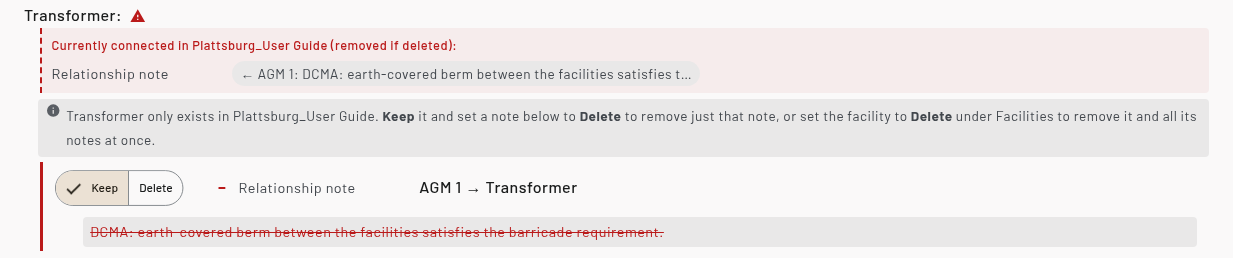
- Only in [recipient] (−) — the recipient has a note the source does not. Choose Keep (the default) or Delete. Delete removes only that direction's note; the opposite direction's note is left alone
A note whose facility exists only in the source shows a requires chip and selects that facility's addition with it (see How to choose what to merge).
When a facility exists only in the recipient, a warning icon marks its heading, and a Currently connected in [recipient] (removed if deleted) list shows its relationships and relationship notes — what deleting the facility would remove. Guidance under the heading explains the choice: Keep the facility and set a note to Delete to remove just that note, or set the facility to Delete under Facilities to remove it and all its notes at once. When a facility is set to Delete, the note rows for its pairs dim — the delete removes those notes, so the choices on them no longer apply.
Result sets
The Result Sets section lists saved Result Sets. A result set is an analysis snapshot, so it merges whole — its contents are never reconciled item by item. Each row summarizes the set (12 arcs, 3 encumbrances · created 2026-08-01).
- Added — result sets only in the source. Tick the row to merge the set into the recipient
- Updated — result sets that exist in both projects, matched by copy lineage first and then by name (a name match badge marks the latter). Instead of a checkbox, each row has a three-way choice: Don't merge (the default), Overwrite (replace the recipient's set with the source snapshot), or Add as copy (keep the recipient's set and add the source snapshot as a separate result set)
- Only in [recipient] — result sets only in the recipient, with the usual Keep / Delete choice
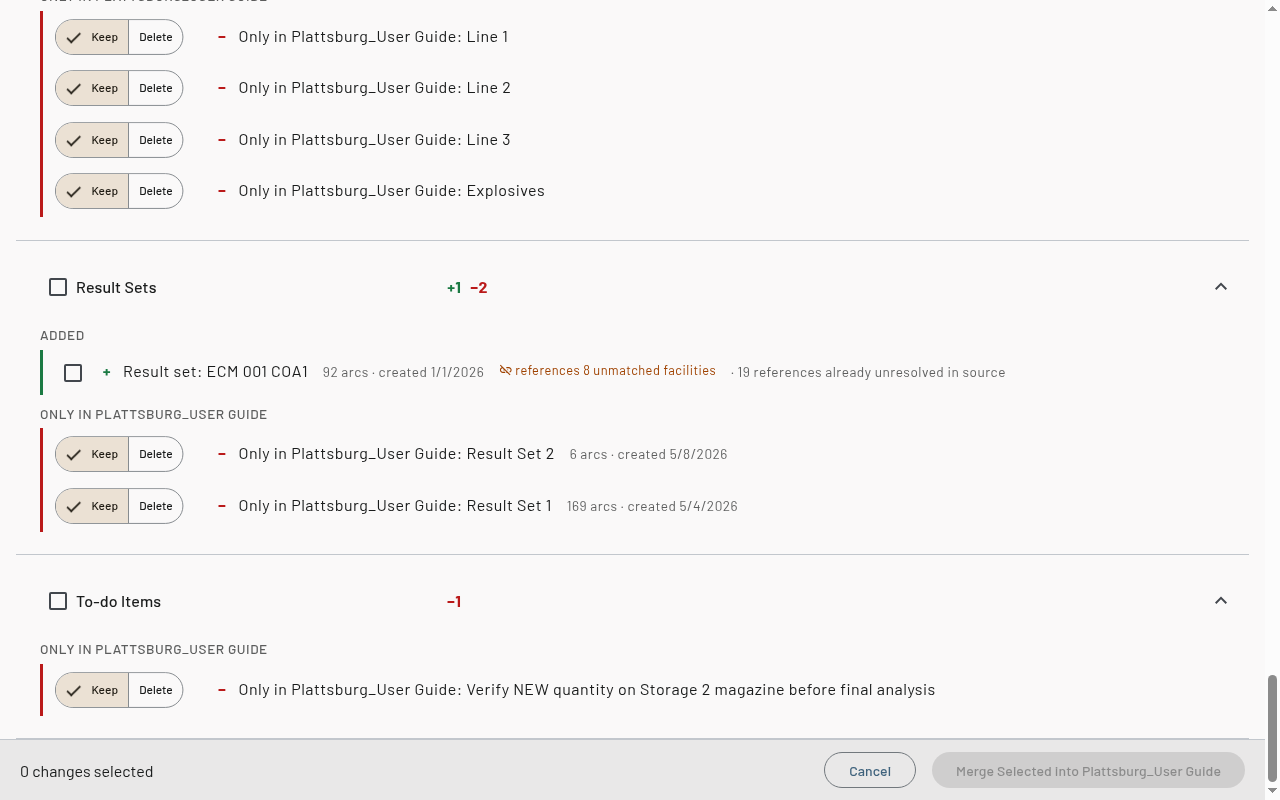
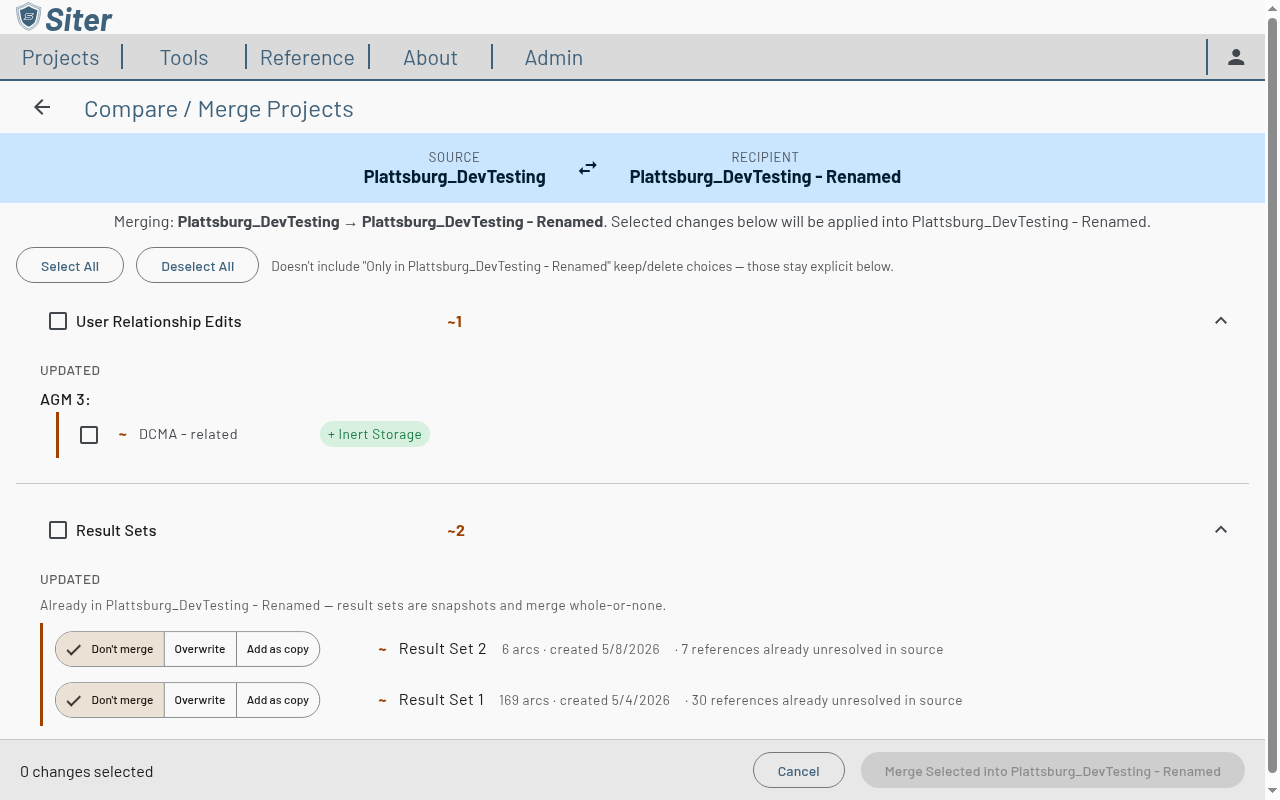
Results refer to their PES and ES facilities, and the merge re-points them at the recipient's matching facilities — including facilities added by the same merge. A references n unmatched facilities note on a row lists source facilities that have no match in the recipient yet; if they are still unmatched after the merge, a notice names them and those results still display but will not match PES/ES filters.
To-do items
The To-Do Items section lists to-do items added or changed in the source, plus — for reference only — to-dos that exist only in the recipient (merging never deletes those).
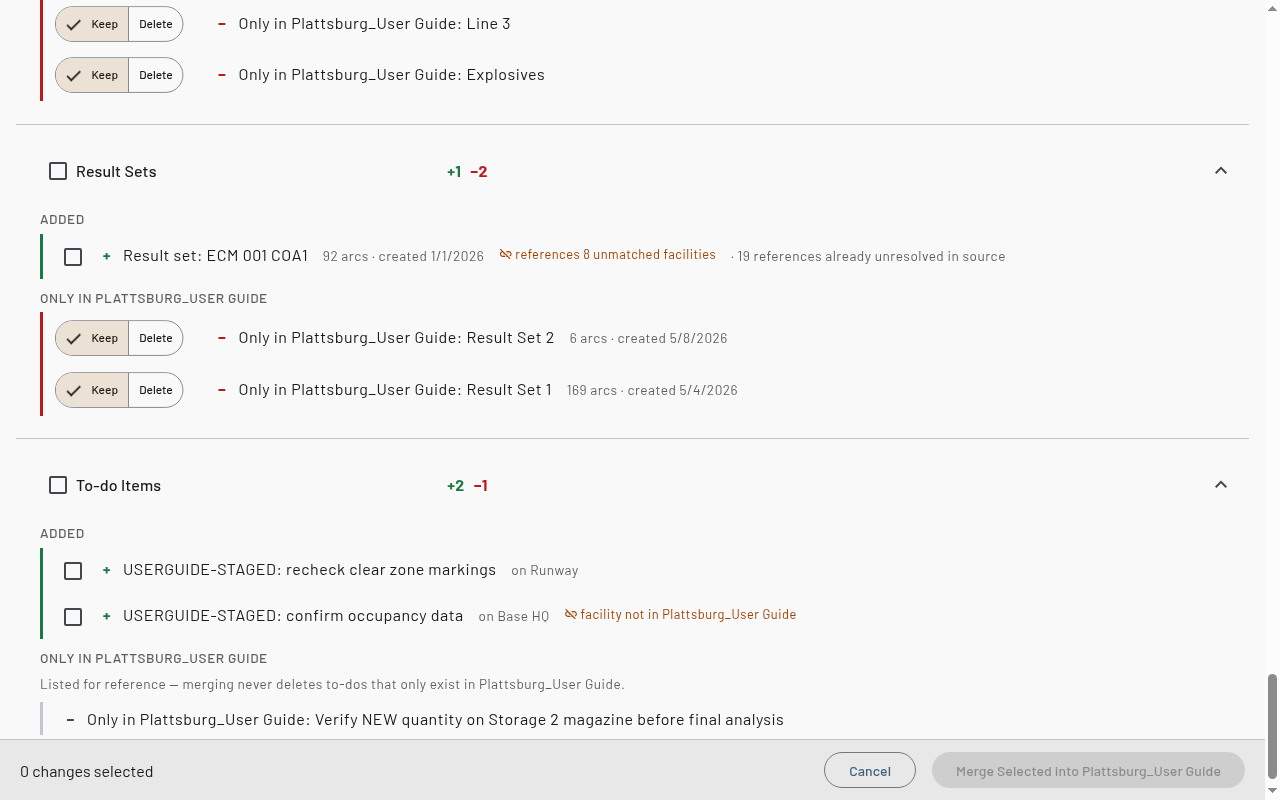
A to-do's link to its facility travels with the merge:
- An Added to-do shows the facility it is attached to (on [facility]). The link is kept when that facility already exists in the recipient — or is added by the same merge. If the facility is not in the recipient, the row warns facility not in [recipient]; the to-do still merges, keeps the facility's name in the To-Do list, and is marked there as not linked until the facility exists
- An Updated row lists the changed fields. A Facility change moves the to-do's link from one facility to another — or restores a missing link ((general) → facility) on a to-do the comparison matched
- Matching between the two projects' to-dos is deliberately cautious: copies pair by lineage first, then by facility link and note, then by note text alone — so similarly-worded to-dos cannot pair up wrongly. Lineage follows a to-do through a chain of merges and copies, so a to-do merged through several projects in a row — or into a copy of a merged project — shows as Updated rather than being added again, and leftover duplicates from earlier merges are paired instead of multiplied. A pair matched only by note text is never trusted to move an existing facility link; its row reads facility link differs — not changed (weak match) and the recipient's link stays as it is
Match confidence
Facilities are matched between the projects automatically. A Likely match badge marks pairs that were matched by similarity rather than an exact identity. If a pairing is wrong, click the break match button beside the badge — the two facilities are treated as separate (one added, one only-in-recipient) and the comparison recomputes.
How to choose what to merge
- Tick individual changes, use a section header's checkbox to select everything in that section, or use the page-level Select All / Deselect All buttons
- Keep / Delete choices and the result-set Don't merge / Overwrite / Add as copy choice are made per row and are never changed by Select All
- With a layer filter active, Select All and the section checkbox only touch the facility rows that are shown
- The bar at the bottom of the page counts the selected changes
Some changes depend on others — for example, a relationship group matrix value can't merge before the relationship group it references exists. Selecting such a change automatically selects what it requires, shown as a requires chip on the row. Linked face changes on a facility (see Facility updates) work the same way in both directions.
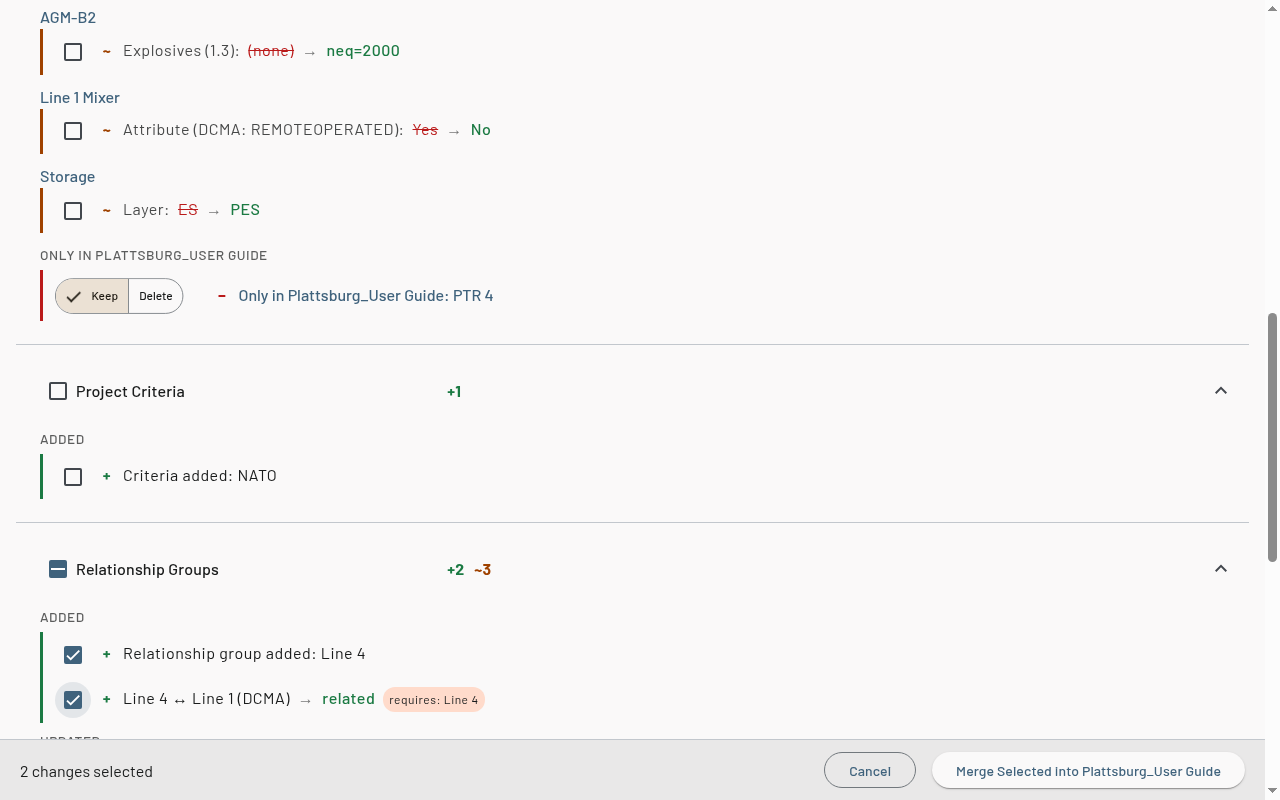
To-do items and result sets are compared like everything else, but merged to-do and result-set changes cannot be undone afterward — the confirmation dialog calls this out.
How to apply the merge
-
Click Merge Selected into [recipient] in the bottom bar
-
Review the confirmation dialog — it summarizes the additions, updates, and deletions, and lists exactly what will be deleted from the recipient. If a deleted facility has to-do items attached, it warns that they will be deleted too and cannot be undone. If result sets are included, it reminds you that merged result sets are snapshots from the source, not a fresh analysis of the recipient
-
Click Merge
While the merge runs, the button reads Merging… and a progress bar shows in the bottom bar. When it finishes, Siter opens the recipient on the map.
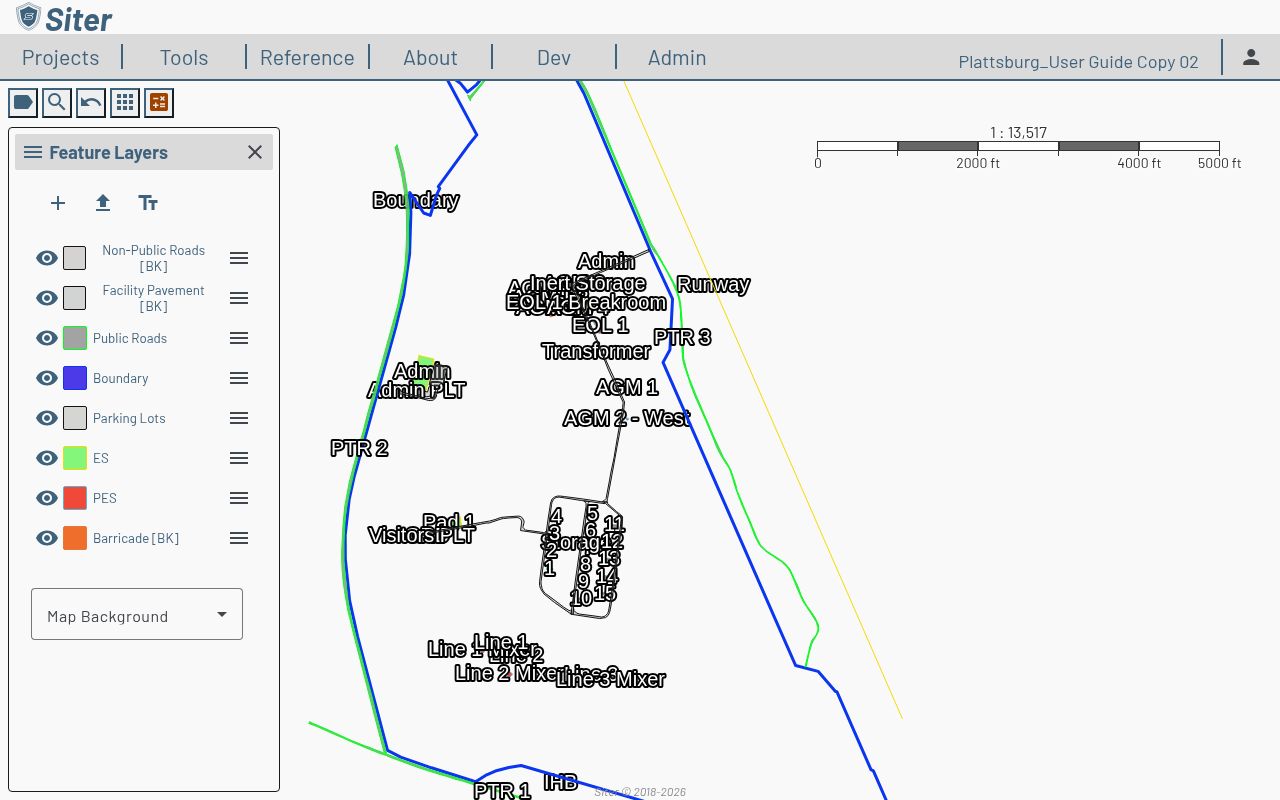
Merged facilities do not carry the source's face geometry. Siter rebuilds their faces in the recipient from the merged category codes, shape, and front side, using the recipient's criteria search distances; custom face definitions and barricade flags are carried over. The same happens to a facility whose Cat, Shape, Front Side, or Facility faces change was merged.
After the merge, notifications report anything that needs a look:
- Facilities whose faces could not be fully rebuilt — check their sides on the map
- Result sets that still reference facilities not in the recipient
- Relationship edits or relationship notes that could not be applied because a facility could not be mapped into the recipient — re-apply them from the map
- Layers chosen for deletion that still had facilities when the merge reached them — they were left alone
- To-do items removed together with a deleted facility
- To-do items merged without their facility link, or whose link change was not applied, because the facility is not in the recipient — merge the facility, then run the merge again to restore the link
- To-do changes that could not be saved at all — these need re-entering by hand
Merged changes can be reversed from the map with Undo, except to-do and result-set changes. If relationship data changed, Siter offers to rebuild relationships so the merged groups take effect.
What is not compared
Only the project's facility and relationship inputs, plus saved result sets, are compared. The tool never compares or merges:
- Live analysis results in the map — saved result sets are compared, but as whole snapshots (see Result sets); re-run analysis after merging
- Relationships generated by a relationship-group build (the group definitions, matrix, and assignments are compared — rebuild after merging to regenerate)
- Face geometry — faces are rebuilt in the recipient, and face differences caused only by the two projects using different search distances are ignored
- Layers that exist only in the source — they are created automatically when a facility on them is merged
- Decorations
- Project settings — name, description, basemap, and label styles
- Users and sharing
- Placement analyses
Troubleshooting
Comparison is blocked with a coordinate system message
Cause: The two projects use different spatial references, so their geometry cannot be meaningfully compared.
Solution: Compare projects that share a spatial reference — for example, a copy and its source. To move work between differently-projected projects, use export and import instead.
Two different facilities are shown as one updated pair
Cause: The automatic matcher paired two similar facilities that are not actually the same (marked with a Likely match badge).
Solution: Click the break match button beside the badge. The comparison recomputes with the two facilities treated separately.
Some facility changes are missing from the list
Cause: A layer filter is active on the Facilities section, so changes on the hidden layers are not shown. The section still counts them, and any you selected earlier still merge.
Solution: Click Show all layers beside the Layers drop-down, or tick All layers in the drop-down.
Delete is greyed out on a layer row
Cause: Facilities would still be on the layer after the merge, and deleting a layer removes every facility on it. The row names the facilities that block it.
Solution: Under Facilities, set those facilities to Delete or select their Layer change so they move elsewhere. The lock clears as soon as no facility would remain.
The merge stopped and reported that nothing was changed
Cause: Siter checks a few things before it writes anything. The message says which check failed: criteria definitions were not loaded, the recipient project is unprojected (WGS84) so faces cannot be rebuilt, or a selected Layer change has no resolvable source layer.
Solution: Reload the page and try again for the criteria message. For the other two, deselect the affected change, or compare into a projected recipient project.
The merge finished with warnings
Cause: Part of the merge could not be applied exactly — faces could not be rebuilt for some facilities, results still reference facilities not in the recipient, relationship edits or notes could not be mapped, a layer chosen for deletion still had facilities on it, or to-do items lost or kept a facility link because the facility is not in the recipient.
Solution: Read the notifications, which name the affected facilities, result sets, relationships, layers, or to-dos, then fix them on the map. Everything else in the merge was applied.
A relationship note row is dimmed
Cause: One of the note's two facilities exists only in the recipient and is set to Delete under Facilities. Deleting the facility removes its relationship notes, so the note row is skipped.
Solution: If you meant to keep the facility, set it back to Keep under Facilities — the note row's checkbox or Keep / Delete choice applies again.
A merged to-do has no facility link
Cause: The to-do is attached to a facility that is not in the recipient — it was not matched, and its addition was not part of the merge. The to-do arrives with the facility's name but no link, and the To-Do list marks it as not linked.
Solution: Merge (or create) the facility in the recipient, then run the merge again — the comparison matches the to-do it already merged and offers its Facility link as the remaining change.
Related topics
- Project Management page — where comparisons start
- Projects — copying a project creates an ideal comparison partner
- Relationship Groups — how groups, matrix values, and assignments work
- Result Sets and drawings — the analysis snapshots the Result Sets section merges
- Layers — the facility layers the Layers section can delete