Project Management page
The Project Management page lists every project you can access in one place, and is where you create, open, organize, share, and compare projects. It replaces the My Projects panel from earlier releases — clicking Projects in the top navigation bar now opens this page. It also takes over from the My Projects and Project Requests tabs that used to be on My Dashboard. Unless you choose a different Landing Page on your Preferences, this is the page Siter opens when you sign in.
Prerequisites
- You must be signed in to Siter
- You must have the Project Read Permission or higher to view and import your projects
- You must have the Project Edit Permission or higher to create projects, or to edit a project's details from the list
- You must have the Project Administration Permission on a project to manage its access or include it in an archive export of your projects
How to find and organize your projects
-
Click Projects in the top navigation bar
-
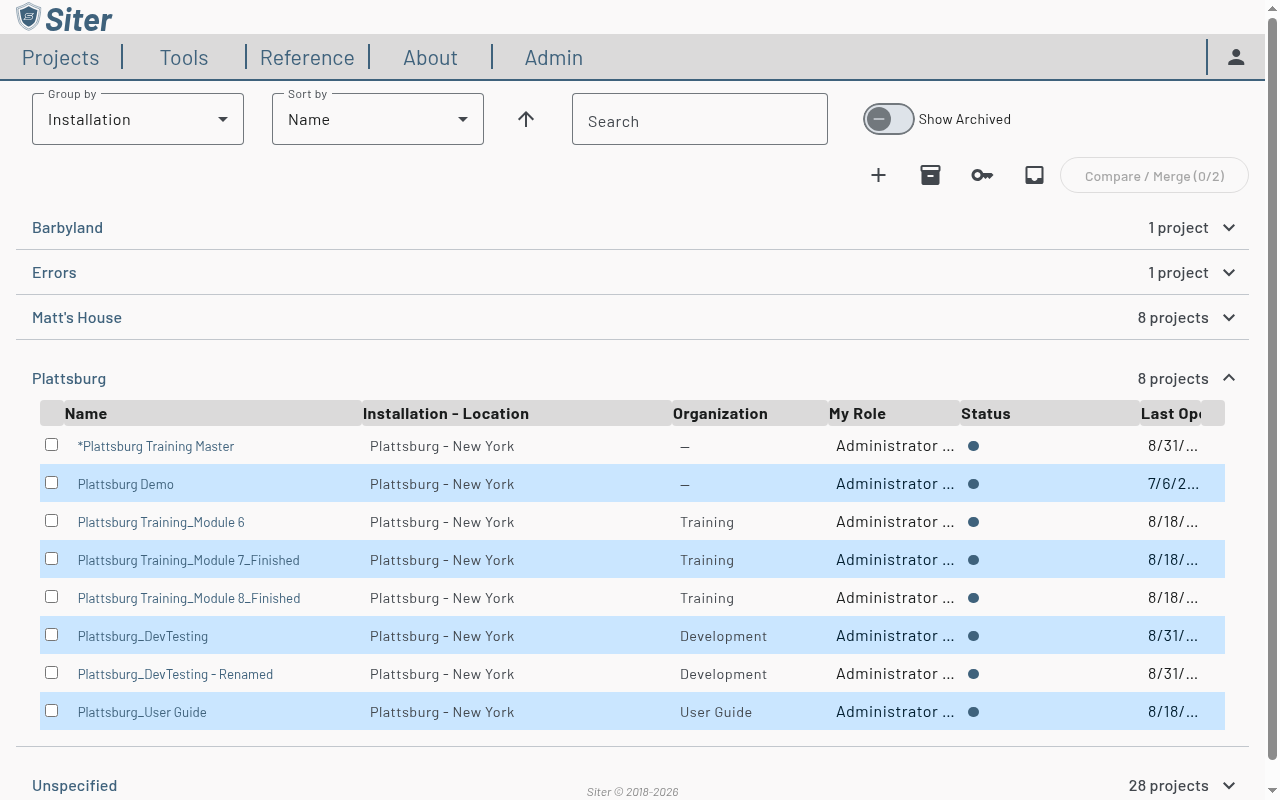
Select a Group by option to control how the list is grouped: Installation (the default), Location, Organization, Status (Active / Archived), My Role, or None for a single flat list. Projects with no value for the chosen field appear under an Unspecified group.
-
Select a Sort by option to order projects within each group — Name, Location, Date Created, or Last Opened — and click the arrow beside it to switch between ascending and descending.
-
Enter text in the Search box to show only projects whose name, location, installation, or organization contains it. Every group with a match opens automatically; click the ✕ in the box to clear the search and return to the groups you had open.
-
Archived projects are hidden by default — turn on the Show Archived toggle in the toolbar to include them in the list.
-
Click a group header to expand or collapse it. Each row shows the project's name, installation and location, its organization, your role, its status, and when you last opened it.
-
Click a project's name to open it on the map.
Your Group by, Sort by (and its direction), and Show Archived choices are saved with your preferences, so the page opens the way you left it — on any browser or device you sign in from. The search box starts empty each time.
Per-project actions
Each row's Actions menu (⋮) offers the same operations as the in-project dashboard's settings gear, without opening the project first:
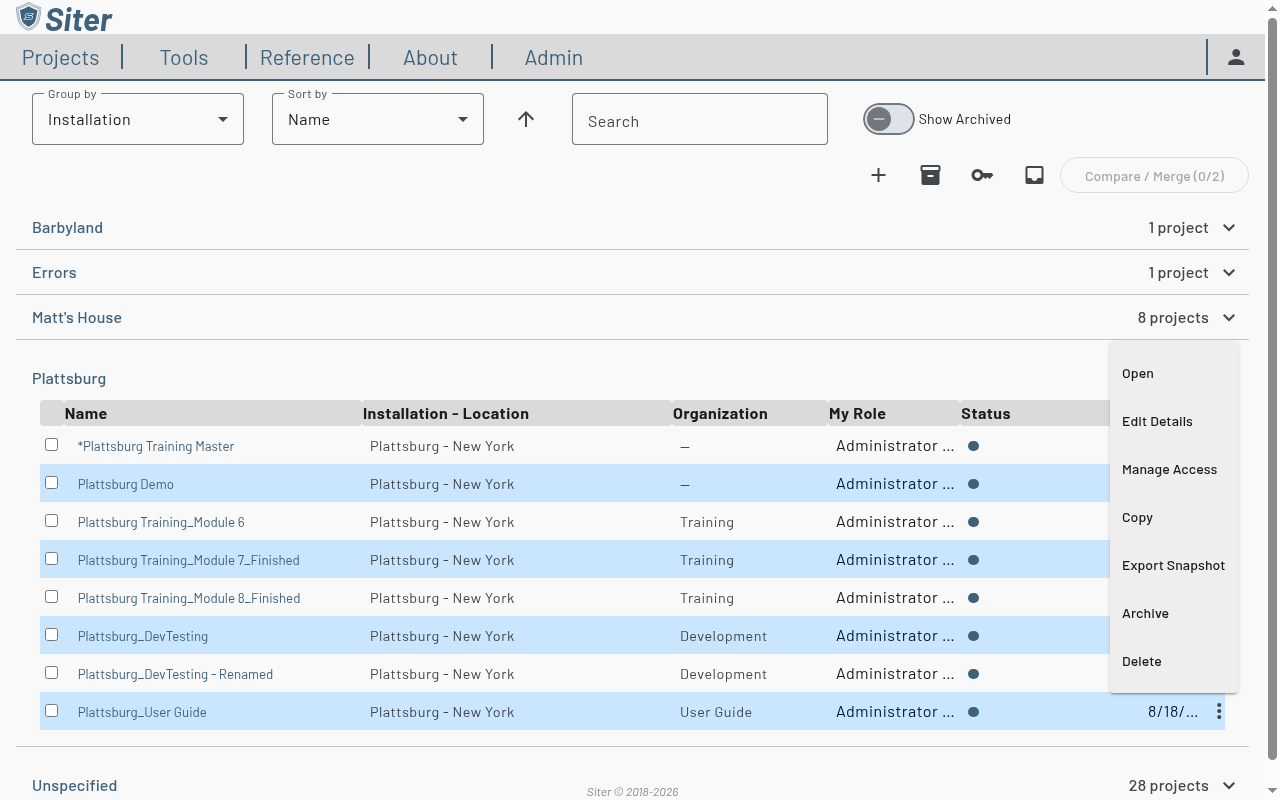
- Open — open the project on the map
- Edit Details — change the project's name, installation, location, or organization (see below)
- Manage Access — view the project's users, change their permissions, and control sharing (see below)
- Copy — create a duplicate of the project
- Export Snapshot — download the project as a
.siter-snapshotfile - Archive / Restore — move the project out of (or back into) your active list
- Delete — permanently remove the project
Edit Details and Manage Access are not offered on archived projects — restore the project first. For details on these operations, see Projects.
Page toolbar
The controls at the top of the page:
- Search — filter the list by project name, location, installation, or organization
- Show Archived (slide toggle) — include archived projects in the list (hidden by default)
- Create new project (+) — opens the New Project form on the map
- Import or export projects (box icon) — opens a menu with Import project…, which imports a
.siter-snapshotor.siter-archivefile (you can also drop the file onto the page — see How to import a project by drag and drop), and Export projects…, which downloads the projects you administer — all of them, or just the ones you pick — as one.siter-archivefile (see Projects). The button is labelled for what its menu holds: Import or export projects, or Import projects if you administer no projects. While an export runs, an Export: progress indicator with a Cancel export (✕) button appears beside this control, and the export continues in the background if you leave the page - Request access to a project (key icon) — enter a share code a project owner sent you (see Sharing projects)
- Access requests (inbox icon) — review pending access requests across every project you administer; a badge shows how many are waiting
- Compare / Merge — compare two selected projects (see below)
How to import a project by drag and drop
Instead of using Import project…, drag a Siter snapshot or archive file from your computer onto the Project Management page.
-
Drag one
.siter-snapshotor.siter-archivefile over the page — an overlay reads Drop a Siter archive or snapshot to import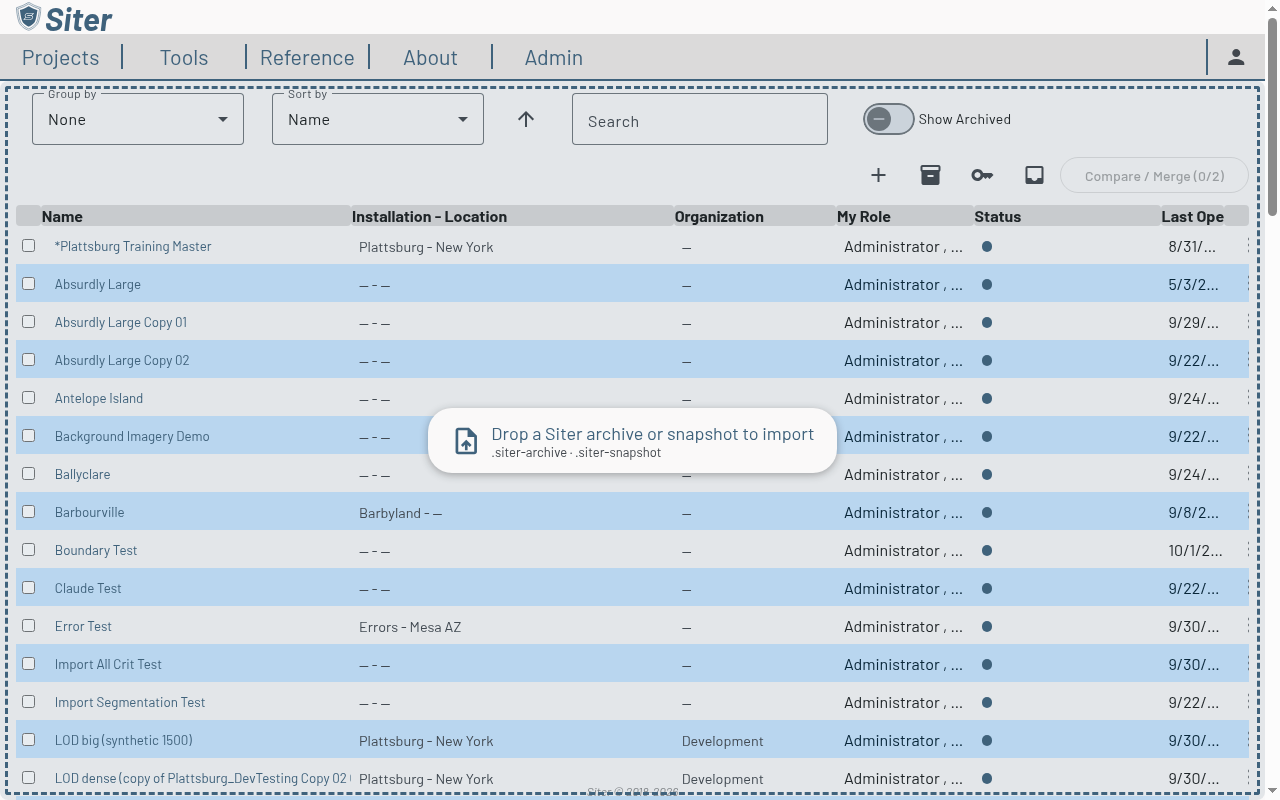
-
Drop the file. Siter imports it exactly as Import project… would: a snapshot opens as a new project on the map, and an archive opens the Import Projects from Archive dialog (see How to import a project)
A file your browser renamed on download is still accepted — for example project.siter-snapshot (1).json. Siter refuses a drop, with a message, when you drop more than one file, a folder, an empty file, or any other file type, or while another import is still running. GeoJSON, KML/KMZ, and zipped shapefiles are imported as layers by dropping them on the map instead (see Layers).
How to edit a project's details from the list
-
Open the row's Actions menu (⋮) and select Edit Details
-
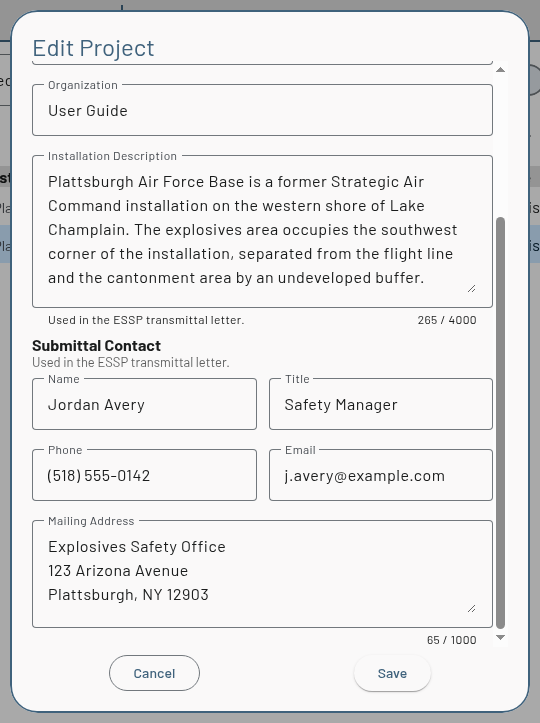
In the Edit Project dialog, change the Project Name, Installation, Location, Organization, Installation Description, or the Submittal Contact fields (Name, Title, Phone, Email, Mailing Address). The Installation Description and Submittal Contact are used in the transmittal letter
-
Click Save
The row updates in place, and moves to a different group if you changed the field the list is grouped by. To change a project's analysis criteria or other settings, open the project and use the dashboard's settings gear — see How to edit project details.
How to manage a project's access
-
Open the row's Actions menu (⋮) and select Manage Access
-
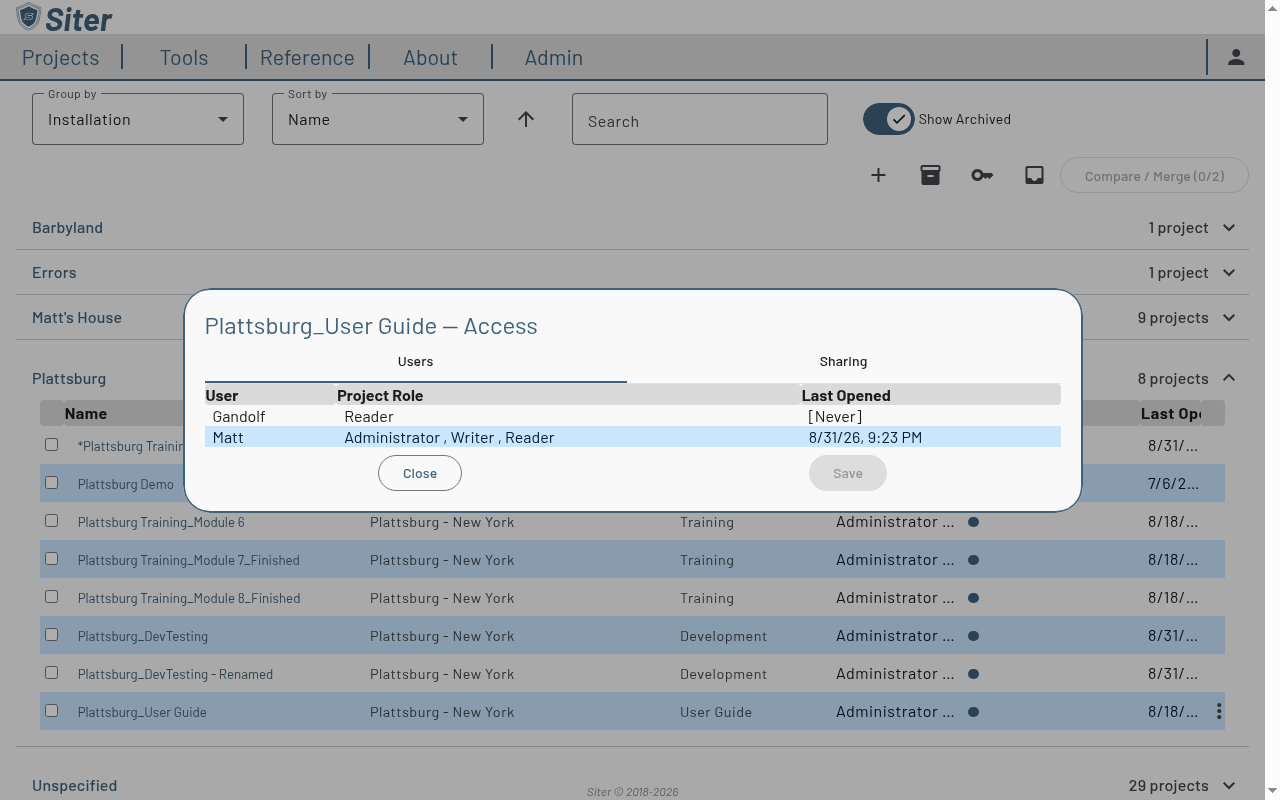
The Users tab lists who has access, their project role, and when they last opened the project
-
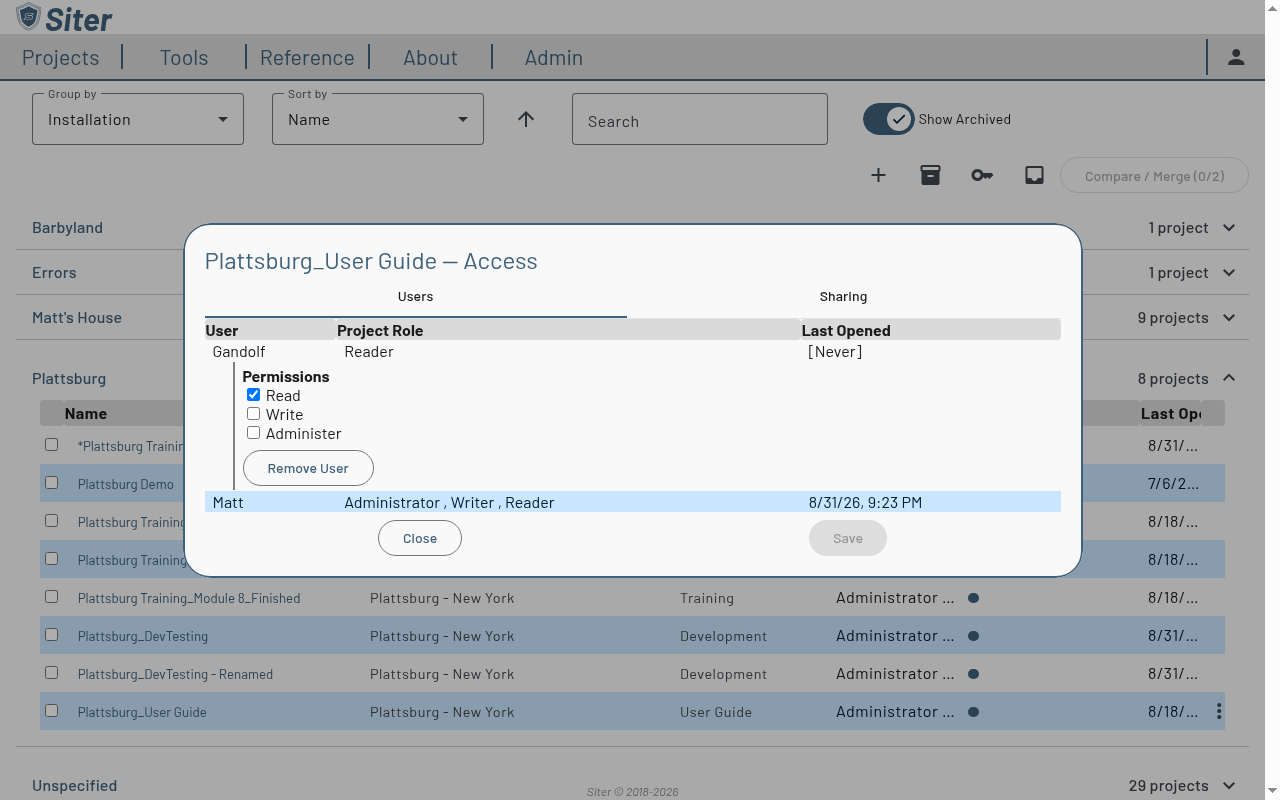
Click a user's row to expand it. Under Permissions, tick or clear Read, Write, and Administer to change what that user can do, then click Save — or click Remove User to take the user off the project immediately (Siter asks you to confirm)
-
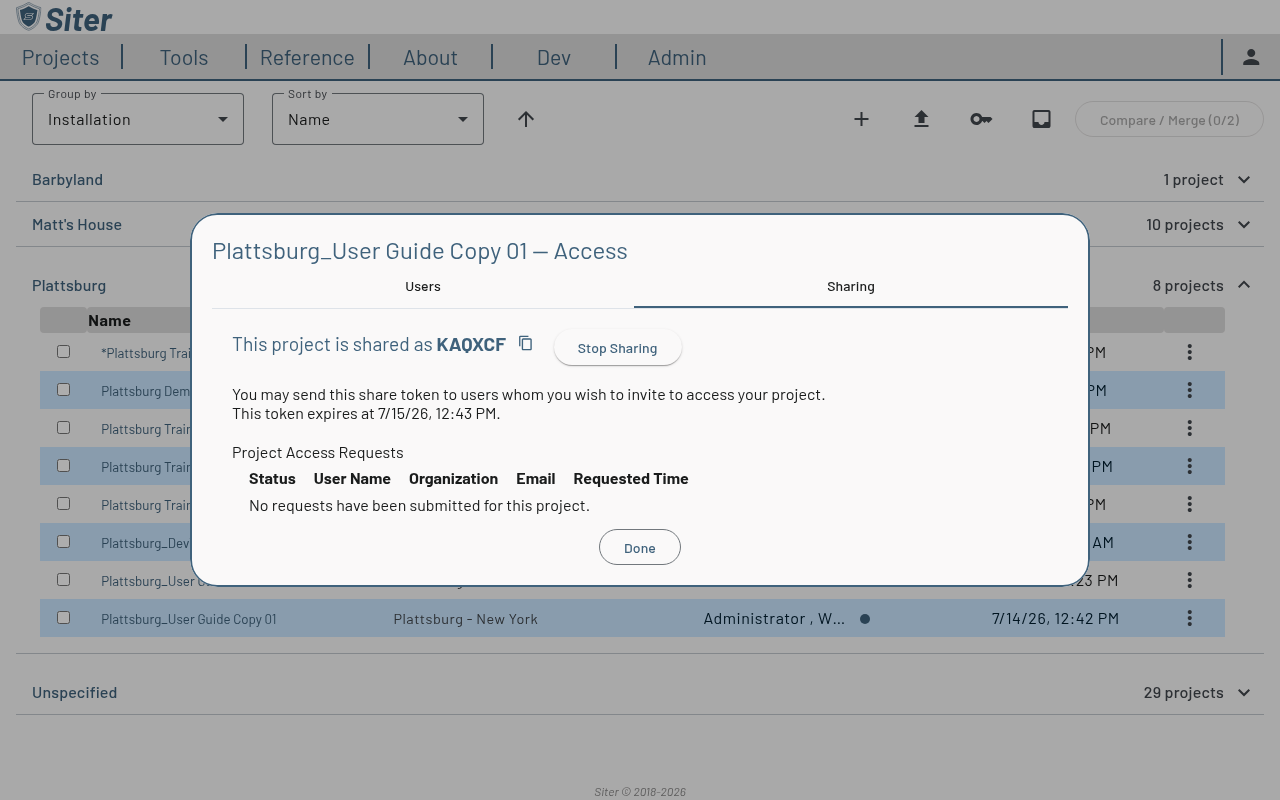
The Sharing tab holds the project's share code — generate one, copy it, check its expiration, or stop sharing
Siter will not let you save a change that leaves the project without an administrator, or that removes a user's Read permission. If you clear your own Administer permission, Siter warns you and asks you to confirm before saving — afterwards you can no longer open this dialog for the project.
The full sharing workflow — share codes, access requests, and roles — is covered in Sharing projects.
How to compare two projects
-
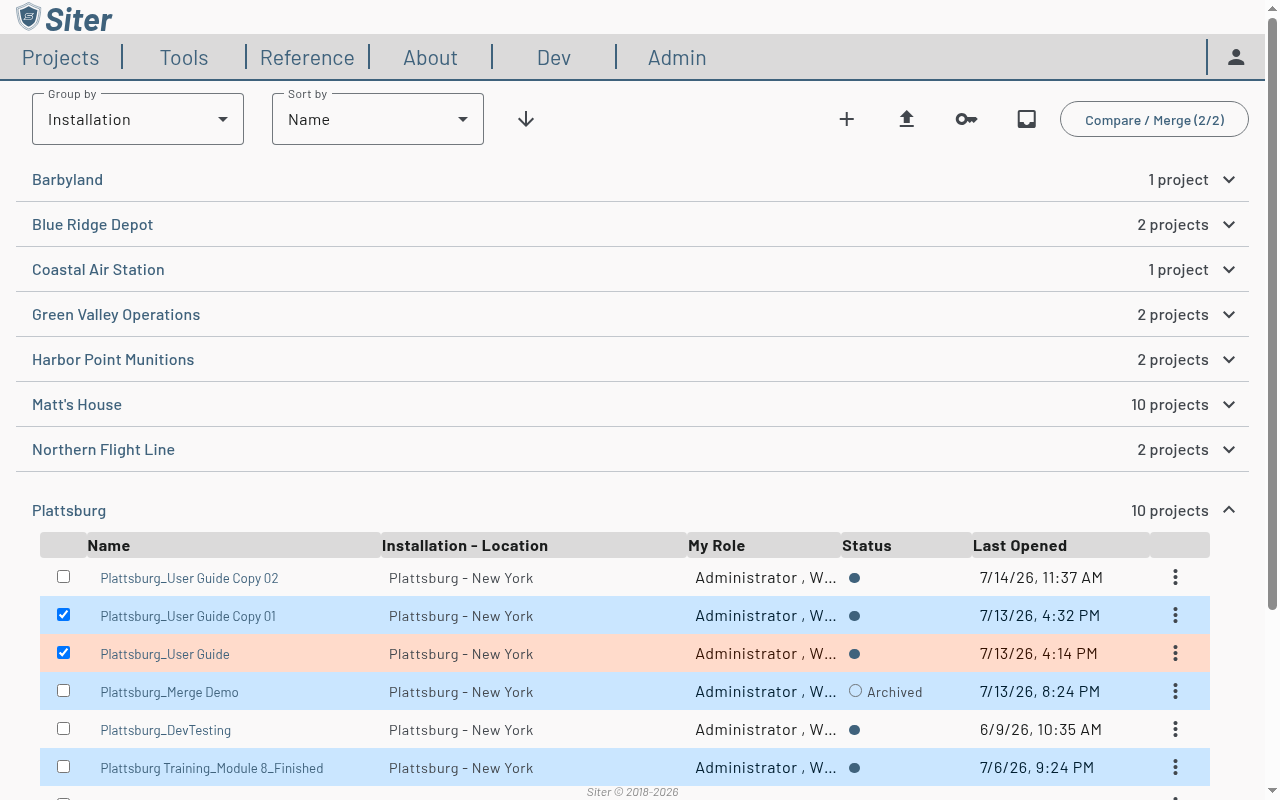
Tick the checkbox on two projects — the Compare / Merge button shows how many are selected (you can select at most two)
-
Click Compare / Merge to open the comparison tool
See Comparing and merging projects for how to read the comparison and apply a merge.
Troubleshooting
A project is missing from the list
Cause: The project is archived, and archived projects are hidden by default — or a search is active and the project does not match it.
Solution: Clear the Search box. Turn on the Show Archived toggle in the page toolbar. To find an archived project quickly, set Group by to Status and expand the Archived group. Use the row's Actions menu → Restore to bring it back.
Edit Details or Manage Access is missing from a project's Actions menu
Cause: The project is archived, or you do not have the required permission — Edit Details needs the Project Edit Permission and Manage Access needs the Project Administration Permission on that project.
Solution: Restore the project from its Actions menu, or ask a project administrator to change your access.
The Compare / Merge button is disabled
Cause: Fewer or more than two projects are selected.
Solution: Tick exactly two project checkboxes. The button label shows the current count (e.g., 2/2).
Related topics
- Projects — create, open, edit, copy, export, import, archive, and delete projects
- Sharing projects — share codes, access requests, and project roles
- Comparing and merging projects — see what differs between two projects and merge selected changes