Submittal forms
A submittal form documents one facility's siting for one criteria standard — DCMA, DESR, NATO, or ATF — pre-populated with the facility's data, explosive quantities, and analysis results. A PES form describes a Potential Explosion Site; an ES form describes an Exposed Site. For how the forms fit into a submittal package with the transmittal letter and drawings, see Submittals.
A form only exists for criteria the project is configured with. The Criteria selector on the submittal page lists only the project's criteria sets, so to generate an ATF form the project must have ATF selected under its analysis criteria (see How to edit project details).
NATO and DCMA/DESR forms are at parity as of v0.19: the same engine version, governing-criteria-per-pair, full facility descriptions, IBD 110% inclusion zones, and reverse-analysis MCE/PAR placeholders are emitted on every standard. The ATF forms use their own column layout — see ATF forms.
Prerequisites
- You must have an open project with features, explosive data, and analysis results
- You must have the Project Read Permission or higher
How to generate a submittal for a single feature
-
Select a feature to open its dashboard
-
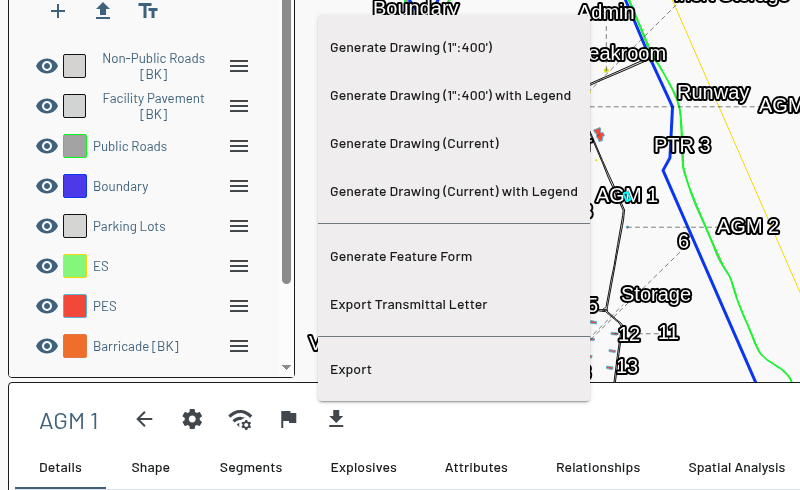
Click the Export Tools (download) icon in the feature dashboard header
-
Choose Generate Feature Form from the menu
-
The form opens in a new browser tab with Facility and Criteria selectors. Until both are set, the page reads "Select a facility and criteria to generate a form."
-
Choose the Criteria (the standard the project uses — DCMA, DESR, NATO, or ATF). The page shows "Loading data, one moment..." while it fetches the facility's data, then the form renders, pre-populated with the feature's data — General Information, Data on Facility to be Sited (the PES side), and PES/ES Paired Relationships (the ES side)
-
Click Print Form to print the form or save it as a PDF
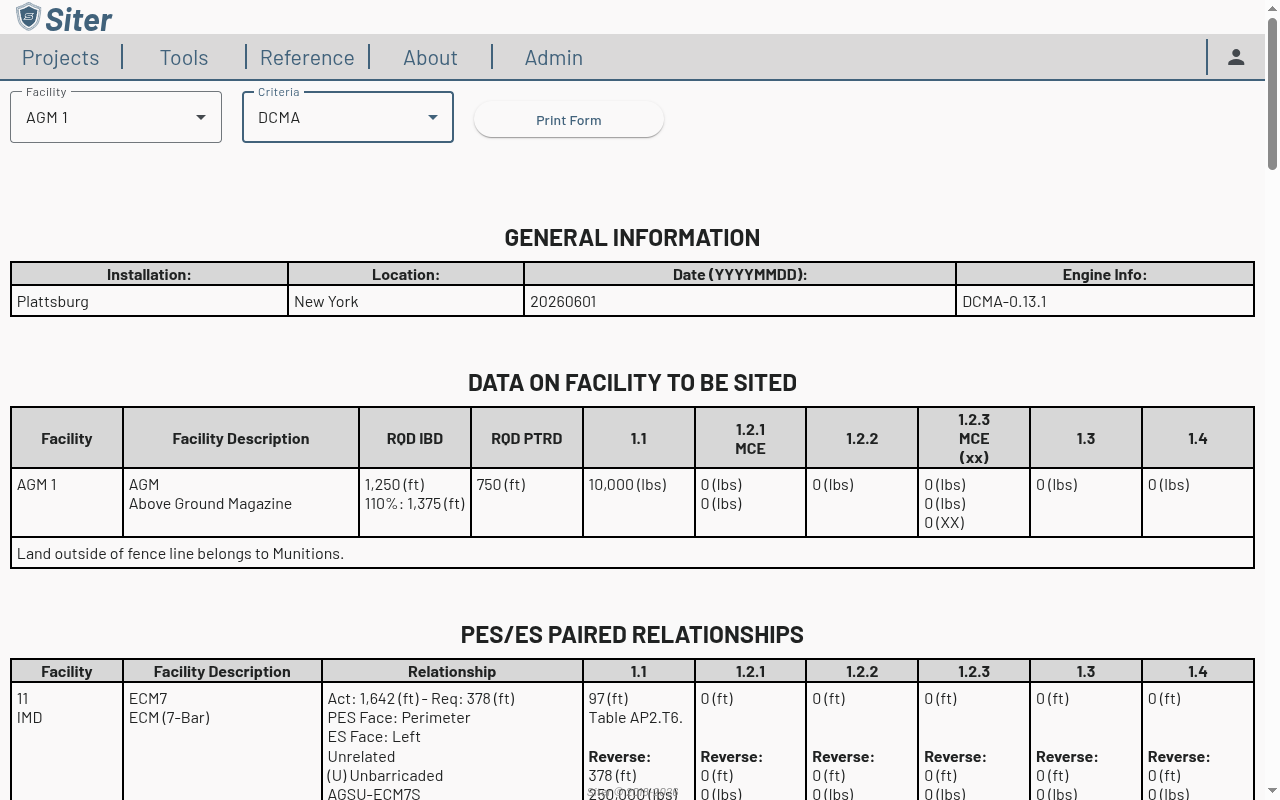
The single-feature form combines the PES and ES views in one document rather than producing separate PES and ES files. Which variant renders depends on the facility type assigned to the feature for the selected criteria: a PES type produces the PES form and an ES type produces the ES form. The Engine Info cell in General Information records the criteria engine version used (e.g., DCMA-0.13.1).
How to generate forms for other features
Once the submittal form tab is open, use the Facility selector at the top to switch to any other facility in the project and render its form — you do not need to return to the map for each one. Switching facilities clears the previous facility's form immediately, and the Print Form button does not reappear until the new facility's form has rendered.
What's on a form
Every standard's form has the same three sections. The DCMA, DESR, and NATO forms share one column layout; the ATF forms use their own, described under ATF forms.
- GENERAL INFORMATION — Installation, Location, Date (YYYYMMDD), and Engine Info (the criteria engine version that produced the analysis, e.g.,
DCMA-0.13.1). Installation and Location come from the project's details. - DATA ON FACILITY TO BE SITED — one row for the sited facility: Facility, Facility Description (type code, type display name, and the feature's Facility Description text), RQD IBD with the 110% inclusion-zone distance on a second line, RQD PTRD, then one net explosive weight column per hazard division — 1.1, 1.2.1 (with MCE), 1.2.2, 1.2.3 (with MCE and the (xx) supporting weight), 1.3, and 1.4. When a side of the sited facility or of a listed facility has no analyzed face, a Sides not analyzed row prints under the facility (see Sides not analyzed). The feature's Submittal Notes print as an extra row under the facility.
- PES/ES PAIRED RELATIONSHIPS (PES forms) or PES FACILITIES THAT ENCUMBER THE SITED FACILITY (ES forms) — one row per pair of faces between the sited facility and another facility. Which facilities a PES form lists is described under Which facilities a PES form lists. The Facility column shows the other facility's name and exposure type (IBD, IMD, PTRD, and so on) and flags
(violation)when the pair is in violation. The Relationship column packs the actual and required distance (Act: … - Req: …), the PES and ES faces (see Face labels), the relationship code, the barricaded indicator, and the analysis-code pair; when the other facility is also a PES, a Reverse: block repeats the pair with the roles swapped. Each hazard-division column shows the required distance with its criteria citation, the reverse-direction distance where applicable, and the explosive weight that produced it. The other facility's Facility Description text prints in its Facility Description column, and its Submittal Notes and any relationship notes print as rows directly under its data row.
Rows and cells that violate their required distance are shown in red. The form ends with a Created using Siter footer and a reminder to turn off the browser's headers and footers before printing.
Face labels
The PES Face and ES Face lines name the faces that were analyzed for that row:
- A default face prints the criteria's name for its side, for example Perimeter on a DCMA or DESR 2024 perimeter facility, or door and other on a NATO AGMRCWR door facility
- A custom face prints its name followed by the side it is analyzed as, for example Loading Dock (front)
- On a perimeter facility with an analyzed custom segment, the default perimeter is analyzed as the rest of the outline and prints with (remainder) after its side name, for example Perimeter (remainder)
- An older facility whose single perimeter face is analyzed as one side of a four-sided category prints perimeter with that side, for example perimeter (front), because the face measures from the whole outline
Each row is matched to the analysis by its own pair of faces, so two faces that share a name each print their own distances. The Reverse: block's required distance, governing criteria, analysis codes, and exposure type also come from that row's own face pair, read in the other direction. When that face pair has no reverse result, its reverse required distance prints N/A instead of 0.
On the NATO ES form, the faces are labeled Subject ES Face (the sited facility's face) and Reverse PES Face (the PES's face).
Which facilities a PES form lists
A PES form lists another facility when any of these is true:
- It lies within 110% of the sited facility's required IBD (the inclusion zone printed under RQD IBD)
- The other facility is a PES whose IBD arc reaches the sited facility, even when the sited facility's own search zone does not reach it
- The pair is in violation in either direction, however far apart the facilities are
A facility listed only because of a reverse-direction row also shows its governing row with the sited facility as the PES, when one exists. A row with no analysis with the sited facility as the PES prints No Analysis in its explosive columns instead of 0, which would read as "no separation required", and N/A as its exposure type. A missing analysis-code pair prints N/A rather than a bare -.
When a facility takes several consecutive rows, its name prints in red with (violation) if any of its rows is in violation, not only the first.
Barricaded status on submittal forms
DCMA, DESR, NATO, and ATF forms display a per-pair (B) Barricaded or (U) Unbarricaded indicator directly under the related code in the Relationship column. Each row's status follows the same rule the analysis uses:
- If the pair has a Barricaded value of Yes or No set on a feature's Relationships tab or in All Relationships, that value wins
- Otherwise (the pair's Barricaded value is Segments), the row prints (B) Barricaded when either face of the row — the PES face or the ES face — is marked Barricaded on its facility's Segments tab, and (U) Unbarricaded when neither is
Because the segment rule is per face, two rows for the same pair of facilities can print different statuses when only one of the faces involved is barricaded.
The Facility Description and Submittal Notes entered on a feature's Notes tab appear on the generated submittal forms. The tab's Facility Narrative doesn't print on the forms; it fills the facility's paragraph in the transmittal letter. The Notes field is internal and never prints. Add relevant context before generating submittals.
Relationship notes on submittal forms
A pair has one note per direction, shared by every criteria in the project, and that same note prints on every submittal form the pair appears on, whatever the standard (DCMA, DESR, NATO, or ATF). If a note documents a violation mitigation or a waiver that applies to only one criteria, say which one in the note, for example DCMA: berm between the facilities satisfies the barricade requirement, so it reads correctly on the other standards' forms.
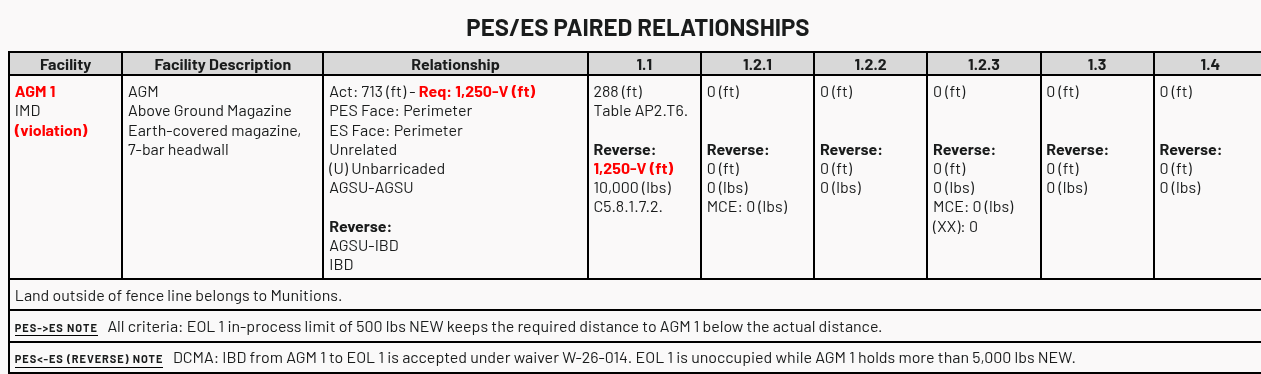
A relationship submittal note documents one direction of a facility pair. Every form — DCMA, DESR, NATO, and ATF, PES and ES — prints the pair's notes as rows directly under that pair's data row in the paired-relationships table, after the other facility's own Submittal Notes (which print without a label). Each relationship note starts with a small-caps label naming its direction:
| Form | Labels printed, in order | What each note is |
|---|---|---|
| PES form | PES->ES Note | The note with the sited facility as the PES and the listed facility as the ES |
| PES<-ES (Reverse) Note | The note with the listed facility as the PES and the sited facility as the ES | |
| ES form | ES<-PES (Reverse) Note | The note with the listed PES as the PES and the sited facility as the ES |
A direction with no note prints nothing. When the same facility is listed on several consecutive rows, its notes print once, under the last of those rows.
ATF forms
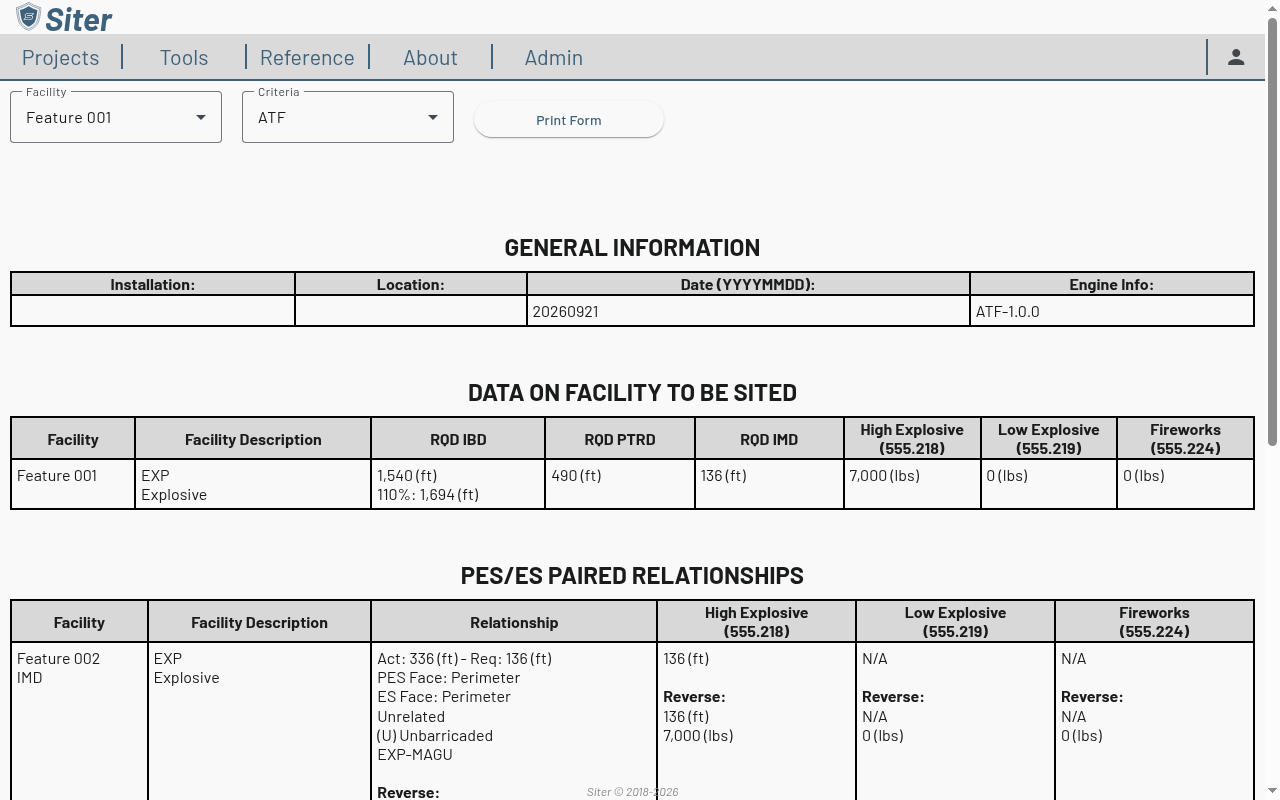
The ATF (27 CFR 555) PES and ES forms follow the same three-section layout as the other standards but report explosive classes instead of hazard divisions, and add an intermagazine distance column.
ATF PES form
- GENERAL INFORMATION — Installation, Location, Date (YYYYMMDD), and Engine Info, as on the other standards
- DATA ON FACILITY TO BE SITED — one row for the sited facility with these columns: Facility, Facility Description (type code, type display name, and description), RQD IBD (with the 110% inclusion-zone distance on a second line), RQD PTRD, RQD IMD, then one explosive-weight column per ATF class: High Explosive (555.218), Low Explosive (555.219), and Fireworks (555.224). The three class columns replace the per-hazard-division columns (1.1, 1.2.1, and so on) used on the DCMA, DESR, and NATO forms
- PES/ES PAIRED RELATIONSHIPS — one row per exposed facility within 110% of the required IBD. The Facility, Facility Description, and Relationship columns (actual vs. required distance, PES and ES faces, related code, barricaded status, analysis-code pair, and a Reverse: block when the exposed facility is also a PES) match the other standards. The per-class columns show the required distance for each ATF class, with reverse-direction distances and weights below it where applicable. Submittal notes and relationship notes print under each row as on the other standards
ATF ES form
- GENERAL INFORMATION — as above
- DATA ON FACILITY TO BE SITED — the sited facility's name and description, followed by the statement "Facility does not contain explosives." Siter verifies that statement against the facility's recorded explosives: if the facility is typed as an exposed site but has explosive weights recorded for ATF, the row instead reads "This facility is categorized as an exposed site but has explosive weights recorded for this criteria — verify the facility type assignment."
- PES FACILITIES THAT ENCUMBER THE SITED FACILITY — one row per PES that encumbers the sited facility, with the same Facility, Facility Description, and Relationship columns and the three ATF class columns showing the encumbering PES's required distance and weight. If nothing encumbers the facility the table reads "No PES facilities encumber this facility."
Both ATF forms are wider than the browser window on narrow screens. Scroll the form horizontally to read the right-hand columns; the printed form is unaffected.
If the ATF criteria dictionary defines an explosive type the form has no column for, the form shows a Form / criteria mismatch notice that lists the omitted type. That notice prints. A separate Configuration warnings (not printed) block appears on screen only, and is intended for administrators checking the criteria configuration.
Troubleshooting
"We don't have a form for this criteria and facility type yet."
Cause: The selected criteria has no submittal form in Siter, or the facility's data could not be matched to a form.
Solution: Select one of the supported criteria (DCMA, DESR2024, NATOCV1, or ATF). If the message persists for a supported criteria, reselect the facility from the Facility list.
"This facility has no facility type assigned for the ... criteria."
Cause: The facility does not have a facility type set for the criteria selected in the Criteria list. Siter uses the type to decide whether to generate the PES or ES form.
Solution: Open the facility in the feature editor and assign a facility type for that criteria, then return to the form tab and reselect the facility.
"This facility's type ... is not recognized by the ... criteria, so a form can't be generated."
Cause: The facility type stored on the feature is not in the selected criteria's type list. This can happen when a type was assigned under an earlier criteria version, or when data was imported with a type code the criteria does not define.
Solution: Open the facility in the feature editor, check the type assigned for that criteria, and select a valid type from the list. Then reselect the facility on the form tab.
"Criteria data for ... is not available yet."
Cause: The criteria definitions were still loading when you selected the criteria, or the criteria the project is configured with is not present in this Siter installation's criteria dictionary.
Solution: Wait a moment and select the criteria again. If the message persists, contact your administrator; the criteria configured on the project may not be installed on the server.
"Failed to load data for the selected facility."
Cause: The request for the facility's submittal data, the project details, or the project's feature list failed, for example because of a network interruption or a server error.
Solution: Select the facility again from the Facility list. If it fails again, refresh the form tab, and report the issue to your administrator with the browser console output if it continues.
Related topics
- Running an analysis — analysis results feed into submittal forms
- Feature explosives data — explosive quantities appear on submittals
- Feature attributes — the facility type per criteria decides which form variant is generated
- Feature notes — the Facility Description and Submittal Notes print on generated forms
- Submittals — how forms, the transmittal letter, and drawings make up a submittal package
- Incomplete and out-of-date forms — notices, N/A values, and "Sides not analyzed" rows
- Transmittal letters — draft the DCMA ESSP cover letter for one or more PESs
- Feature relationships — relationship submittal notes print under each pair
- Result Sets and drawings — drawings can accompany submittal packages
- Custom analysis segments — custom faces and how they print on forms