Data validation
The Data Validation panel groups tools that find and fix data problems in a project before they affect an analysis. It holds two tools:
- Explosive Scrubber — removes explosive records whose weights are all zero or empty, or whose explosive type isn't defined in their criteria
- Single-Part Shape Fixer — converts imported shapes that are stored as a multi-part shape with only one part, so you can select their front
Prerequisites
- You must have an open project
- You must have the Project Edit Permission or higher to remove explosives or convert shapes. Anyone who can open the project can scan
Why the Explosive Scrubber exists
When an explosive's weights are set to zero or cleared, the explosive record itself is not removed from the feature — only its values are emptied. The analysis engine still treats the feature as explosives-bearing, runs the calculation against that empty record, and returns an unnecessary 0 ft required result. Over time these empty records accumulate and clutter analysis output.
An explosive whose type isn't defined in its criteria can never be analyzed. This usually comes from an import, for example an explosive typed 1.4S when the criteria only defines 1.4. The analysis engine rejects it.
The Explosive Scrubber finds both kinds of problem explosive and deletes the record from its feature:
- Explosives whose weight attributes are all zero or empty
- Explosives whose type isn't defined in their criteria
How to open the Data Validation panel
- With a project open, click the Popups button (the leftmost toolbar button)
- Choose Data Validation from the menu
The Data Validation panel opens on the right side of the map, with the Explosive Scrubber at the top and the Single-Part Shape Fixer below it. The panel header's menu button switches between Data Validation and the To-Do list.
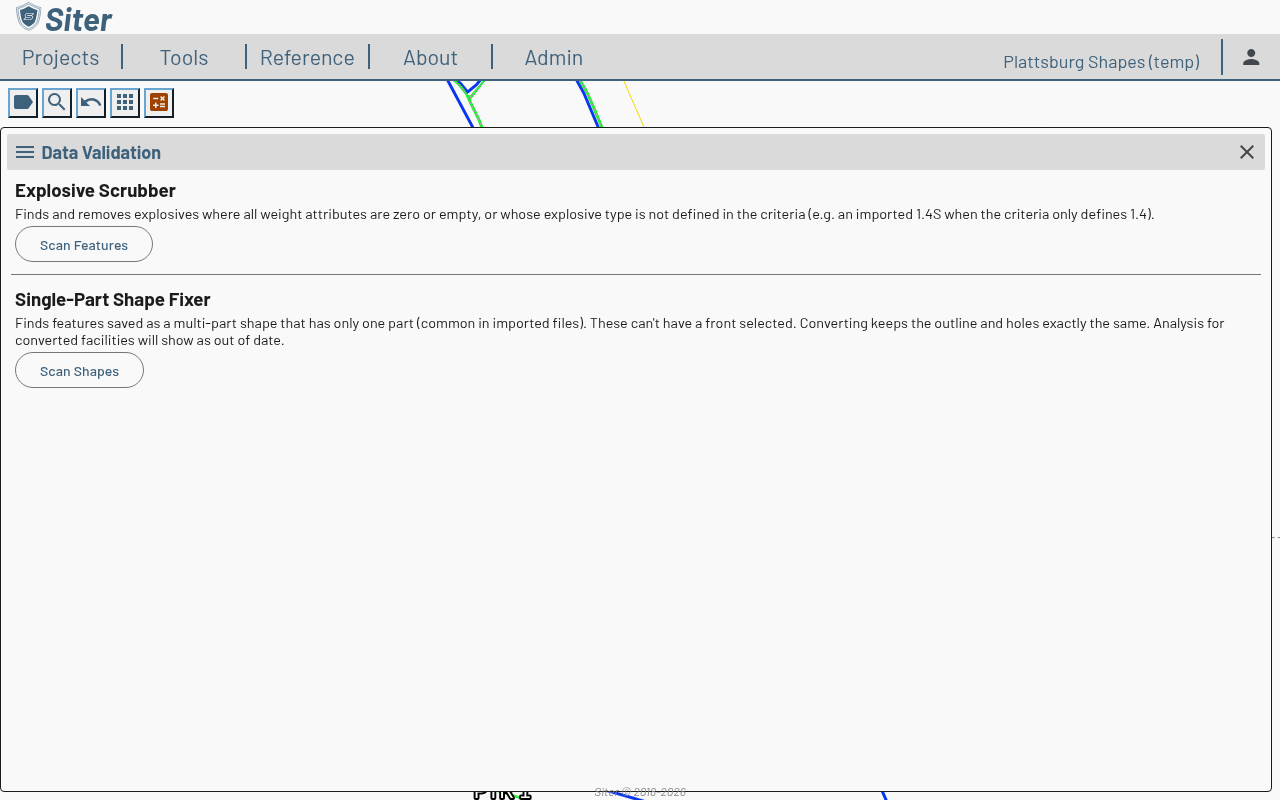
How to scan for problem explosives
- Open the Data Validation panel
- Click Scan Features
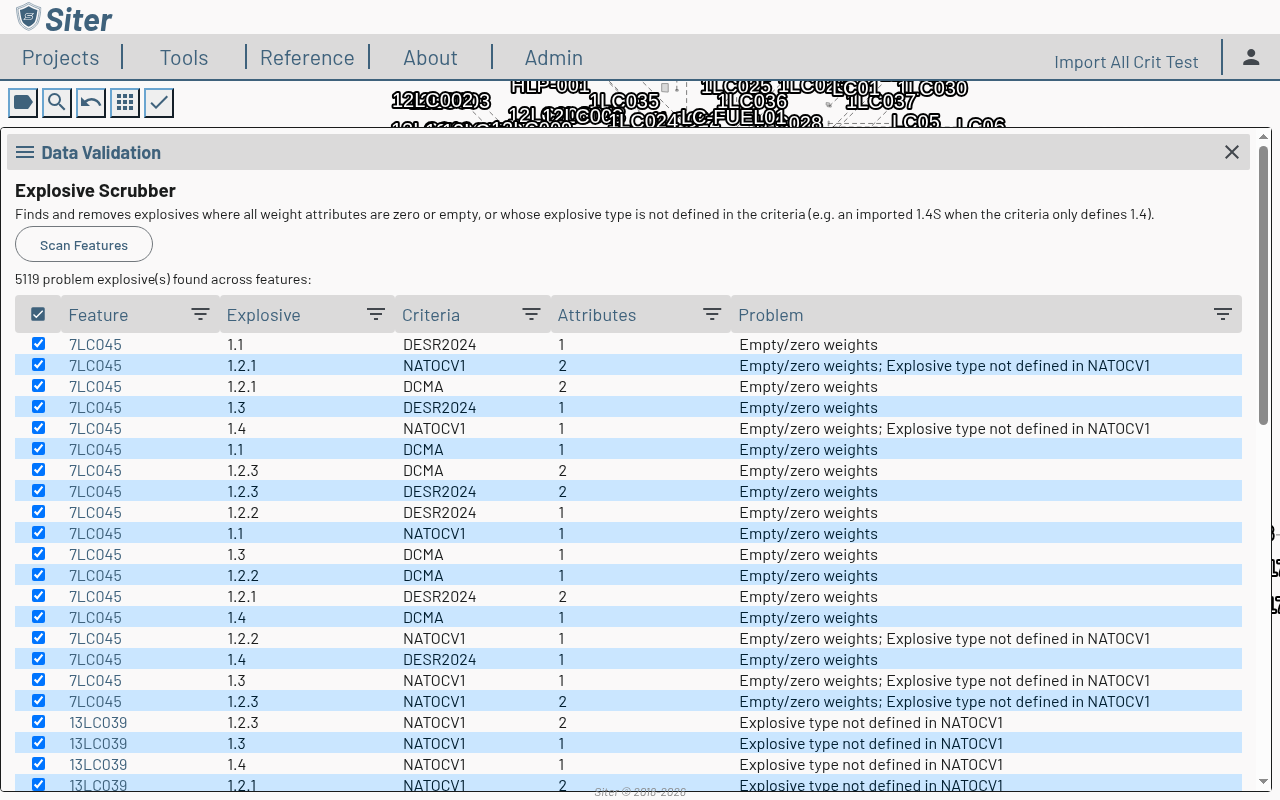
The Scrubber checks every feature in the project and shows "N problem explosive(s) found across features". Each row shows:
-
Feature — the feature the empty explosive belongs to (click the name to locate it on the map)
-
Explosive — the explosive type of the record (for example, 1.1 or 1.4)
-
Criteria — the criteria the explosive belongs to (for example, DCMA)
-
Attributes — the number of weight attributes on the record
-
Problem — why the explosive is listed:
- "Empty/zero weights" — every weight attribute is zero or empty
- "Explosive type not defined in criteria" — the criteria has no explosive type with this name
- "Criteria 'criteria' not found in the dictionary" — Siter doesn't recognize the explosive's criteria at all
An explosive with more than one problem lists them all, separated by semicolons, for example "Empty/zero weights; Explosive type not defined in NATOCV1".
Every found row is selected by default. Sort or filter by any column using its header. If there are no problem explosives, the scan shows "No problem explosives found." and there is nothing to remove.
How to remove problem explosives
- Run a scan so the results table is populated
- Review the list and uncheck any row you don't want to remove, for example an explosive with an undefined type whose weights you want to move to a defined type first
- Click Remove Selected
The selected explosive records are deleted from their features. Re-run Scan Features to confirm the list is clear.
Review the results before removing. A row with "Empty/zero weights" for a facility you expected to hold a weight is a sign that a value was cleared by mistake. A row with an undefined type may still hold real weights, so removing it deletes them. Open the feature and re-enter the weights under a type the criteria defines in its explosives data before scrubbing.
Why the Single-Part Shape Fixer exists
A GIS file can store a facility's outline as a multi-part shape (a MultiPolygon) even when it has only one part. Files re-saved by QGIS or ogr2ogr often do this. Siter imports these shapes as they are, and a facility with this kind of shape can't have a front selected on its Shape tab. The facility's Shape Details show its Type as MultiPolygon instead of Polygon.
The Single-Part Shape Fixer finds these shapes and converts each one to a plain shape (a Polygon) with the same outline and the same holes. Nothing moves on the map.
How to scan for single-part shapes
- Open the Data Validation panel
- Under Single-Part Shape Fixer, click Scan Shapes
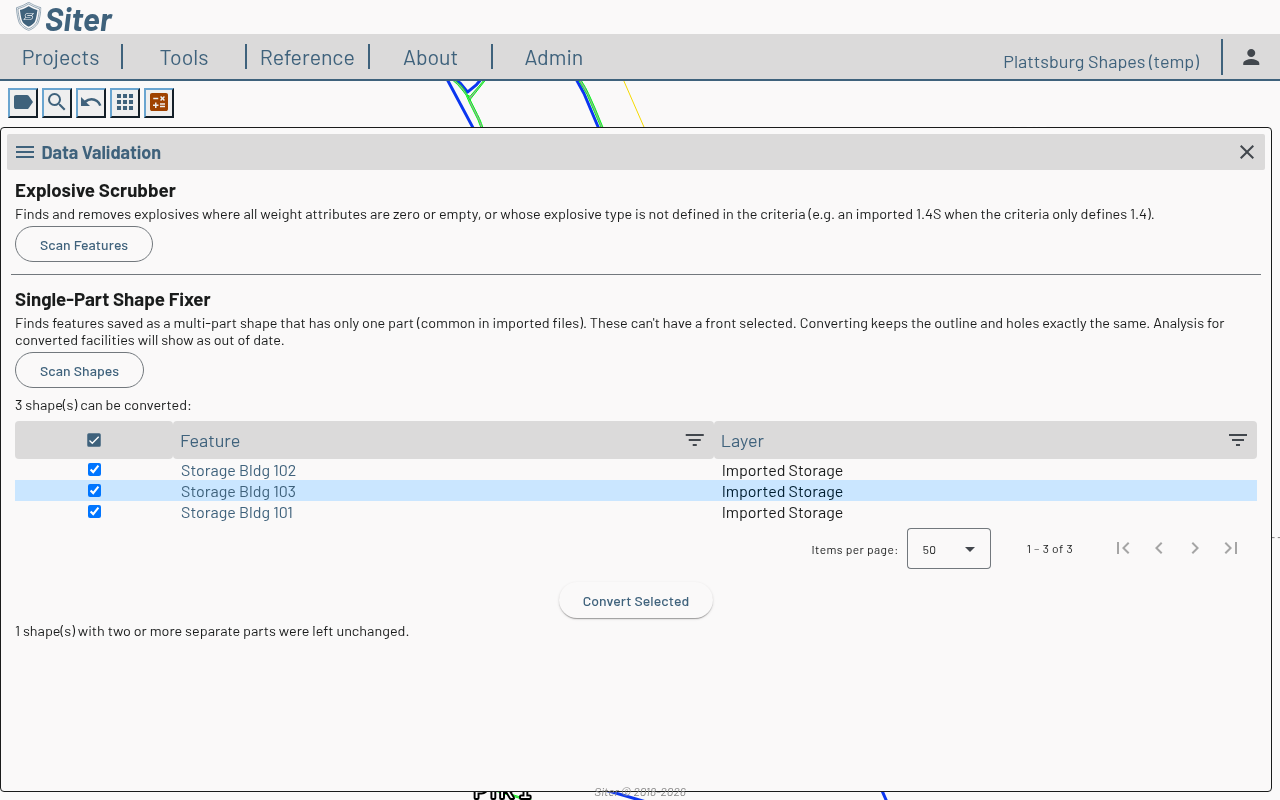
The panel shows "N shape(s) can be converted" and lists each one. Each row shows:
- Feature — the feature's name (click the name to open the feature)
- Layer — the layer the feature is on
Every row is ticked by default. Sort or filter by a column using its header. If nothing needs converting, the panel shows "No shapes need converting."
Shapes with two or more separate parts aren't listed. They are real multi-part shapes, so the Fixer leaves them unchanged and reports how many it found, for example "1 shape(s) with two or more separate parts were left unchanged."
How to convert single-part shapes
- Run a scan so the results table is populated
- Untick any row you don't want to convert
- Click Convert Selected
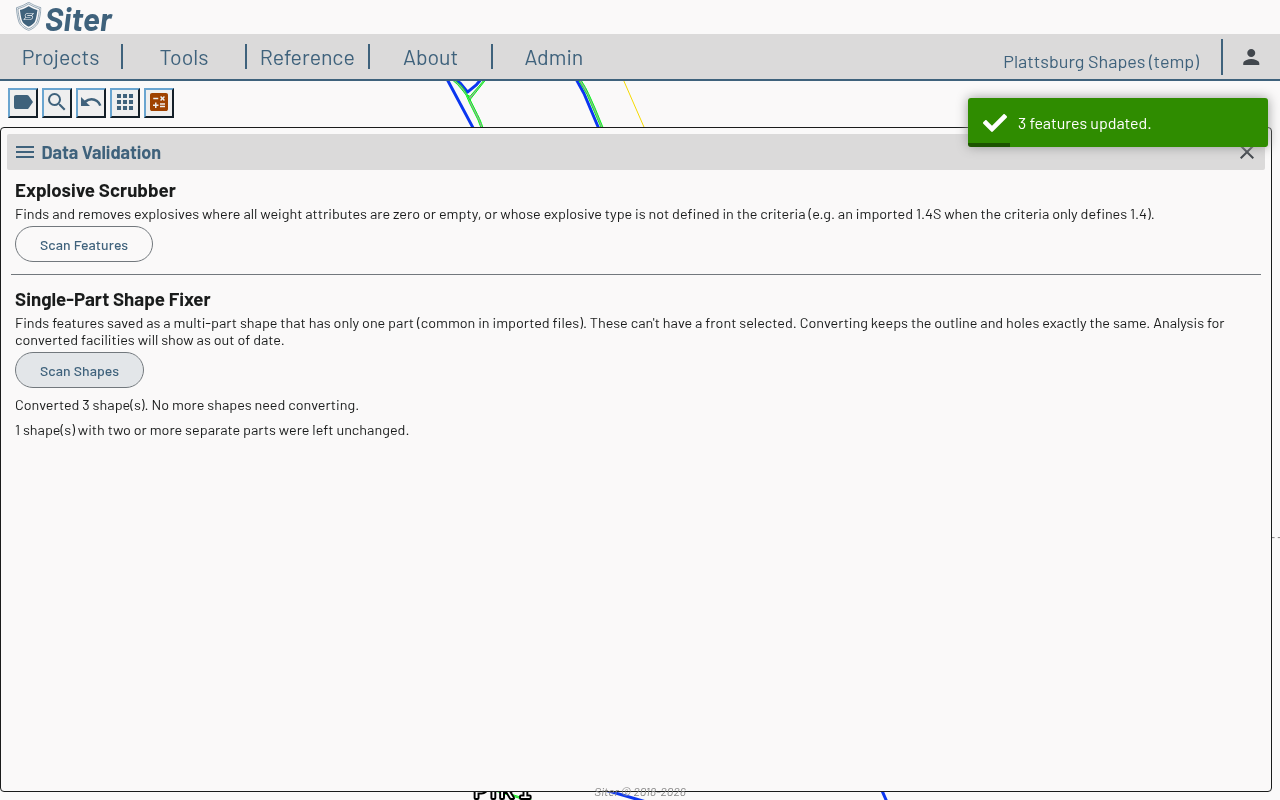
While the Fixer works, the button shows its progress, for example Converting 2/3.... When it finishes, converted shapes leave the list and the panel reports the result, for example "Converted 3 shape(s). No more shapes need converting."
What happens after converting
- Analysis for each converted facility shows as out of date. Run an analysis again to bring its results up to date
- You can now select a front on each converted facility. See How to set the feature front
- A feature deleted since the scan, or reshaped so that it no longer needs converting, is skipped. The result message counts it as skipped
- If the server refuses a shape, the rest still convert. The refused shape stays listed, unticked, with Could not convert in a new Status column, and the result message names it with its layer. Tick it again to retry
- If several shapes in a row are refused, or another error occurs, the run stops and the result message says "The run stopped on an error; the rest are still listed." Shapes converted before the stop stay converted
Related topics
- Feature explosives data — enter and edit the explosive weights the Scrubber validates
- Running an analysis — empty explosives produce stray 0 ft required results until scrubbed, and explosives with an undefined type can't be analyzed
- Bulk editing — a common source of zeroed or cleared explosive weights
- Feature shapes — select a facility's front once its shape is converted
- Layers — imported layers are the usual source of single-part multi-part shapes