Measurements
The Markup sidebar lets you measure distances and areas directly on the map and draw buffer zones around facilities. Use it to verify separations between features, check dimensions, or sketch buffer rings without creating permanent features. Markup is saved with the project and can be toggled on or off without deleting it.
Prerequisites
- You must have an open project
- You must have the Project Edit Permission or higher to add, edit, or delete markup; the Project Read Permission is enough to show or hide it
How to open the Markup sidebar
-
Click the menu icon in the left sidebar header to open the sidebar chooser
-
Select Markup
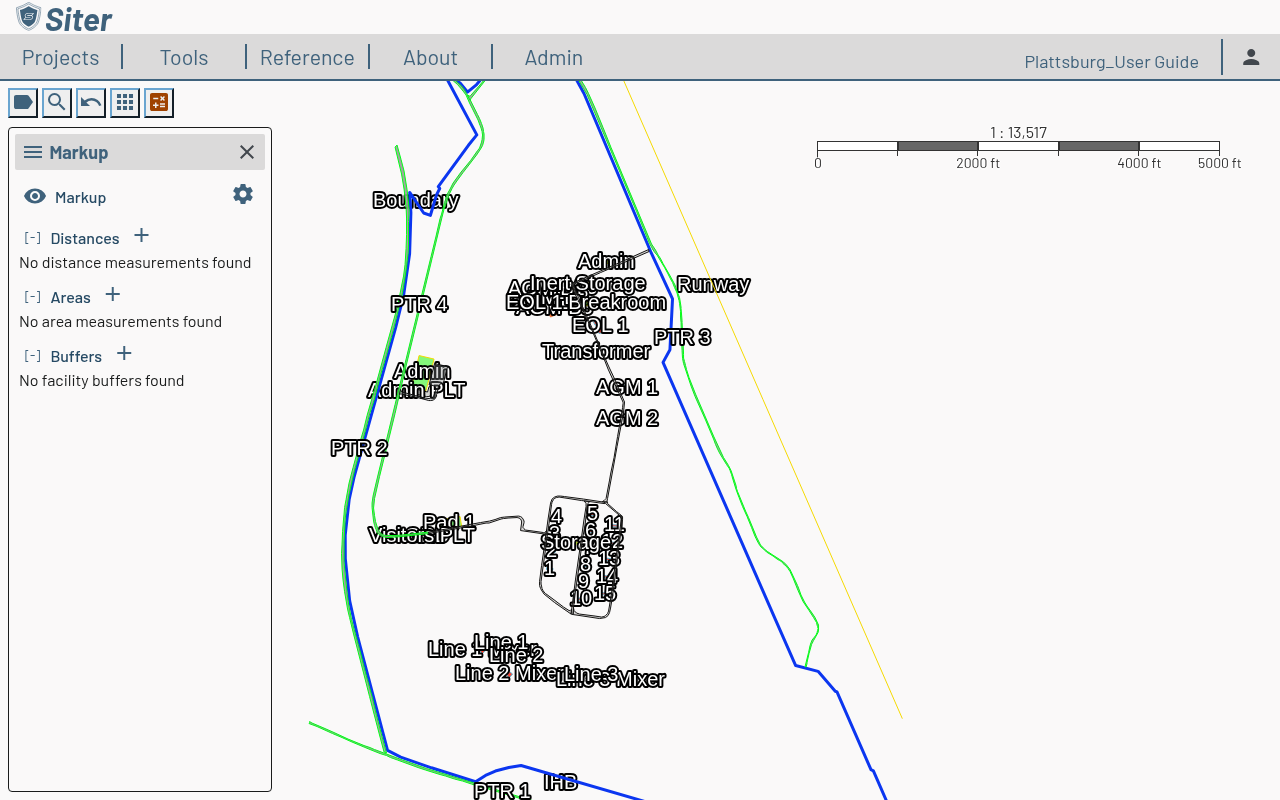
The top row holds the eye button that shows or hides all markup (see How to hide markup without deleting it) and, with the Project Edit Permission, the Options gear. Below it, the sidebar groups markup into three categories:
- Distances — multi-point distance measurements along a path
- Areas — polygon area measurements
- Buffers — radial buffer rings around a facility
How to measure a distance
- Open the Markup sidebar
- Click the + next to Distances and choose a method:
- Digitize Simple Line — click two points on the map
- Digitize Polyline — click successive points along a path, then double-click the last point to finish
- Place Vector — enter precise values instead of drawing
- The measurement appears in the Distances list and stays visible on the map until you hide markup
The Digitize methods let you draw on the map; Place lets you enter exact values. While you digitize, the drawing preview uses the project's default symbol and display units, so it looks like the markup that will be saved.
Starting any Add tool, or finishing a new distance, area, or buffer, turns markup back on if it was hidden, so a new markup is always visible.
How to measure an area
- Open the Markup sidebar
- Click the + next to Areas and choose a method:
- Digitize Polygon, Digitize Rectangle, or Digitize Circle — draw the shape on the map
- Place Rectangle or Place Circle — enter exact dimensions instead of drawing
- Finish the shape — for a digitized polygon, double-click to close it
The calculated area appears in the Areas list with the shape rendered on the map.
How to add a facility buffer
- Open the Markup sidebar
- Click the + next to Buffers
- Set the buffer radius (it defaults to 100 ft)
- Click the target facility on the map
Clicking "ft" next to the buffer input box will change the measurement to meters. Click "m" to return to "ft".
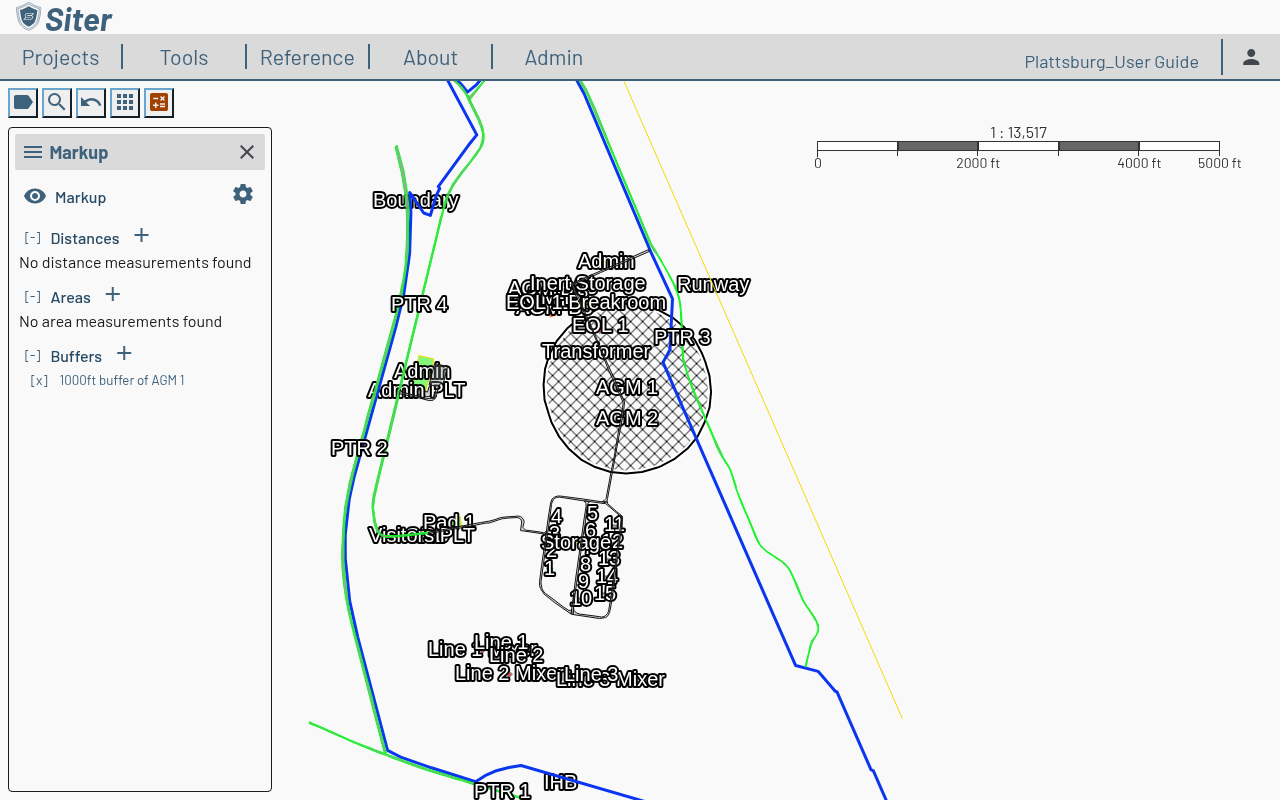
Buffers render as a ring at the chosen radius around the facility and are listed by name (for example, 1000ft buffer of AGM 1) in the Buffers section.
How to rename or restyle a buffer
Click the buffer's name in the Buffers list to open the Edit Measurement panel:
-
Edit the Name to rename the buffer
-
Under Symbol, choose Custom to override the default appearance, which reveals:
- Line — Line Color & Opacity (the ring outline), Line Halo (the casing drawn around the outline), and Dashed Line
- Fill — Fill Color & Opacity (the shaded interior and its pattern)
-
Click Save Changes to apply, or Discard Changes to revert unsaved edits. Click Back to leave the panel — with unsaved changes, Siter asks whether to Save, Don't Save, or Cancel (Cancel keeps the panel open)
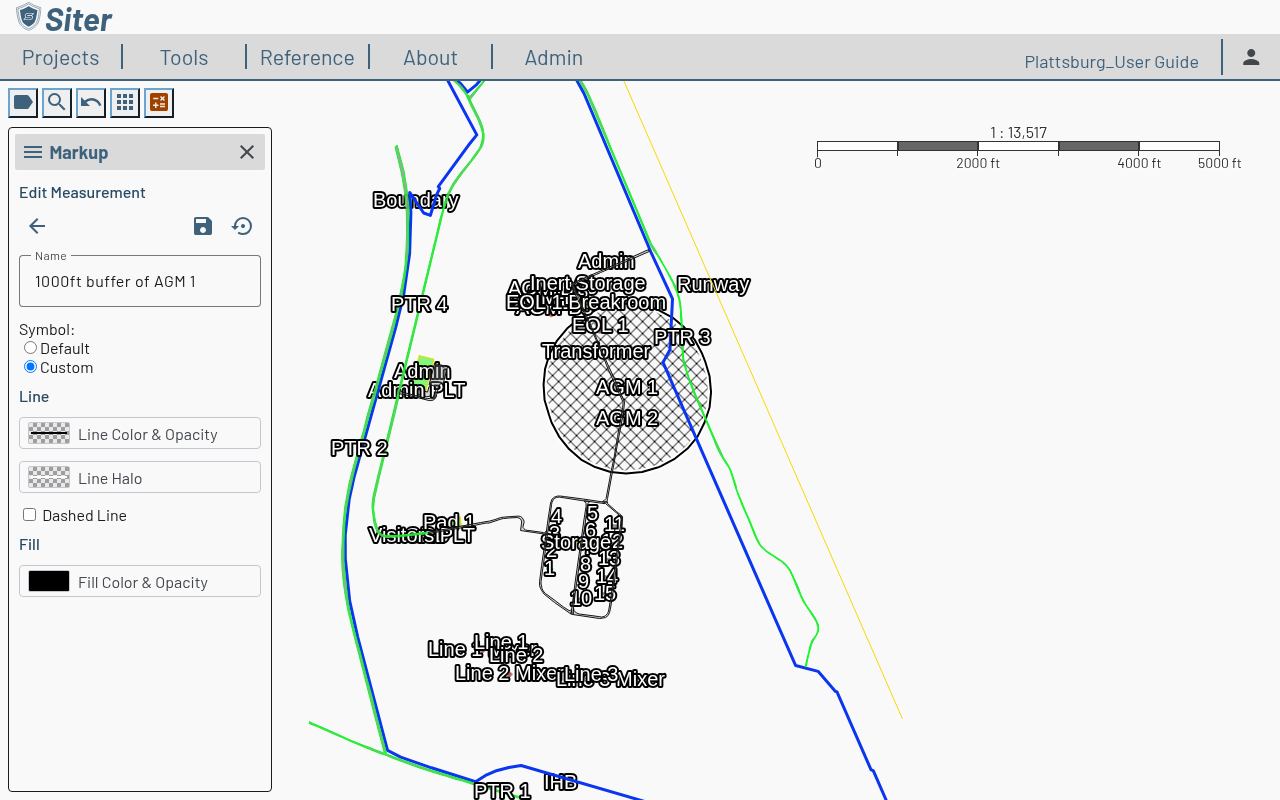
Clicking the name of any markup — a distance or area too — opens the same Edit Measurement panel. The options are grouped under Line, Fill, and Text headings and vary by shape:
| Shape | Line | Fill | Text |
|---|---|---|---|
| Distance | Line Color & Opacity, Line Halo, Dashed Line | — | Text Color, Text Outline, Label Segment Lengths, Label Vertex Angles |
| Area | Line Color & Opacity, Line Halo, Dashed Line | Fill Color & Opacity | Text Color, Text Outline, Label Area, Label Side Lengths, Label Vertex Angles |
| Buffer | Line Color & Opacity, Line Halo, Dashed Line | Fill Color & Opacity | — |
If a measurement's saved custom symbol can't be read, the panel shows a warning and displays the default symbol; saving replaces the unreadable symbol with your selection.
Line halo and text outline
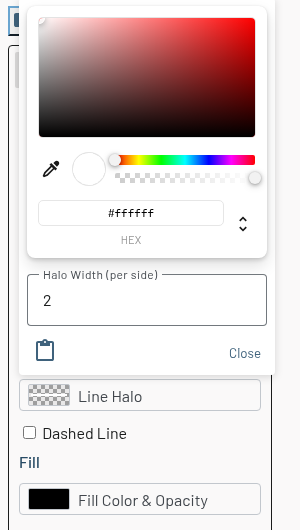
Markup lines and labels are drawn with a halo so they stay readable over imagery. By default, lines have a white halo and labels are white text with a black outline. To change them, click Line Halo or Text Outline and pick a color and a width. Halo Width (per side) and Outline Width accept 0 to 20 px; set the width to 0 to turn the halo or outline off (the swatch then shows None).
Using the color pickers
Click a color swatch (for example, Line Color & Opacity) to open its color picker. The picker works from the keyboard: Tab moves between its controls, focus stays inside the picker while it's open, and Escape or Close closes it. Line widths are limited to 20 px.
How to change the default markup symbols
You must have the Project Edit Permission or higher to change default symbols and display units.
- Click the Options gear at the top of the Markup sidebar
- Select Edit Default Line Symbol, Edit Default Area Symbol, or Edit Default Buffer Symbol
- Adjust the symbol in the Edit Default Style panel, then click Save Changes. Click Restore System Default to return to Siter's built-in symbol
New markup, and existing markup set to the Default symbol, use these settings. The same menu has Show US Units and Show SI Units to choose which units labels display, and Clear All to delete every markup in the project.
If the open project changes to a different project while a symbol editor is open, Siter closes the editor and warns that any unsaved symbol changes were discarded.
How to hide markup without deleting it
- Open the Markup sidebar
- Click the eye button next to Markup at the top of the sidebar (tooltip: Hide on map)
All distances, areas, and buffers stay in the project but stop rendering on the map. Click the eye button again (tooltip: Show on map) to bring them back.
With the Project Edit Permission or higher, the setting is saved with the project, so it survives page reloads and applies to every project member. If the save fails, Siter switches the eye back and shows an error message.
With only the Project Read Permission, you can still show or hide markup, but the change lasts only for your current session and isn't saved to the project.
Related topics
- Map view — navigating and interacting with the map
- Feature shapes — creating permanent features with defined geometry