To-do list
The To-Do list helps you track tasks and reminders within a project. Use it to note items that need attention, such as features requiring data updates, areas to review, or follow-up actions from a site visit. To-do items can be linked to specific features and travel with the project on copy, export, and import.
To-do items are purely for your own tracking — they have no effect on analysis or project data. Nothing you record here changes a calculation or a feature's values; the list is just a place to keep track of what still needs checking or managing.
Prerequisites
- You must have an open project
- You must have the Project Read Permission or higher to view and export the list
- You must have the Project Edit Permission or higher, and an editor seat under the environment's license (see Licensing → Editor seats), to add, edit, or delete to-do items. Without them the To-Do list is read-only: the add (+) button, the feature dashboard's Flag for To-Do button, and the save and delete buttons are hidden, and an expanded item's fields cannot be changed
How to open the To-Do panel
- With a project open, click the Popups button (the leftmost toolbar button)
- Choose To-Do's from the menu
The To-Do panel opens on the right side of the map. Each item shows three columns — Item, Status, and Note — and you can sort or filter by any column. Items linked to a feature show the feature name in the Item column; items not tied to a specific feature show (general).
An item whose facility is not linked in the project still shows the facility name, marked with a broken-link icon instead of a link. This happens when a to-do was brought in by a project merge that did not include its facility, or when a copied or imported project's to-do pointed at a facility that was not in that project (the to-do is imported unlinked rather than failing the copy or import). Hover over the name for details. For a merged to-do, add the facility to the project (or include it in a re-run of the merge) to restore the link.
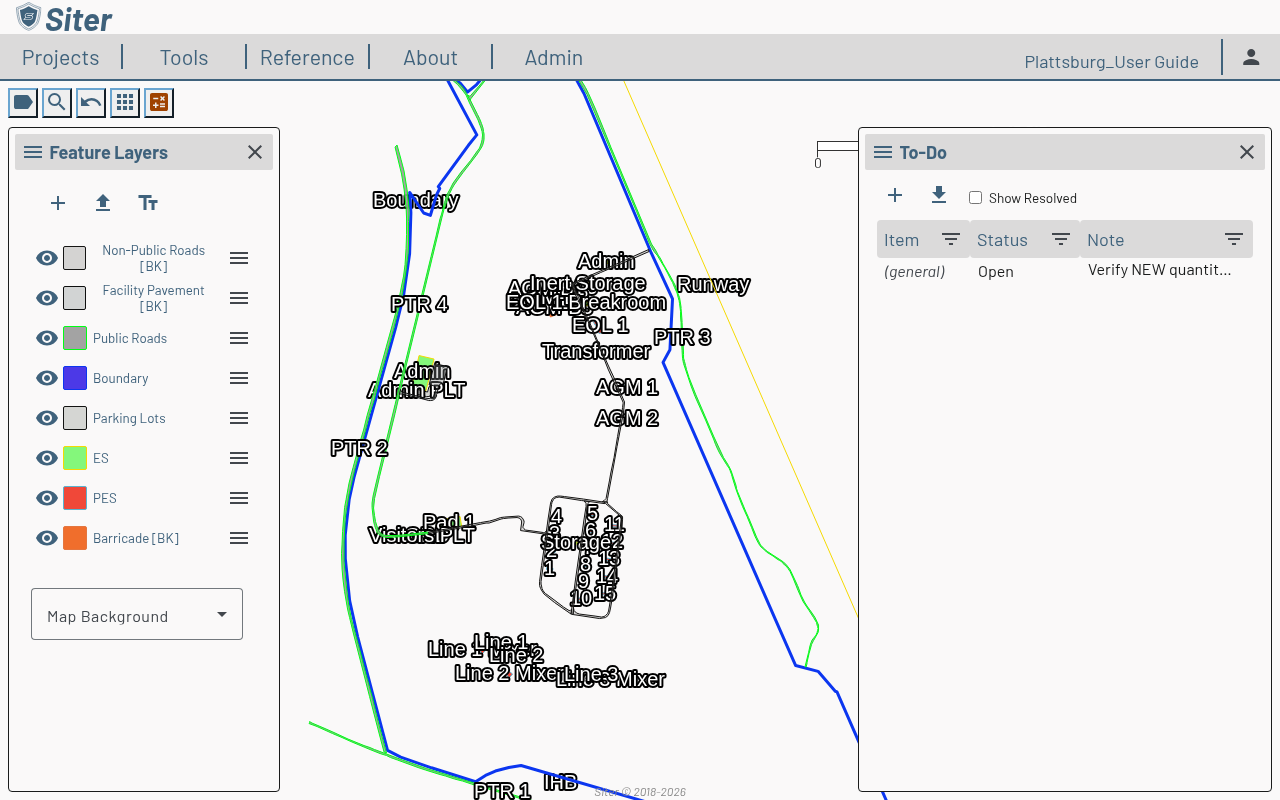
How to create a to-do item
-
Open the To-Do panel
-
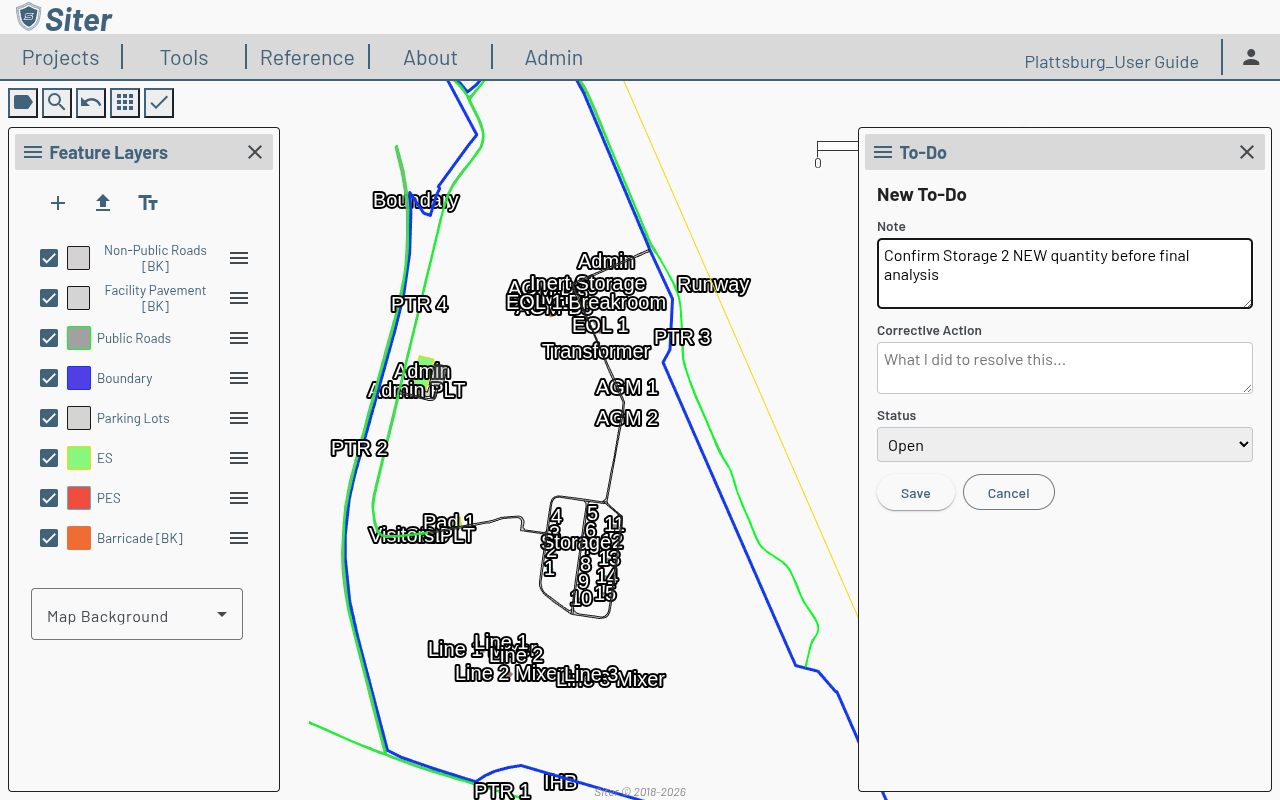
Click the add (+) button
-
Fill in the form:
- Note — a description of the task or issue
- Corrective Action (optional) — what was, or will be, done to resolve it
- Status — Open, In Progress, Awaiting Information, or Resolved
-
Click Save
How to create a to-do from a feature
You can start a to-do directly from a feature so it stays linked to that feature:
-
Open the feature's dashboard (click the feature on the map)
-
Click the Flag for To-Do (flag) icon in the dashboard header
-
The New To-Do form opens with the Feature already filled in — complete the Note, Corrective Action, and Status, then click Save
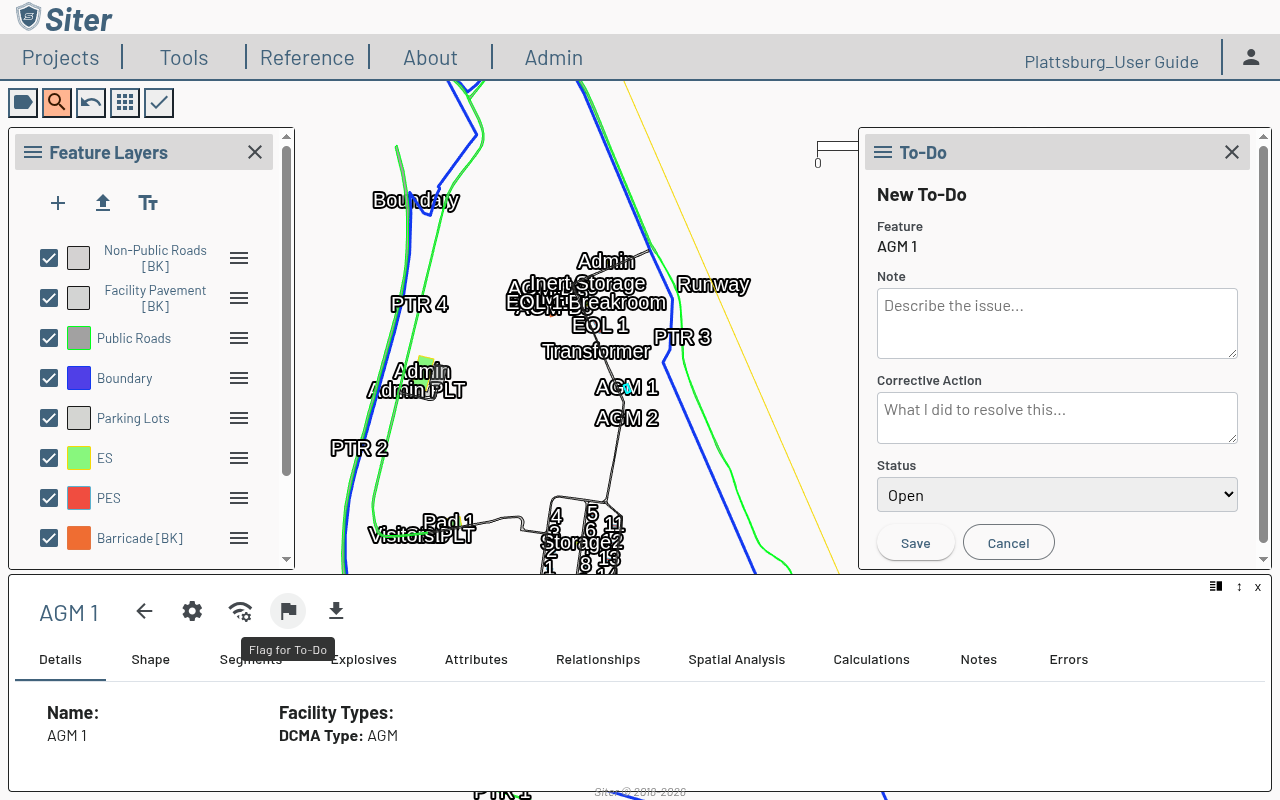
A feature-linked item shows the feature name in the Item column of the To-Do list, instead of (general).
How to update or complete a to-do item
- Open the To-Do panel and click a row to expand it
- Edit the Note, Corrective Action, or Status inline
- Click the save (floppy disk) icon to apply changes, or the restore icon to discard them
- To mark an item complete, set its Status to Resolved
Resolved items are hidden by default. Check Show Resolved at the top of the panel to see them.
How to delete a to-do item
- Open the To-Do panel and click the item to expand it
- Click the delete (trash) icon
- Confirm the deletion
Deleting a feature, or removing its layer, deletes the feature's linked to-do items in this project too. To-do items in other projects are never deleted this way — any that pointed at the feature are kept, unlinked.
How to export the list to CSV
- Open the To-Do panel
- Click the Export displayed items to CSV button (the download icon next to the add button)
Siter downloads a file named to-do-list.csv containing the items currently displayed. The export follows the panel's current filter and sort, so resolved items are included only when Show Resolved is checked.
Each row contains the Item (an unlinked item keeps its facility name), Status, and Note columns plus fields not shown in the list: the Corrective Action and the dates the item was created and completed (in UTC).
The button is disabled while the list is loading or when no items are displayed.
Related topics
- Features — the features you may be tracking tasks for
- Running an analysis — run analysis after completing to-do items
- Projects — to-do items are included in project copy and export