Preferences
The Preferences tab on My Dashboard holds your personal Siter settings: where you land after signing in, the units you type distances in, how the map opens, how close the cursor has to be to snap, and the defaults every new project you create starts with. Siter stores your preferences with your account, so they follow you to any browser or device you sign in from, and they never change what other users see.
Prerequisites
- You must be signed in to Siter
How to change your preferences
- Open My Dashboard — click the account button at the right end of the top navigation bar and select Dashboard
- Click the Preferences tab
- Change a setting on any card. The card shows Unsaved changes and a colored bar along its left edge until you save
- Click the card's Save button. Siter confirms, for example Map Behavior preferences saved.
Each card saves on its own — saving one card does not save changes on another. Each card also has:
- Discard Changes — puts the card back to its last saved values
- Restore Siter Defaults — removes your saved values for that card, so it goes back to Siter's own defaults. Siter asks you to confirm first
If you switch to the Details tab or leave My Dashboard with unsaved changes, Siter asks whether to Save them, Don't Save, or Cancel (stay on the page). Closing or reloading the browser tab with unsaved changes also asks you to confirm.
The cards fall into two groups, and each card's subtitle says which:
| Card | When it applies |
|---|---|
| General, Map Behavior | Right away, for you, everywhere in Siter |
| New Project Defaults, Analysis Symbols, Feature Labels | Only when you create a project — existing projects are not changed |
General
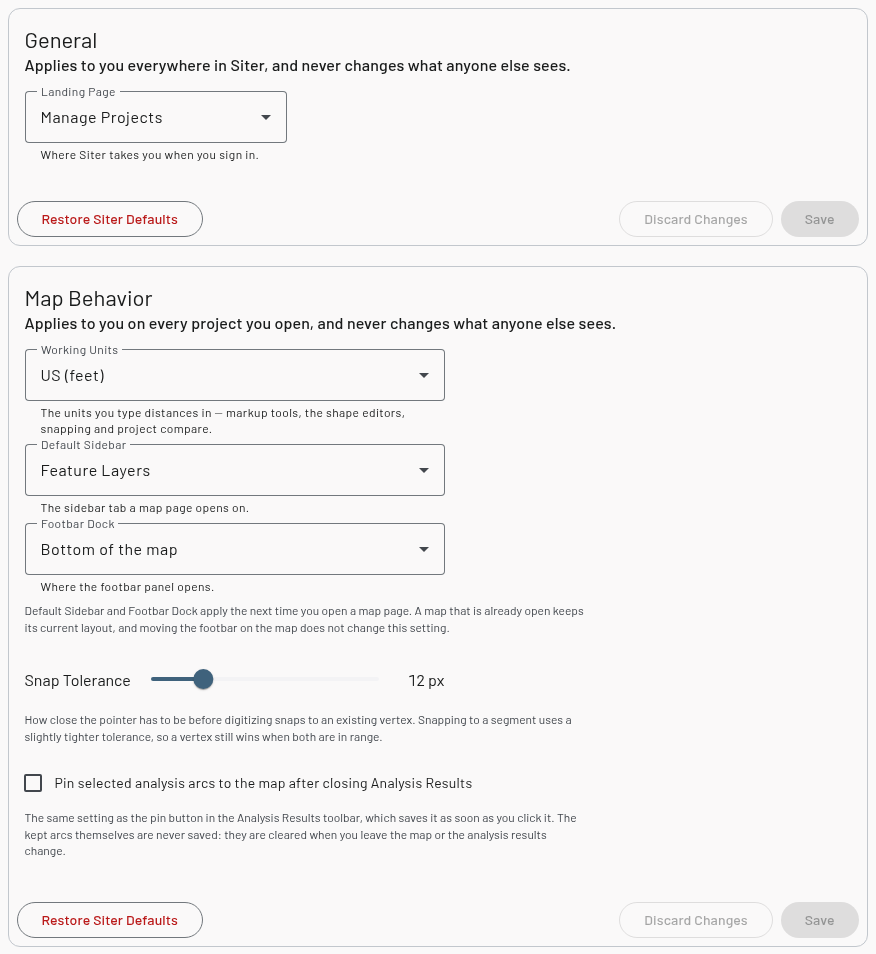
Landing Page sets where Siter takes you when you sign in:
- Manage Projects (the default) — the Project Management page
- My Dashboard — this page
- My Most Recent Project — the map of the project you opened most recently. If you have not opened a project yet, Siter opens the Project Management page instead
If you followed a link to a specific page and were asked to sign in first, Siter takes you to that page instead of your landing page. The landing page applies only when you sign in — clicking the Siter logo or Projects later works as usual.
Map Behavior
These settings apply to you on every project you open.
- Working Units — US (feet) (the default) or SI (metres). The units you type distances in: the markup tools, the feature shape editors, the Digitizer's Length Constraint, and the Compare / Merge tool. A new setting takes effect the next time you start drawing, so a distance you have already typed is never reinterpreted. New projects you create also record these units
- Default Sidebar — the left sidebar a project's map opens on: Feature Layers (the default), Analysis Symbols, Result Sets, Placement Analyses, Markup, or Digitizer
- Footbar Dock — where the footbar opens: Bottom of the map (the default) or Right of the map
- Snap Tolerance — how close, in screen pixels (4–40, default 12), the pointer has to be before digitizing snaps to an existing vertex. Snapping to a segment uses a slightly tighter tolerance, so a vertex still wins when both are in range. A new value takes effect as soon as you save it
- Pin selected analysis arcs to the map after closing Analysis Results — when checked, the arcs checked in Analysis Results stay on the map after you close it (see How to keep analysis arcs on the map). Off by default. This is the same setting as the pin button in the Analysis Results toolbar, which saves it as soon as you click it. The kept arcs themselves are never saved: they are cleared when you leave the map or the analysis results change
Default Sidebar and Footbar Dock apply the next time you open a project's map; a map that is already open keeps its current layout. Moving the footbar on the map with its Dock Right / Dock Bottom button changes only that map, not this setting.
Working Units only affects distances you type while drawing and measuring. Criteria-driven inputs, such as explosive quantities and criteria attributes, are still entered in each criteria's native units: for example, US units (feet, pounds) for DCMA and SI units (metres, kilograms) for NATO. Check which units a criteria expects before entering values, whatever your Working Units are set to.
New Project Defaults
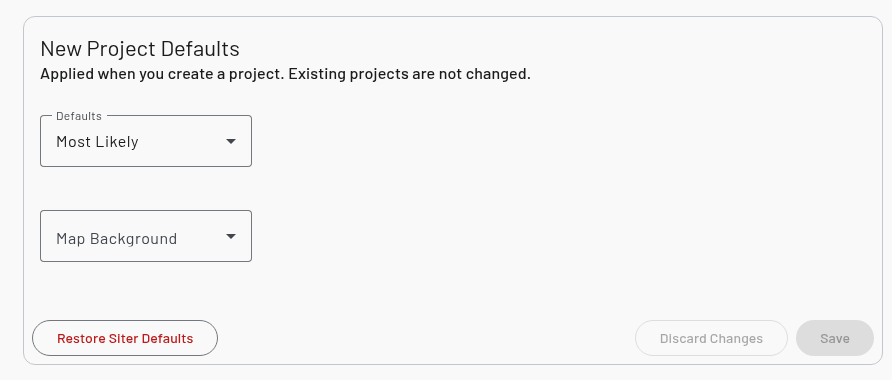
The values the New Project form starts with. You can still change them on the form for any one project.
- Defaults — the Default Attribute Values set: Most Likely (the default) or Conservative
- Map Background — the basemap. Leave it empty ([Siter Default]) to use Siter's own default. Custom imagery sources are not offered here, because they belong to a single project
Analysis Symbols
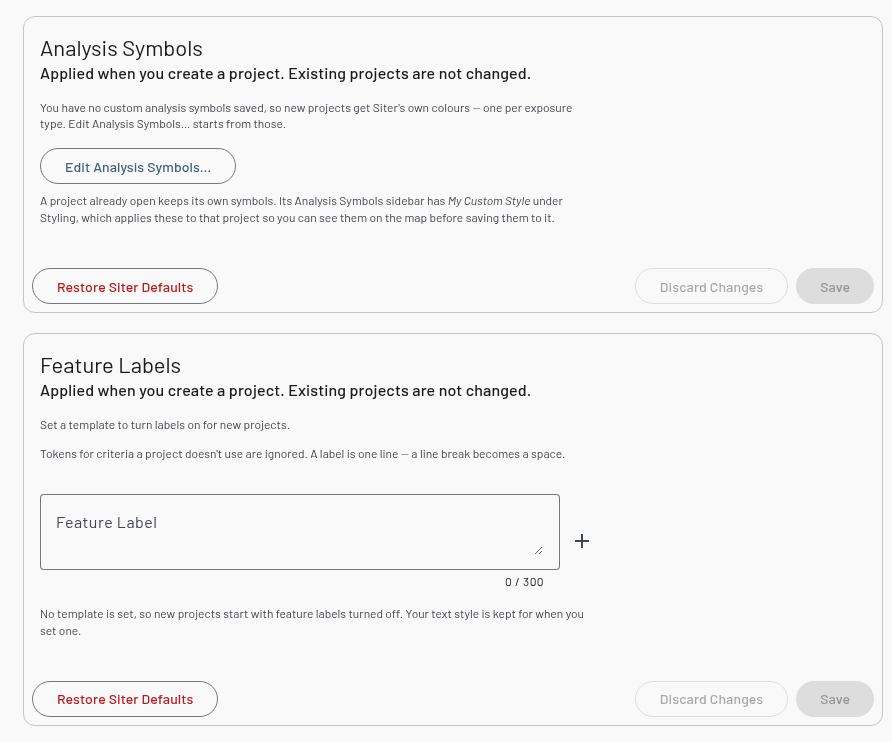
Your saved analysis symbols — called My Custom Style on the map — are the arc, spatial analysis, violation line, and dimension line styles every project you create starts with. The card lists the saved styles with a color swatch for each; with nothing saved, new projects get Siter's own colors, one per exposure type.
To edit them:
-
Click Edit Analysis Symbols…
-
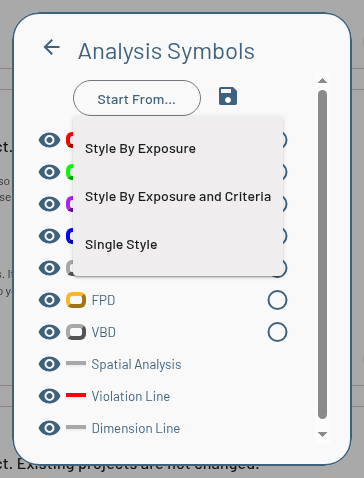
The Analysis Symbols editor opens. It works like the project's Analysis Symbols sidebar: toggle each row's visibility and click a swatch or name to edit its styling. Click Start From… to begin from one of Siter's palettes — Style By Exposure, Style By Exposure and Criteria, or Single Style. Here, Style By Exposure and Criteria lists every criteria Siter knows about, not just one project's, so you can style criteria you have not used yet
-
Click the save (floppy disk) icon in the editor. The editor closes and the card shows Unsaved changes
-
Click the card's Save button
Click Back in the editor to close it without keeping your edits (Siter asks first if you changed anything).
You can also save the symbols from an open project as your custom style, or apply your custom style to a project you already have — see My Custom Style.
Feature Labels
A default feature label template and text style for new projects.
- Enter a Feature Label template (up to 300 characters) and set its text style. Every project you create from then on starts with feature labels turned on, using that template and style
- Leave the template empty and new projects start with labels turned off. Your text style is kept for when you set a template
- Automatic label placement (shown with the text style once a template is set) — new projects start with overlapping labels moved to nearby free space. On by default; installing v0.32 also turned it on in a style you had already saved here. See How automatic label placement works
Click the + (Insert variable) button beside the template to add a token. The menu lists every criteria Siter knows about, because you may create projects with any of them; tokens for criteria a new project does not use are ignored. A label is one line — a line break in the template becomes a space.
A project that already exists keeps its own labels; change those from its Feature Layers sidebar.
{description} for the Facility Description{description} shows the printed Facility Description, and {notes} shows the internal Notes. Before v0.30, {notes} showed the description, and the v0.30 upgrade does not rewrite a default template saved here. If new projects' labels come out blank or show the wrong text, replace {notes} with {description} in this template and click Save.
Remembered automatically
The Project Management page remembers how you last grouped, sorted, and filtered it (Group by, Sort by and its direction, and Show Archived). This is stored with your preferences, so it follows you between devices too, but it has no card — change it on the Project Management page itself.
Troubleshooting
A card says your preferences could not be loaded
Cause: Siter could not reach the server when it opened the tab. The card shows Siter's defaults, and saving and restoring are turned off until your own values load.
Solution: Click Retry on the card.
A card says it was changed in another window
Cause: You saved the same card in another browser tab or on another device while this one had unsaved changes.
Solution: Click Reload to take the other window's values, or click Save to keep the values on this page.
A new project did not pick up my preferences
Cause: New-project preferences are copied into a project only when you create it. Projects that existed before you saved the preference are not changed.
Solution: Change the existing project directly — its criteria and defaults from its settings, its symbols from the Analysis Symbols sidebar (Styling > My Custom Style), and its labels from the Feature Layers sidebar.
Related topics
- My Dashboard — your account details
- Projects — creating a project with your defaults
- Analysis symbology — styling a project's analysis symbols, including My Custom Style
- Feature labels — label templates and tokens
- Digitizer — snapping while you draw